In brief
- In Gemini Enterprise Agent Platform, an existing image can be used as the opening frame of a generated video.
- Supported models include gemini-omni-1.2-flash, gemini-omni-1.1-flash-preview, and three Veo 3.1 models.
- Video duration can be set to 3–15 seconds with Gemini Omni 1.2 Flash; the range is 3–10 seconds for preview models.
- Using the API requires a Google Cloud project and the Agent Platform API to be enabled.
What will you learn in this guide?
We’ll walk through how to use an image as the opening frame when turning an architectural still into a moving presentation, and the components you can use to build your prompt. The examples focus on planning short camera moves for interior, façade, and landscape images. The sample prompts were written specifically for this guide using prompt components described in Google Cloud documentation; they are not commands that guarantee a particular output.
According to Google Cloud guides, Gemini Omni or Veo can use an existing image as a video’s opening frame through Gemini Enterprise Agent Platform. You can do this in Media Studio or with the video generation API. When writing a prompt, considering the subject, action, setting and time, camera angle, and camera movement separately can help make the scene clearer.
Requirements: account, project, and model selection
First, sign in with a Google Cloud account and select or create a project. For the API workflow, the Agent Platform API must be enabled in the project. Creating a project requires the Project Creator role; enabling the API requires the serviceusage.services.enable permission. If you don’t have the required access, ask your project administrator for the role or permission.
No additional authentication setup is required when using the Google Cloud console. To run REST examples in a local development environment, you’ll need to install the Google Cloud CLI and authenticate. The guides do not specify a required version of desktop design software.
The models listed as supporting image-to-video generation are:
Gemini Omni:
gemini-omni-1.2-flashand the preview modelgemini-omni-1.1-flash-preview.Veo: the preview models
veo-3.1-lite-generate-001,veo-3.1-generate-001, andveo-3.1-fast-generate-001.
The duration, resolution, and API parameter options below are specified in Gemini Omni documentation; they should not be assumed to apply automatically to Veo models. The duration can be set to 3–15 seconds for gemini-omni-1.2-flash and 3–10 seconds for preview models. Resolutions of 360p, 720p, 1080p, and 4K are listed for gemini-omni-1.2-flash and gemini-omni-1.1-flash-preview. The separate model gemini-omni-flash-preview supports only 720p. If no resolution is specified, the default is 720p. The aspect ratio is optional in the API; the source lists 16:9 and 9:16 as accepted values.
Step by step: create an architectural video from an opening frame
Choose the starting image. Since the image will be the video’s opening frame, consider a direction that gives the movement a purpose. For example, an interior perspective might have a clear line of sight for the camera to move along; a façade image might offer space for a horizontal pan. This is not a requirement to change the design file—it’s a preparation step for planning the prompt and movement.
Describe the scene and subject. The source guide recommends explaining what the video shows and where and when the scene takes place. The first example highlights light and subtle environmental movement in an interior image:
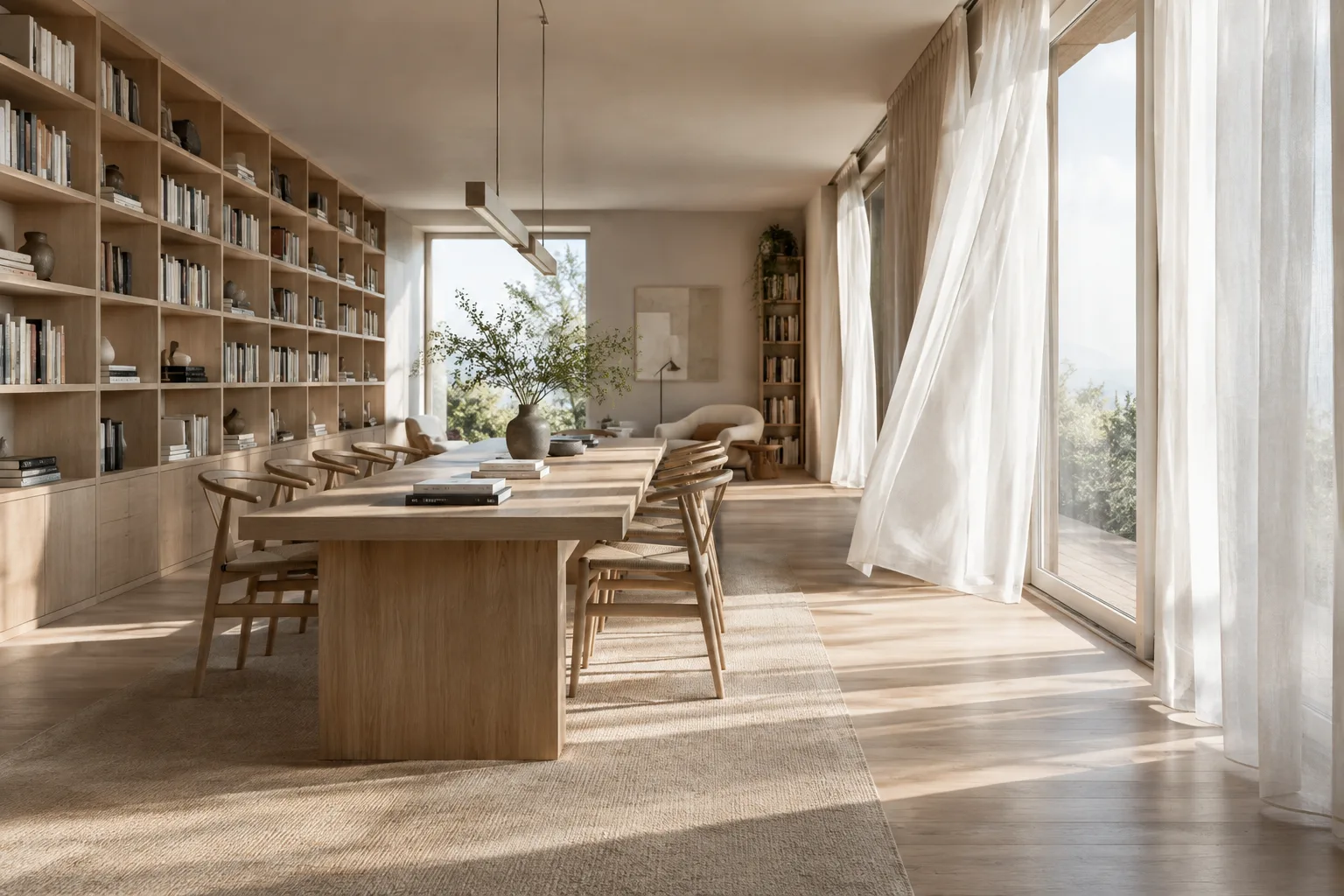
Use the provided architectural image as the first frame. A quiet contemporary reading room with pale oak joinery, a long shared table and soft morning light. Keep the camera static; sunlight shifts subtly across the floor while sheer curtains move gently in a light breeze. Calm, realistic architectural visualization.The space, materials, light, and movement are described separately. For a first attempt, keeping the camera static can help you focus on describing only light or curtain movement in the scene.
Try a single camera move. Google Cloud’s prompt guide describes camera movements such as pan, tilt, and dolly. In the second example, the camera slowly moves forward to show the depth of the space:
Use the provided image as the first frame of a short architectural video. A warm contemporary apartment living room at golden hour, with natural stone, timber and linen textures. Slow dolly in toward the seating area; keep the room calm and the lighting soft and consistent.The scene and lighting description is paired with one camera move. The source warns that results and reliability can vary with some advanced camera angles. For that reason, starting with a clear composition and simple movement can make the output easier to evaluate.
Keep movement constrained in exterior scenes. For a landscape or façade video, you can prompt for an action such as wind, moving leaves, or drifting clouds. The third example keeps the façade as the main subject and describes a horizontal camera move with limited environmental motion:
Use the provided architectural exterior image as the first frame. A contemporary low-rise building beside a planted courtyard on an overcast afternoon. Slow pan left across the façade; ornamental grasses move gently in the breeze, while the building remains the clear focus.The prompt has one main subject and a single camera move. Before using the output in a project presentation, review whether the design decisions and visual consistency have been preserved. The sources do not state that the generated video guarantees design accuracy.
Choose how to generate the video and set the output options. You can use Media Studio or the API. In the API example, the image is sent along with the text prompt, and the
image_to_videotask is specified. The Gemini Omni API lets you choose the duration and resolution; according to the guide, if no aspect ratio is specified, it can be inferred from the prompt.
Video generation may take more than a minute. For large or high-resolution outputs, delivery via a Cloud Storage URI is available; this option requires a gcs_uri. If URI delivery is selected and this field is omitted, an error is returned. According to the guide, interactions are retained for up to 7 days if they are stored or run in the background.
Common mistakes
Adding too many instructions to the prompt: Multiple camera moves, atmospheric details, and actions can obscure the scene’s priorities. Start by defining the subject, setting, and one movement, then evaluate the result.
Leaving the camera direction vague: Instead of general phrases like “cinematic movement,” choose a movement described in the guide, such as a static shot, pan, or dolly. Advanced camera angles may not produce the same result in every case.
Confusing duration and resolution options across models: The 3–15-second range is documented for
gemini-omni-1.2-flash; the 3–10-second range is for preview models. Check the model names carefully when reviewing resolution options, too:gemini-omni-flash-previewsupports only 720p.Forgetting the API delivery field: If the video is delivered as a
uri, you must also specifygcs_uri. The guide recommends URI delivery for large or high-resolution videos.Presenting the output without checking it: Image-to-video generation is not described as a way to verify the technical accuracy of an architectural design. Before adding the result to a presentation, review the visual consistency of the lighting, movement, and design.
Use in architecture and archviz workflows
This approach may be useful for architecture firms, interior designers, and archviz artists who want to create a short moving narrative from an existing still. Since a project image can be used as the opening frame, the goal is less about starting a new modeling workflow and more about adding movement to a static presentation frame. However, the resulting video is no substitute for technical verification, construction drawings, or design review.
Before trying it, firms and students should check their Google Cloud account, project permissions, and, if using the API, authentication requirements. It’s also important to confirm the duration and resolution options for the chosen model. The sources provide no pricing information, so no firm conclusions can be drawn about production costs. They do note that API calls support organizing requests with labels and tracking billing costs. Since generation may take more than a minute, it can also be helpful to allow time for testing and reviewing the output in your delivery schedule.
Next steps
Start with a single image and a short prompt. In subsequent generations, change only one component—for example, the camera movement or lighting conditions—so you can compare the results. This makes it easier to assess how a prompt change affects the output. When building a prompt, use the categories of subject, action, context, camera angle, and camera movement; you don’t have to use every component in every prompt.
The video generation guide also mentions safety filters for Gemini Omni Flash and Veo. These filters are applied to block inappropriate content. Review the generated video for content and visual consistency before including it in a project presentation.
Sources and license
This guide is adapted from Google Cloud’s “Video generation prompt guide” and “Generate videos from an image.” Both sources are published under the CC BY 4.0 license; their content has been translated into Turkish and adapted for the context of generating videos from architectural images. The sample prompts in this article were written specifically for this guide.
Sources
2 sourcesSource texts are not republished; short quotes are marked, everything else is our own summary and commentary.
For architecture and visualization teams, this approach offers a way to turn an existing presentation still into a short moving narrative. It may be worth trying for anyone who wants to present a design idea more fluidly in a meeting or student presentation; however, video is no substitute for technical verification or construction drawings.
For offices in Turkey, Google Cloud account access, project permissions, and authentication requirements for API use should be clarified before making a decision. Since the sources do not provide pricing, don’t assume a cost; also account for the fact that generation may take more than a minute and that the output needs to be reviewed.
Frequently asked questions
Which models support video generation from architectural images?
The Google Cloud guide lists Gemini Omni 1.2 Flash, Gemini Omni 1.1 Flash Preview, and Veo 3.1 Lite, Veo 3.1, and Veo 3.1 Fast.
How long can a video generated with Gemini Omni be?
According to the documentation, the duration can be set to 3–15 seconds for Gemini Omni 1.2 Flash and 3–10 seconds for preview models.
Do you need the Google Cloud API to generate video from an image?
You can use an image as the opening frame in Media Studio or through the video generation API. The API workflow requires a Google Cloud project, the Agent Platform API to be enabled, and appropriate authentication.