In brief
- Gemini Omni Flash is described as a model for generating short videos from text and images and editing results over multiple turns.
- Veo 3.1 supports native audio, scene extension, end-frame control, and frame-specific generation.
- Google’s prompting guide recommends using clear instructions, constraints, and examples to define the desired format.
- The sources do not specify account requirements, pricing, or hardware requirements.
What will you learn in this guide?
An architectural video prompt is more than simply asking for “a video of a modern interior.” Clearly describing the scene, which visual elements should remain unchanged, and what kind of output you expect makes the request easier to understand. Google’s prompt design guide also lists clear, specific instructions, output constraints, and examples of the desired format among its core strategies.
This guide explains how to break down a prompt for an architectural scene, distinguish between the use cases for Gemini Omni Flash and Veo 3.1 described in the sources, and improve results step by step. The sample prompts were written specifically for architectural and interior design workflows; as the sources do not include ready-made architectural prompts, these examples are not quotations from them.
Requirements and model selection
This workflow is based on the video generation models available through the Gemini API. The sources do not list any specific desktop software or hardware requirements, nor do they provide information about required user accounts, pricing, or access conditions. Before getting started, check API access and the terms of use for your chosen model separately. The sources also do not specify an application version or minimum hardware requirements.
When choosing a model, first consider how you want to generate and edit the video:
Gemini Omni Flash: Google describes it as a fast, multimodal model for generating short videos from text and images and editing them over multiple turns. According to the source, it can process text, image, audio, and video inputs together; multi-turn editing is done through the Gemini API’s Interactions API.
Veo 3.1: It offers native audio video generation, as well as scene extension, frame-specific generation, and image guidance. The source points to the generateContent API for this model.
Google’s guide recommends Omni Flash as the default option for general video generation. However, Veo 3.1’s relevant features may be a better fit when you need scene extension, end-frame control, or integration with older workflows. This distinction does not mean both models will produce the same result for every task.
Step-by-step: writing an architectural prompt
1. Describe the scene in one sentence. Start by naming the subject and space, such as a residential entrance, gallery void, kitchen, or facade. Then add the main materials and lighting conditions. Apply the source guide’s recommendation to use clear, specific instructions by describing observable features rather than filling the prompt with vague adjectives.
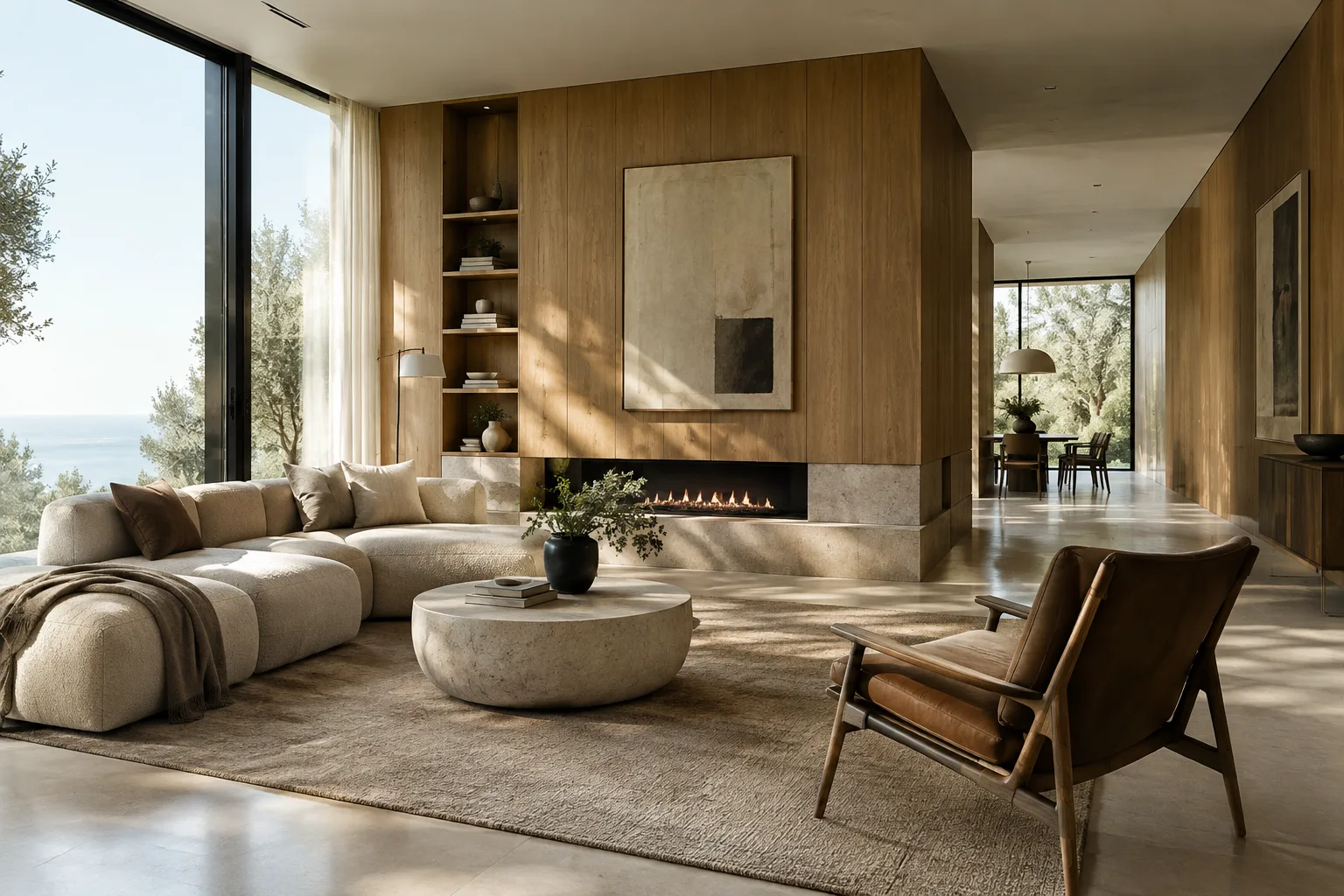
A contemporary residential entrance hall with a pale stone floor, warm oak wall panels, and a full-height window. Soft daylight enters from the left. Create a short architectural video that clearly shows the space and its material palette.This example describes the space, materials, and direction of the light separately. Instead of subjective phrases like “beautiful and impressive,” it specifies the elements that should be visible. As the sources do not explain parameters such as duration or aspect ratio, no such values have been added to the example.
2. If you have an image input, explain what it should guide. Gemini Omni Flash supports video generation from text and images; Veo 3.1 also supports image guidance. When using an image, explaining in the prompt which aspects of the space or material choices it represents can make the instruction clearer. The sources do not specify a particular file format or image-upload procedure, so those are not covered here.
Use the supplied interior image as the visual reference for the room layout and finishes. Create a short video of the same interior, keeping the pale stone floor, oak cabinetry, and window arrangement visually consistent.Here, the image is described as a reference for the room layout and finishes. There is no guarantee that every detail of the image will be preserved exactly, so review the result and guide it with a new instruction if necessary.
3. Limit the requested change. When editing an image or video, state separately what should change and what should stay the same. According to the source, Omni Flash supports multi-turn conversational editing, including edits such as replacing an object or changing perspective. This feature may suit visualization teams that want to try out design decisions progressively.
Keep the room layout, floor, cabinetry, and window unchanged. Replace only the pendant light with a simple sculptural fixture, and retain the existing daylight mood.This example limits the change to a single lighting fixture and explicitly lists the elements to preserve. If other elements change in the result, clearly state in the next turn which parts are correct and which single element needs another pass.
4. Consider Veo 3.1 when you need a specific frame or scene transition. The source lists frame-specific generation, end-frame control, and scene extension as features of this model. The source text does not explain the scope of these controls or the exact API parameters; this guide only notes that the features are available.
Extend the architectural walkthrough from the current scene into the adjacent dining area. Preserve the established interior material palette and continue the visual direction of the existing sequence.This prompt requests a continuation from the previous scene into the adjacent dining area. If you need scene extension, you can explore the relevant Veo 3.1 workflow. The prompt alone does not replace a technical parameter that enables a specific frame control.
5. Review the output and target the next turn. Rather than treating the first result as final, identify one thing to change, such as the material, room layout, or perspective. Google’s guide treats prompt design as an iterative process and recommends testing and refining instructions and examples to suit the task.
In the previous result, keep the room layout and window unchanged. Make the oak wall panels lighter in appearance, while retaining the same daylight direction and overall interior composition.This turn focuses on a single visual change to the previous result. When working with Omni Flash’s multi-turn editing approach, narrow the instruction to make evaluation easier rather than requesting many unrelated changes in each turn.
Common mistakes
Giving a vague objective: “Make it a better render” does not explain what should change. Describe the requested change in concrete terms, such as materials, lighting, or room layout.
Not specifying what to preserve: In an editing request, also list the elements that should remain unchanged. This makes the scope clearer, though you should still check whether the result respects those constraints.
Packing too many tasks into one prompt: Unrelated requests can make the result harder to evaluate. Break the work into stages and review what changed in each turn.
Confusing model capabilities: Omni Flash’s conversational, multi-turn editing workflow is associated with the Interactions API, while Veo 3.1’s generation features described in the source are associated with the generateContent API. Match the API to the model’s documentation.
Assuming technical details not covered by the sources: These guides do not specify pricing, duration limits, output resolution, account requirements, or particular hardware. Do not assume these details when planning a production workflow.
Impact on architecture and visualization workflows
For architecture firms, interior designers, and students, these models offer ways to generate video from text or image inputs and iteratively describe a design direction. Omni Flash’s multi-turn editing approach can be explored for testing specific visual decisions in a scene. Veo 3.1 may be worth considering when you need features mentioned in the source, such as scene extension, end-frame control, or native audio.
This does not mean model output can replace technical drawings or approved project documents. Check that generated videos are consistent with the design decisions and suitable for team presentations. Firms should also verify API access and licensing terms, while students should confirm access and any potential costs before getting started. As the sources do not explain pricing or hardware requirements, no definite conclusions can be drawn here about purchasing decisions or workstation needs.
Next steps
Start by choosing a single space and a single visual objective. Write a short, clear prompt; after reviewing the result, provide a new instruction that specifies what to preserve and what to change. If you switch models or APIs, check that the feature you need is documented for that model. Google’s prompt guide notes that natural-language instructions may have limitations when more complex output formats are required, and recommends considering structured output for complex JSON outputs. This is a separate use case from video prompting.
Sources and license
This guide was adapted into Turkish using Google’s Gemini API video generation guide and prompt design strategies guide. Both sources are available under the CC BY 4.0 license. The architectural sample prompts were written specifically for this guide, as the sources do not provide ready-made examples.
Sources
2 sourcesSource texts are not republished; short quotes are marked, everything else is our own summary and commentary.
For architecture firms and visualization professionals, the most practical takeaway is to treat video generation not as a one-off command but as a controlled design exercise. Gemini Omni Flash’s multi-turn editing approach makes sense for this kind of iteration; Veo 3.1 can be considered when you need features such as scene extension or end-frame control.
Teams in Turkey should separately verify API access, licensing, and pricing conditions before making a decision. The sources do not explain pricing, hardware, or account requirements, so it is not possible to make a definitive judgment about whether existing workstations will be sufficient or what the budget impact will be. The generated video should also be checked before delivery to confirm that it accurately reflects the design decisions.
Frequently asked questions
What does Gemini Omni Flash offer for architectural video generation?
Gemini Omni Flash is described as a model for generating short videos from text and images. Google also says it supports multi-turn conversational editing through the Interactions API.
What is the difference between Veo 3.1 and Gemini Omni Flash?
Omni Flash is presented for short video generation and multi-turn editing. Veo 3.1 supports native audio, scene extension, frame-specific generation, and image guidance.
What hardware or fees are required for these models?
The sources used do not specify hardware requirements, pricing, or account conditions. Check the current access and usage terms for the Gemini API separately.