In brief
- Runway Gen-4 References allows up to three reference images to be used in a single generation.
- In Gen-4 Image, an image costs 8 credits at 1080p resolution and 5 credits at 720p, with a maximum prompt length of 1000 characters.
- In the Designing Interiors use case, furniture references can be added to a room photo to recompose the scene.
- Bounding box drawings and simple labels can guide details like composition and viewing direction without writing extra prompt text.
This guide explains how to use Runway's Gen-4 Image and Gen-4 References tools to visualize different furniture and upholstery alternatives through a single interior photo. The "Designing Interiors" use case featured in Runway's official documentation focuses on producing realistic and consistent compositions by adding furniture references to a single room image.
What you'll learn
By following this article, you'll learn how to use an interior photo as a reference, add separate furniture or object images to it, guide the composition with bounding box annotations, and refine results with text prompts.
Requirements
A Runway account with sufficient credit balance (Gen-4 Image costs 8 credits per image at 1080p resolution, 5 credits at 720p)
Tool mode from the left menu, Image tab at the top
Gen-4 Image or Gen-4 Image Turbo selected from the model dropdown
The relevant icon in the generation panel enabled to turn on the References feature
A naturally and evenly lit room photo to use as a reference, plus separate furniture/object images
Step-by-step process
1. Upload the interior reference
First, drag a clear, well-lit photo of the room you want to design into the References panel. This image will form the foundation of the entire composition, and the new furniture will be integrated into this scene.
2. Add furniture images as separate references
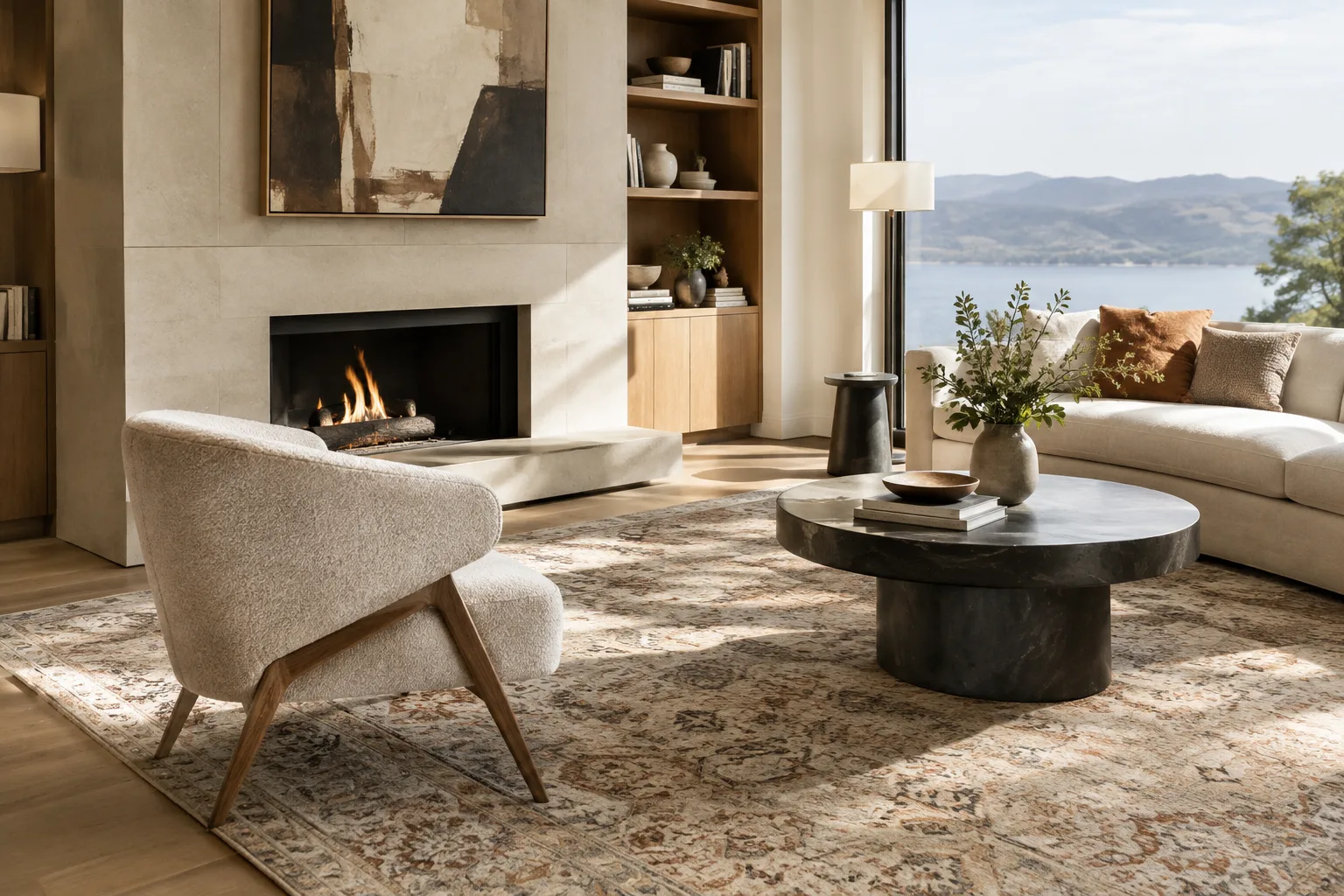
Since a maximum of three references can be used in one generation, upload images of objects like the armchair, table, or rug you want to add alongside the room photo as separate references. Then describe both the room and the objects within the same prompt:
generate a realistic photograph of the living room from [img_1] with the armchair from [img_2] and the coffee table from [img_3]. keep the original wall color and natural daylight. add a patterned area rug beneath the furnitureThis prompt aims to place the new furniture into the scene while preserving the atmosphere of the room photo. Clearly specifying old furniture you want removed beforehand improves the result.
3. Clean up the background of furniture images
If your object photos have a cluttered background, first use these images alone as a reference to simplify the background:
remove the background from this armchair image and place it in front of a solid white background, keep the lighting and shadows realisticObject images with a clean background give more consistent results when integrated into the room in the next step.
4. Guide the composition with a bounding box
To clarify where in the room a specific piece of furniture should go, draw a simple rectangle on the room photo and add a short label next to it, for example writing "sofa" by the window. This annotated image can be used without any additional text prompt; however, adding a short description to clarify style and material detail is helpful:
place a modern linen sofa inside the marked rectangle, matching the wood tones and daylight already present in the room5. Make major changes with a text prompt
If the first result isn't as dramatic as you expected, try again by adding more detail and bolder descriptions to the prompt. For example, describing wall color, material texture, and light temperature more explicitly can substantially change the outcome.
Common mistakes
Uploading reference objects with complex backgrounds that obscure the original surface or patterns; this can cause the model to confuse the object with the background.
Requesting too many changes at once in the same prompt; starting simple and adding detail gradually gives more predictable results.
Writing prompts longer than the 1000-character limit; prompt length in Gen-4 Image is restricted to this limit.
Trying to exceed the reference limit (maximum three); for more, separate iterations should be used, saving previous outputs as new references.
What this means for architecture and interior architecture workflows
This technique offers a practical interim solution for interior designers and architecture firms wanting to prepare quick concept presentations from a site photo. Being able to show clients multiple furniture and upholstery alternatives photorealistically, without physically moving furniture or doing 3D modeling, can speed up the presentation process. However, the outputs don't replace technical drawing or rendering software in terms of scale, perspective, and material accuracy, making them more suitable for early-stage idea presentations or marketing visuals. Due to credit-based pricing, projects requiring many iterations need cost planning.
Next steps
You can try uploading the interior image you created to Runway's video tools to add camera movement, or repeat the same technique with different style references (for example, a different brand or period aesthetic) to multiply design alternatives.
Source and license
This guide has been adapted into English from the "Advanced References Use Cases," "Creating with Gen-4 Image References," and "Creating with Gen-4 Image" guides published in Runway's official help center; the sample prompts have been rewritten specifically for the architecture/interior scenario based on the techniques described in these guides.
Sources
3 sourcesSource texts are not republished; short quotes are marked, everything else is our own summary and commentary.
Runway's Gen-4 References tool offers a practical option for quick concept presentations, especially for small interior architecture firms and students. Without setting up a physical scene or doing detailed 3D modeling, it's possible to quickly try different furniture and upholstery combinations from a single room photo, which can facilitate idea sharing with clients at an early design stage.
However, credit-based pricing and the fact that outputs, while photorealistic, carry no guarantee of technical accuracy means this tool should be limited to early-stage ideas and marketing visual production rather than final presentations or implementation projects. Since offices in Turkey face an additional subscription cost, credit consumption should be calculated in advance if heavy use is planned.
Frequently asked questions
How many reference images can be used in Runway Gen-4 References?
Up to three reference images can be used in a single generation.
What does it cost to generate an image in Gen-4 Image?
An image costs 8 credits at 1080p resolution and 5 credits at 720p resolution.
Which Runway use case is suitable for interior design?
The 'Designing Interiors' use case in Runway's official documentation shows how to create realistic compositions by adding furniture references to a room photo.