In brief
- A phase filter controls how elements appear in a view according to whether they are new, existing, demolished, or temporary.
- Revit’s defaults include filters such as Show New, Show Complete, and Show Demo + New.
- Each view has a phase and can show one or more phases of the construction process.
- With the Show All filter, existing, demolished, and temporary elements use phase graphic overrides.
Autodesk’s Revit 2026 documentation describes phase filters as rules that control how elements appear in a view according to their phase status. Filters determine how new, existing, demolished, and temporary elements are handled in a view. When preparing drawings that communicate different project states during renovation or phased construction, you need to choose an appropriate filter alongside the view’s phase. This guide is based on the default filters and phase statuses described in Autodesk’s official help.
1. Distinguish phase statuses before choosing a filter
In Revit documentation, “New” means that an element was created in the phase assigned to the view. “Existing” describes an element created in a previous phase that remains in the current phase. “Demolished” refers to an element created in a previous phase and demolished in the current phase. “Temporary” describes an element created and demolished in the same phase.
These statuses describe where the same element sits in the project timeline. So you need to consider both the stage represented by the view and the phase status of its elements. Filters organize the display according to these statuses; they do not change what the statuses mean.
Every view has a phase. Autodesk notes that a view can show one or more phases of the construction process. A working plan may have a different presentation purpose from a view of the completed project. Start by deciding which stage the drawing should communicate, then consider the element statuses and the filter to use.
2. Choose a default filter based on the view’s purpose
Revit’s default phase filters emphasize different statuses. The table below summarizes each option according to its definition in the official documentation. The “Suggested value” column is not a general Autodesk recommendation; it is a practical match between the view’s purpose and the filter.
| Setting | Suggested value | Effect |
|---|---|---|
| Show the completed project state | Show Complete | Shows the state after demolition and new work in the current phase are complete. |
| Show demolition and new construction together | Show Demo + New | Shows demolished elements and new elements added to the building. |
| Show only new elements | Show New | Shows new elements added to the building. |
| Show existing and demolished elements | Show Previous + Demo | Shows existing elements and demolished elements together. |
| Show retained original elements alongside new work | Show Previous + New | Shows original elements that have not been demolished, along with newly added elements. |
| Display without applying a phase filter | None | Shows elements from all phases in the view. |
| Show different statuses together | Show All | Shows new elements using category graphics settings, and existing, demolished, and temporary elements using phase graphic overrides. |
| Show the previous phase | Show Previous Phase | Shows all elements in the previous phase; shows no elements in the project’s first phase. |
Match your selection to the drawing’s purpose. For example, use Show New in a view focused only on newly added elements; use Show Demo + New when demolition and new construction need to be read together. Show Previous + New is another documented default for presenting the previous state alongside new work.
The None option does not mean an empty view or a view without phases. Without a phase filter, the view shows elements from all phases. Show Previous Phase may return no results at the start of a project: according to Autodesk, there is no previous phase in the first phase, so the filter shows no elements.
3. Consider visibility and graphic display separately
Which element statuses a phase filter shows and how those statuses are represented graphically are separate considerations. Autodesk’s Revit 2026 help states that, with the Show All filter, new elements use their category graphics settings, while existing, demolished, and temporary elements use the Graphic Overrides settings for phases.
The documentation gives the path to phase graphic overrides as Manage tab › Phasing panel › Phases › Graphic Overrides tab. You can use these settings to control the graphic representation of phase statuses in a view. Even when the filter makes the intended statuses visible, check separately whether the graphic distinctions in the drawing are clear.
This distinction matters in particular when presenting multiple statuses in the same view. Show All handles new, existing, demolished, and temporary elements under one filter, but the rules used to display them graphically differ. After choosing a filter, check how the phase statuses are represented in the view as well.
4. Validate the view step by step
Determine what stage the view represents. Decide whether the drawing should show the current state, demolition and new work, or the completed project. This makes it easier to select the appropriate default filter.
Review the view’s phase and the element statuses together. Assess model elements using the definitions of new, existing, demolished, and temporary. The view’s phase is important for understanding the scope of the filter.
Choose a filter that matches the purpose. Consider Show New for new elements only, Show Demo + New for demolished and new elements, and Show Complete for the completed project state.
Check the graphic settings. When using Show All, remember that existing, demolished, and temporary elements are displayed using phase graphic overrides. If needed, review the Graphic Overrides tab mentioned in the documentation.
Compare the result with the drawing’s purpose. Check whether the groups of elements shown communicate the intended project stage. If Show Previous Phase is selected, also check whether the view is in the first phase.
Common mistakes
Choosing a filter by name without considering the view’s purpose: Default filters include different groups of elements, so choose according to the stage the drawing should communicate.
Interpreting Show Demo + New as showing elements that will be demolished in the future: The documentation defines this filter as showing demolished elements and newly added elements.
Assuming None is a filter that hides elements: None removes the phase filter from the view and shows elements from all phases.
Expecting elements from a previous phase in the first phase: Show Previous Phase shows no elements in the first phase.
Confusing the phase filter with the graphic display: Phase graphic overrides also need to be considered, especially with Show All.
Sources
2 sourcesSource texts are not republished; short quotes are marked, everything else is our own summary and commentary.
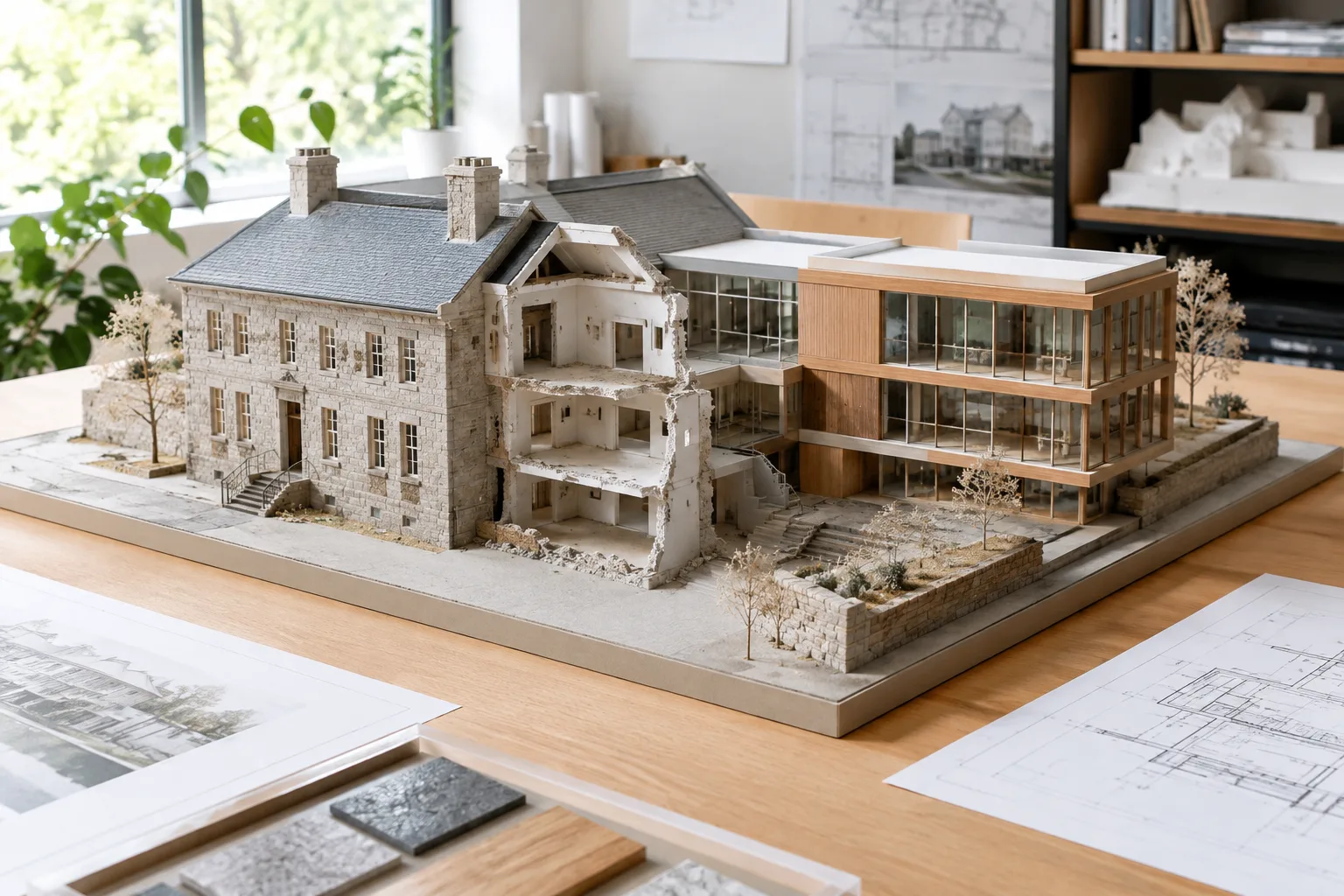
For renovation and redevelopment projects in Turkey, phase filters can make it easier to create views that communicate different construction stages from the same model. In drawings where the existing state, demolition, and new construction need to be read separately, defining the view’s purpose and filter choice upfront makes sheet reviews more systematic.
The key for offices is not to memorize filter names, but to check the view’s phase, element statuses, and graphic display together. The sources in this guide do not address decisions about hardware or licensing costs. It is therefore more useful to assess the practical value of phase filters in terms of existing project standards and drawing requirements.
Frequently asked questions
What does the Show Demo + New filter show in Revit?
It shows demolished elements and new elements added to the building. It is one of Revit’s default phase filters.
What does the Show Complete filter do in Revit?
It shows the project state after demolition and new work in the current phase are complete.
Why might Show Previous Phase show no elements in Revit?
If the view is in the project’s first phase, there is no previous phase. According to Autodesk documentation, the filter shows no elements in this case.