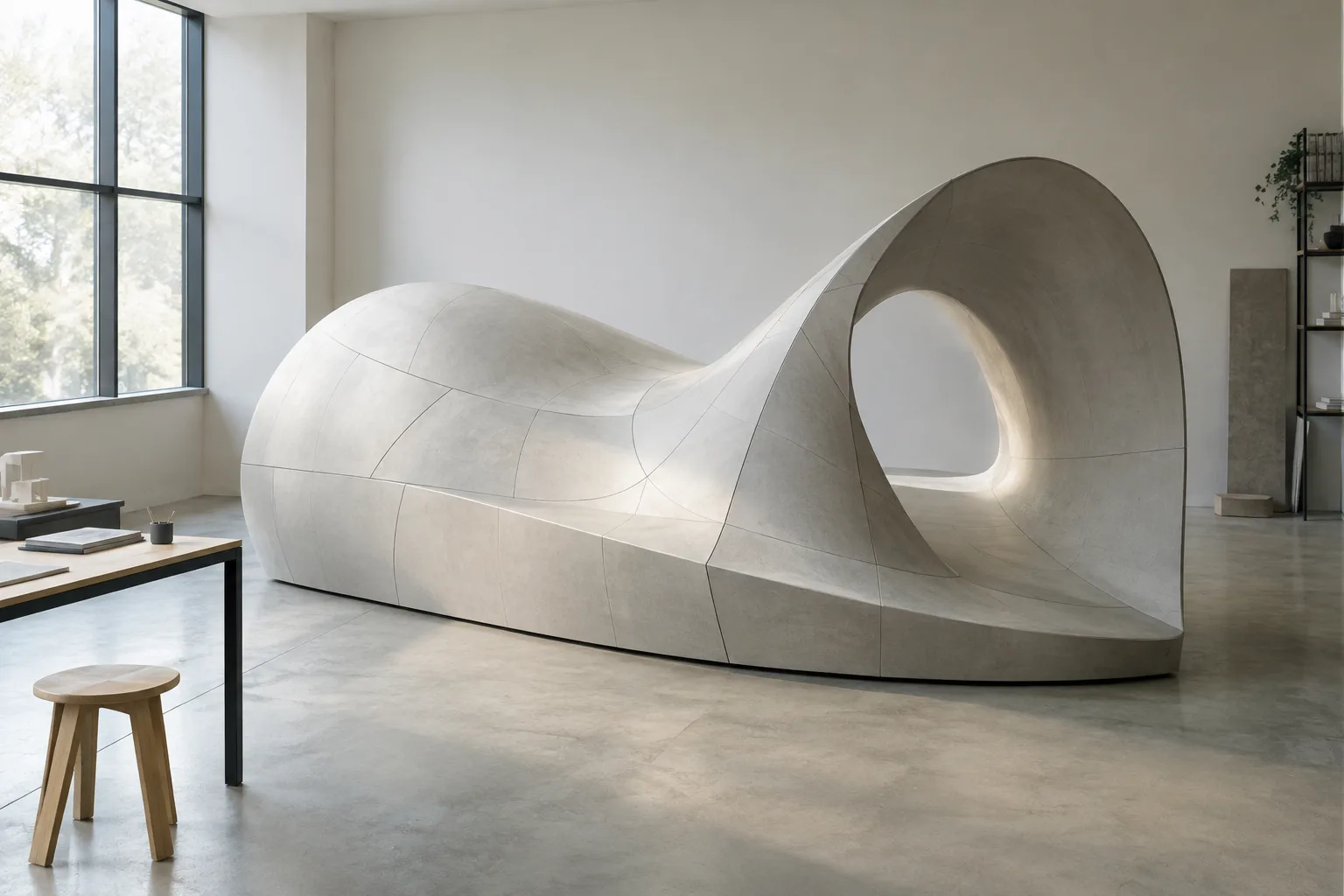
In brief
- SubDLoft creates a SubD object from the selected curves.
- Curves with the same number of control points that are suitable for SubD can help create a simpler SubD.
- With three or more curves, the Closed option closes the loft direction.
- SubDCrease applies a soft crease weight between 0 and 100 percent to edges.
What will you learn in this guide?
This guide explores how to use the SubDLoft command in Rhino 8 to create shapes from curves, what its main options change, and how to edit SubD edges with Crease commands. The goal is to understand how curve inputs affect the result and to deliberately control hard or soft edge transitions in a model.
SubDLoft creates a SubD object from selected curves. However, there is no guarantee that the resulting model will pass through every curve in all cases. According to McNeel’s Rhino 8 help, working with curves that are suitable for SubD and have the same number of control points can produce a simpler SubD that passes through the curves. Inputs with different numbers of control points can make the structure more complex, and the model may not pass through all the curves.
Requirements and preparation
This guide is based on McNeel’s help pages for Rhino 8 SubDLoft and SubD edge-editing commands. These pages do not provide information about hardware, subscription, or account requirements, so no conditions in these areas are assumed here. Since the commands described in the sources are for Rhino 8, the options are presented according to the documentation for this version.
Before you begin, identify the curves you’ll use to define the loft shape. Comparing the number of control points on the curves can give you an idea of the complexity of the resulting SubD. Having the same number of control points does not, by itself, guarantee a specific result; however, the documentation identifies it as an input characteristic that supports the creation of a simpler SubD.
When working with closed curves, also check the alignment of the edge-loop points. According to Rhino help, these points can be moved along the curve to align them. Use Flip to make the arrows point in the same direction. When SnapToKnots is enabled, the points are restricted to knot locations; with the No option, they can be moved freely between knots.
Create a model with SubDLoft
Select the curves that define the shape. The inputs to the SubDLoft command are the selected curves that define the shape to be created. When selecting curves, review the order of the sections and how they relate to one another. The source says that the command creates a SubD from the selected curves; you should not assume that the resulting geometry will pass through all the curves in every case.
Check loop alignment on closed curves. If the edge-loop points are not in suitable positions, move each one along the curve to align it. If the direction arrows point in different directions, use Flip to change their orientation. Automatic attempts to match the points and directions without requiring intervention. Natural moves the points to their positions when the command was started.
Choose whether to constrain points to knots. With SnapToKnots set to Yes, points can only be placed at knots; with No, they can also be moved between knots. This setting can be used to align loop points on closed curves. The source describes this option for closed curves.
Set corner and discontinuity behavior. When using open curves, Corners creases the corners at both ends of the first and last shapes. For kinked curves, the Creases option creases the edges along the kinks. When evaluating these options, note whether the inputs are open, closed, or kinked.
Review loft direction and segment options. With three or more curves, the Closed option closes the loft direction. Natural shape segments refers to the default number of segments for shapes; Adjust shape segments lets you change this number. Adjusted shape segments sets the number of segments along the input curves, while Divisions between shapes sets the number of segments between adjacent curves.
Check the connection to a SubD edge. When a SubD edge is used as the first or last shape, Join can connect the loft to the input SubD. The Smooth option creates the connection with smooth edges; otherwise, the connection uses crease edges. The documentation also notes that the Join option does not support History recording.
After creating the model, check the shape produced by the curves and its edge behavior. If the result is more complex than expected, review curves with different numbers of control points instead of focusing only on the segment options. McNeel’s documentation notes that these differences can add complexity to the SubD and that the model may not pass through all the input curves.
Crease and soft edge weights
After SubDLoft, you can use the Crease, RemoveCrease, and SubDCrease commands to edit edge characteristics. Crease makes SubD edges or vertices hard creases. RemoveCrease softens creased SubD edges or vertices. The documentation also describes equivalent commands for mesh edges: Crease makes mesh edges uncreased, while RemoveCrease creases them.
For more gradual edge control, the SubDCrease command adds a soft crease weight to selected SubD edges or edits an existing weight. You can enter a fixed weight to apply the same value to selected edges; you can also define weights that vary along an edge by editing the labels. Values range from 0 to 100 percent, and weights are blended along edge points between different labels.
A 100 percent weight gives the sharpest form of a soft crease, but it does not produce the same result as the hard Crease command. This distinction matters when adjusting the sharpness of a model. Use RemoveCrease to clear soft crease weights. The SelSubDEdges command reports the different edge types on selected SubDs and lets you select specific types using the Smooth, Weighted, Crease, or Boundary options.
Common issues and next steps
If the SubD does not pass through the expected curves, compare the number of control points on the curves. Different counts can increase model complexity; the documentation notes that, in this case, the SubD may not pass through all the input curves.
If loops do not align on closed curves, align the points on the curve and check the direction arrows. Flip can be used to match directions; SnapToKnots determines whether points are restricted to knots.
If an edge transition is too sharp or too soft, consider Crease for a hard edge and RemoveCrease for smoothing. Use SubDCrease to control the transition with a weight; keep in mind that a 100 percent weight is not the same as a hard crease.
In subsequent tests, change the curve control-point count and segment options separately to compare the results. This makes it easier to evaluate which input or setting caused the difference in shape.
Impact on architecture, interior design, and archviz workflows
For architects, interior designers, and archviz artists working with organic or transitional forms defined by curves, SubDLoft offers a way to create SubD from profiles. For a more predictable result, it’s important to review curve compatibility and control-point counts, then check segment and crease settings on the model. In complex forms especially, identifying differences between the input curves and the result early can help inform modeling decisions.
The sources do not provide information about the hardware, licensing requirements, or compatibility with other software needed for this workflow. Offices and students should verify these points separately. Trying the commands on a small test model is a cautious starting point for assessing whether the curve arrangement and edge options are suitable for a project.
Sources and licensing
This guide has been adapted into Turkish based on information in McNeel’s Rhino 8 SubDLoft and Crease help pages. The source records identify the pages as freely accessible, but do not specify a particular open license.
Sources
2 sourcesSource texts are not republished; short quotes are marked, everything else is our own summary and commentary.
The practical value of SubDLoft lies in enabling teams that define shapes with curves to create SubD and then edit edge characteristics separately. Visualization artists working on organic masses and transitional interior elements should consider control-point compatibility and segment settings together.
For offices and students in Turkey, the sources do not explain hardware, pricing, or licensing requirements; these points need to be verified before making decisions. Testing curves, Join behavior, and crease weights on a small sample model is a practical way to assess how well the workflow fits.
Frequently asked questions
What is SubDLoft used for in Rhino 8?
SubDLoft creates a SubD object from selected curves that define a shape.
Why might the SubDLoft result not pass through all the curves?
Curves with different numbers of control points can make the structure more complex. In that case, the SubD may not pass through all the input curves.
What is the difference between SubDCrease and Crease?
SubDCrease applies a soft crease weight between 0 and 100 to edges. A 100 percent weight is not the same as the hard Crease command.