In brief
- The Gemini API documentation provides an image input example for Gemma 4; it does not separately verify performance on architectural visuals.
- The API route requires a Google account and an API key obtained from Google AI Studio.
- The Gemma library guide specifies Gemma 3 or later, a 4B or larger model, and Gemma3Tokenizer for image prompts.
- Gemma documentation is marked as old; check current setup and model information in the newer documentation.
What you’ll learn in this guide
Gemma documentation shows that the models can process image inputs alongside text. This is not proof that they can interpret architectural plans or interior renders specifically, or that their outputs for these images can be trusted. The aim here is to explain how to craft a prompt for testing general image input with architectural visuals, and how to assess the results cautiously.
The guide covers two separate approaches: using hosted Gemma models through the Gemini API, and working in a library environment by following the Gemma library for JAX example. The setup steps differ. The relevant Gemma pages also carry a notice that the documentation is old, so check the current docs before applying the requirements described here.
Requirements: account, software, and model
Gemini API route: The sources require a Google account and an API key obtained from Google AI Studio for API use. The Gemma API page lists gemma-4-31b-it and gemma-4-26b-a4b-it among the Gemma 4 models. Its image example shows uploading a file and sending the image with text using the gemma-4-26b-a4b-it model. Since the API page is marked as old, check the newer documentation before treating model names and client methods as current.
Gemma library for JAX route: The library guide specifies a Gemma 3 or later model that is 4B or larger, and requires Gemma3Tokenizer for image input. The example covers installing the Gemma library, accessing it with a Kaggle account and API key, using a Colab environment, and loading JAX and the model parameters. It notes that the Colab runtime needs sufficient resources to run the model; the guide does not specify a particular amount of hardware.
This setup example is also marked as old. Before getting started, verify the library name, model configuration, and dependencies against current sources. The documentation provided does not specify API pricing, so research usage costs separately.
Testing with an architectural visual, step by step
1. Choose an image and a test goal
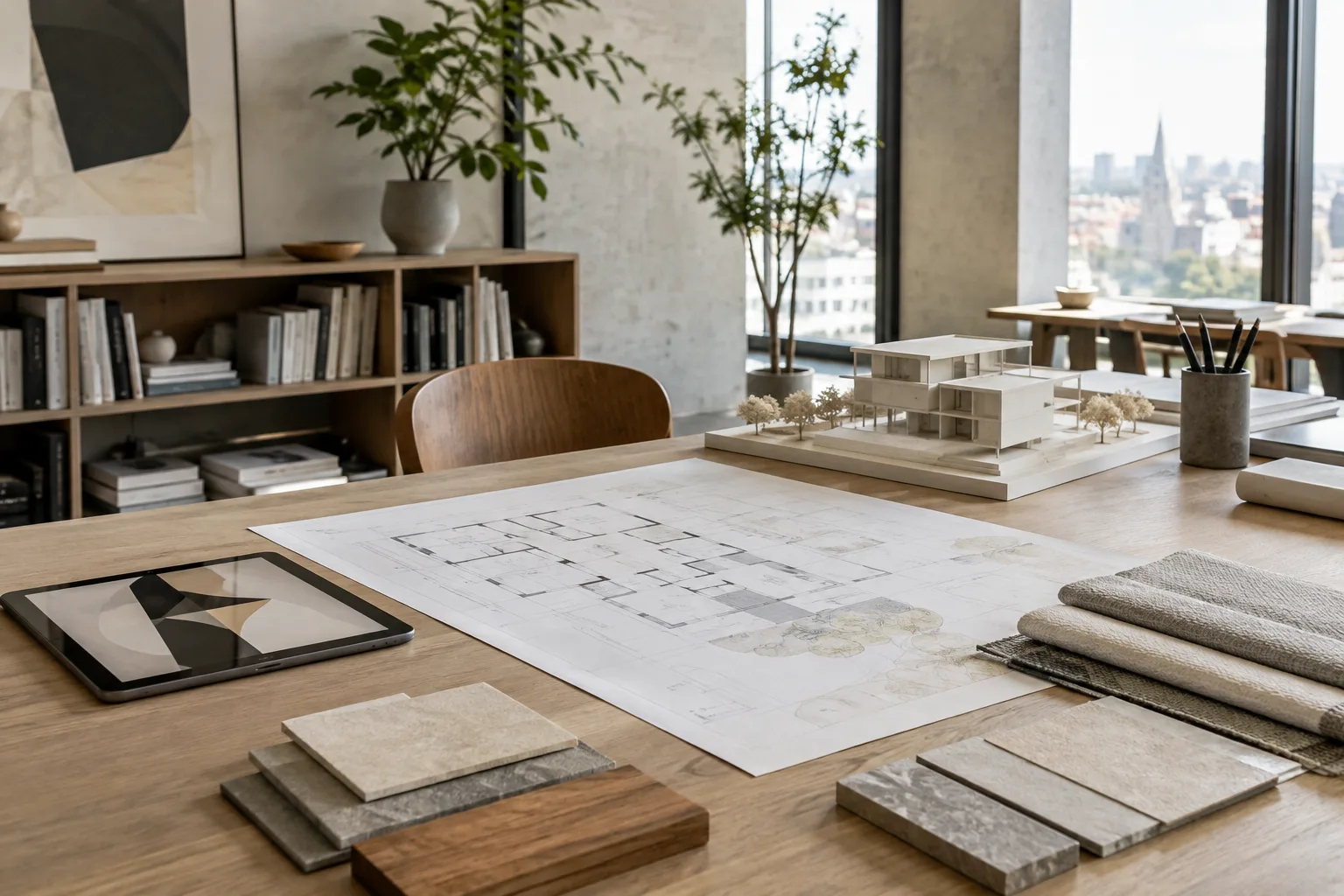
For the first test, use a single image and a narrowly scoped question. Asking the model to describe visible surfaces in a render or list connections that can be read in a plan image are examples of experiments for testing general image input support. These are not architectural tasks that the sources specifically confirm Gemma can perform; treat the results as a way to explore what the model can do with these images.
Set limits on what the image can establish from the outset. A render alone cannot verify actual dimensions, construction details, or the precise type of material used. Small text in a plan image may also be misread. Do not treat important project information as verified without comparing it with the drawing or scene file.
2. Choose your approach
The API example shows the file being uploaded with the API client, then the uploaded file being sent to the model along with a text prompt. If you use this approach in your own application, confirm in the new documentation whether the model and SDK usage shown in the example are current.
In the library example, the model, parameters, and tokenizer are configured first; the image prompt is then passed to the sampler along with the image data. This setup is not the same as the API example. Don’t mix up the code and access steps for the two approaches.
3. Limit the prompt to observable details
A good test prompt should not ask the model to infer information that isn’t visible in the image. Specify what to look at and how to express uncertainty. The examples below were written for this guide; they do not mean that the sources have confirmed Gemma’s ability to interpret architecture.
To list visible elements in a render:
Describe the elements that can be directly identified in this image. Under separate headings, list the visible surfaces, how light is distributed in the image, and the elements that stand out in the frame. If the material type, dimensions, or light source cannot be determined with confidence, say so clearly; do not add information that is not in the image.This prompt aims to distinguish observable details from assumptions. Don’t treat the response as material identification or a lighting calculation; check project documentation for those kinds of results.
To test what can be read in a plan image:
List the room names that can be read in this image and the connections that are clearly visible in the drawing. Separately identify any text that cannot be read and any areas you are unsure about. Do not guess dimensions, room names, or usage decisions that are not shown in the image.This test does not guarantee that the model will interpret the plan correctly. Compare the response against the drawing’s text, legend, and project file.
To try a visual description of an interior photo:
Briefly describe the furniture, color relationships, and focal point that stand out in this interior image, using bullet points. Do not make inferences about function, dimensions, or user behavior that cannot be verified from the image. Note any uncertain details separately.The requested details in this example focus on elements that can be seen in the photo. Since a single image does not show all the conditions of how a space is used, don’t treat the response as a comprehensive design assessment.
To draft a visual review note before a presentation:
List three features that are immediately visible in this architectural visual and three points the team should check separately. Do not label anything that cannot be definitively verified in the image as a technical error; phrase it as a suggestion to check.This prompt tests the model’s response as a draft review note. Don’t present its suggestions as error detection; verify them in the relevant scene or drawing file.
4. Check the response and record the test
Review the model’s response side by side with the image you provided. If it makes an important observation, compare it with the image and the project source; also check whether the model has indicated uncertainty. Using the same prompt on similar images can help you compare responses, but this method alone does not provide an objective measurement.
If you plan to share the test with your team, save the image, prompt, and response together. This makes it possible to understand the context in which a result was produced. Don’t use the model’s response as the sole source of verification for a client presentation, implementation decision, or technical documentation.
Common mistakes
Mistaking general support for a specialized capability: The sources show image input being used; they do not confirm success at interpreting architectural plans and renders.
Giving an ambiguous task: Instead of a broad request such as “interpret this,” specify which visual elements to examine and the response format.
Assuming information that isn’t in the image: If dimensions, materials, or function cannot be determined with certainty from the image, check them against the project file.
Generalizing instructions between models: The PaliGemma page describes image-and-text ordering and task-specific syntax. Don’t automatically apply these formats to every Gemma model; follow the instructions for the model you use.
Treating old documentation as current: The Gemma API and library pages point to newer documentation. Check the model name, SDK, and setup requirements.
Next steps
Start with one image and a narrowly scoped prompt, then check the response directly against the image. Next, repeat the same test on similar images and note which points are consistently identified and where the model makes mistakes. These observations apply only to the results of your own test environment; they should not be turned into a general claim about accuracy on architectural tasks.
If you plan to use this in an office or educational setting, research access requirements and potential costs separately. For the local library option, verify the current setup documentation and whether your runtime is adequate. In either case, confirm project decisions independently against the drawings and design files rather than relying on the model’s response.
Sources and licensing
The sources used were Google’s Gemini API Cookbook repository (K1), the Gemma documentation for the Gemini API (K2), the Gemma library for JAX guide (K3), and the PaliGemma prompt format page (K4). The K1 repository lists its license as Apache-2.0. The K2, K3, and K4 documentation pages are licensed under CC BY 4.0; K3 and K4 also state that code examples are licensed under Apache 2.0. The content has been adapted into Turkish. Keep in mind that the Gemma documentation carries a notice that it is old.
Sources
3 sourcesSource texts are not republished; short quotes are marked, everything else is our own summary and commentary.
For offices and students in Turkey, testing image input with architectural visuals may provide an initial note for design discussions. However, the sources do not demonstrate specialized success at analyzing architectural plans or renders, so it would be wrong to treat the output as verified technical information or a design decision.
The sources do not specify pricing for the API option; check current documentation for access and potential costs. The local library example, meanwhile, requires a JAX setup and an environment capable of running the model. The fact that the documentation is old makes it especially important to check compatibility before adding it to a workflow.
Frequently asked questions
Can Gemma analyze architectural plans and renders?
The sources show that Gemma models can process image inputs, but they do not specifically confirm the ability to interpret architectural plans or renders. Tests with these images should be checked.
What do I need to use image input with the Gemma API?
The sources specify a Google account and an API key obtained from Google AI Studio. Check the current documentation for up-to-date model and SDK details.
What requirements does the Gemma library specify for image prompts?
According to the Gemma library for JAX guide, you need a Gemma 3 or later model that is 4B or larger, and Gemma3Tokenizer. The guide also shows Kaggle access steps and a Colab environment with sufficient resources.