In brief
- Pixel Streaming streams the video and audio of a packaged Unreal Engine application to a browser, where users can also interact with the stream.
- Setup requires the Pixel Streaming plugin, servers connected to the application, and network ports 80 and 8888 open for access.
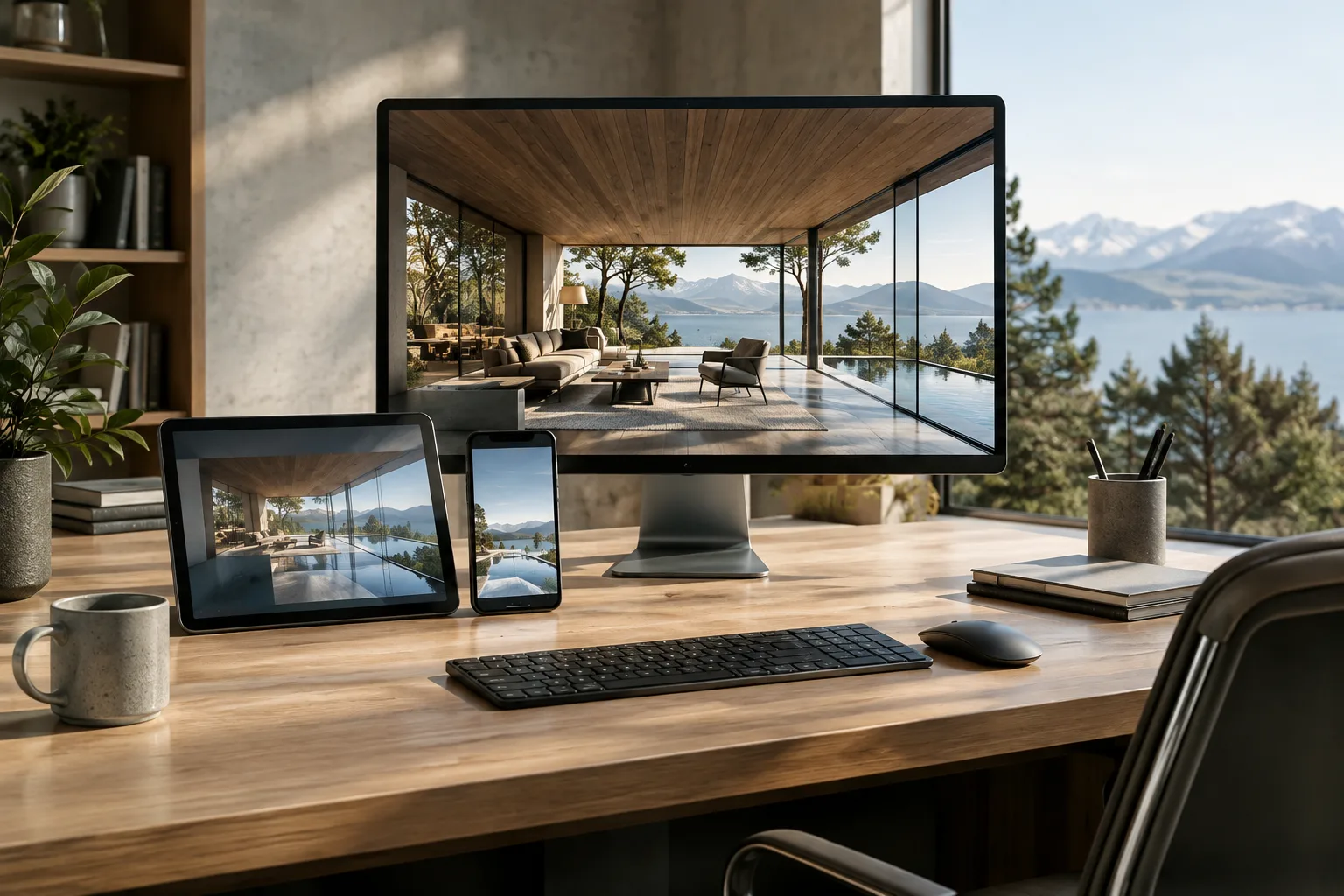
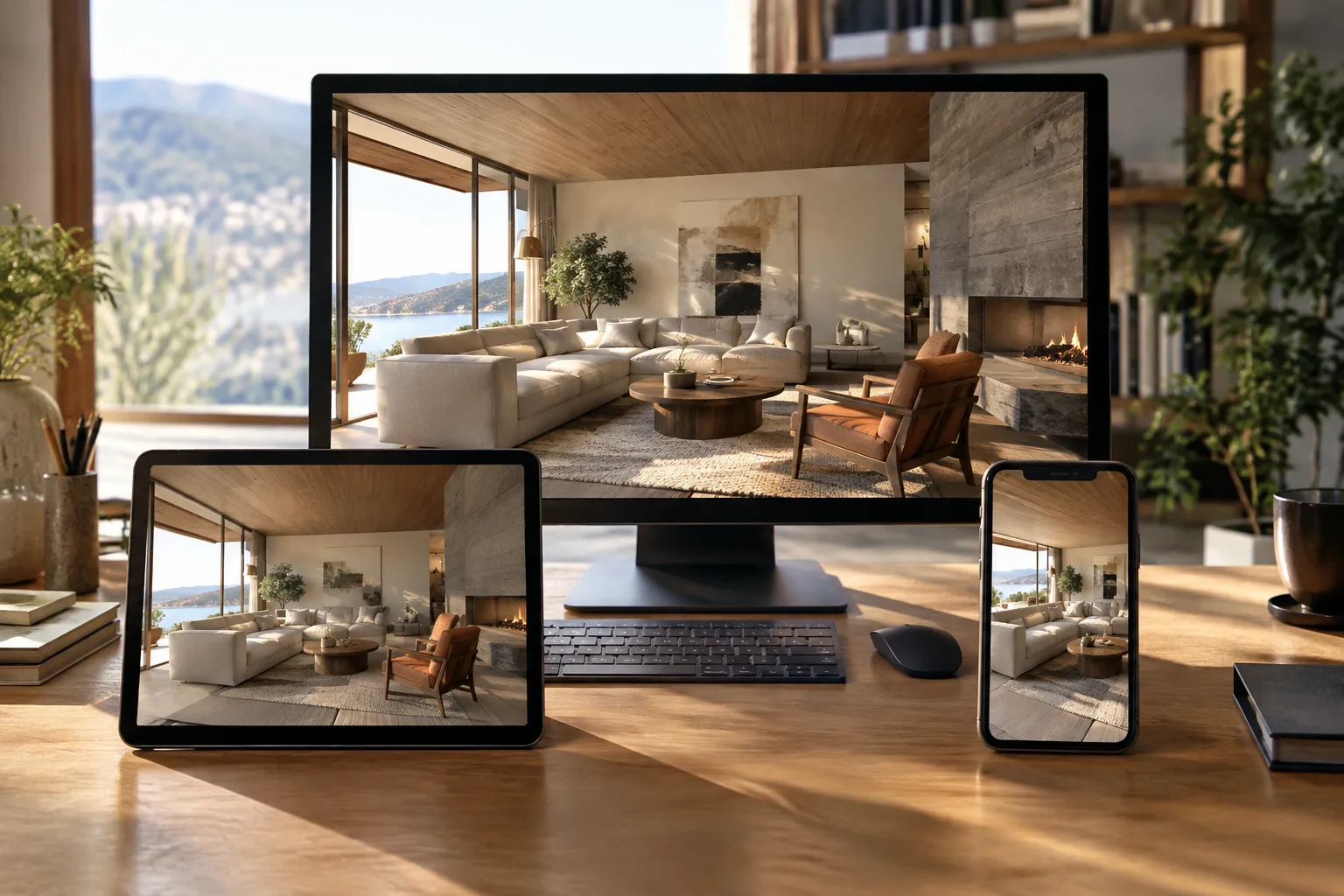
- Multiple devices on the same network can view the same scene streamed from a single Unreal Engine instance.
- Access over the internet or across different networks may require additional network configuration, such as STUN/TURN.
Unreal Engine’s Pixel Streaming system runs a project on a remote computer and streams its video and audio to a web browser. The basic setup described in Epic Games’ official documentation can first be tested on a local network; desktop computers and mobile devices can connect to the stream through a browser. This means the computer running an architectural scene and the devices used to view the presentation do not need to share the same hardware.
This guide follows the local network steps in the official Unreal Engine documentation. The documentation does not specify a minimum engine version; it gives 5.7 as an example of an infrastructure branch. Although the Pixel Streaming plugin can run on Windows, Linux, or Mac, video encoding requires suitable GPU hardware. Refer to the official Pixel Streaming reference documentation for details on hardware and browser support.
1. Prepare the project for streaming
Open the project in Unreal Editor and go to the Graphics category in Edit › Plugins. Enable the Pixel Streaming or Pixel Streaming 2 plugin, then restart the editor. The plugin you use should be compatible with the project’s setup; the documentation lists both options.
Choose how to run the project. Pixel Streaming works with a packaged application or from Unreal Editor using the Standalone Game option. The official getting-started steps give a packaging example for Windows; for Linux and Mac, they specify different folder paths for the server launch scripts.
If launching through the editor, add the connection parameter to the Additional Launch Parameters field under Editor Preferences › Level Editor › Play. The same parameter is needed when launching the packaged application; the documentation recommends creating a shortcut for it.
-PixelStreamingURL=ws://127.0.0.1:8888If users on phones or tablets need to control a character in the scene by touch, enable Always Show Touch Interface under Project Settings › Engine › Input. This setting is not required for every project; the project’s Player Controller must also support touch input.
Because minimizing the application window can affect the input stream, the documentation also describes the optional -RenderOffScreen parameter. It runs the application without a visible window. However, it’s best to check whether this is necessary for your presentation setup in a local test first.
2. Set up the server components and network
Pixel Streaming’s web interface and server components are obtained from the Pixel Streaming Infrastructure repository, hosted separately from the Unreal Engine installation. The official documentation explains how to use the repository directly or obtain the relevant infrastructure branch using the
get_ps_serversscript in the engine’sWebServersfolder. For branch selection, the documentation shows 5.7 in itsUEX.Yformat example; this example should not be taken as a guarantee of version compatibility for every setup.Make sure ports 80 and 8888 are open for local network connections. In the Windows example, first open PowerShell as an administrator and prepare the server dependencies:
SignallingWebServer\platform_scripts\cmd\setup.batThen start the Signalling Server:
SignallingWebServer\platform_scripts\cmd\start_with_stun.batThe documentation says to use the scripts in the SignallingWebServer\platform_scripts\bash folder for the same process on Linux and Mac. On successful startup, the console should show lines indicating that connections are being listened for on ports 80 and 8888. It is also recommended to stop any other web servers running on the computer before starting.
| Setting | Recommended value | Effect |
|---|---|---|
| Local network ports | 80 and 8888 | Helps the browser and streaming application communicate. |
| Local machine address | 127.0.0.1 or localhost | Allows the initial connection to be tested on the same computer. |
| Streaming connection parameter | ws://127.0.0.1:8888 | Connects the Unreal Engine application to the local Signalling Server. |
3. Start the stream and connect from a browser
Once the servers are ready, launch the packaged Unreal Engine application with the connection parameter. The example command in the documentation is:
MyPixelStreamingApplication.exe -PixelStreamingURL=ws://127.0.0.1:8888The “Streamer connected” message in the server console indicates that the application has connected to the Signalling Server. Then open a supported browser on the same computer and go to http://127.0.0.1. Start the connection and playback on the page. On another device on the same network, use the streaming computer’s IP address.
The default player page can send keyboard, mouse, and touch input to the application. When multiple devices connect, they all receive the same view of the scene; by default, all connected users can send input. If it matters who has control during a presentation, consider customizing the web player page and adjusting input permissions.
4. Use in architectural and visualization workflows
Pixel Streaming can be used to provide a live browser view to team members or presentation attendees who don’t have access to the computer running the scene. Interior design and architectural visualization teams can present a scene on desktop and mobile devices on the same network, with no additional application required on the browser side. Instead of running the scene separately on every viewer’s device, this method streams it from a single running Unreal Engine instance.
However, image quality and smoothness do not depend on the browser alone: the application runs on the streaming computer, and the plugin’s video encoding depends on specific GPU hardware. Since the source documentation does not provide hardware models or performance figures, check the target computer’s compatibility before starting a project. For a presentation that will be accessible beyond the local network, network configuration must also be addressed separately; access across different networks may require STUN/TURN settings.
The web player page can be customized, so you can create an HTML5 interface or input controls tailored to a project presentation. However, this goes beyond the default local network setup. If you modify server files, make the changes in their original location rather than in the copies in the packaged folder; changes made in the packaged folder may be overwritten during repackaging.
Common mistakes
Not restarting the editor after enabling the plugin, or not running the application as a packaged build or in Standalone Game mode.
Ports 80 and 8888 being closed, or another web server on the computer interfering with the setup.
Launching the packaged application without the
-PixelStreamingURLparameter.Testing across different networks first. Troubleshooting is easier if you start on the same computer with
127.0.0.1, then test with another device on the local network.Assuming an internet connection works the same way as a local network connection. Different networks may require STUN/TURN or other network configuration.
Sources
2 sourcesSource texts are not republished; short quotes are marked, everything else is our own summary and commentary.
For architecture and visualization firms in Turkey, Pixel Streaming’s practical advantage is that participants can view a scene in a browser while sharing a single Unreal Engine instance on the streaming computer. This can reduce the need to install software separately on each viewer’s device, particularly for presentations on a local network.
Before making an investment or using it in a live presentation, test the streaming computer’s GPU compatibility, network ports, and choice of plugin. The documentation does not detail hardware requirements, so compatibility should not be assumed. If internet access is needed, plan for STUN/TURN and network configuration separately, and run the first test on a local network.
Frequently asked questions
Which ports need to be open for Unreal Engine Pixel Streaming?
The official getting-started guide requires ports 80 and 8888 to be open for local network communication. If you need to change the default values, consult the Pixel Streaming reference documentation.
Can Pixel Streaming be used on mobile devices?
Yes. Mobile devices can connect through a browser, and the default player page can send touch input. Whether touch controls work in the project depends on the application and Player Controller support.
Can Pixel Streaming be used over the internet?
Access across different networks may require more advanced network configuration. The official documentation notes that STUN/TURN server settings may be needed.