In brief
- V-Ray Enmesh creates repeating geometry on a mesh surface at render time.
- In 3ds Max, VRayEnmeshMod can be added from the V-Ray menu or the Modifier List.
- Tiling U/V controls the repetition pattern across the surface, while the crop box defines the bounds of the pattern instance.
- VRayEnmesh is incompatible with displacement geometry created at render time and with V-Ray Fur.
V-Ray Enmesh is used to repeatedly place pattern geometry across another mesh surface at render time. Chaos documentation for 3ds Max and Houdini explains how to create patterns and apply them to surfaces. This guide brings together the documented workflows for VRayEnmeshMod in 3ds Max and the V-Ray Enmesh node in Houdini. The 3ds Max documentation was updated on 4 May 2026, and the Houdini documentation on 18 September 2025. The documentation does not specify a particular software version as a general requirement; it notes that the interface may look slightly different in 3ds Max 2018 due to Qt version limitations.
What surfaces can Enmesh be used for?
Chaos lists woven fabric, chain mail and mesh among the use cases for Enmesh. In 3ds Max, multiple meshes can be added to the Objects list and treated as parts of a single pattern instance. This geometry repeats across the base surface, while the gizmo or crop box defines the extent of the pattern instance.
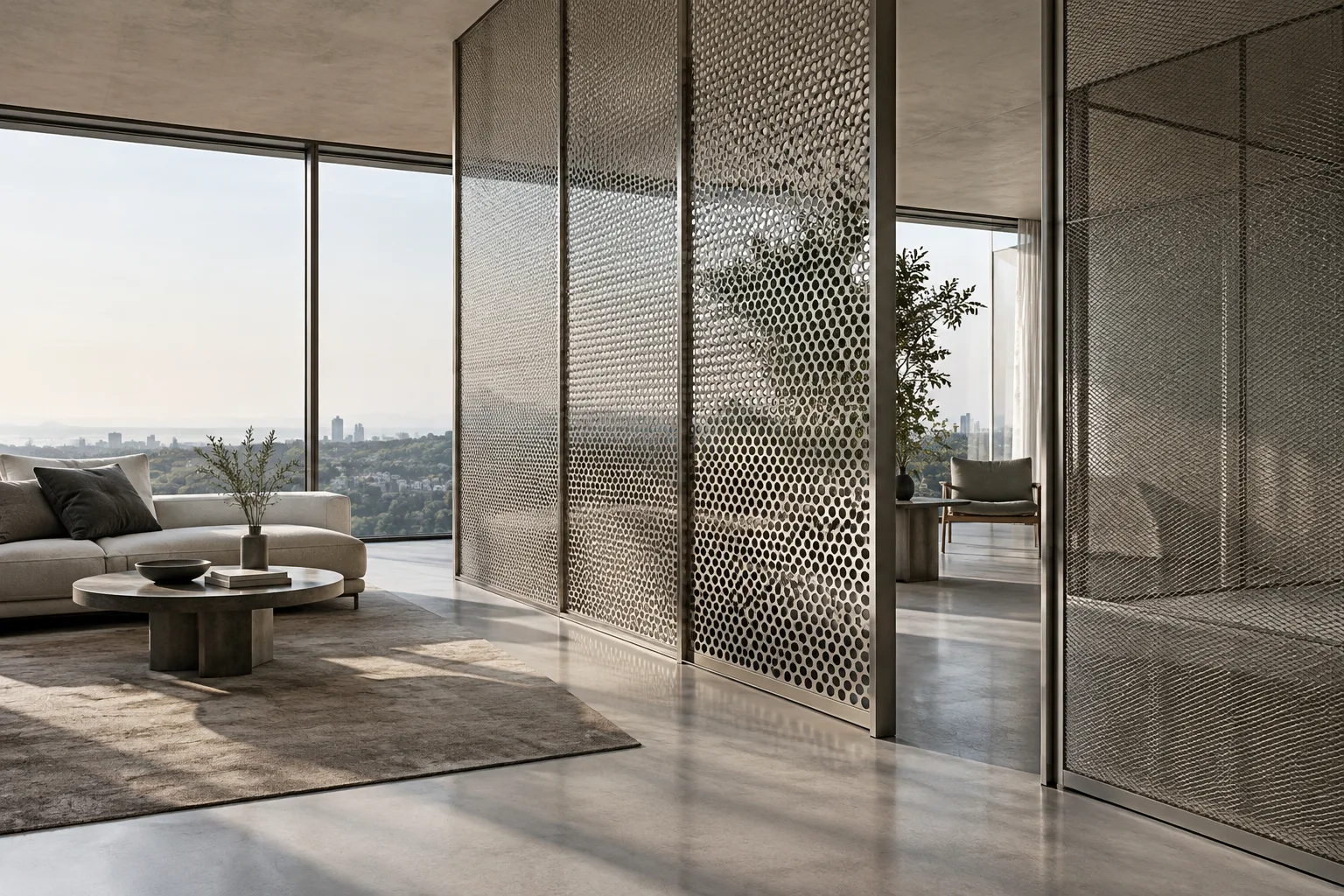
In architectural visualization scenes, it could be used for perforated metal surfaces, wire mesh or repeated decorative details. These are possible applications based on Enmesh’s ability to generate repeating geometry; the documentation does not promise performance or render-time improvements for any particular scene. Before setup, separating the surface geometry from the meshes that make up the pattern makes it easier to keep track of each object’s role.
Setting up VRayEnmeshMod in 3ds Max
Select the surface to apply the pattern to. Add the modifier to the target mesh. The documented paths are
V-Ray > Create > Modifiers > V-Ray EnMesh Mod,Modifiers > V-Ray > V-Ray EnMesh Mod, andModify > Modifier List > VRayEnmeshModin the command panel. Keep in mind that the interface may look different in 3ds Max 2018.Add the pattern meshes to the list. Add puts meshes in the Objects list; Remove removes the selected items, while Remove all clears the list. The objects in the list make up the pattern instance defined by the crop box. Adding multiple meshes lets you tile patterns made from several parts together.
Adjust the crop box. Crop box size X/Y/Z sets the box dimensions along each axis. Fit in object space adjusts its size and position to encompass all the geometry in the list. The box’s placement relative to the pattern instance can affect how the tiles join. In Chaos’s example, the box edges are aligned with the middle of the torus geometries’ circumference to achieve a seamless repeat.
Set the repetition pattern across the surface. Tiling U/V changes the tiling factor across the surface mapping. Offset U/V shifts the pattern along the mapping, while Rotation rotates it around the base surface normal. Random offset U/V applies a random shift to each repetition in the mapping directions. These options can be used to achieve either a regular layout or controlled variation.
Check height and shading data. Height % sets the height of the resulting geometry relative to the crop box’s Z dimension; 100 percent uses the box’s current height. Height offset % affects the geometry’s position along the surface normals. Use mesh UVW mapping is off by default: when off, the base mesh’s mapping is used; when on, the pattern meshes’ mapping is used. Use mesh IDs is on by default, in which case the pattern geometry’s polygon material IDs are used. If the option is turned off, the base mesh’s IDs are used.
| Setting | Default / example value | Effect |
|---|---|---|
| Use mesh UVW mapping | Default: off | Uses the base surface’s mapping when off, and the pattern meshes’ mapping when on. |
| Use mesh IDs | Default: on | Uses the polygon material IDs of the pattern meshes or the base surface. |
| Tiling U/V | Example comparison values: 8, 12 and 16 | Changes pattern tiling across the surface; the values are compared in the documentation’s examples. |
| Use rotation steps and Random rotation | Example: option enabled, Random rotation 4 | Divides a full rotation into 90-degree steps; the example is based on 360 degrees divided by 4. |
To randomize rotations in steps, use Use rotation steps together with Random rotation. In the documentation’s example, enabling the option and setting Random rotation to 4 produces rotations in 90-degree steps. Also check the mapping channel used on the base surface for tiling.
Creating a preset or custom pattern in Houdini
To use a preset Cosmos pattern, select the target geometry in the viewport, open Cosmos from the V-Ray toolbar and download a pattern from the Enmesh-Pattern category. Import brings in the pattern and adds a V-Ray Enmesh node to the obj network, using the selected geometry as its source. Tiling, height and rotation can be adjusted in the node parameters. To add a material, connect a Material node to the Null node and specify the material in the Material node parameters; then render in the VFB.
You can also proceed without selecting the target geometry first. After importing the pattern from Cosmos, find the relevant Pattern node in the obj network. Create an Object Merge inside it and connect it to the V-Ray Enmesh Source input. In Object 1, specify the geometry the pattern will be applied to; in Transform Object, specify the pattern geometry. If the target geometry has no UVs, the pattern will not work, so check UVs in advance in the Houdini workflow.
To prepare a custom pattern, create a Geometry node in the obj network and add the V-Ray Enmesh HDA node inside it from Digital Assets > V-Ray Enmesh. According to the documentation, the other Enmesh node in the V-Ray menu has more limited parameters. Connect the pattern and target surface geometry to the relevant inputs; you can import existing geometry with Object Merge. Multiple source or reference geometries can also be used. If the gizmo does not encompass the pattern, adjust its size and position or use the Fit Cropbox button.
Architectural visualization workflow and common mistakes
Before applying Enmesh to large surfaces in a façade or interior scene, test tiling, mapping and material ID behavior on a small piece of geometry. This helps clarify which object’s mapping and ID data the shading uses. Even if the pattern mesh’s mapping is correct, the Use mesh UVW mapping option changes the mapping source used for shading. If you’re using V-Ray GPU, Chaos recommends making the gizmo’s Z extent slightly larger than the source object’s bounding box dimensions to prevent Z-fighting.
Common mistakes:
Applying Enmesh to target geometry without UVs in Houdini; according to the documentation, the pattern will not work in this case.
Rendering without checking whether the crop box encompasses the pattern instance. The box’s size and position affect the repetition pattern.
Overlooking which geometry’s data is used by Use mesh UVW mapping or Use mesh IDs.
Interpreting the Random rotation value as the number of steps when Use rotation steps is not enabled.
Using VRayEnmesh with displacement geometry created at render time or with V-Ray Fur. Chaos notes that it is incompatible with these features.
Sources
2 sourcesSource texts are not republished; short quotes are marked, everything else is our own summary and commentary.
For architecture and visualization studios in Turkey, Enmesh is an option for managing repeated details such as mesh and woven patterns across a surface. Testing the pattern, crop box and shading source separately can provide more control, especially on complex surfaces.
It shouldn’t be treated as an automatic speed boost in every project; the documentation provides neither performance measurements nor pricing information. It’s sensible for teams to verify their own licensing terms, take the Z-fighting warning for V-Ray GPU into account, and test displacement, Fur and UV compatibility before using them in a production scene.
Frequently asked questions
How do you add V-Ray Enmesh in 3ds Max?
After selecting the target geometry, add VRayEnmeshMod from the V-Ray menu, the Modifiers menu or the Modifier List in the Modify tab. Then add the pattern meshes to the Objects list.
Does V-Ray Enmesh require UVs?
Chaos’s Houdini documentation states that the pattern will not work if the target geometry has no UVs. The 3ds Max documentation also specifies the base surface’s mapping channel for tiling.
Which features is V-Ray Enmesh incompatible with?
According to Chaos, VRayEnmesh is incompatible with displacement geometry created at render time and with V-Ray Fur.