In brief
- Google’s guide recommends breaking prompts into components such as subject, action, scene or context, and camera.
- Agent Platform lists options including text-to-video, first-frame-to-video, generation from references and video editing.
- The models can be used through Media Studio in Gemini Enterprise Agent Platform or via the relevant APIs.
- Results may vary in consistency with some camera descriptions; generation methods and availability should also be checked.
What will you learn in this guide?
An architectural video prompt involves more than saying, “Show a modern house.” Describing what the space looks like, what changes in the scene and how the camera moves gives the generation tool clearer direction. Google’s video prompting guide breaks descriptions into elements such as subject, action, scene or context, and camera choices. Build your prompt from the elements that genuinely serve the scene; for example, if there is no distinct movement, clarify the subject and setting rather than forcing in an action description.
This article offers five original prompt examples for anyone creating architecture- or interior-focused video drafts with Veo and Gemini Omni Flash. The examples do not guarantee a specific result; their purpose is to demonstrate a structure that makes prompts clearer and easier to test. The results of camera movement and angle choices can vary depending on the full prompt and how it is used.
What you need: access, tools and versions
According to Google’s video generation page, Gemini Omni Flash and Veo can be used through Media Studio in Gemini Enterprise Agent Platform or via the relevant APIs. The page also notes that different video generation models and model versions are available, but does not specify a particular version number, account requirements or pricing here. Before getting started, check whether your chosen model and access method are available.
The sources do not specify any special computer hardware requirements for generation. Since they describe using the platform or APIs, this guide does not recommend local hardware configurations. For information about supported regions, the sources also direct users to separate deployment and endpoint information; do not assume availability based on country or account.
The Agent Platform page lists the following video generation capabilities:
Generate video from text
Generate video from a first-frame image
Generate video using first and last frames
Generate video from references
Extend or edit an existing video
These options do not all serve the same creative need. For example, an idea that describes only the atmosphere of a space can be tested with a text prompt; if you want to start from a specific image, consider a generation method that uses a first frame. Check the model and platform details to see where each feature is available.
Step by step: turn your prompt into an architectural scene
Start by defining the main subject. The focus of the video might be an interior, building facade, courtyard or material detail. Rather than using a general phrase such as “a building,” describe a distinctive feature of the scene, for example, “a contemporary cultural building with stone paving opening onto a narrow courtyard.” If the image includes several elements, specify which one is the main focus.
Describe the action or change. A video does not have to be just a static view of a space. Choose one clear movement, such as sunlight moving across the floor, sheer curtains gently billowing or the camera travelling down a corridor. The guide advises taking clip length into account when describing changes that unfold over time. So, instead of requesting many events or a major time shift in a short clip, focus on one observable movement.
Establish the setting and atmosphere. Details such as location, time of day, weather and atmosphere add context to the scene. The prompt below is an original example that describes the subject, action and setting together.
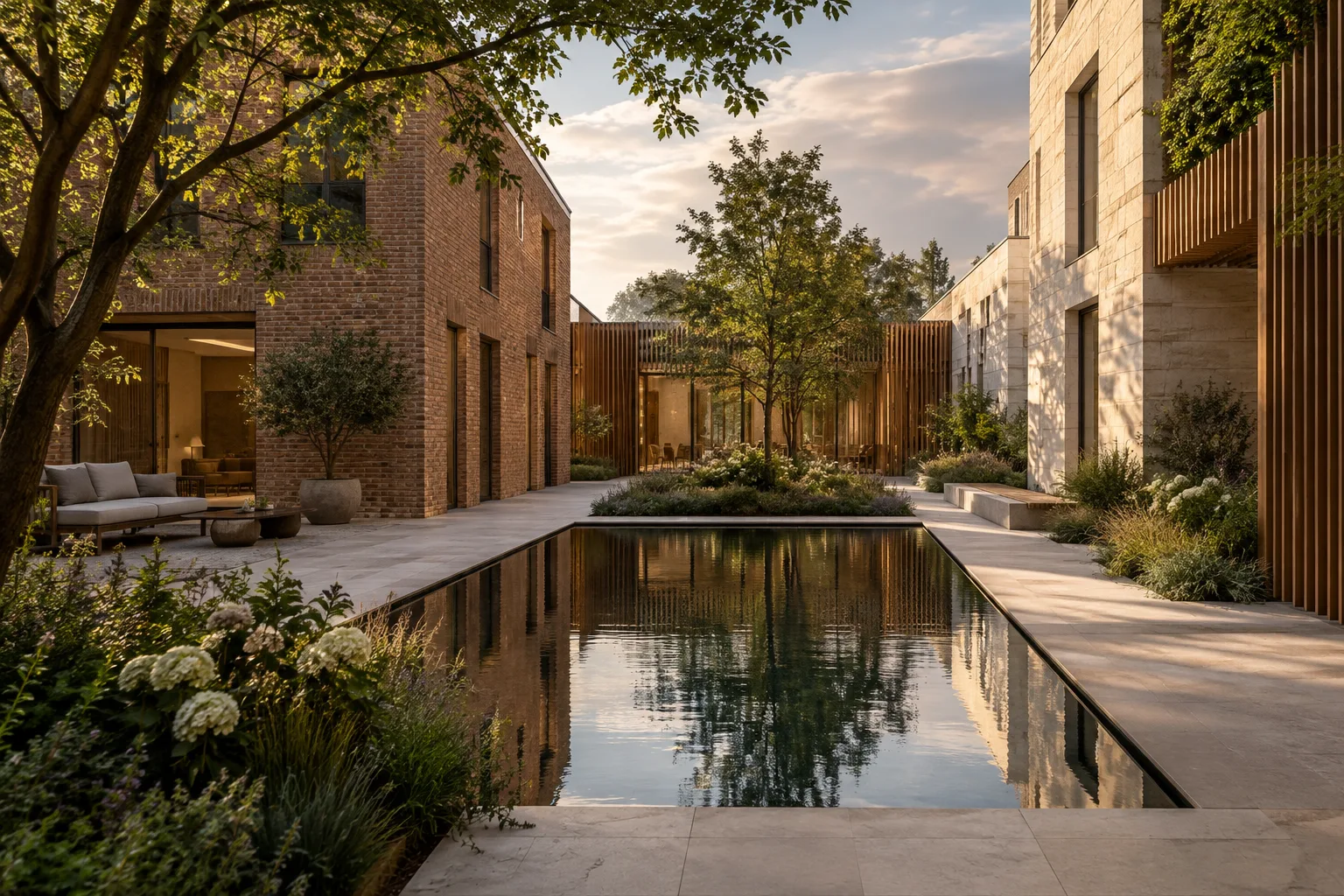
A quiet contemporary library courtyard with pale stone paving, a shallow reflecting pool and timber screens. Late afternoon sunlight moves slowly across the ground while a few leaves stir in a gentle breeze. Wide establishing shot, calm natural atmosphere.In this description, the library courtyard is the main subject; the movement of the light and leaves provides the action; and the time of day and materials establish the context. “Wide establishing shot” aims for a broad opening view that shows the space in its surroundings.
Choose a camera angle. Terms such as eye-level, high angle, bird’s-eye view, close-up or wide shot describe where the viewer sees the scene from. In an architectural presentation, a wide shot can show a building in context, while a close-up can focus on a single detail, such as a surface or joint. The aim of the second example is to highlight a material detail.
Extreme close-up of a hand-finished clay wall beside a dark timber window frame in a calm interior. Soft side light reveals the surface texture. The camera remains still; subtle shadows shift gently across the wall.Here, the camera stays still and the description focuses on the wall surface and its junction with the window. A close framing should not be confused with a request to describe the whole space; if you need both, separate attempts make it easier to compare clearer results.
Describe camera movement with a single choice. The camera can remain still, pan horizontally, tilt up or down, or move towards or away from a subject with a dolly. These movements are not interchangeable: a dolly describes the camera physically moving, while a zoom brings the image closer or farther away by changing the lens setting. The third example is designed for a slow approach through an interior.
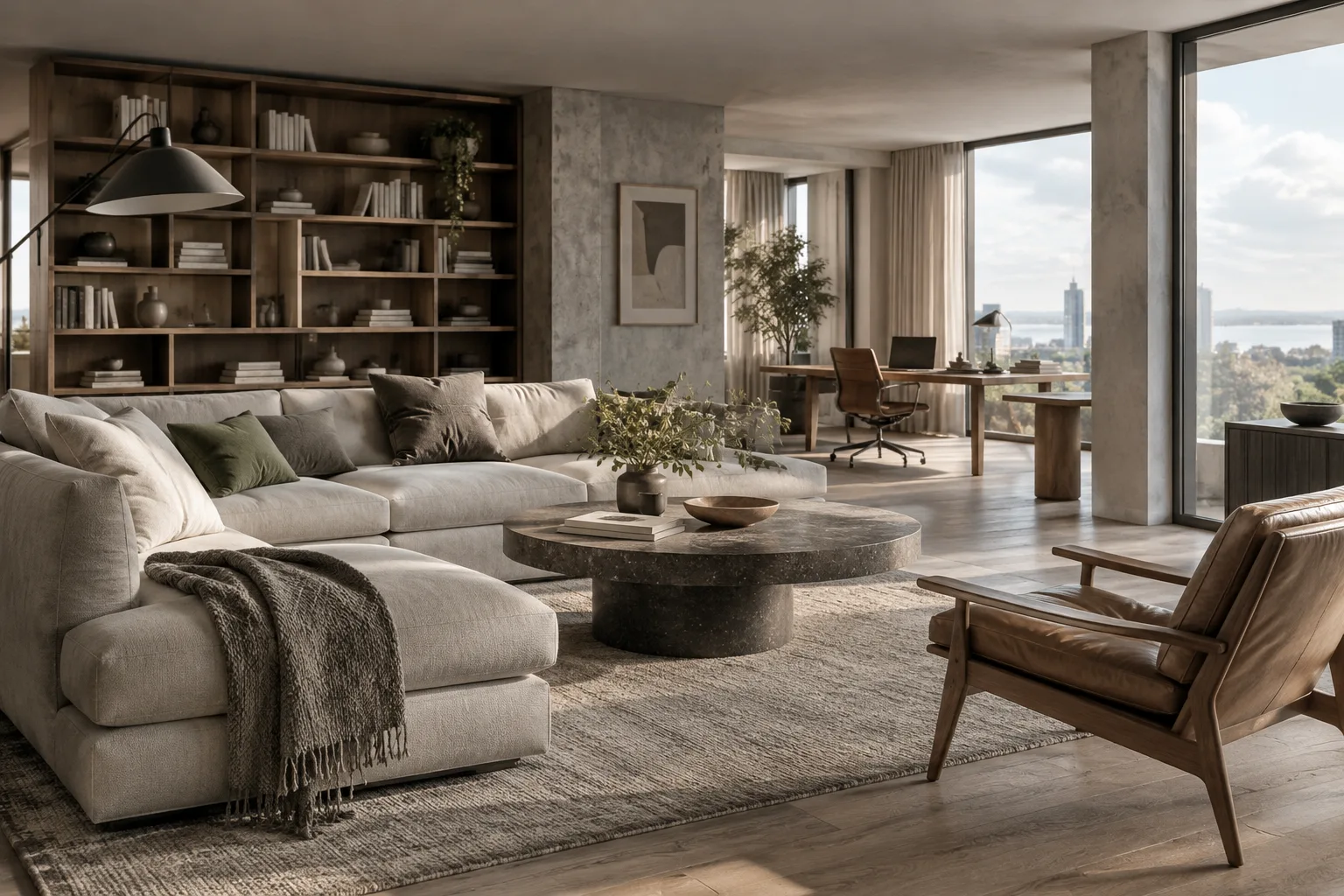
A serene double-height living room with a sculptural staircase, warm timber and a large window overlooking a garden. Slow dolly in toward the staircase, keeping the room's proportions visible. Morning light, restrained architectural visualization style.The phrase “slow dolly in” describes the camera moving towards the staircase. Rather than loading the prompt with several different camera instructions at once, start with one direction and assess the result.
Try a video sequence or a specific framing. Some projects may call for a transition from the exterior of a building towards its entrance; others may need a bird’s-eye plan view. The fourth example describes the movement and framing together, but in a limited way.
Bird's-eye view of a small urban courtyard between brick buildings. The camera makes a slow, steady pan across planted beds, a narrow path and a simple seating area. Overcast daylight, realistic architectural visualization.The bird’s-eye framing makes clear that the aim is to show the courtyard layout from above; the horizontal pan describes a general transition without specifying the direction of the sweep. Results from less conventional camera descriptions may vary between attempts, so don’t treat the result as precise framing control.
Consider first and last frames or references if needed. The Agent Platform page lists options for generating video from a first frame, using first and last frames, and creating video from references. The fifth prompt sets up a change in daylight at a building as a single main transition.
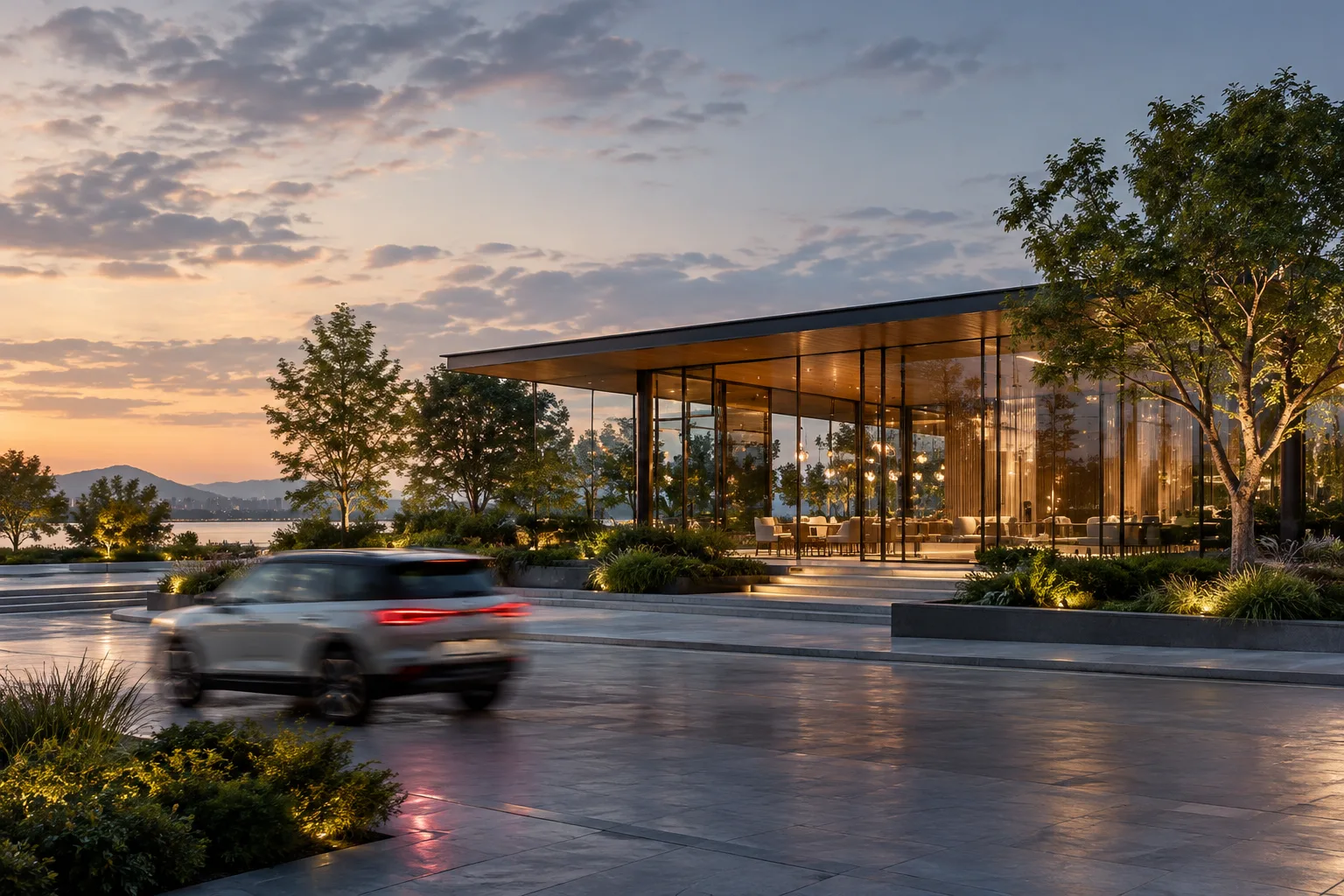
A small modern pavilion in a quiet landscape at dusk. The sky gradually deepens from pale gold to blue while interior lights become softly visible through the glazing. Static wide shot, the building remains unchanged and centered.This example focuses on changes in light and sky rather than changing the building’s form. Since the outcome of showing an entire sunset in a short clip may be uncertain, keep the requested transition simple and compare different prompts separately.
Common mistakes
Packing too many events into one prompt: Asking for people to move, materials to change, day to turn to night and the camera to move in several directions at once can blur the main idea. Start by defining one subject and one main action.
Leaving the setting vague: Saying only “a beautiful interior” does not explain what the space is or what its atmosphere is like. Add the necessary details about location, light and surroundings; don’t pad every prompt with unnecessary adjectives.
Confusing camera terms: Zoom and dolly are not the same movement. The complexity of the camera description can also affect the output; particularly from unusual viewpoints, the same direction may not produce the same visual result every time.
Trying to fit a long transition into a short clip: The guide recommends considering clip length when describing a process or transition. Instead of asking for a complex change all at once, simplify the description.
Next steps: compare your drafts
After your first attempt, compare the output with the subject, action, setting and camera choices in your prompt. Note which element differs from your expectations, then change only that part. This makes it easier to see how a particular change in wording affects the image, rather than rewriting the whole description from scratch each time.
In an architectural office, this approach can help create short visual drafts for concept atmosphere, interior circulation or facade lighting. However, don’t assume these videos verify project accuracy, dimensions or material decisions; the sources do not promise such functionality. Before generating, check access to your chosen model and the platform requirements. Also keep safety filters in mind; Google provides a way to report inappropriate content or incorrect information.
Sources and license
This guide has been adapted into Turkish based on Google Cloud’s “Video generation prompt guide” and “Generate videos with Agent Platform” pages. Both pages are licensed under CC BY 4.0. The prompt examples were created specifically for this article.
Sources
2 sourcesSource texts are not republished; short quotes are marked, everything else is our own summary and commentary.
For architecture firms and students in Turkey, this approach can help organize prompts when turning a concept description into short video experiments. Thinking separately about light, the atmosphere of a space and camera movement makes it easier to compare different visual drafts of the same idea.
However, the sources do not explain pricing, account requirements or local hardware requirements. Before getting started, check platform access, the model you plan to use and the applicable license terms. A more cautious approach is to treat generated videos as visual communication drafts, not as project verification.
Frequently asked questions
How do you write an architectural video prompt with Veo?
Break the prompt into subject, action, scene or context, and camera choices. Choose the elements needed to achieve the visual goal for each description.
What options are available for generating video with Veo?
According to Google’s page, Gemini Omni Flash and Veo can be used through Media Studio in Gemini Enterprise Agent Platform or via the relevant APIs.
Does Veo apply camera angles precisely in architectural videos?
According to the source, some advanced camera angles may not be officially supported, and consistency can vary depending on the prompt and how it is used. Don’t assume a particular angle will be achieved in every attempt.