In brief
- Google’s documentation recommends Gemini Omni Flash as the default option for video generation.
- Veo 3.1 supports use cases such as scene extension, last-frame control and frame-specific generation.
- An effective video prompt can be broken down into subject, action, setting and camera direction.
- Advanced camera angles may not produce reliable results in every case; the documentation warns that support can vary.
What will you learn in this guide?
Simply asking for “a video of a modern interior” may not describe the intended scene and motion well enough. Google’s video prompting guide recommends breaking an idea into components such as subject, action, scene or context, camera angle and camera movement. In this guide, we’ll apply the same approach to interiors, architectural presentations and project storytelling.
The examples here don’t describe automatically transferring an existing project into a model in a particular software package. The spaces described in the prompts are text-generated examples. The goal is to create starter prompts that clearly describe what a space looks like, what changes in the video and how the camera moves.
Model choice also affects the workflow. The Gemini API documentation positions Gemini Omni Flash as the default model for video generation, while highlighting Veo 3.1 for cases that require scene extension, last-frame control or generation from specific frames. That doesn’t mean every project should use the same model: it’s better to choose based on the kind of control you need.
Requirements and model selection
The models covered in this guide are Gemini Omni Flash and Veo 3.1. The source documentation discusses video generation through the Gemini API; for Gemini Omni Flash, it specifies the Interactions API for multi-turn editing, while for Veo 3.1, it specifies the generateContent API in the context of video generation and image guidance. The prompts below should therefore be treated as text descriptions that can be used with these models.
The sources don’t specify a particular price, subscription terms, account type, hardware requirements or access steps that apply to all users. Before getting started, check whether the model and relevant API are available in the service you plan to use; don’t assume a price or access requirement that hasn’t been provided.
For workflow purposes, Gemini Omni Flash is presented as a tool for generating short videos from text and images and refining the result over multiple turns. Veo 3.1 is described as offering features such as native audio generation, video extension and frame-specific generation. These are capabilities listed in the model documentation; they don’t guarantee the same result for every prompt.
Prompting steps for architectural video
1. Define the subject and the focus of the frame
Start by naming the central subject of the video: for example, a living area, staircase, facade or material detail. Instead of a broad description like “an interior,” specify which part of the space you want to show. The example below focuses on a residential interior and morning light.
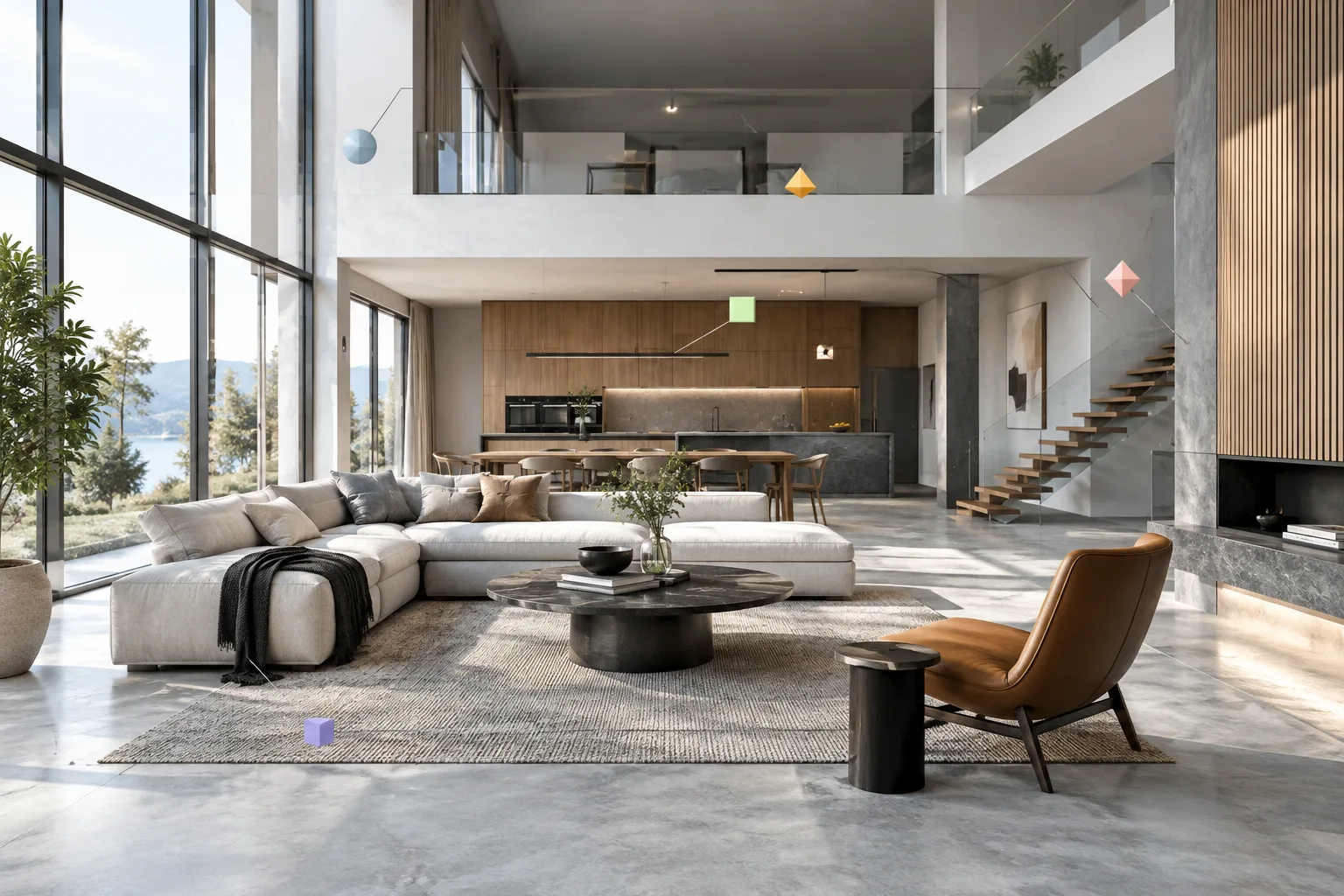
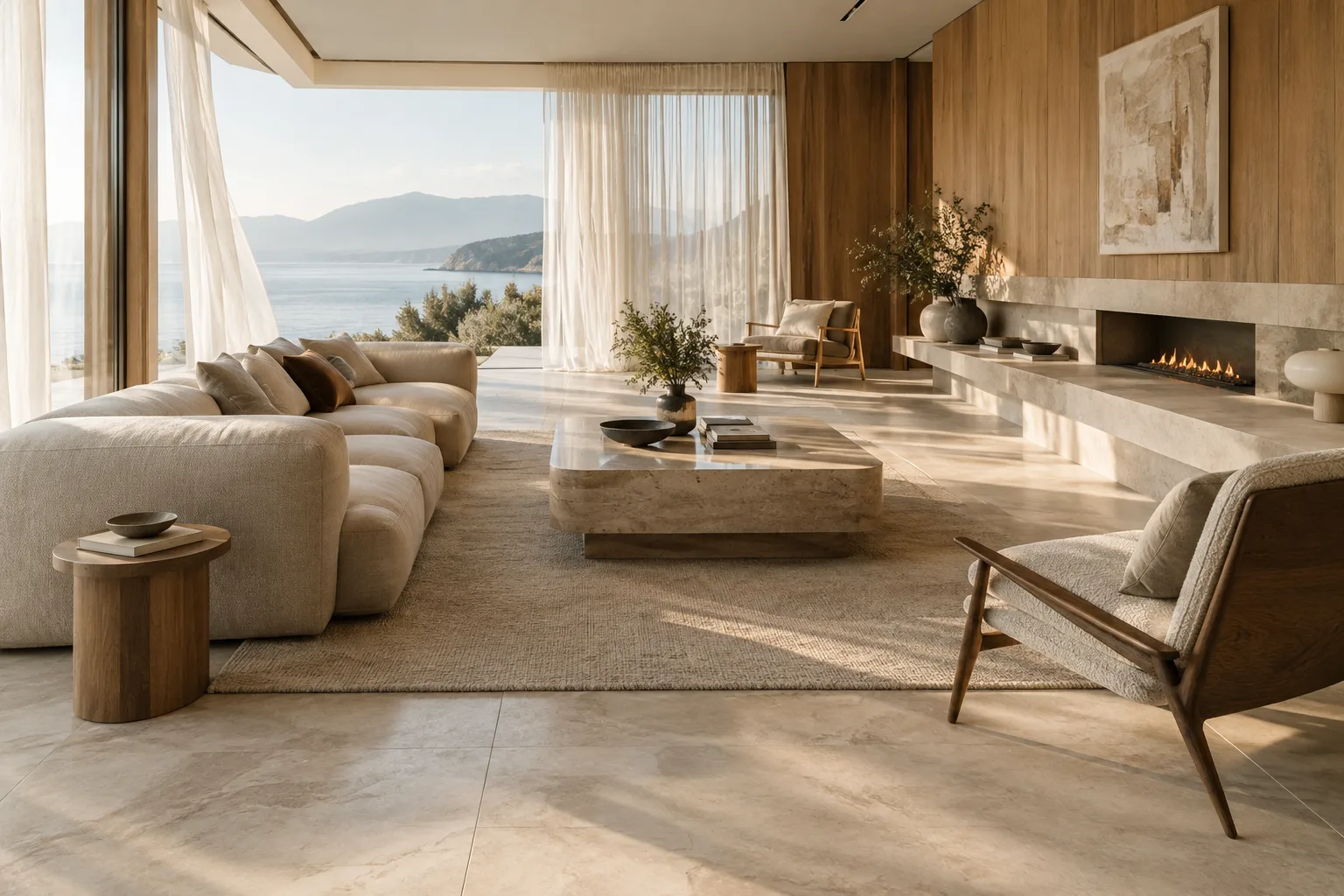
A calm contemporary living room with a pale stone floor, oak wall panels, a low sofa and a large window filled with soft morning light.This prompt describes the subject and setting together. If you want to change the focus in the next attempt, adjust only the key elements of the space or the lighting conditions. Avoiding too many changes at once makes it easier to track which part of the description affected the result.
2. Describe the action in the video
Unlike a still image, a video needs a description of movement or change. The action might involve a person, an object or the environment. For architectural storytelling, small changes can work well, such as a breeze moving a curtain or daylight shifting across the floor.
In a quiet dining room, a light curtain moves gently in the breeze while a patch of sunlight slowly shifts across the timber floor.Two movements are described here: the curtain moving in the breeze and the patch of light crossing the floor. According to the prompting guide, action can include movement, interaction, a process or small environmental changes. If you’re describing a transformation that would take a long time, consider the time span; the source guide also advises keeping long processes appropriate to the clip’s duration.
3. Specify the setting and atmosphere
A scene description explains where and when the video takes place, with details such as lighting, weather and atmosphere. In architectural visualization, this helps clarify the conditions the presentation is meant to emphasize.
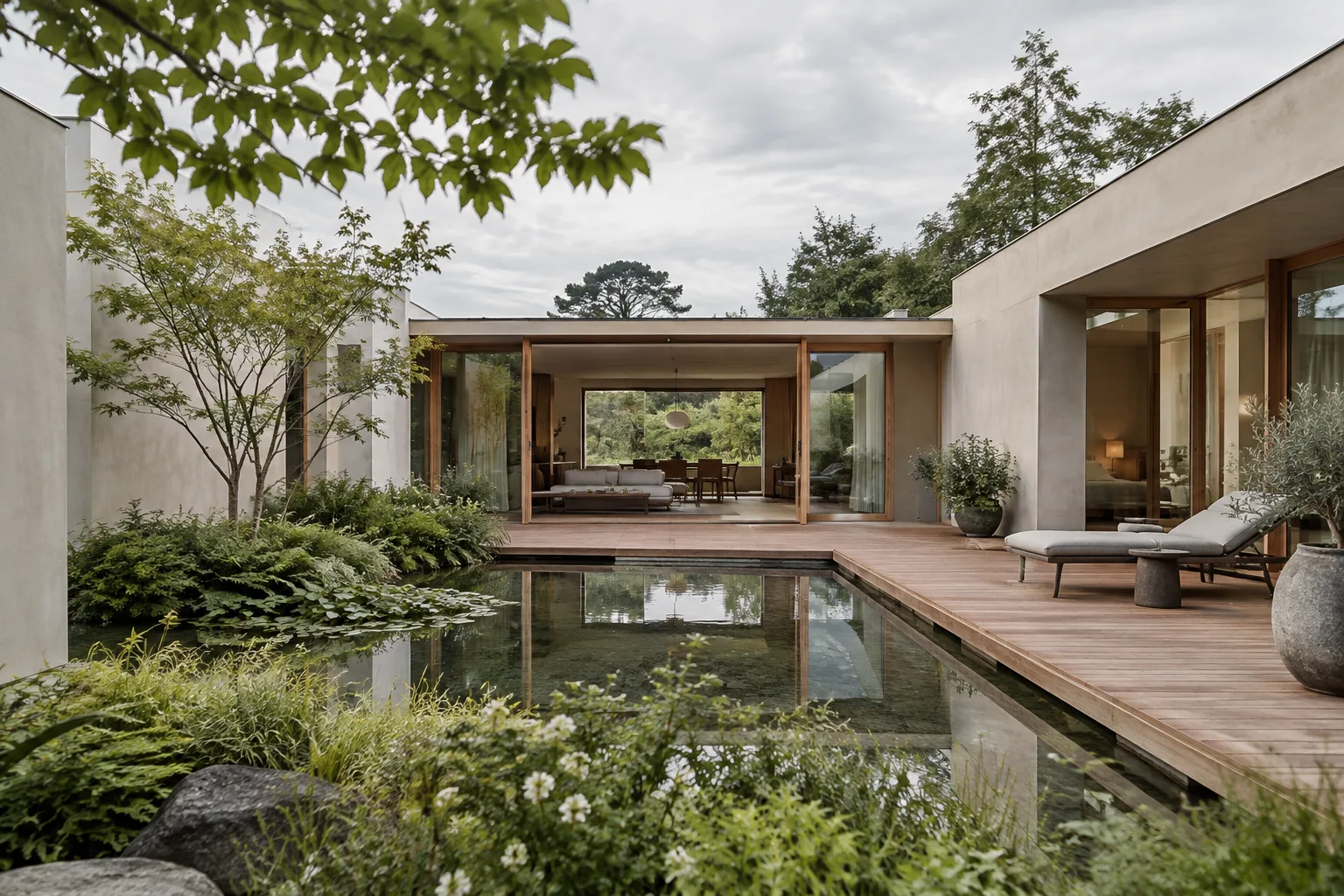
A small urban courtyard after light rain, with wet paving reflecting the overcast sky, climbing plants along the walls and a still, quiet atmosphere.This example brings together the location, the rain-wet ground, the sky and the atmosphere. You don’t need to include every environmental detail in every prompt. Choose the information that matters for the intended result. For example, if the goal is to show material surfaces, lighting and reflections on the floor may be central to the scene.
4. Add the camera angle and movement
The camera angle specifies the viewpoint from which the space is seen; camera movement describes how the shot progresses. The guide covers angles such as wide shots, eye-level views and overhead views, along with movements such as static shots, pans, tilts, dollies and zooms. Support for advanced angles, and their reliability, can vary depending on the use case.
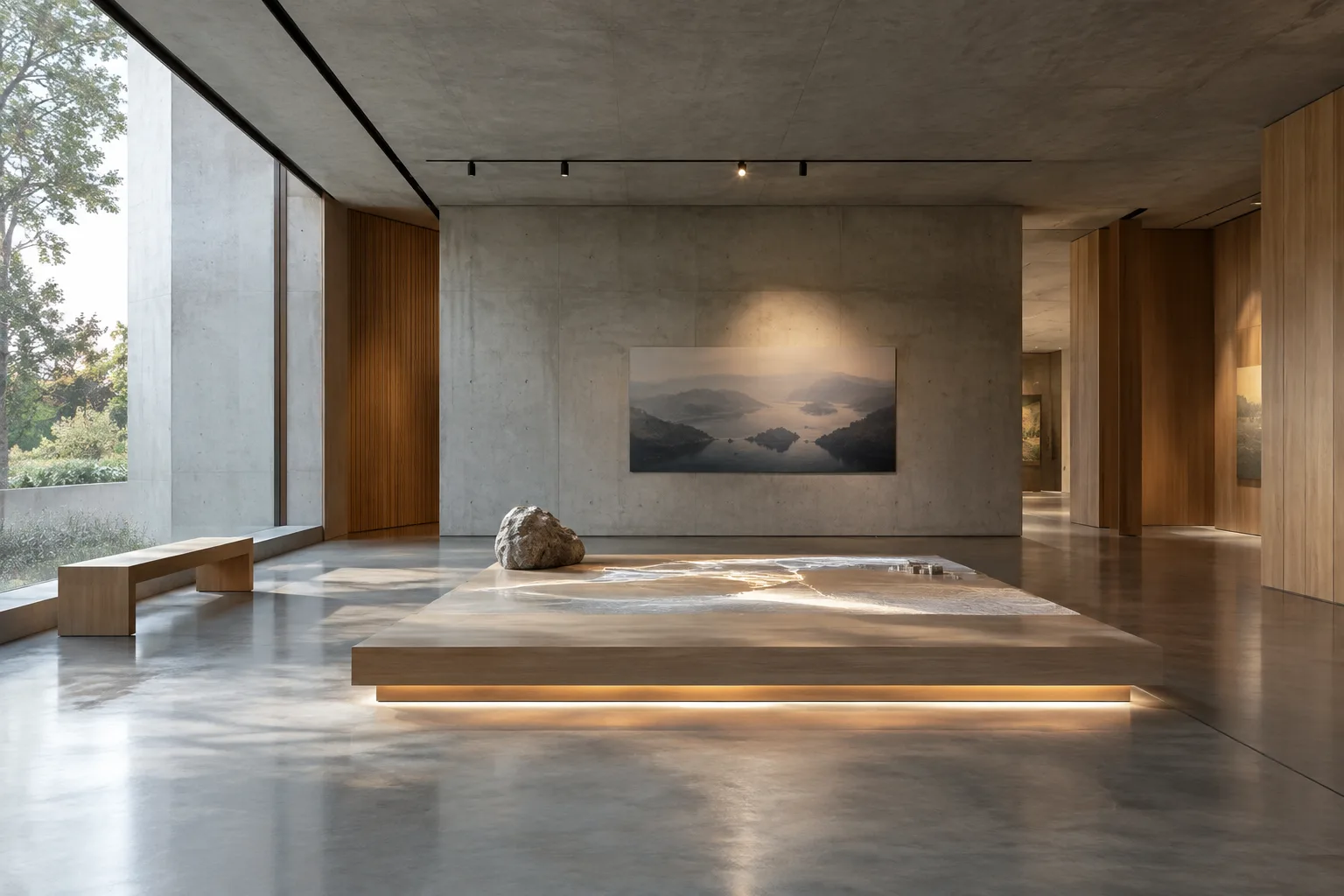
Wide establishing shot of a minimalist gallery interior, followed by a slow dolly forward toward a single sculptural display at the far end.The wide shot shows the overall space, while the slow forward movement directs attention toward a specific focal point. In your shot description, state clearly where the camera is positioned and where it moves. If the result gets complicated, remove the movement and try again with a static shot.
5. Decide whether you need multi-turn editing or control over specific frames
If you need to make changes after the first generation, Gemini Omni Flash is associated in the documentation with multi-turn editing through the Interactions API. Examples of conversational editing include changing an element in the scene or revisiting the perspective. Veo 3.1, meanwhile, is described as supporting requirements such as scene extension, last-frame control and frame-specific generation.
Use this distinction as a practical decision point: consider Gemini Omni Flash if you want to build a short scene from text and refine it over several turns; look at Veo 3.1 if you need control related to specific frames or scene extension. Verify that the feature is available in your account.
Common mistakes
Leaving the subject and action unclear: If the prompt says only “a beautiful interior,” it doesn’t describe the focus or movement. Specify which part of the space should be shown and what happens in the video.
Packing every detail into one prompt: The prompting guide doesn’t require using every component each time. Start with the main idea and select the details you need.
Stacking camera movements: Instead of describing forward and lateral movement at the same time, start with a single movement. This makes it easier to compare attempts.
Treating potentially unsupported angles as guaranteed: The source notes that some advanced camera angles aren’t officially supported and that results may vary.
Ignoring safety filters: The documentation states that safety filters are applied to Gemini Omni Flash and Veo; prompts that violate the guidelines may be blocked.
Use in architecture, interior design and archviz workflows
This method offers a starting framework for architecture firms, interior designers and archviz artists who want to convey the atmosphere of a space in a project presentation, turn a focus on light or materials into a short video concept, or experiment with different camera descriptions. However, the sources don’t explain direct compatibility with specific 3D software or importing project files. So don’t treat prompt-based generation as an automatic continuation of an existing scene file.
The documentation also doesn’t specify a local graphics card, purchase price or subscription terms. Before putting the workflow into practice, clarify access conditions, the API you’ll use and the role of the generated video in the project. Rather than relying on a generated video alone for architectural decisions, dimensions or material accuracy, a more cautious approach is to treat it as a tool for communication and visual ideation.
Next steps
For your first attempt, use a single space, a clear movement and one camera direction. When reviewing the result, note which prompt component brought it closer to your goal; if needed, change only one element in the next turn. Gemini Omni Flash’s multi-turn editing approach is described as suitable for this kind of iterative workflow. Explore Veo 3.1 features such as scene extension or frame control when you genuinely need that kind of control.
If you see incorrect or inappropriate content in the generated result, you can use the suspicious content reporting channel listed in the Google Cloud guide. Remember: prompt structure can help steer the result, but it doesn’t guarantee the image you want.
Sources and license
This guide has been adapted into Turkish based on Google AI for Developers’ “Video generation in the Gemini API” documentation and Google Cloud’s “Video generation prompt guide” page. Both sources are available under the CC BY 4.0 license. The example prompts were written specifically for this guide’s architecture and interior design use cases; the prompt examples in the sources have not been copied.
Sources
2 sourcesSource texts are not republished; short quotes are marked, everything else is our own summary and commentary.
For architecture firms and visualization teams in Turkey, the practical value of this approach lies in breaking a video concept into small, testable descriptions. Short experiments with light, atmosphere or camera movement can help teams discuss the direction of a project presentation; however, the sources don’t specify direct compatibility with 3D software or local hardware requirements.
Before putting the workflow into practice, verify model access, API terms and licensing costs separately; the available documentation doesn’t provide pricing. Treating generated imagery as a tool for presentation and ideation, rather than technical verification, helps distinguish architectural decisions from visual experiments.
Frequently asked questions
Should I use Gemini Omni Flash or Veo 3.1 for architectural video generation?
Google’s documentation recommends Gemini Omni Flash as the default model for video generation. It highlights Veo 3.1 when scene extension, last-frame control or frame-specific generation is needed.
What information should a good architectural video prompt include?
Descriptions of the subject, action, setting and camera can help structure a prompt. You don’t need to include every element in every prompt.
Which camera angles can I use with Gemini Omni Flash and Veo?
The documentation includes examples such as wide shots, eye-level views and overhead views. Support for advanced camera angles, and the reliability of results, may vary.