In brief
- Veo 3.1 is available through the generateContent API in the Gemini API.
- The model can create 8-second videos with natively generated audio at 720p, 1080p or 4K resolution.
- Video options include landscape 16:9 and portrait 9:16; generation can be guided by up to three reference images.
- Clearly describing framing, camera movement, visual style, lighting, space, action and sound can improve control over prompts.
What will you learn in this guide?
When creating short animated presentations for architectural and interior projects with Veo 3.1, a prompt should do more than ask for “a beautiful video of a building.” What angle will the camera use? Which direction will it move? What lighting and materials will appear in the space, and what will change in the scene? Describing these choices gives the generation a clearer direction.
This guide covers a prompt structure that breaks an architectural scene into parts, along with sample prompts and documented generation options. The sample prompts were written specifically for architectural use and can be copied and adapted.
Requirements and documented limitations
Veo 3.1 is available for video generation through the Gemini API. Google’s documentation currently lists the generateContent API as the way to use the feature. The model card lists the codename as “veo-3.1-generate-preview”; input types are text and image, and the output type is video with audio. The text input limit is 1,024 tokens.
According to the documentation, the model can generate 8-second videos at 720p, 1080p or 4K resolution. Landscape 16:9 and portrait 9:16 framing options are available. Other documented capabilities include extending existing Veo-generated videos, generating a video by specifying the first and last frames, and guiding content with up to three reference images.
These sources do not specify the cost of API use or account eligibility; check the latest Gemini API documentation before getting started. There is also no guarantee that a scene’s camera movements or design details will be preserved perfectly. Review the output before using it in a project presentation.
Step-by-step architectural video prompt
1. Define the purpose of the scene. Choose a single main goal, such as introducing an interior, showing a façade or conveying the atmosphere of the materials. Describing several unrelated events in an 8-second clip can make the narrative feel unfocused.
2. Describe the framing and movement. Choose a clear movement, such as a fixed wide shot, a slow push-in or a camera moving through the space. Google’s prompt guide recommends specifying framing and camera movement in particular. For example, the prompt below focuses on a single interior walkthrough:
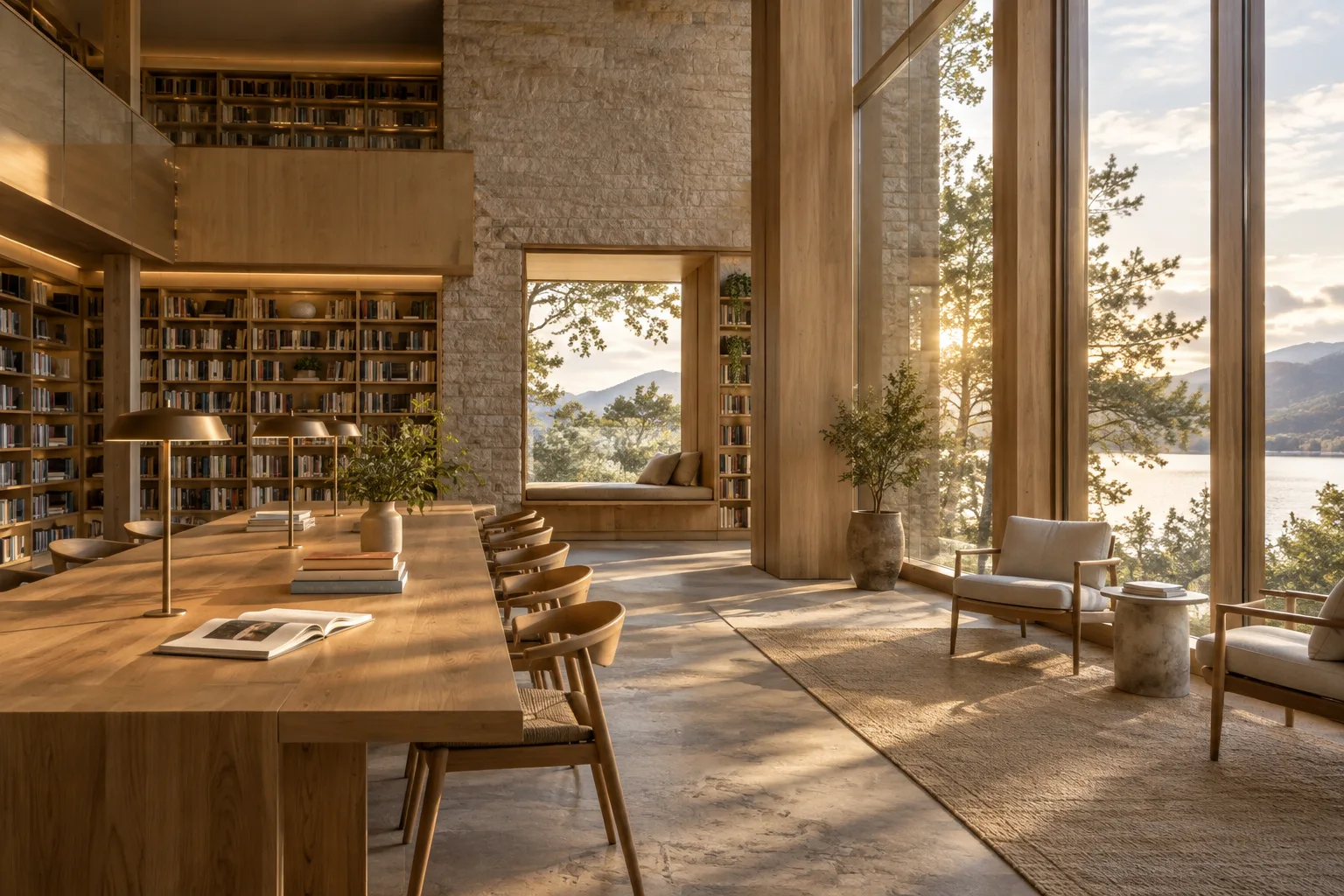
An 8-second architectural visualization of a calm contemporary library interior. A slow, steady camera dolly moves forward from the entrance toward a reading table, keeping the room's proportions and full-height windows in view. Warm late-afternoon light falls across pale timber, textured stone, built-in bookshelves and a quiet seating area. Subtle movement in sheer curtains, realistic materials, restrained cinematic style, soft room ambience.This prompt brings the duration, camera direction, use of the space, materials, lighting and sound together around one scene. Adapt the “library” and material descriptions to your project; avoid asking for several different camera movements at once.
3. Make the lighting, materials and atmosphere specific. Rather than relying on open-ended adjectives such as “elegant” or “airy,” describe what should be visible: morning light entering through a window, a matte stone surface, wood cladding or soft shadows. The second example establishes a relationship between daylight and movement in a small residential interior:
An 8-second interior architecture film of a compact apartment living room in soft morning light. Begin with a wide, eye-level view, then make a gentle pan toward the dining nook beside the window. Show a textured plaster wall, oak cabinetry, a stone countertop and muted fabric upholstery. Sunlight shifts softly across the floor; keep the scene quiet and realistic, with faint indoor ambience.The camera movement, lighting and material choices here clarify the visual priorities. Don’t include finishes or furniture that aren’t part of the project; if the generated image is expected to represent design decisions, keep the prompt grounded in project information.
4. Choose reference images and frame options according to your needs. Veo 3.1 can be guided by up to three reference images. For example, you could use a project image, a material reference and an image showing the desired atmosphere together; the sources do not describe a method for assigning separate roles to the images. The model also supports video generation with specified first and last frames. Consider this option for presentations where the clip’s opening and closing compositions matter.
An 8-second architectural exterior visualization connecting the supplied first and last frames. Move the camera slowly along the building frontage while preserving the design language, façade rhythm and surrounding landscape. Gentle daylight, soft moving shadows, realistic stone and glass, calm cinematic pacing, subtle wind in the trees and quiet outdoor ambience.In this example, the first and last frames serve as visual guidance for generation, while the prompt describes the movement between them. The sources referenced here do not provide details on how to prepare the frames or which API fields to use to add them.
5. Plan the audio and output format. The model can generate video with natively generated audio. If sound contributes to the scene, describe it in the prompt—for example, a light breeze, distant city noise or a calm indoor atmosphere. Consider portrait 9:16 framing for portrait presentations and landscape 16:9 for widescreen storytelling. Choose the desired resolution to suit your production plan; the sources do not compare quality or duration across resolutions.
Common mistakes
Packing too many events into one prompt: Choose one main camera movement and one spatial narrative for a short clip.
Leaving the space vague: Instead of saying “modern interior,” describe its use, the materials that should be visible and the lighting conditions.
Skipping the sound description: If sound is needed, specify the desired atmosphere in the prompt. If not, consider its creative purpose in advance.
Assuming design accuracy: Check the generated video for the façade layout, materials and spatial decisions. Prompt detail can help guide the result, but it is no substitute for technical project verification.
Using frames and references without a clear purpose: Use reference images and the first/last-frame options when you need visual consistency or a specific opening and closing composition.
Where it fits into architecture, interior design and archviz workflows
Veo 3.1’s short video generation with audio may be worth considering for architecture firms, interior designers and archviz artists who want to add atmosphere to a design presentation, show how a space might be experienced through a moving narrative, or try a format beyond still images. Reference images and frame controls may be useful for guiding generation with existing visual decisions.
However, the sources do not explain whether the model connects directly to a specific 3D application, its licensing fees or any specific hardware requirements. Plan the workflow around API-based video generation and reviewing the results, and separately confirm technical accuracy, project confidentiality, cost and access terms in the latest service documentation. Treat the video as a presentation output to review, not as a final project document.
Next steps
Start by trying two prompt variations of the same scene: use a static wide shot in one and slow camera movement in the other. Change the lighting, material and sound descriptions one at a time rather than all at once, so you can compare how each phrase affects the result. If you use reference images or first and last frames, check whether the generated clip preserves the project intent. Consult the latest Gemini API documentation for API access, pricing and terms of use.
Sources and licensing
This article draws on the prompt-writing recommendations in Google DeepMind’s “How to create effective prompts with Veo 3” guide and Google AI for Developers’ “Generate videos with Veo 3.1 in Gemini API” and “Veo 3.1” model documentation. The Gemini API documentation is licensed under CC BY 4.0; the content has been adapted into Turkish, and the architectural sample prompts were written originally.
Sources
3 sourcesSource texts are not republished; short quotes are marked, everything else is our own summary and commentary.
For architecture firms and visualization teams in Turkey, Veo 3.1 is an interesting option to explore for adding a short, audio-enabled narrative to still renders. Reference images and frame controls could be useful when moving from existing design visuals to an animated presentation; however, the resulting video should be checked to ensure it accurately reflects the project decisions.
The sources do not specify pricing, account terms or particular hardware requirements, so don’t assume it will suit your production budget or existing workflow. Firms should start with a small scene, confirm the API terms and treat the result as a presentation element that needs review—not as a technical project document.
Frequently asked questions
How long are videos generated with Veo 3.1?
According to the Gemini API documentation, Veo 3.1 can generate 8-second videos.
Which resolution and framing options does Veo 3.1 support?
The documentation lists 720p, 1080p and 4K resolutions, as well as landscape 16:9 and portrait 9:16 options.
Can reference images be used when generating with Veo 3.1?
Yes. According to the documentation, up to three reference images can be used to guide the content. The model also supports generating video with specified first and last frames.