In brief
- FLUX.2 documentation recommends ordering prompts by subject, action, style, and context.
- According to the guide, elements mentioned first carry more weight, so put the most important ones up front.
- FLUX.2 does not support negative prompts; describe the image you want instead of listing unwanted elements.
- Colors can be specified with HEX codes, and complex scenes can be described in natural language or structured JSON.
What will you learn in this guide?
This guide walks through how to describe a scene when preparing architectural and interior visualization prompts for FLUX.2. The goal is to clearly communicate the key elements of an interior, its visual approach, lighting, and colors in a single prompt. The examples are original prompts created specifically for this article; they are not copied from the source documentation.
The basic framework recommended by the FLUX.2 documentation is “subject + action + style + context.” For architectural scenes, this structure can be adapted to describe a space or building, what is happening in the scene, its visual language, and contextual details such as lighting or atmosphere. Put the most critical feature or mood at the start of your prompt: according to the documentation, word order matters, and elements mentioned first receive more attention.
This approach does not make image generation equivalent to technical project drawing. A prompt describes the image you want; the source materials do not guarantee dimensional accuracy, compliance with construction documents, or suitability for use in production drawings.
Requirements: software, version, and account
The examples are based on the FLUX.2 prompting guide. The guide does not require a particular desktop application or a specific application version. The main FLUX.2 documentation mentions creating an account and adding credits to get started via the API, as well as the option to run FLUX.2 [klein] and [dev] models on your own infrastructure. Before you begin, check the applicable official pages for the terms of use and licensing details of these options.
The documentation does not specify minimum computer hardware requirements for running the models. So you should not assume a particular graphics card, memory capacity, or local installation process. The prompts below are written to be supplied to FLUX.2 as text. According to the documentation, FLUX.2 can understand both natural language and structured prompts in JSON format.
How to prepare an architectural prompt, step by step
Define the main subject. Say what space or building you want to visualize in the first sentence. Instead of a general phrase such as “architectural image,” describe, for example, the inner courtyard of a residence with a courtyard. Then foreground the most important element in the scene.
Add the desired state and visual style. Specify how the subject should appear and what visual approach you want. If you’re aiming for a photorealistic interior image, say so explicitly; rather than piling on vague adjectives, describe observable qualities.
Add context. Include lighting, time of day, atmosphere, and surroundings. The FLUX.2 guide notes that details such as camera model, lens, and photographic technique can also be used in prompts for photorealistic results. The example below adapts this approach to an architectural interior shot.
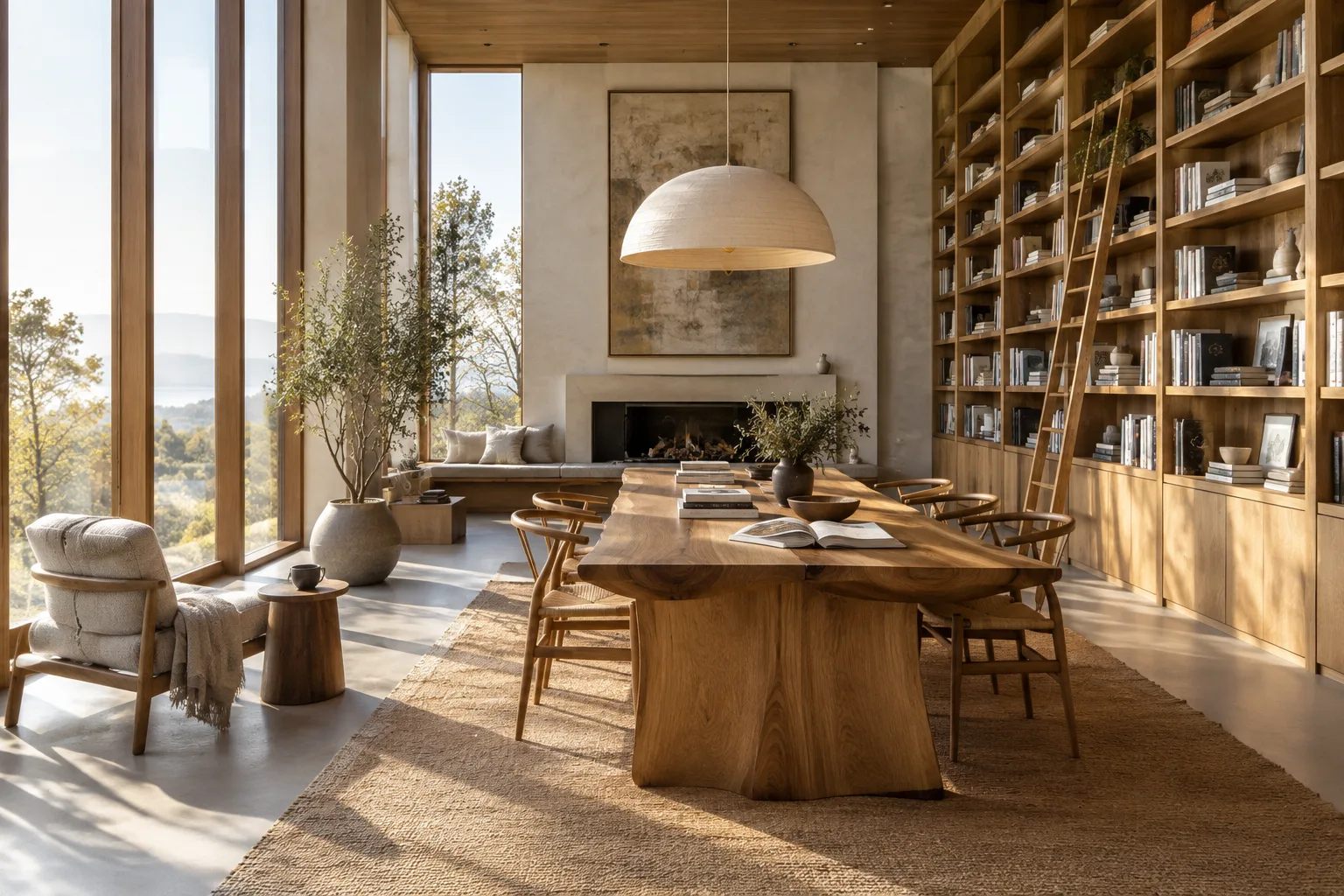
A calm contemporary reading room in a small urban library, tall timber shelves around a central reading table, soft morning daylight entering from a high side window, photorealistic architectural interior visualization, warm natural materials, shot on a Hasselblad X2D with an 80mm lens, balanced composition, quiet atmosphereThis example introduces the subject and space first, then adds materials, lighting, and photographic approach. The documentation gives the Hasselblad X2D and 80 mm lens as examples of camera details; here, they appear in a new prompt for an architectural scene.
Pair colors with objects. The FLUX.2 guide recommends clearly stating which object or surface a HEX code refers to. Instead of simply saying “use #C4725A,” associate the color with a specific element, such as a wall. Matching the color reference to the right object makes the prompt clearer than a general color instruction.
Photorealistic interior visualization of a compact apartment living room, pale oak floor, walls in #C4725A, a deep teal sofa in #1B6B6F, small warm accent objects in #E8A847, soft diffused daylight, clean contemporary styling, eye-level compositionHere, each color code is associated with a surface or piece of furniture. This description does not guarantee that the colors will be reproduced exactly; HEX codes are the color-description method discussed in the source.
Organize complex scenes with JSON. Try the JSON format when you need to describe multiple elements separately or keep camera and composition details organized. The basic structure provided in the source includes fields such as scene, subjects, style, color palette, lighting, mood, background, composition, and camera. The example below adapts this structure to a residential interior.
{
  "scene": "A bright contemporary apartment living room connected to a dining area",
  "subjects": [
    {
      "description": "A low oak coffee table in front of a neutral fabric sofa",
      "position": "center foreground",
      "action": "still life arrangement with books and a ceramic vase"
    },
    {
      "description": "Large windows overlooking a quiet courtyard",
      "position": "background",
      "action": "soft daylight entering the room"
    }
  ],
  "style": "photorealistic architectural interior visualization",
  "color_palette": ["#D9CBB8", "#8C6F55", "#E8E4DE"],
  "lighting": "soft morning daylight",
  "mood": "calm and welcoming",
  "background": "subtle courtyard greenery beyond the windows",
  "composition": "wide interior view with clear depth from foreground to background",
  "camera": {
    "angle": "eye-level",
    "lens": "wide-angle",
    "depth_of_field": "balanced focus across the room"
  }
}
The fields in the JSON example let you organize different parts of the scene separately. The source describes both natural language and JSON as supported options; natural language may work well for quick ideation, while JSON can be useful for more structured, complex descriptions.
Common mistakes
Adding negative prompts: FLUX.2 does not support negative prompts. Instead of listing things you don’t want it to generate, describe the features you want to see in the frame. For example, if you’re aiming for a bright interior, specify the quality and source of the light.
Leaving important information until the end: According to the documentation, word order matters. If the type of space or visual approach is a top priority, include it in the first sentence; add secondary details afterward.
Using color codes ambiguously: Results may be inconsistent if it isn’t clear which surface or object a HEX code refers to. Associate each code with a specific element, such as a wall, floor, sofa, or other object.
Making every prompt unnecessarily long: The guide classifies short prompts as 10–30 words and medium-length prompts as 30–80 words, and says the medium length is generally ideal for most projects. Prompts over 80 words may be appropriate for complex scenes. Start with a medium-length description of the main idea, then add details as needed.
Trying to solve everything in one attempt: Keep requests about color, framing, lighting, and materials organized. Tracking which part of the description you changed makes revisions easier, especially with a JSON structure.
What changes in an architecture and visualization workflow?
This method may help architecture and interior design teams looking to quickly develop ideas about interior atmosphere, material palettes, or visual direction. Archviz artists can also use subject order, lighting, and camera descriptions to build scene prompts more systematically and explore different visual options. However, the source documentation does not define a workflow for transferring generated images into CAD, BIM, or modeling files.
For that reason, don’t treat prompt results as a substitute for project geometry or dimensioned technical documentation. Consider them for visual communication and concept exploration; before a client presentation or construction decision, separately verify the project team’s technical requirements. If the same palette needs to be reused across a team, save HEX codes along with the names of the objects they refer to. When choosing a generation method, also review API credit costs, the option to run models on your own infrastructure, and the relevant model licensing terms.
Next steps
Start by writing a prompt for a single room with a small number of key elements. Put the main subject first, then add the style and lighting. If color control matters, associate each HEX code with the relevant surface. When the scene becomes more complex, switch to JSON and organize elements, positions, and camera details in separate fields. The FLUX.2 documentation also describes multilingual prompting as a supported use; prompts in Turkish can be tested.
Changing one or two elements in each iteration and noting how the description affects the image can help you build a clearer prompt library for reuse within the team. This is a workflow suggestion; the sources do not guarantee a particular level of output quality, exact geometry, or architectural suitability.
Sources and licensing
This guide has been adapted into Turkish using information from Black Forest Labs’ FLUX.2 prompting guide on prompt structure, word order, length, HEX colors, JSON, and multilingual prompting. The main FLUX.2 documentation page was used for information about ways to use the models. The architectural example prompts in this article were created specifically for this piece; since the source pages do not specify a license type, no separate open-license claim is made.
Sources
2 sourcesSource texts are not republished; short quotes are marked, everything else is our own summary and commentary.
For offices and students in Turkey, this method may be useful for quickly exploring concepts and interior atmosphere. Describing subject order, lighting, and color palettes systematically can make a visual brief clearer across a team. However, prompt-generated images should not be treated as dimensioned project data or construction drawings.
Before use, it’s important to review the costs and licensing terms for using API credits or running models on your own infrastructure. Since the sources do not provide hardware requirements, it isn’t possible to recommend a specific computer for local use. Geometry and technical compatibility should be checked separately on real projects.
Frequently asked questions
Does FLUX.2 support negative prompts?
No. The FLUX.2 prompting guide says negative prompts are not supported; it recommends describing the image you want instead of listing things you don’t want.
Can you use HEX color codes in FLUX.2 prompts?
Yes. The source guide describes HEX color codes as a supported way to specify color. You need to clearly state which object or surface each code refers to.
Can you write JSON prompts for FLUX.2?
Yes. The documentation presents natural language and structured JSON prompts as supported options. JSON can organize fields such as scene, elements, style, lighting, and camera separately.