In brief
- Nano Banana 2.1 is available in the Gemini API for image generation and conversational editing.
- API examples cover Python, JavaScript, Java, Go, and REST.
- You can ask it to add, remove, or change elements in an uploaded image, and adjust its style and colors.
- Google recommends writing clear, specific prompts and improving results through testing and refinement.
What you’ll learn in this guide
This tutorial explores how to structure prompts when using Nano Banana 2.1 for architectural ideation and early-stage interior visualization. The aim is to move beyond a vague, one-line request and clearly describe the space, material feel, lighting, framing, and elements that must remain unchanged. Then we’ll assess the first result and refine the request in small steps.
Nano Banana is the name used for Gemini’s built-in image generation capabilities. Google’s Gemini API documentation describes Nano Banana 2.1 as a model for high-efficiency image generation and conversational editing. The documentation includes examples of generating images from text and editing an image with text instructions. The workflow below is therefore designed for exploring design alternatives and requesting controlled image revisions; it is not a substitute for project drawings or technical validation.
What you’ll need
This guide explains the workflow for using the API. Google’s examples include Python, JavaScript, Java, Go, and REST options for the Gemini API. A suitable development environment and API access are required for a code-based workflow; the REST example reads the API key from the GEMINI_API_KEY variable. The provided sources don’t explain how to obtain an API key or what usage costs, so this guide doesn’t provide account setup, pricing, or quota information.
The model name used in the examples is gemini-nano-banana-2.1. You can generate an image by sending text input to the API; the editing example also sends image data along with a text instruction. Before uploading an image, make sure you have the necessary rights to use it. Google reminds users to respect rights to uploaded images and not to generate content that infringes on others’ rights or is misleading, harassing, or harmful.
Step-by-step prompt writing
1. Start by defining the purpose of the image
Choose a single goal for your first prompt—for example, exploring the material and lighting atmosphere of a residential living area. Describe the space, visual approach, and elements you want to emphasize in the frame. Rather than leaving the request open to interpretation with something like “a beautiful interior image,” specify what should be visible.
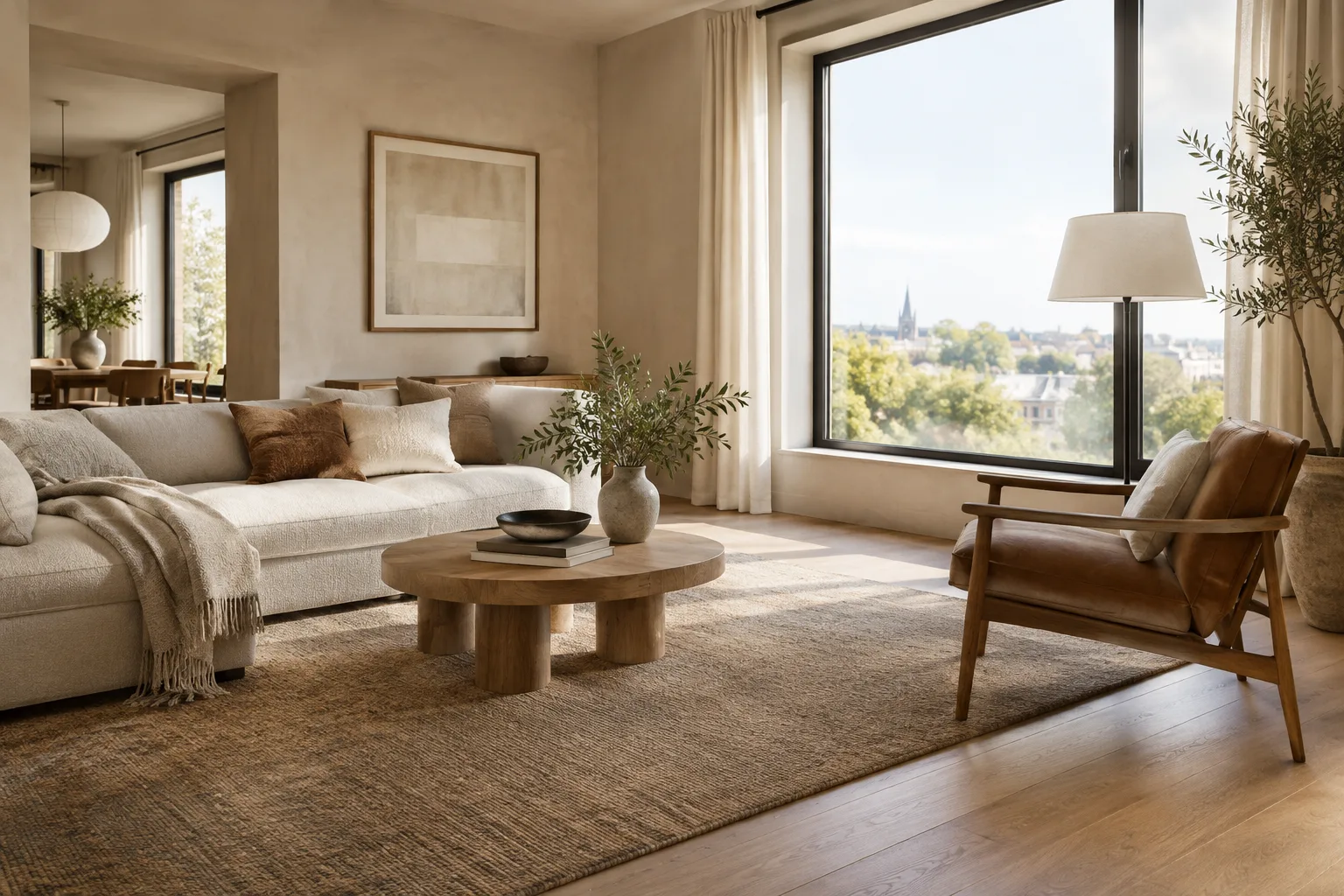
Create a photorealistic architectural visualization of a compact contemporary apartment living room. Show a quiet seating area, a full-height window, pale oak flooring, warm off-white walls, and a simple built-in bookshelf. Soft morning daylight, natural material textures, eye-level camera, balanced composition. No people, no signage, no decorative text.This example describes the space type, key materials, lighting, and camera approach in one request. You don’t need to include every design decision in the first attempt; prioritize a few concrete features that define the intended atmosphere.
2. Clearly state constraints and what must remain unchanged
For a design image, it’s useful to specify not only what to add, but also which elements to preserve. This is especially important when editing an existing image. Describe the requested changes separately from the areas that must not be touched.
Create a photorealistic interior concept for a small reading room. Keep the existing room proportions and window positions unchanged. Use a built-in bench below the window, light timber shelving, muted green upholstery, and soft indirect-looking daylight. Show the whole room in a calm, uncluttered composition. Do not add people, signs, or text.This is an example concept request; it isn’t tied to any specific design software, modeling method, or technical drawing. Constraints such as “keep the window positions unchanged” make the visual goal more precise. Still, check the result: don’t assume that every constraint in a prompt will be followed perfectly in every output.
3. Edit an existing image
In the API’s image editing workflow, you can send an image together with a text instruction. The source says this can be used to request that elements be added, removed, or changed, as well as to adjust style and color. At this stage, focus your prompt on the requested revision instead of describing the entire image again.
Edit the uploaded interior image by changing only the wall finish to a subtle warm plaster texture. Preserve the furniture arrangement, room proportions, window locations, and camera viewpoint. Keep the existing overall lighting and do not add new objects or text.The example focuses on a single change while also listing what to preserve. When adding an image to the API, consult Google’s image understanding documentation for supported image types and larger uploads; the provided source doesn’t give all these details. For that reason, no specific file size or format limits are stated here.
4. Improve the result in stages, not all at once
Google treats prompt design as a process of testing and refinement. If you spot an issue in the first result, choose the most noticeable one—lighting, materials, or framing—instead of rewriting the entire request. Focus the next instruction on that issue. The documentation associates Nano Banana 2.1 with conversational editing and multi-turn consistency; even so, visually inspect the output after every change.
Refine the previous image by making the daylight softer and less contrasty. Keep the room layout, furniture, materials, and camera viewpoint unchanged. Do not introduce additional objects or change the wall color.This follow-up request focuses only on the lighting. Adding many new decisions at once during revisions can make it harder to tell which instruction affected the result. Identifying one main change per round and comparing images also makes internal team reviews easier to follow.
5. Generate alternatives that are easy to compare
When exploring a design decision, keep the same basic description of the space and vary just one element. For example, change the wood tone in one round and the wall color in another. That makes the differences between images easier to interpret. Describing the desired image type and framing consistently in each prompt also helps with comparisons.
Create a photorealistic architectural visualization of the same contemporary apartment living room concept. Keep the layout, furniture positions, window, camera viewpoint, and daylight consistent. Change only the floor finish to a medium-tone natural oak. No people, signage, or text.This is an original prompt example intended to keep variables controlled. There’s no guarantee that the model will preserve every detail exactly; compare the images side by side before treating them as design decisions. Don’t use the visual output alone to verify the accuracy of real project materials or dimensions.
Common mistakes
Using vague descriptions: Phrases like “make it modern and beautiful” don’t explain the space or visual goal. Add observable qualities such as space type, materials, and lighting.
Requesting too many revisions in one prompt: Changing the color, furniture, camera, and lighting all at once makes the result harder to assess. Start with one main variable.
Leaving out what should be preserved: When editing an existing image, specify elements that must not change, such as windows, layout, or framing.
Treating the output as a technical document: This workflow is for image generation and editing. Don’t use the generated image in place of dimensioned drawings or material approval.
Ignoring rights to uploaded images: Make sure you have the right to use an image before editing it.
Next steps
Start by preparing a few short prompts for the same space concept, varying just one design variable in each. Review the results as a team, considering materials, atmosphere, and composition. Try small editing requests on one image you select; at every step, clearly state which elements should be preserved. When working with the API, consult Google’s relevant image understanding documentation for details such as image input formats and using multiple images. Google also says that all generated images include a SynthID watermark.
Sources and license
This tutorial has been adapted into Turkish based on Google’s Gemini API “Nano Banana image generation” and “Prompt design strategies” documentation. Both sources are published under the CC BY 4.0 license.
Sources
2 sourcesSource texts are not republished; short quotes are marked, everything else is our own summary and commentary.
For architecture firms and visualization teams in Turkey, this approach may be useful for quickly discussing concept alternatives and testing limited revisions to an existing image. Especially in the early design stages, writing requests clearly can support visual communication within the team.
However, these sources don’t explain API access or usage costs; firms should evaluate these conditions separately before integrating the tool into their workflow. It’s also important to remember that image generation is not a substitute for technical drawings or project validation. The design team should check materials, proportions, and details in the output before using them in a real project.
Frequently asked questions
Can Nano Banana 2.1 generate architectural images?
Google’s Gemini API documentation describes Nano Banana 2.1 as one of the models available for image generation. You can generate images from text input.
Can Nano Banana 2.1 edit an existing interior image?
You can request edits by sending an image and text instructions together through the API. The documentation gives examples of adding, removing, or changing elements, as well as adjusting style and color.
Do images generated with Nano Banana include a watermark?
According to Google’s Gemini API documentation, all generated images include a SynthID watermark.