In brief
- Nano Banana 2.1 is one of the models available in the Gemini API for image generation and conversational editing.
- Google recommends using Nano Banana 2.1 for new projects.
- In an editing workflow, an image can be sent to the API along with a text prompt.
- Generated images include a SynthID watermark; you must have the necessary rights to use uploaded images.
What will you learn in this guide?
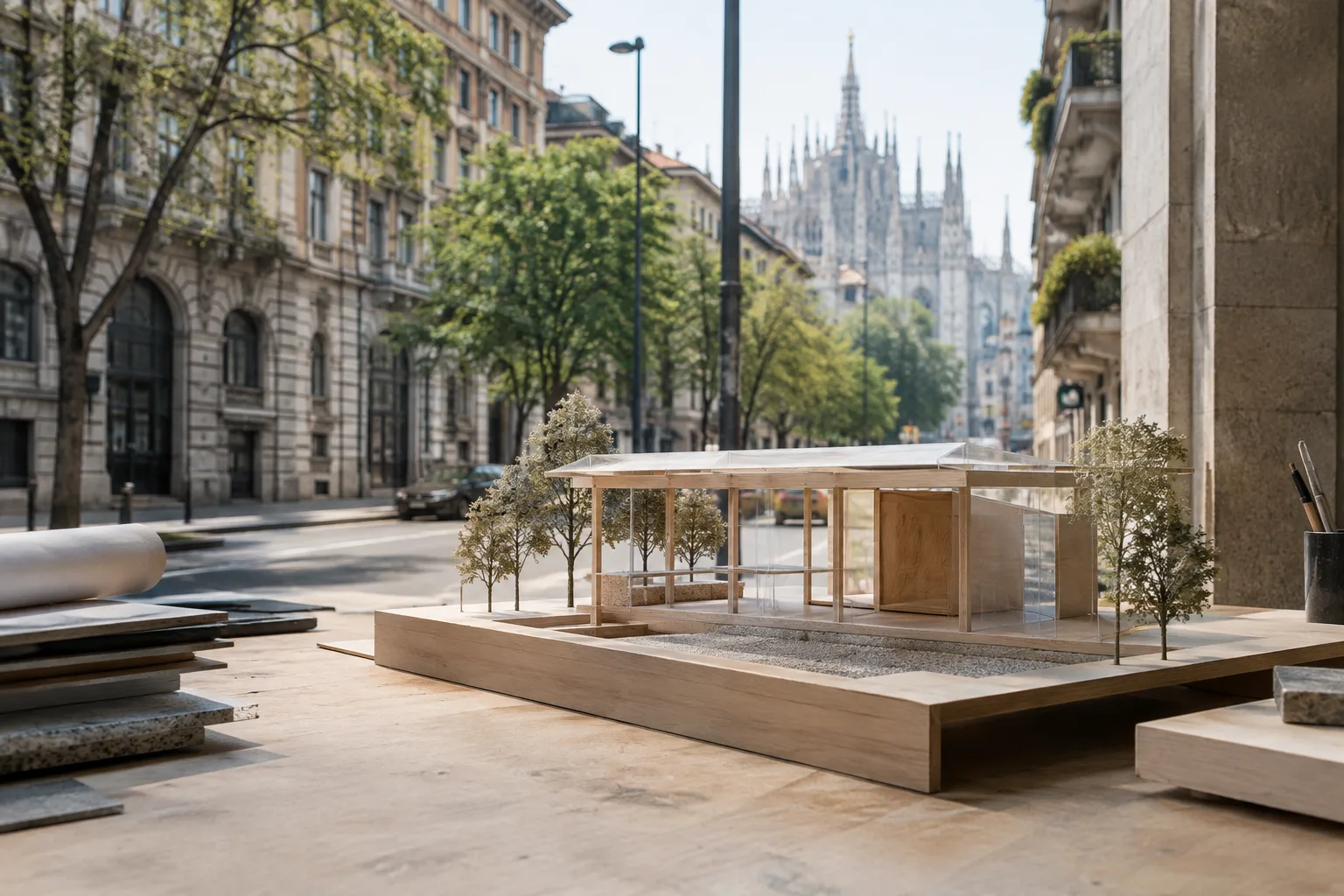
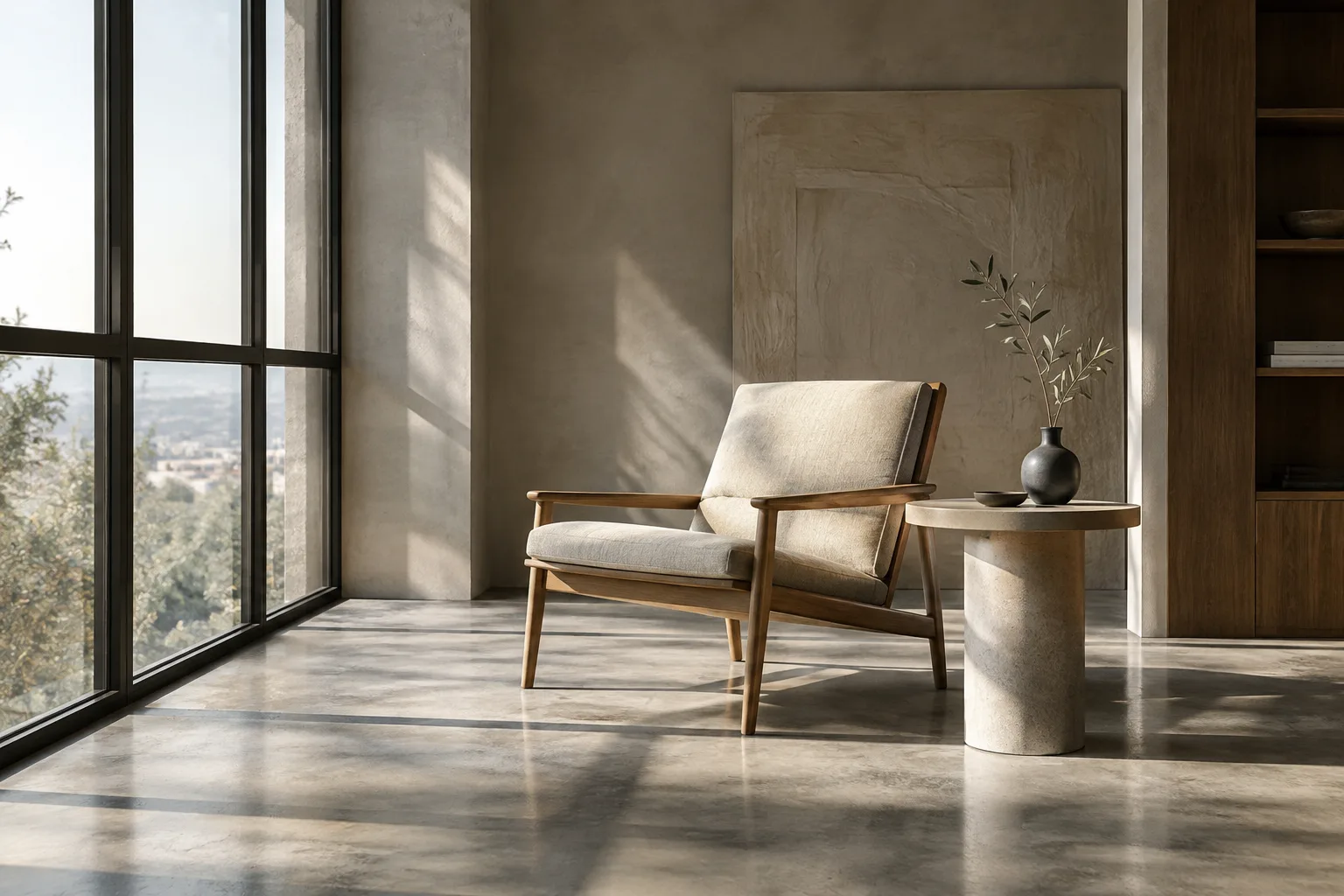
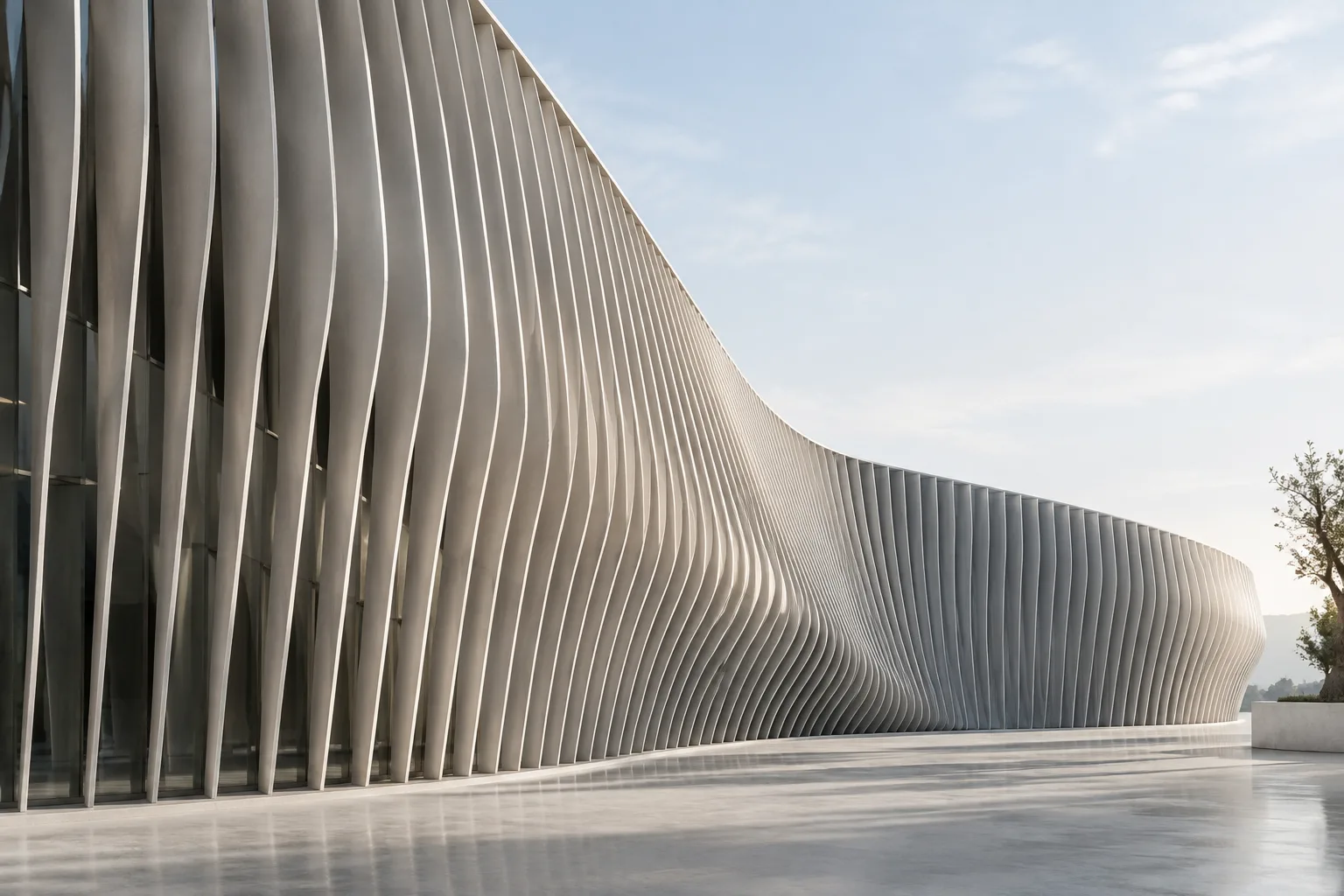
We’ll look at how to use Nano Banana 2.1 as an idea-development tool in architectural and interior visualization workflows. First, we’ll cover how to structure a scene description, then how to generate an image from scratch and request changes to an existing image with a text prompt. The examples focus on quickly visualizing decisions about massing, materials, lighting, and atmosphere.
This approach does not replace dimensioned project drawings or technical validation. However, it can help create visual drafts for discussing early-stage concepts, alternative material directions, and presentation options. Always review the results: there is no guarantee that an element described in a prompt will appear at the correct scale, position, or in the intended form.
Requirements and model selection
The official Gemini API documentation describes Nano Banana as the name used for Gemini’s built-in image generation capabilities. You’ll need access to the Gemini API and an API key to use this workflow. The documentation provides examples in Python, JavaScript, Java, Go, and REST; the examples use the model name gemini-nano-banana-2.1 for image generation. This guide explains how the API works with text and image inputs for those who want to proceed without writing code; the API examples do not describe a graphical user interface.
In Google’s current model list, Nano Banana 2.1 is described as the primary efficiency model for image generation and conversational editing, and its use is recommended for new projects. According to the documentation, it offers image quality at 1K, 2K, and 4K resolutions, text rendering, multi-turn consistency, and context grounded in Google Search. These are descriptions from the provider’s documentation; test the model with real prompts to determine whether it suits your project.
Other options include Nano Banana 2 Lite, the previous-generation Nano Banana 2, and Nano Banana Pro for more complex image tasks. The documentation describes the Lite model as suited to speed- and cost-sensitive tasks, and notes that it is not optimized for multiple reference images or sequential, multi-turn editing. Nano Banana 2 is listed as a previous-generation model, while Nano Banana Pro is presented as an advanced option for complex visual tasks.
Imagen is no longer available in the Gemini API. Google’s migration guide points users to Nano Banana models. If an application was built around older Imagen model names, review its model name, API method, and response format against the current documentation.
Step-by-step architectural image generation
Define the image’s purpose. Decide whether you want an exterior concept, an interior atmosphere, or a material alternative. Rather than setting many unrelated goals at once, establish the scene’s main idea first.
Break the scene into components. Describe the space type, main geometries, surfaces, lighting, and camera view separately. Instead of saying “a lobby,” for example, describe observable choices such as the entrance area, seating arrangement, stone surfaces, and direction of daylight.
Use a short prompt for the first draft. The example below describes an interior concept. You can copy the prompt as written; after you see the result, changing one variable at a time makes alternatives easier to compare.
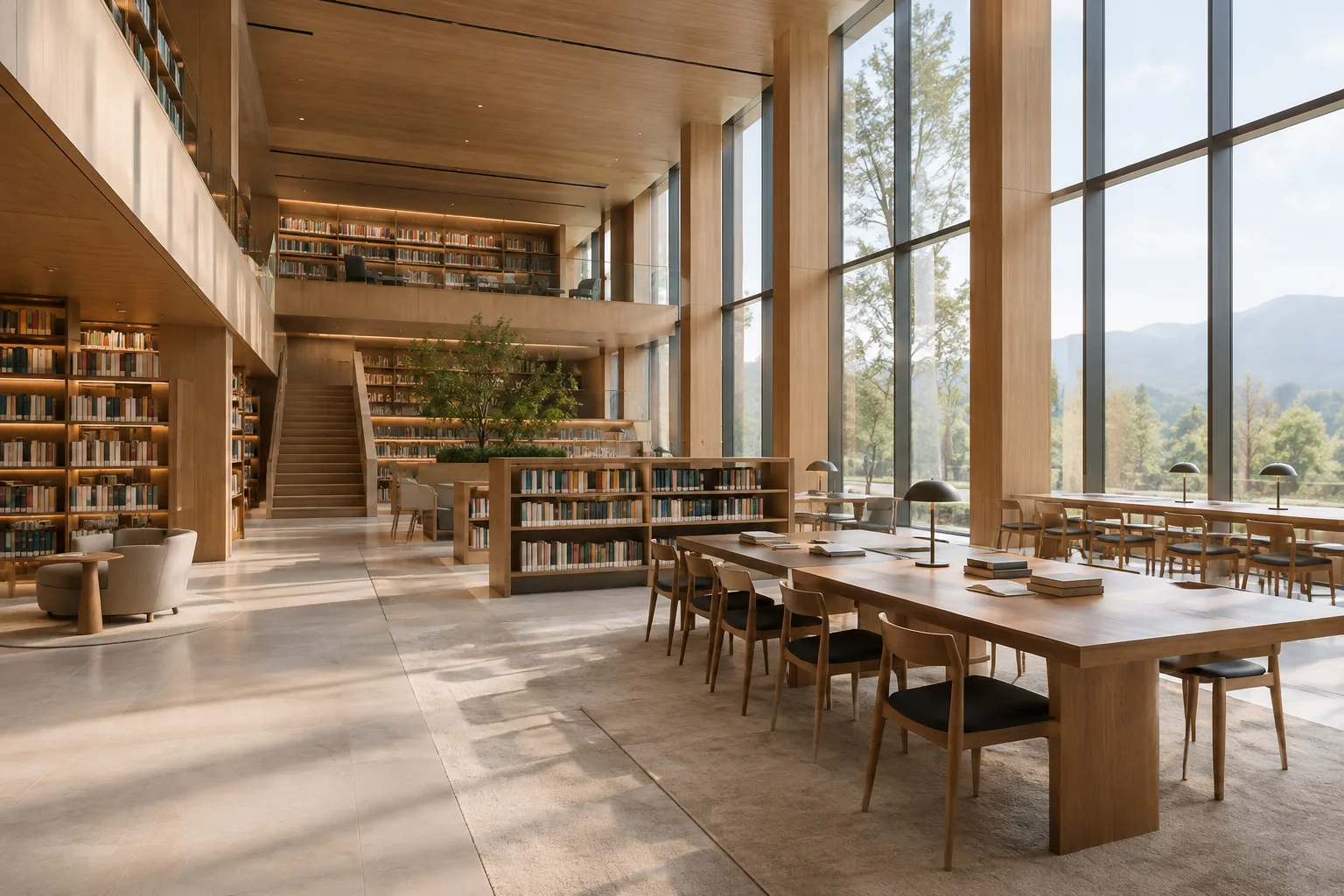
Create a photorealistic architectural visualization of a calm contemporary library lobby. Show a generous double-height space, pale limestone flooring, warm timber wall panels, a clear reception desk, and a few quiet seating areas. Soft morning daylight enters from tall side windows. Use a wide landscape composition, realistic material textures, and restrained colors.This example describes function, volume, materials, and lighting together. If the material language looks right in the first result but the lighting is too harsh, ask for softer lighting in the next turn; changing the plan, camera, and palette at the same time makes comparisons more difficult.
Prioritize the architectural elements. For an exterior, specify factors such as massing relationships, façade rhythm, surroundings, and daylight. The prompt below brings these decisions together in a visual concept.
Create a photorealistic exterior concept image of a small cultural pavilion beside a public garden. Use a low, elongated volume with a sheltered entrance, a rhythmic timber screen, and large areas of clear glazing. Include mature trees and a simple paved approach. Show soft overcast daylight, natural materials, and a calm eye-level view.This prompt does not claim to represent the dimensions or regulatory compliance of a specific building project; it is a draft for visual exploration. In a real project, decisions such as openings, structural layout, and accessibility must be validated separately.
Editing an existing image with a prompt
The Gemini API accepts image inputs alongside text, allowing you to request additions, removals, changes, or adjustments to the style or color of an existing image. The official examples send image data together with its MIME type; for supported formats and larger or multiple image inputs, the documentation points to the image understanding page.
To edit an image, first choose one you have the right to use. Then describe only the change you want to make. In this example, the goal is to change the lighting atmosphere while asking to preserve the interior’s overall character; the output should still be reviewed.
Using the supplied interior image as the reference, create a version with softer late-afternoon daylight and warmer ambient lighting. Keep the room's overall layout, visible furniture, and material palette as close to the reference as possible. Do not add people or decorative objects.If you need to use multiple references, check whether the selected model is suitable for the task. Google specifically notes that Nano Banana 2 Lite is not optimized for multiple reference inputs or sequential multi-turn editing. For image editing, too, requesting one change per turn makes it easier to understand which instruction affected the result.
Common mistakes and next steps
Giving the prompt conflicting goals: Asking for a scene to be both empty and calm and densely detailed can make the result ambiguous. Start with a single visual priority.
Treating a concept image as a technical output: Generation does not validate drawing dimensions or construction decisions. Use the image for design discussion, and check technical decisions against your project documents.
Expanding the scope of an edit: Changing the lighting, materials, furniture, and spatial layout in the same prompt makes comparisons difficult. Request changes step by step.
Overlooking image rights: Google notes that you must have the necessary rights to uploaded images. Avoid using images belonging to others without permission.
Failing to update model names: For older Imagen integrations, check not only the model name but also the API method and how the image response is handled. According to Google’s migration documentation, Nano Banana returns content parts containing image data instead of a specific Imagen image response object.
For architecture and interior design offices, this approach can be useful to designers and students who want to quickly produce visual options for early concept discussions. Archviz teams can also use drafts to explore atmosphere or material direction; however, there is no guarantee in the source that the image will be consistent, accurately reflect project geometry, or indicate production costs. API use and model selection should be assessed according to project requirements.
All generated images are said to include a SynthID watermark. Keep the watermark and the rights to any source images you upload in mind when planning to use the output in a presentation or publication. As a next step, prepare prompts that change one variable at a time for the same scene; compare the results side by side and document the descriptions that work for your team.
Sources and licensing
This guide has been adapted into Turkish using Google Gemini API documentation on image generation and migration from Imagen. The sources are licensed under CC BY 4.0. The sample prompts were written specifically for architectural use.
Sources
2 sourcesSource texts are not republished; short quotes are marked, everything else is our own summary and commentary.
For offices and students in Turkey, Nano Banana 2.1 can be a tool for bringing early ideas into visual discussions. It may be especially useful for teams looking to quickly explore options for materials, lighting, and atmosphere; however, it would be a mistake to treat a generated image as proof of project geometry or technical accuracy.
Before making a decision, teams should assess API access, the model they plan to use, and service costs; the sources do not provide pricing details. Usage rights for reference images and the SynthID watermark should also be factored into the delivery process. Starting with small, controlled tests is the soundest approach.
Frequently asked questions
How do you generate architectural images with Nano Banana 2.1?
Use the `gemini-nano-banana-2.1` model in the Gemini API and describe the space, materials, lighting, and composition in a text prompt. The API documentation provides image generation examples in Python, JavaScript, Java, Go, and REST.
Can Nano Banana edit an existing interior image?
You can send an image to the Gemini API along with text to request additions, removals, or style or color adjustments. You must have the necessary rights to use the uploaded image.
Do Nano Banana 2.1 outputs include a watermark?
According to Google’s documentation, all generated images include a SynthID watermark.