In brief
- Nano Banana 2 is the product name for the Gemini 3.1 Flash Image model; it supports image generation and editing.
- A paid API key is required to use the model in Google AI Studio.
- The model offers 512-pixel, 1K, 2K and 4K resolution options.
- You can refine prompts and improve results with follow-up instructions in the conversation.
What will you learn in this guide?
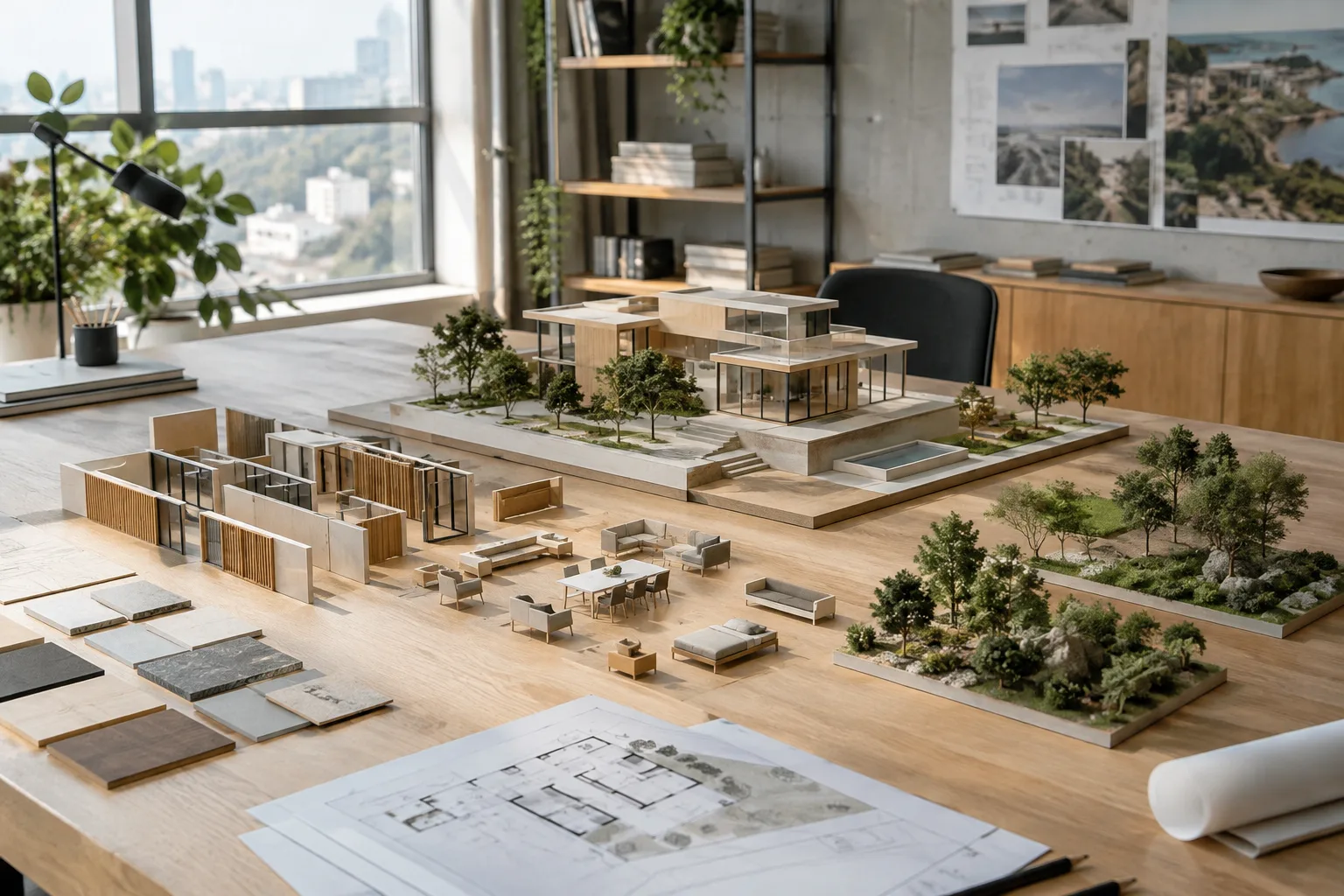
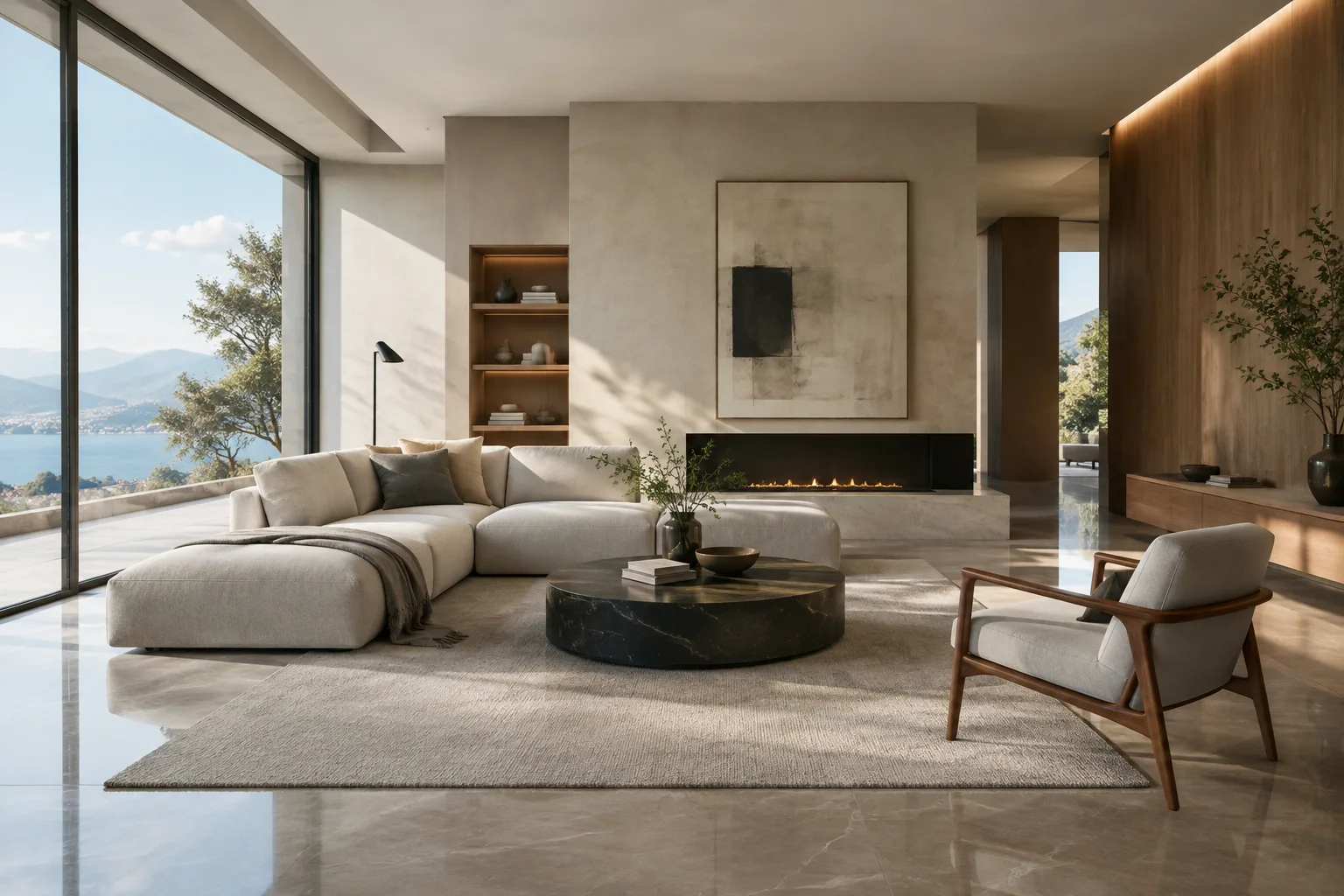
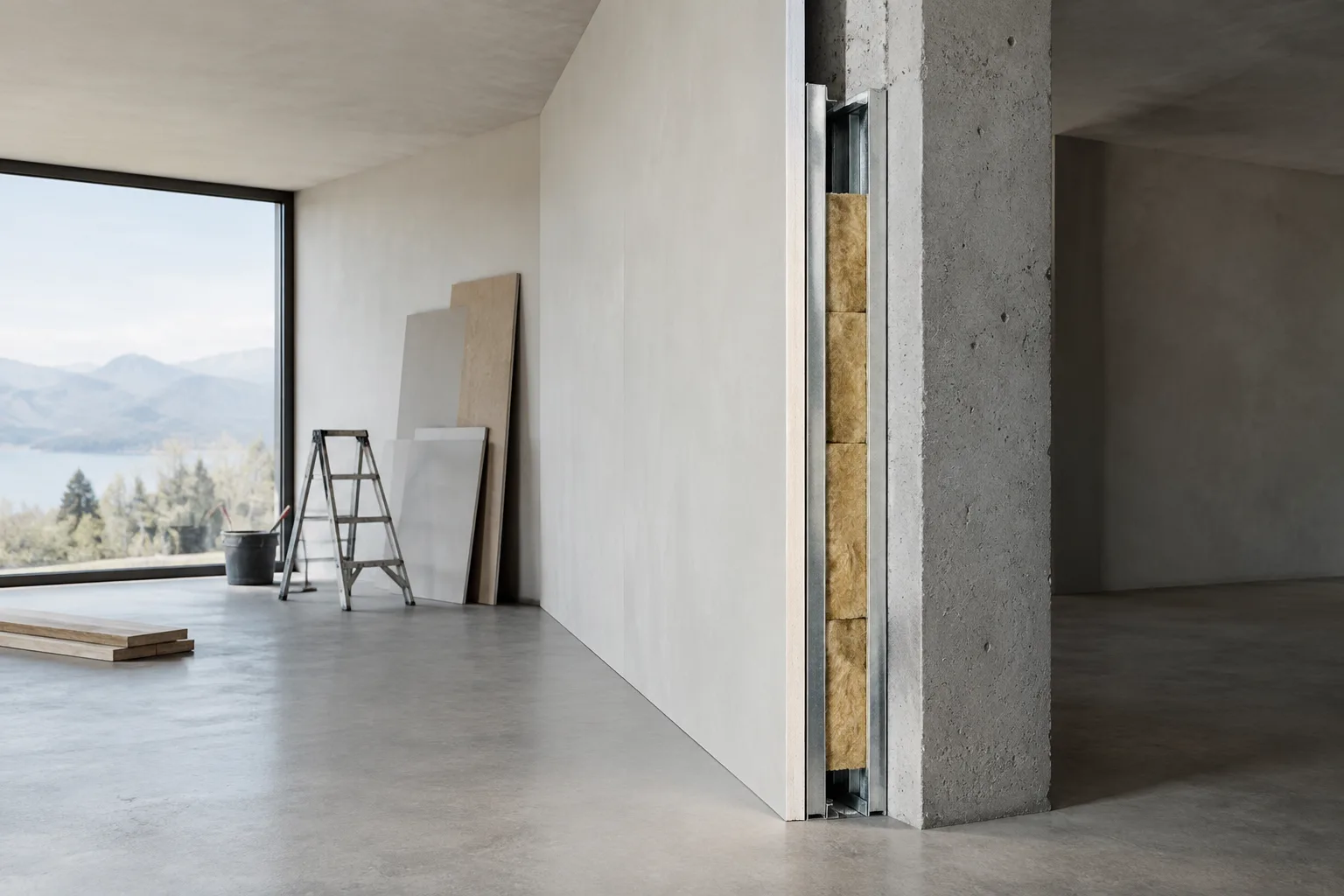
Nano Banana 2 is the product name for Google's Gemini 3.1 Flash Image model. The company positions it for image generation and editing, saying it offers advanced editing, higher image fidelity and better instruction following. This guide uses sample prompts to show how you can direct these capabilities for architectural concept work, interior atmosphere studies and presentation images.
The goal is not to expect the model to produce construction documents or technical drawings. The prompts help explore ideas by describing a space's function, key materials, lighting and visual language. Treat the resulting images not as substitutes for design decisions, but as visual drafts that can open up discussion of design options.
Google's general recommendation for its Gemini image models is to describe the scene and the overall look and feel you want in detail. The company also says Nano Banana 2 follows complex, multi-part instructions more closely. Even so, rather than trying to resolve every design element in a single prompt, it's usually more controlled to establish the main idea first and then request targeted changes.
Requirements and getting started
The model is available through Google AI Studio and the Gemini API. According to Google's announcement, a paid API key is required to use Nano Banana 2 in Google AI Studio. Vertex AI is also announced as an option for enterprise use. The sources do not specify a desktop software version or dedicated local hardware requirements, so don't assume a particular GPU model or computer configuration. API pricing is also not provided in the sources for this guide, so check the latest service information for usage costs before getting started.
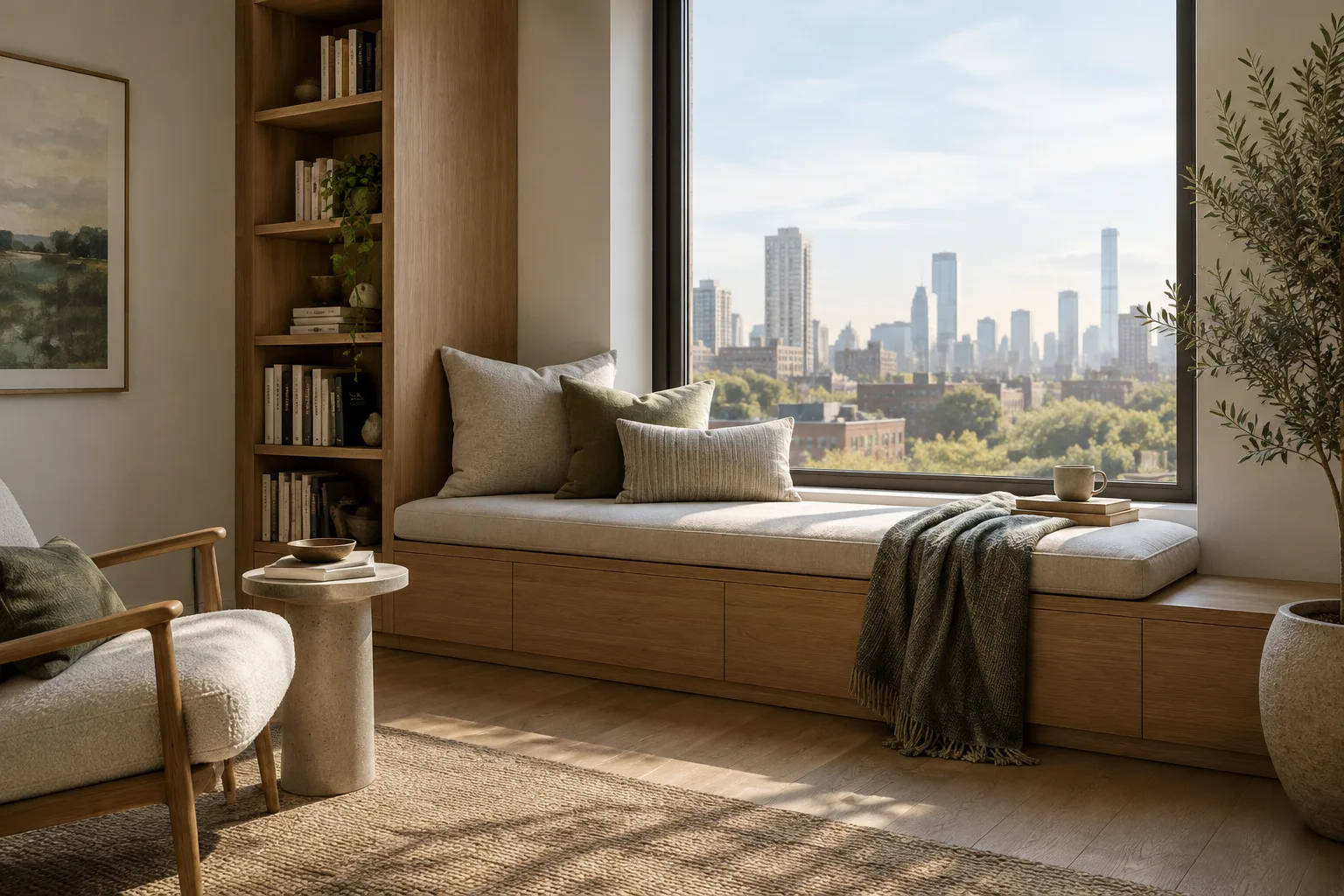
For your first test, choose a space type, a few materials and a lighting condition. A clear purpose, such as “a quiet reading nook in a small city apartment,” gives more direction than a vague description like “a beautiful interior.” If you plan to use a reference image, sharing it alongside your instructions is a documented capability of Gemini image models. Don't assume the model will interpret the reference exactly as intended; review the output for design and visual consistency.
Build and refine a prompt in five steps
1. Describe the scene's purpose and framing. In your initial prompt, specify the space type, its intended use and how you want the image to look. The example below is a starting point for an interior atmosphere image.
A small contemporary apartment reading nook designed for quiet evening reading. Show a built-in oak bench beneath a large window, a compact side table, warm indirect lighting and muted natural materials. Create a calm, photorealistic architectural interior image with a clear view of the seating area.This prompt describes the function, main furniture, materials and atmosphere together. Once you have an initial result, identify which element needs to change instead of rewriting the whole scene from scratch.
2. Clarify the relationship between architectural form and materials. For facade or massing studies, describe the building type, its surroundings and the material combination you want to explore. The example makes no claim about a specific building or real location; the goal is to generate an alternative conceptual view.
Create a conceptual street-level view of a compact cultural pavilion in a landscaped urban courtyard. Use a simple geometric volume, pale stone surfaces and a recessed glazed entrance. Show overcast daylight, a few people for scale and restrained planting. Keep the composition focused on the relationship between the pavilion and the courtyard.Using the word “conceptual” is important to avoid presenting the image as a construction project or verified information about a building. Use the result to explore a design direction, not as evidence of facade proportions or material performance.
3. Treat lighting and atmosphere as a separate variable. If the initial image's layout works for you but the lighting feels off, give a brief follow-up instruction focused only on the atmosphere. Nano Banana 2 is presented as supporting image generation and editing through conversational input; Gemini image models can also refine results through an ongoing conversation.
Keep the same interior concept and material palette, but make the daylight softer and more diffuse. Reduce the contrast between the window area and the room, and create a quiet early-morning atmosphere.Don't treat this instruction as a guarantee that every detail of the previous output will remain unchanged. Check which elements have shifted in the result. If there are unwanted differences, state clearly in the next round which visual decisions should be preserved and which should change.
4. Compare multiple design decisions in a controlled way. Changing the materials and lighting at the same time can make it difficult to understand why the result looks different. Testing one main variable first and moving on to a second with another prompt makes comparisons easier.
Create a conceptual lobby for a small architecture studio. Keep the layout simple and the viewpoint at eye level. Explore a palette of warm timber, light terrazzo and soft daylight, with a welcoming but understated atmosphere.In the next round, ask to change just one material or atmosphere preference. For example, clearly state that you want a stone-led surface palette instead of timber. That makes it easier to assess the two different design approaches.
5. Choose the aspect ratio and resolution for the intended deliverable. In addition to the existing aspect ratios specified in the source, Nano Banana 2 supports 4:1, 1:4, 8:1 and 1:8 ratios. It also offers a 512-pixel option alongside 1K, 2K and 4K resolutions. When generating an image, choose the ratio and resolution to suit your presentation needs; don't assume every available option is necessary for every task. The company introduced the 512-pixel option with a low-latency target for rapid iterations and high-volume workflows.
Common pitfalls
Vague design descriptions: General phrases like “a modern and beautiful interior” leave it unclear what kind of space and atmosphere the model should create. Make the prompt more specific by describing the space's function, key materials and lighting.
Changing everything at once: Changing the form, color, framing and lighting in a single follow-up instruction makes comparisons harder. Test one design decision at a time and review the result.
Using an image as technical verification: The sources describe the model's image generation and editing capabilities; they do not say it verifies dimensions, code compliance or material performance. Treat generated images as tools for communicating concepts, not as technical documents.
Choosing high resolution at every stage: The source describes 512 pixels as a new option for rapid iterations; 1K, 2K and 4K options are also available. Consider the option that suits your needs during early exploration, and assess presentation requirements separately.
Its place in architecture and visualization workflows
This approach can be useful for teams that want to quickly visualize concept options, open up discussion about interior atmospheres or explore different material palettes before a presentation. Architecture students can also use short prompts to examine how descriptions of a scene, lighting and materials translate into images. However, the sources do not provide information about direct integration with specific CAD, BIM or rendering software; don't treat Nano Banana 2 as a replacement for these applications.
Before using it in an office, clarify the paid API key requirement, the organization's terms of use and the role of the resulting images in the project. Although you can add reference images and edit visuals with text instructions, the team still needs to review the design decisions and visual results. Choose aspect ratio and resolution options according to the type of deliverable, too.
Next steps
Start by choosing a space type and a single design goal. After generating the first image, proceed with follow-up instructions that change just one element at a time; for example, address lighting or the material palette in separate rounds. Decide which aspect ratio and resolution you need. If the tool will be used by a team, review the paid API key requirement and current pricing conditions before use.
Sources and licensing
This guide has been adapted into Turkish based on information about prompt writing and image editing on Google's Gemini image models page, as well as model features in Google's Nano Banana 2 announcement. The sample architectural prompts were written specifically for this guide. Sources: Google DeepMind, “Gemini Image”; Google, “Build with Nano Banana 2, our best image generation and editing model”.
Sources
2 sourcesSource texts are not republished; short quotes are marked, everything else is our own summary and commentary.
For architecture firms and visualization teams in Turkey, Nano Banana 2 could be especially useful for quickly opening up discussion of atmosphere and material alternatives during early concept work. Students can also learn by testing how prompt details affect visual results; however, generated images are no substitute for technical project verification.
Before deciding whether to use it, consider the paid API key requirement and current usage costs; the sources do not provide pricing information. Since no separate local hardware requirement is specified, the soundest approach is to check the service terms rather than make assumptions when planning a workflow, and to review outputs as a team.
Frequently asked questions
Can Nano Banana 2 be used to generate architectural images?
The model supports image generation and editing. You can describe scenes with prompts for architectural concepts and interior work; the sources do not say it provides technical project verification.
Is Nano Banana 2 free in Google AI Studio?
According to Google's announcement, a paid API key is required to use the model in Google AI Studio. The sources do not disclose pricing.
Which resolutions and aspect ratios does Nano Banana 2 support?
The announcement lists 512-pixel, 1K, 2K and 4K resolution options. In addition to existing aspect ratios, it also supports 4:1, 1:4, 8:1 and 1:8 ratios.