In brief
- FLUX 3 Image supports text-to-image generation, editing, and merging up to 10 reference images with a single POST request.
- Bounding boxes are defined on a 0-1000 grid using [top, left, bottom, right] coordinates to pinpoint the position of each element.
- The grounding parameter is enabled by default, letting the model search the web to render real objects accurately; disabling it produces faster results based solely on the prompt.
- Resolution can be chosen from 768sq up to 4k, and once the result reaches Ready status via polling_url, it must be downloaded within 1 hour.
FLUX 3 Image is the image generation and editing component of Black Forest Labs' FLUX 3 family, offering text-to-image generation, editing existing images, merging multiple reference images, and composition control via bounding boxes—all through a single API endpoint. This guide walks through these four core use cases step by step for those looking to produce architectural presentation visuals and interior design imagery.
What you'll learn
By following this guide, you'll see how to generate an architectural exterior or interior image from scratch using text, how to change only a specific detail (material, lighting, furniture) on an existing render, how to merge a site photo with a reference object, and how to use bounding boxes to lock down the position of every element in a composition.
Requirements
A Black Forest Labs API key (sent as
x-keyin the request header)Access to the
POST https://api.bfl.ai/v1/flux-3-imageendpoint; the only required parameter ispromptFor those who want to use references, 1 to 10 images (URL or base64, between 256×256 pixels and 16 MP)
aspect_ratioselection (various ratios from 21:9 to 9:21, orauto)resolutionselection:768sq,1k,1.5k,2k, or4kInformation on
safety_tolerance(0 strictest, 4 most permissive, default 2) andgrounding(enabled by default) parameters
Step-by-step usage
1. Text-to-image generation
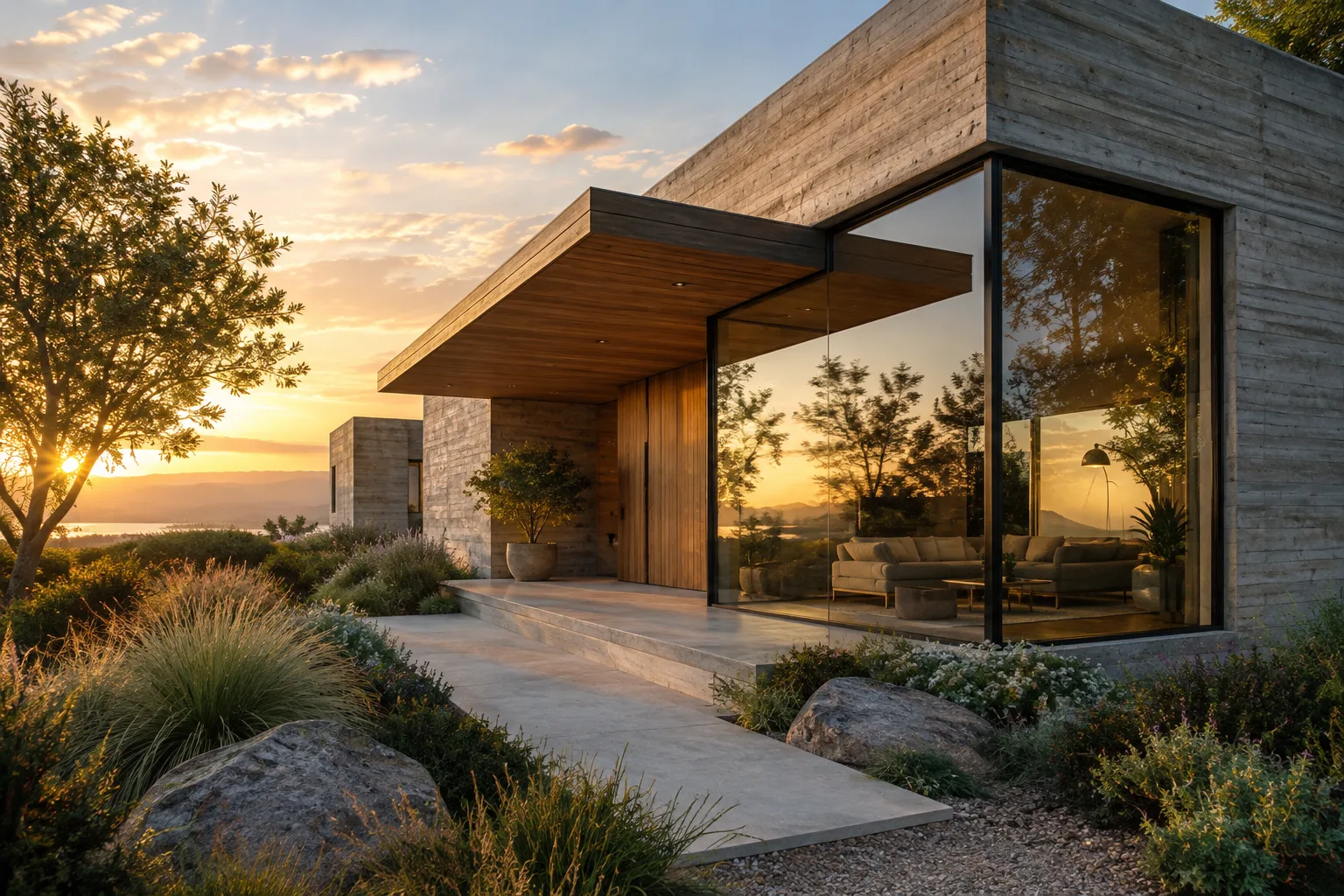
To generate an architectural scene from scratch, it's important to clearly describe the subject, setting, lighting, and framing. FLUX 3 Image builds the entire scene from a single prompt.
Contemporary single-family house exterior at golden hour, board-formed concrete facade, large glazed corner window, cantilevered wooden canopy, landscaped garden in foreground, soft warm sunlight, photorealistic architectural visualization, wide-angle framingSince this prompt provides material (concrete, glass, wood), lighting condition (sunset), and framing (wide-angle) together, it helps the model construct the scene consistently.
2. Editing an existing image
To change only a specific detail on a render, the instruction should clearly name the element to be changed; anything not specified in the prompt remains unchanged.
Change the facade cladding material from board-formed concrete to vertical timber slats, keep the window layout, lighting, and landscaping unchangedThis approach is suitable for offices that want to test a single variable—such as facade material—while keeping the same composition.
3. Merging multiple reference images
Up to 10 reference images can be uploaded, with each image's purpose specified by referring to its position. For example, a site photo can provide the scene while a second image provides the furniture to be added to the scene.
Use image 1 as the existing living room interior and image 2 as the armchair reference. Place the armchair from image 2 into the corner of the room shown in image 1, matching the room's existing light and perspectiveThis technique can be used to realistically place a furniture catalog image sent by a client into an existing interior photo.
4. Composition control with bounding boxes
Bounding boxes added at the end of the prompt define the position of each element in the scene using [top, left, bottom, right] coordinates on a 0 to 1000 grid. The same boxes can also be used to recolor, move, or remove only a portion of the scene—such as a single piece of furniture.
Open-plan office interior with a reception desk and a seating area. Reception desk at [100, 50, 400, 500]. Seating area with two armchairs at [450, 550, 850, 950]Thanks to bounding boxes, a designer can directly control a layout that closely follows a floor plan during the image generation stage.
5. Using the grounding setting
Grounding is enabled by default, and the model searches the web to generate real-world objects more accurately; when disabled (grounding: false), results are produced faster based solely on the prompt text. Grounding should be kept on when accuracy for a specific product or brand matters, and can be turned off for quick concept experiments.
Common mistakes
Generating without specifying an aspect ratio; the model defaults to
1:1if there's no reference, which may not suit wide exterior framings.Not specifying what should remain unchanged in editing prompts; this can cause the model to alter more elements than intended.
Writing bounding box coordinates on a scale other than the 0-1000 grid, such as in pixels.
Trying to download the result before the
statusfield onpolling_urlreachesReady, or trying to retrieve the result after the 1-hour download window has expired.Stacking many reference images (up to 10) into a single prompt without referring to each one; the position of each image must be explicitly addressed.
Next steps
The browser-based Playground can be used to experiment without writing code; those who want to deepen their prompt structure for scene, style, and text generation can refer to the official prompting guide, and those who want to detail bounding box usage can check the bounding box documentation. The API reference should be consulted for all request parameters and error codes.
Source and license
This guide has been adapted into Turkish based on parameter and endpoint information from Black Forest Labs' official API documentation (docs.bfl.ai, FLUX 3 Image Overview) and general capability descriptions from the company's official product pages (bfl.ai); the example prompts have been written originally for architectural and interior use cases.
Sources
3 sourcesSource texts are not republished; short quotes are marked, everything else is our own summary and commentary.
For offices in Turkey, the most practical aspect of FLUX 3 Image is that the same endpoint handles both generating images from scratch and making targeted edits to an existing render; this makes it possible to change a single material or piece of furniture rather than regenerating the entire scene for revision requests. Bounding box control is especially valuable for offices that want compositions faithful to a floor plan, since layout isn't left to randomness.
However, there are points to consider before use: the number of parameters (API key, aspect_ratio, resolution, grounding) requires technical knowledge, and pricing along with open-weight (FLUX 3 Dev) access haven't been clarified yet. Since this is a system still in early access, it should be kept in mind that results and costs may change over time.
Frequently asked questions
How many reference images can be used in FLUX 3 Image?
Between 1 and 10 reference images can be used in a single request; each image must be between 256×256 pixels and 16 megapixels.
How are bounding box coordinates defined?
Bounding boxes are added at the end of the prompt, each defined on a 0 to 1000 grid as [top, left, bottom, right]; the same boxes can also be used to edit only a specific portion of the scene.
What does the grounding parameter do?
Grounding is enabled by default, and the model searches the web to accurately generate real objects; when set to false, the result is produced faster based solely on the prompt text.