In brief
- Veo 3.1 Preview was discontinued in the Gemini API on 22 October 2026.
- Google’s documentation recommends switching to Gemini Omni Flash for video generation and conversational editing.
- The model can generate short videos from text and images, and refine results over multiple turns.
- The architectural prompts in this guide are original examples; they are instruction drafts, not a guarantee of features documented in the source materials.
What you’ll learn in this guide
This guide shows how to make video-generation instructions clearer and easier to review for architectural visualization and interior presentations. It focuses on structuring text prompts for Gemini Omni Flash and refining the first result through conversational editing. The examples cover scenarios common in design presentations, such as a push-in shot of a residential façade, camera movement through an interior, and a material change.
According to Google’s Gemini API video documentation, Gemini Omni Flash can generate short videos from text and images and refine results over multiple turns. The documentation also gives examples of conversational editing, including replacing an element and changing perspective. This does not mean every detail in an architectural scene will be preserved precisely. Treat prompts as starting instructions, review the output, and clearly describe any corrections needed.
Requirements and transition notes
The example workflow is based on the Gemini Omni Flash model specified in the Gemini API documentation. The model name appears in the documentation as gemini-omni-1.1-flash. The source materials do not explain account setup, pricing, hardware requirements, or the menu paths to follow in a particular interface, so no assumptions are made about them here. If you plan to use the API, check Google’s current Gemini API documentation for access and usage instructions.
The key date for teams planning a transition is 22 October 2026. Google says the Veo 3.1 Preview service in the Gemini API was discontinued on that date and recommends moving to Gemini Omni Flash or GA models available through the Gemini Enterprise Agent Platform to avoid disruption. The examples below are written for Omni Flash; they do not include parameters or API calls for the discontinued Veo preview model.
The core approach to prompt design is to break the request into clear, specific parts. Google’s prompt strategies guide recommends explicitly stating the task, input, constraints, and expected output format. It also emphasizes that prompt design may require testing and refinement. The examples below were created by 3dsınıfı based on these principles for architectural scenarios.
Five architectural video prompts
1. Create a push-in shot of a façade
First, distinguish the subject of the scene from the movement you want in the video. If you’re using an image input, also specify that it should serve as a reference for the existing façade design.
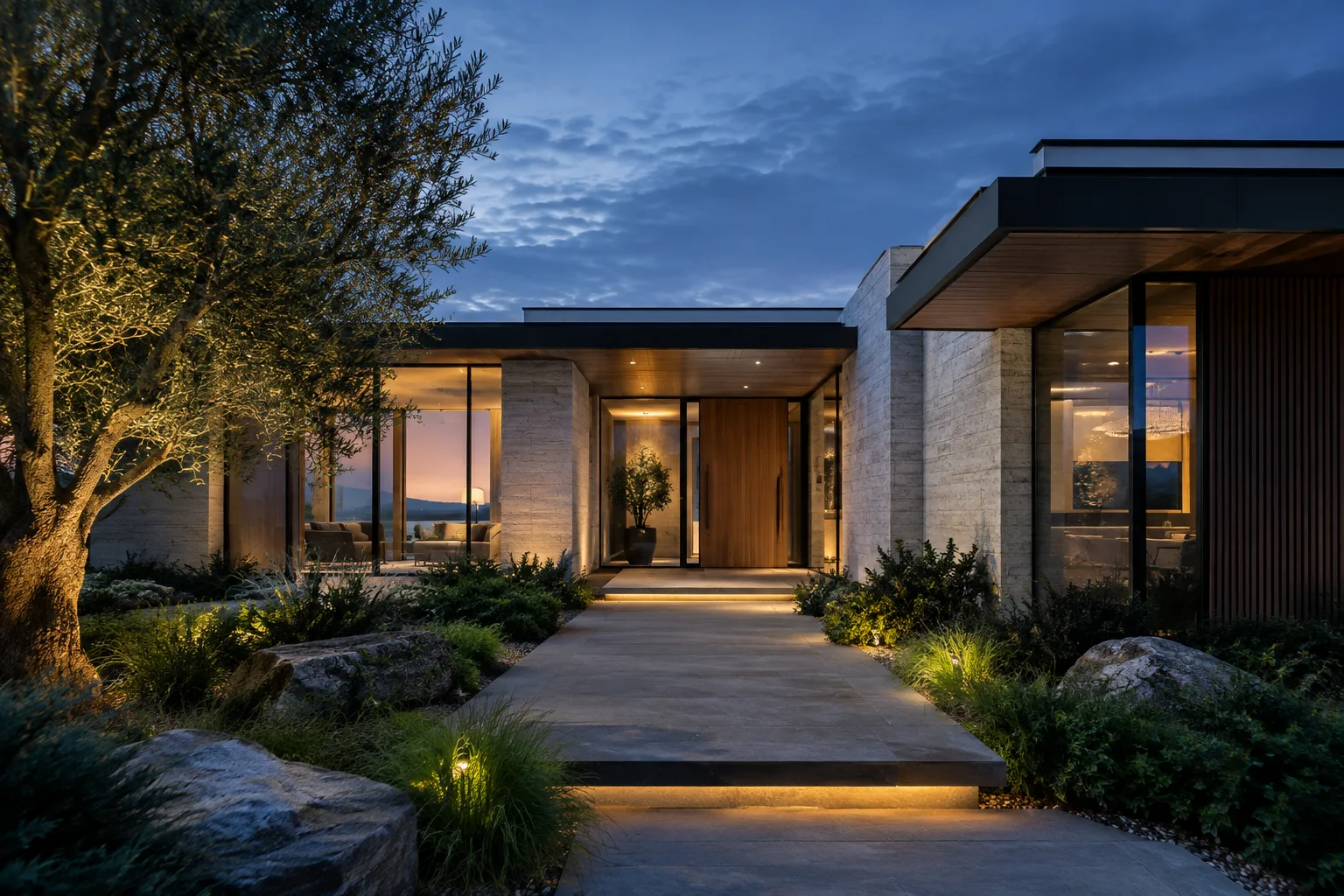
Create a short architectural presentation video based on the contemporary residential façade in the reference image. Slowly move the camera toward the building. Do not change the façade’s window arrangement, materials, or overall massing. Keep the movement calm and continuous; do not add new design elements.This prompt describes the subject, camera movement, and features to preserve separately. Since there is no guarantee that the model will preserve every geometric detail, compare the result with the design image.
2. Describe camera movement through an interior
For an interior presentation, describe the camera direction and movement as simply as possible. This example does not specify a particular duration or technical parameters; the source materials do not provide such limits.
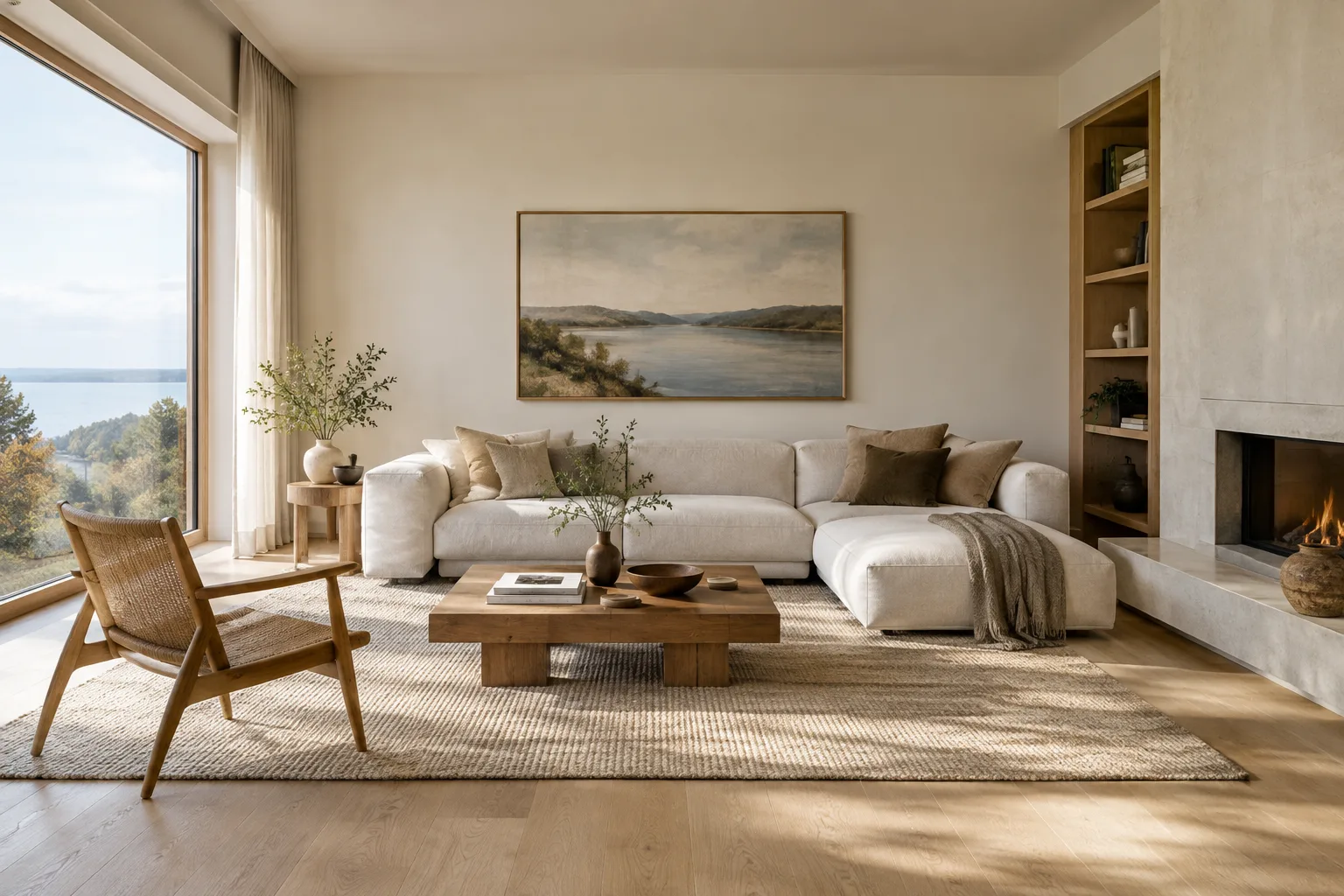
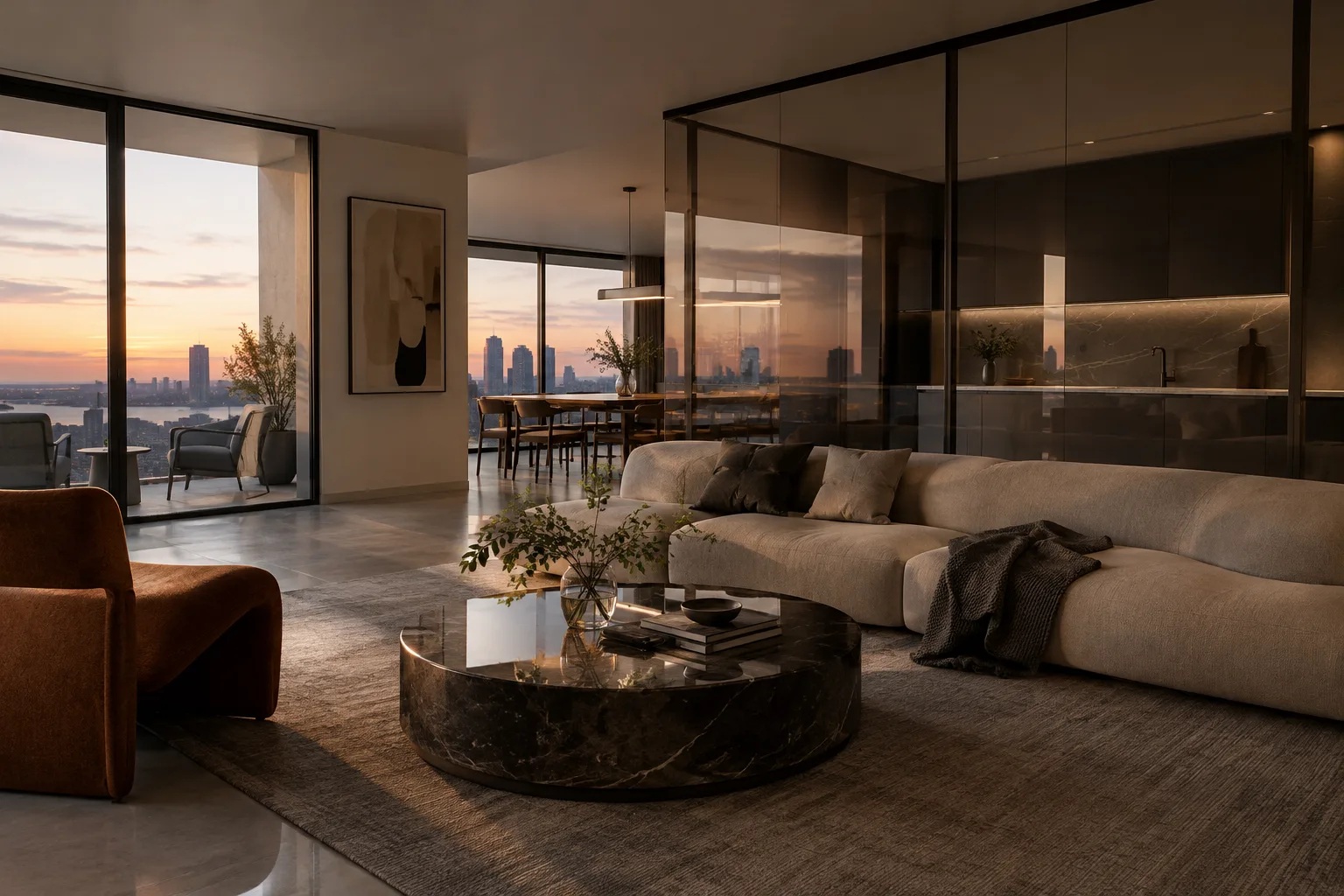
Turn the modern living room in the reference image into a short architectural video. Move the camera smoothly from the entrance toward the seating area. Preserve the furniture layout, wall openings, and lighting arrangement. Do not add furniture or decorative elements that are not in the image.The request focuses on a single transition through the space. If the camera movement or scene elements in the first result differ from what you expected, describing only the issue in the next turn can make the correction request clearer.
3. Request a material change through conversational editing
The source documentation gives examples of conversational editing and replacing elements. The prompt below adapts this approach for a material presentation; it does not claim that a specific material-editing tool is available.
Preserve the façade and camera movement from the previous video. Change only the appearance of the light-colored surface around the entrance to a darker stone cladding. Do not change the window proportions, façade openings, or other surfaces.The phrase “from the previous video” identifies this as a continuing edit; the prompt then specifies the element to change and the parts that should remain fixed. Review the result to see whether the change was applied only to the requested area.
4. Request a change in perspective
Google’s video documentation mentions changing perspective as an example of multi-turn editing. The prompt below is a draft instruction for presenting the same scene from a different viewpoint.
Preserve the building and material appearance from the previous architectural video. This time, show the scene from the opposite corner of the building. Do not add new building masses or change the façade design.The features to preserve, such as massing and materials, are stated separately to distinguish a change in perspective from a design revision. If the output changes the scene, clearly correct those changes in a separate follow-up request.
5. Specify the desired result and constraints together
A prompt should be more than just “create a video.” The request becomes clearer when the task, scene input, and changes to avoid are specified together.
Create a short presentation video from the provided interior image. Use the space and main furniture layout in the image as the basis; make sure the camera shows the space clearly. Do not add new windows, furniture, or décor. The result should be a simple visual narrative suitable for an architectural project presentation.This fifth example describes the presentation goal and constraints without requiring a specific camera movement. If the model’s output does not meet expectations, make the request more specific—for example, by stating clearly which part of the scene should be preserved or the desired viewing direction.
Common mistakes
Combining too many tasks in one prompt: Putting different goals—such as camera movement, a material change, and adding new scene elements—into a single request can make it harder to assess the requested change. Generate the base video first, then make the editing request in a separate turn.
Not specifying what should stay the same: A broad instruction such as “change the façade” leaves the design decisions to preserve unclear. Specify both the element to change and the parts that should remain fixed.
Expecting a perfect result on the first try: Google describes prompt design as an iterative process. Reviewing the result and clarifying the instruction is more appropriate than assuming the first prompt will work correctly every time.
Assuming technical details not stated in the source materials: The documentation does not specify duration, resolution, camera parameters, or a special control syntax for the architectural prompts in this guide. Don’t add such values to your prompts or production plan as if they were available.
Next steps for architectural and visualization workflows
Firms and students can consider this approach when preparing short concept presentations or video experiments based on existing images. The ability to turn a façade or interior image into a moving presentation and make conversational edits to the first result could support the workflow. However, model output should not be treated as a verified design representation that replaces a project model or technical drawings.
First, choose a suitable reference image and describe the desired result in one sentence. Then list the design elements to preserve. Compare the generated video with the design intent, and, if needed, continue with a single editing request. The source materials do not provide information about Gemini API pricing, account terms, or usage conditions; check the current service documentation before getting started. Google states that the documentation itself is licensed under CC BY 4.0, while code samples are licensed under Apache 2.0.
Source and license
This content has been adapted into English from Google’s CC BY 4.0-licensed Gemini API video generation documentation and prompt strategies guide. The prompt examples for architectural scenarios were written specifically for this guide.
Sources
2 sourcesSource texts are not republished; short quotes are marked, everything else is our own summary and commentary.
For architecture firms and visualization teams in Turkey, the main benefit is the ability to turn an existing image into a short moving presentation and refine the result through successive instructions. It could be useful for quick concept-presentation experiments, but design accuracy and project decisions still need to be verified by a human.
The discontinuation of Veo 3.1 Preview may affect workflows during the transition. Before switching to Gemini Omni Flash, organizations should review current access, licensing, and cost terms; the source materials do not specify pricing or hardware requirements. Internal policies on using client images should also be reviewed.
Frequently asked questions
When was Veo 3.1 Preview discontinued in the Gemini API?
According to Google’s documentation, Veo 3.1 Preview was discontinued in the Gemini API on 22 October 2026.
Can Gemini Omni Flash generate architectural videos?
Google says Gemini Omni Flash can generate short videos from text and images. The architectural prompt examples in this guide were created specifically for it.
Can Gemini Omni Flash edit videos?
According to Google’s documentation, results can be refined conversationally over multiple turns. Replacing an element and changing perspective are among the editing examples in the documentation.