In brief
- Add Curve: Extra Objects is an add-on that ships with Blender but isn't enabled by default; it's turned on via Preferences > Add-ons.
- The add-on gathers many curve types—Arc, Spirals (Archimedean, Logarithmic, Spherical, Torus), Torus Knots and Simple Curve—into a single menu.
- Curves are added from the Add > Curve menu in the 3D Viewport and can be given a cross-section profile using the Bevel/Taper Curve tool.
- The Transform and Relations tabs in the Object Properties panel are used to adjust the position and scene linkage of the created curve objects.
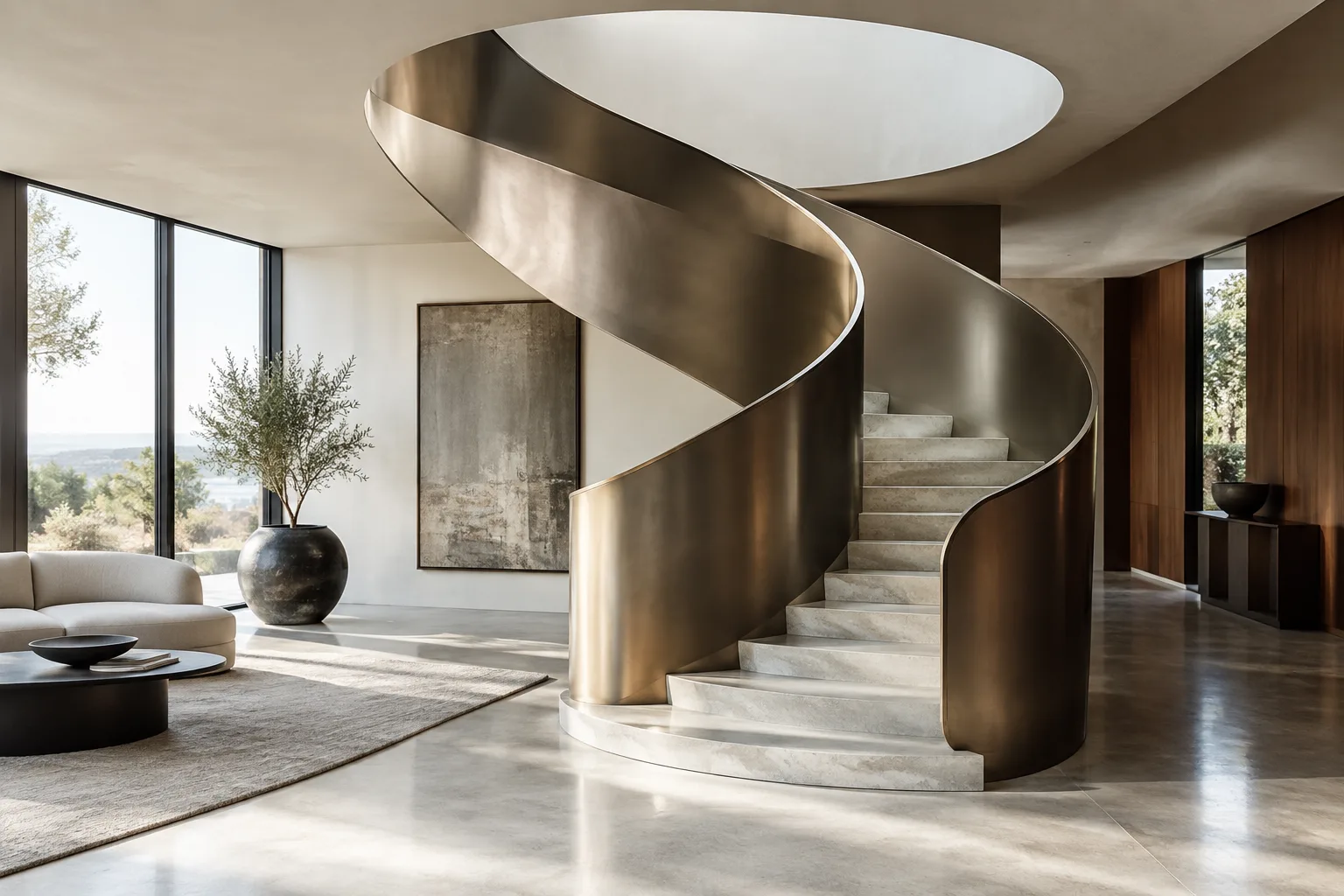
Blender comes with a set of built-in parametric curve tools that offer an alternative to manual mesh modeling for spiral staircase railings, decorative profiles and organic form experiments in architectural visualization. At the center of these tools is the "Add Curve: Extra Objects" add-on, which ships with the Blender installation but is disabled by default. This guide covers the process from enabling the add-on to turning it into an architectural form.
What you'll learn
By the end of this guide you'll be able to: enable the add-on, add ready-made curve types like spirals and torus knots to the scene, give these curves a cross-section profile (bevel/taper), and link the object with other elements in the scene via the Object Properties panel.
Requirements
Blender must be installed; the menu structure described here matches current Blender versions, and the add-on ships with Blender, requiring no separate download.
The Add Curve: Extra Objects add-on is at the "Community" support level and distributed under the GPL license; it was developed by multiple contributors and is maintained by Vladimir Spivak (cwolf3d).
Basic Blender navigation knowledge (adding objects in the 3D Viewport, reading the Properties panel) is sufficient.
Step by step: enabling the add-on and adding a curve
Open Blender and go to Preferences from the top menu, then to the Add-ons tab.
Find "Extra Objects" under the "Add Curve" category in the list and check it to enable the add-on.
In the 3D Viewport, click the Add menu and open the Curve submenu; here you'll now see additional types added by the add-on alongside Blender's standard curves.
To try a spiral staircase railing, pick one of the Archimedean, Logarithmic, Spherical or Torus types from the Spirals submenu; these four types are the add-on's documented spiral options.
For a more decorative, knotted form, try the Torus Knots option from the same menu; this tool includes numerous torus knot types and ten ready-made presets.
For more geometric architectural lines like straight lines, rectangles or polygons, use the Line, Rectangle, Polygon or Trapezoid types under Simple Curve; this type includes point, line, distance, angle, ellipse, arc, sector, segment, rectangle, rhomb, polygon and trapezoid options.
To give your created curve thickness, apply the Bevel/Taper Curve tool to the active curve; this tool adds a bevel and/or taper profile to the curve, giving you a realistic railing or profile cross-section instead of a thin line.
Finally, switch to the Object Properties tab in the Properties editor; enter the object's position, rotation and scale numerically under the Transform subsection, and assign the object to a Collection under Relations to organize the scene.
What this means for architecture and interior design workflows
These tools save time compared to manually drawing curves, especially for archviz artists designing spiral staircases, metal railings, decorative panels or organic facade elements. Because they're parametric, the form can be adjusted from the Properties panel after being added, which speeds up design revisions. Since the add-on ships with Blender, it requires no extra licensing cost or installation, making it an accessible advantage for small offices and students. One thing to note is that the add-on is at the "Community" support level, meaning it's maintained by independent contributors rather than the official Blender development team.
Common mistakes
Looking for additional types in the Add > Curve menu without enabling the add-on first; these options won't appear in the menu while the add-on is disabled.
Trying to render the curve directly without applying Bevel/Taper Curve; in this case the curve appears thin, like a wire.
Leaving the created curve object scattered in the scene without assigning it to a Collection; this complicates the Outliner in larger projects.
Next steps
After trying out the spiral and torus knot tools, you can combine these curves with Blender's Curve to Tube modifier or Geometry Nodes to build more complex parametric railing systems. You can also make the scene more readable by adjusting how curves appear in the viewport using the Viewport Display options under Object Properties.
Source and license
This guide was adapted into English under the CC BY-SA 4.0 license from the "Object Properties" (Blender 5.2 LTS Manual) and "Add Curve Extra Objects" (Blender 4.1 Manual) pages of Blender's official user manual.
Sources
2 sourcesSource texts are not republished; short quotes are marked, everything else is our own summary and commentary.
For offices and students in Turkey, this add-on offers a practical gain: with ready-made parametric curves bundled with the Blender installation and no extra licensing fee, experimenting with spiral staircases, railings or decorative facade elements moves much faster than manual mesh modeling. The time savings matter especially for archviz artists doing quick form exploration at the concept stage.
Still, it's worth remembering that the add-on is at the "Community" support level and isn't backed by the official Blender development team; for critical geometry in production files, it's recommended to verify the results and keep backups before making revisions. There's no additional hardware requirement—it works with a standard Blender installation.
Frequently asked questions
Do I need to download the Add Curve: Extra Objects add-on separately?
No, the add-on ships with Blender; you just need to enable it via Preferences > Add-ons.
What curve types does the add-on include?
It includes Arc, Arrow, Cogwheel, Spirals (Archimedean, Logarithmic, Spherical, Torus), Torus Knots, Braid, Celtic Knot and under Simple Curve many types like line, rectangle and polygon.
How do you give a curve thickness?
The add-on's Bevel/Taper Curve tool adds a bevel and/or taper profile to the active curve, giving it thickness.