In brief
- Google’s Gemini API documentation describes Nano Banana 2.1 as the recommended model for image generation and conversational editing.
- Gemini API examples demonstrate generating images from text prompts and editing by sending a reference image alongside text.
- Clear, specific instructions, defining the desired output, and iteratively refining results are among the prompt guide’s core recommendations.
- According to the source documentation, generated images include a SynthID watermark.
What will you learn in this guide?
This guide shows how to structure prompts when using Nano Banana 2.1 to visualize architectural and interior design ideas. It does not promise a precise, production-ready design from a single prompt; instead, it offers a more controlled starting point by clearly describing the space type, materials, lighting, and framing.
Google’s Gemini API documentation explains that Nano Banana is the name used for Gemini’s native image-generation capabilities. The documentation presents Nano Banana 2.1 as the primary high-efficiency model for image generation and conversational editing, and recommends this version for new projects. It also states that Gemini can generate and edit images using text, images, video, or a combination of these. These capabilities can be useful in early-stage work such as design research, developing ideas before presentations, and comparing different atmosphere options.
Requirements: model, API, and image
This workflow is based on the image-generation and editing methods in the Gemini API documentation. The API example identifies the model as gemini-nano-banana-2.1. The Python example uses Google’s google-genai client; since the documentation does not specify a version number, this guide cannot state a required package version. The source examples use an API key to send requests through the API. The text this guide is based on does not explain how to create a key or the account requirements, so check the current Gemini API documentation before implementation.
A text prompt may be enough to generate an image from scratch. To work on an existing image, you can send an image along with text to the API. This can be used to request changes based on a concept sketch or a reference image you have permission to edit. You must have the rights to use uploaded images; Google’s documentation also warns against generating content that infringes on the rights of others.
When writing prompts like the examples below, rather than cramming every detail into one sentence, prioritize the elements that will affect the result: the space and its use, framing, key materials, lighting and atmosphere, and the elements to preserve or change. Prompt design is an iterative process; treat the first result as a starting point for revising the next prompt, not as a final decision.
Five architectural prompt examples
1. A baseline interior concept image
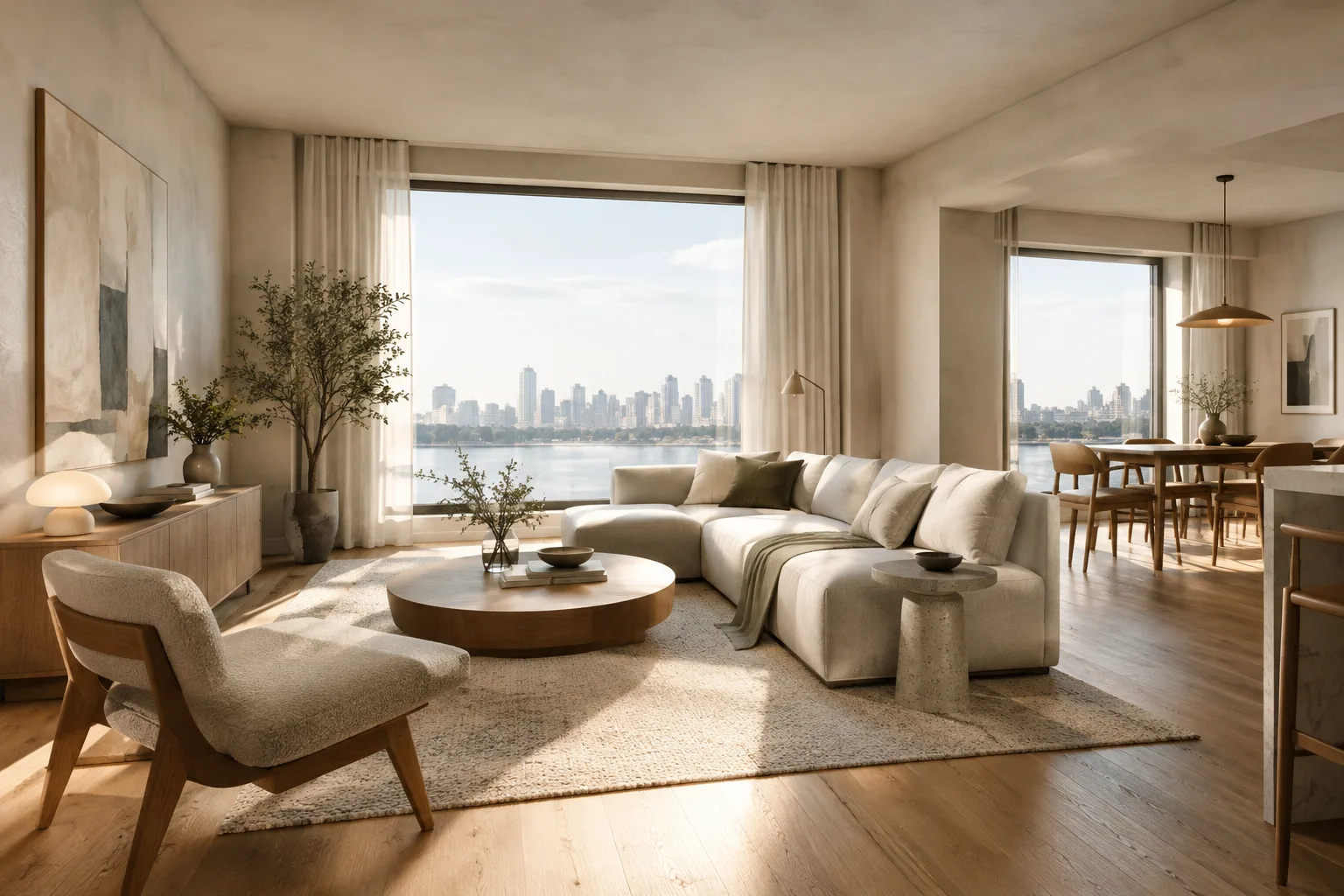
Create a photorealistic 3:2 landscape interior concept image of a compact contemporary apartment living room. Show the complete seating area and one large window in a wide eye-level view. Use pale oak flooring, warm off-white walls, a muted green sofa, and soft natural daylight. Keep the furniture simple and the composition uncluttered. No people, no signage, no decorative text.The prompt starts with the space and its use, followed by framing, the material palette, and lighting. Requesting a 3:2 landscape composition frames the image as a concept image for a presentation board; review the result to see whether the framing and furniture layout suit your needs.
2. Atmosphere alternatives for the same space
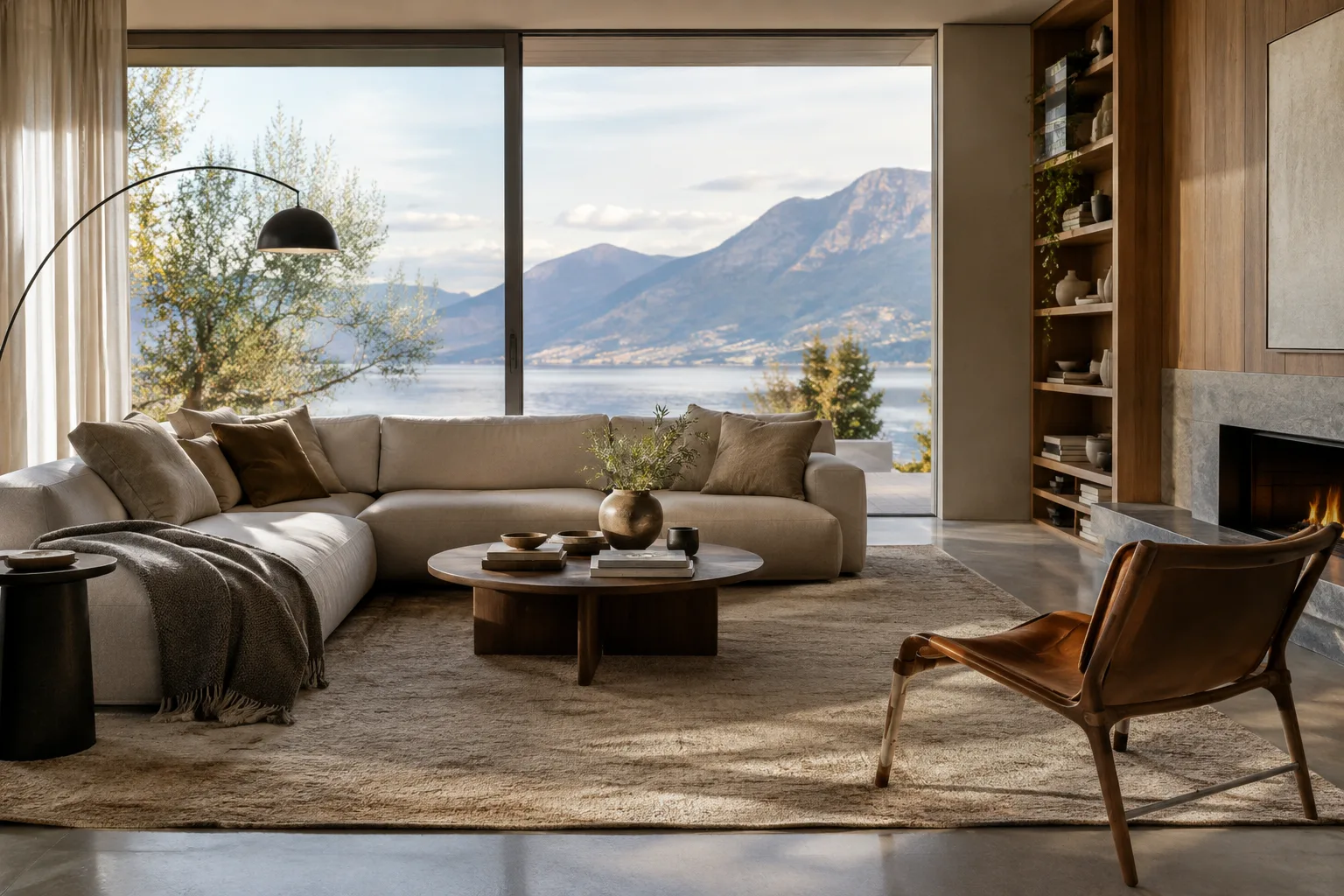
Create a photorealistic 3:2 landscape architectural interior image of a small reading lounge. Show the same room from an eye-level corner view, with a built-in bookcase, a low reading chair, and a narrow side table. Use natural stone, dark stained timber, and linen upholstery. Set the scene in soft late-afternoon light with gentle shadows. Keep the layout calm and the materials clearly visible.This example keeps the space and its key elements fixed while emphasizing the materials and lighting. If you are trying multiple atmospheres, note which part of the prompt changes. This lets you test a specific design decision instead of rewriting the entire description each time, making the results easier to compare.
3. Facade materials and lighting
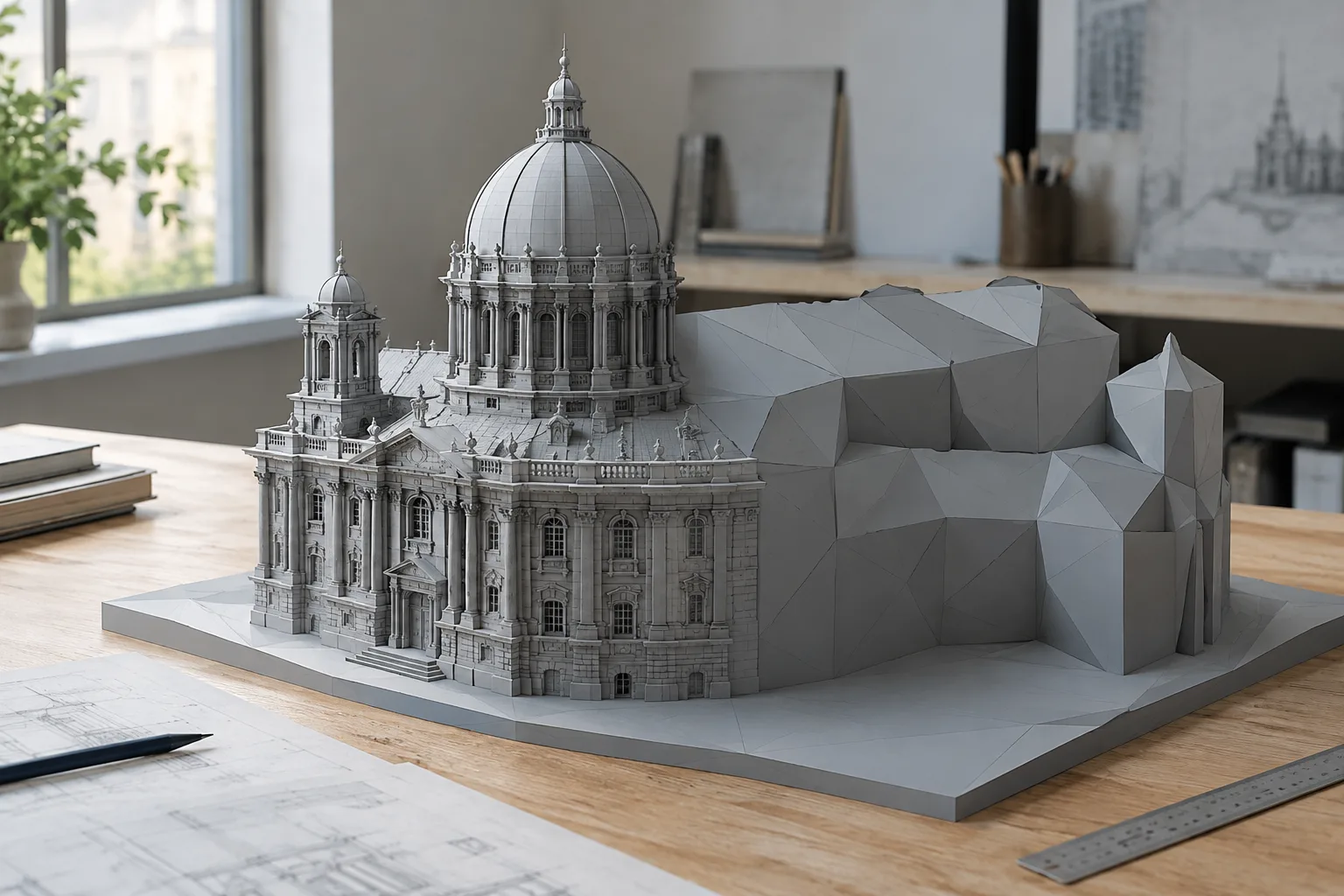
Create a photorealistic 3:2 landscape exterior concept image of a modest contemporary cultural building. Use a frontal three-quarter view that clearly shows the entrance and the main facade. Describe the facade with pale textured masonry, recessed glazing, and a simple metal canopy. Use overcast daylight and restrained contrast. Include a few small trees for scale, but keep the architecture as the main subject.The facade prompt specifically describes the viewpoint and the elements that should be visible. Don’t expect image generation to produce a result that is dimensionally accurate, code-compliant, or suitable as a construction document; this example describes a concept image intended to explore a material and massing idea.
4. Making a limited change to a reference image
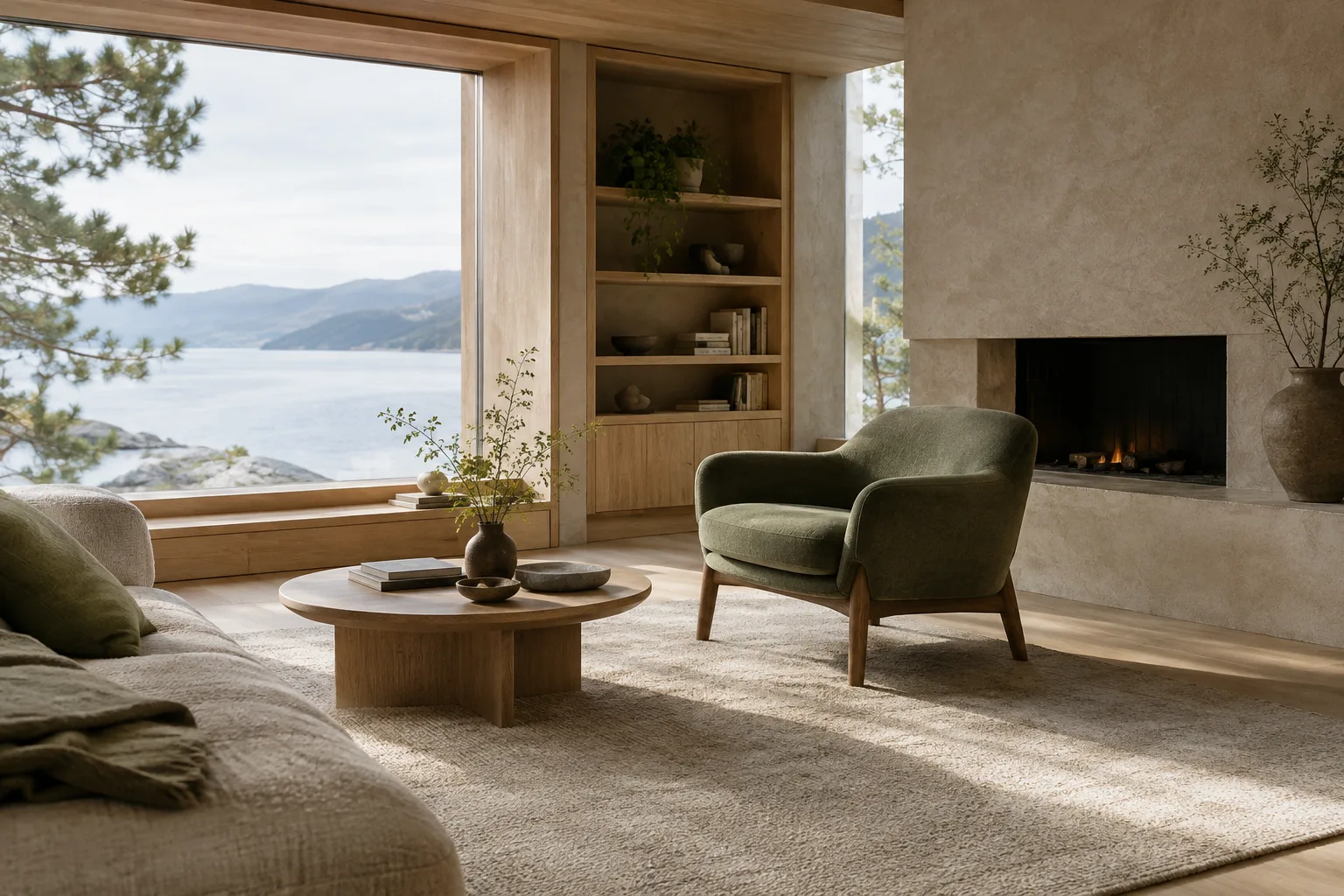
Using the supplied reference image, keep the room layout, camera view, window positions, and built-in elements unchanged. Change only the wall finish to a warm off-white plaster and the loose furniture upholstery to muted blue fabric. Preserve the existing natural daylight and avoid adding new objects. Return a photorealistic interior concept image.This prompt is written for the editing method described in the documentation, which sends text and an image together. Add the reference image to the API request, and specify separately what should stay the same and what should change. If elements meant to remain fixed are altered in the result, make those constraints clearer in the next prompt.
5. Comparing material palettes
Create a photorealistic 3:2 landscape image of a calm contemporary kitchen interior. Show the island, cabinetry, and backsplash clearly in an eye-level wide view. Use light oak cabinetry, a pale stone island, and a softly textured neutral backsplash. Use even natural daylight and a restrained color palette. Avoid people, labels, and extra decorative objects.This example focuses on reading the relationships between materials in a single scene. To generate a second option, change only the material description you want to vary; this makes the outputs easier to compare. Don’t assume the model represents materials with technical accuracy, and don’t use the image as a product or detail document in place of a design decision.
Common mistakes
The first mistake is combining too many unrelated goals in a single prompt. When you specify different design languages, numerous objects, and variable lighting all at once, it becomes difficult to tell which element influenced the result. Establish the basic space and framing first, then adjust one or two variables.
The second mistake is treating general adjectives such as “beautiful,” “luxurious,” or “modern” as sufficient on their own. Support them with observable descriptions, such as materials, lighting, layout, or framing. The third mistake is failing to specify what should remain unchanged when editing a reference image. Use separate sentences to describe the surface you want to change and the spatial features you want to keep fixed.
Finally, don’t treat the first output as a final, verified design. As the prompt guide also emphasizes, prompt design requires testing and refinement. Check whether the generated image represents the design intent, and iterate with a new prompt when needed. According to the Gemini API documentation, generated images include a SynthID watermark.
How it fits into architecture and visualization workflows
Architects, interior designers, students, and visualization teams can consider this method for early-stage atmosphere studies, exploring material directions, or trying limited changes to a reference image. A quick visual draft can be useful, particularly for discussing options within a team. The sources do not specify hardware requirements, a local workflow, or a numerical pricing table. While the model description mentions efficiency and cost-effectiveness, these are not a substitute for pricing information; check current API pricing and terms separately before implementation.
When selecting an image for use in a project, verify the design dimensions and technical decisions separately. Image generation is a workflow for generation and editing described in the sources; the documentation does not define it as a tool for architectural drawings, models, or technical verification. For offices, the safest approach is to position it as an aid that accelerates concept exploration while keeping the design team’s judgment central to the process.
Next steps
Start with a baseline prompt for the space and review the result. Then try a new prompt that changes only the lighting, material palette, or framing description. If you are editing with a reference image, include it in the API request alongside the text, check that you have the right to use it, and clearly state which features should be preserved. The API integration notes that image output can be retrieved through interaction.output_image; for more complex outputs with interleaved text and image content, the documentation recommends reviewing the steps separately.
Sources and licensing
This guide has been adapted into Turkish using Google’s Gemini API image-generation documentation and prompt design strategies guide. Both sources are licensed under CC BY 4.0. The architectural prompts are original examples written for this guide; the prompt examples from the sources have not been copied.
Sources
2 sourcesSource texts are not republished; short quotes are marked, everything else is our own summary and commentary.
For architecture firms and students in Turkey, this approach can help bring atmosphere and material options into discussion quickly, especially in the early design stages. The five examples move beyond prompts that simply ask for “a beautiful interior,” breaking them down into assessable elements such as framing, surfaces, and lighting.
It should be treated as a method for supporting concept exploration, not as a production tool. Check current API pricing and terms separately before implementation; the sources do not specify hardware requirements. It is important to respect usage rights for reference images and to verify final design decisions rather than relying on image outputs.
Frequently asked questions
How do you generate architectural images with Nano Banana 2.1?
You can send a text prompt using the `gemini-nano-banana-2.1` model ID in the Gemini API. Clearly describe the space, framing, materials, and lighting, then refine the results iteratively.
Can Nano Banana 2.1 edit an existing interior image?
The Gemini API documentation demonstrates an editing method that sends text and an image together. The prompt should specify separately what to change and which features to preserve.
Do images generated with the Gemini API have a watermark?
According to the source documentation, all generated images include a SynthID watermark.