In brief
- Nano Banana 2.1 in the Gemini API can generate images from text and edit images using text instructions.
- The model is identified in the API as `gemini-nano-banana-2.1`.
- Google’s guide recommends clear, specific instructions, constraints, and iterative prompt refinement.
- You must have the necessary usage rights for any reference images you upload.
What you’ll learn in this guide
Nano Banana 2.1 is one of the models available in the Gemini API for image generation and conversational image editing. This guide covers how to turn an interior design idea into a clearer text instruction, generate an initial image, and refine the result step by step. The examples are tailored to architecture and interior design tasks such as residential interiors, material exploration, and presentation visuals.
The prompts here do not guarantee accurate design decisions; they are starting points for generating a particular output. Google’s prompt design guide also describes prompt writing as a process of experimentation and refinement based on results. It’s therefore best to treat the first output as a visual suggestion to review and develop, rather than a final decision.
What you need: API access and a reference image
To try these examples through the Gemini API, you’ll need API access and a way to send requests. Google’s image generation documentation includes examples using the Google GenAI SDKs and also explains how to send requests through REST. The model ID is gemini-nano-banana-2.1. The sources do not explain the account steps required for API use, pricing, or versions of any software that may need to be installed separately, so we make no assumptions about these here.
You can create a new image using text alone, or provide an image as input and edit it with a text instruction. For the second approach, you must have the rights to use the source image. The source documentation reminds users to check that they have the necessary rights when uploading images and to avoid content that infringes on others’ rights.
Step by step: writing an interior prompt
1. Describe the scene and its purpose
First, define the type of space, the main design idea, and what the image should show. A short request such as “draw a modern living room” doesn’t describe the room’s layout, lighting, or material character. Instead, make the scene specific, but avoid technical settings that aren’t documented in the sources or wording that demands a particular result.
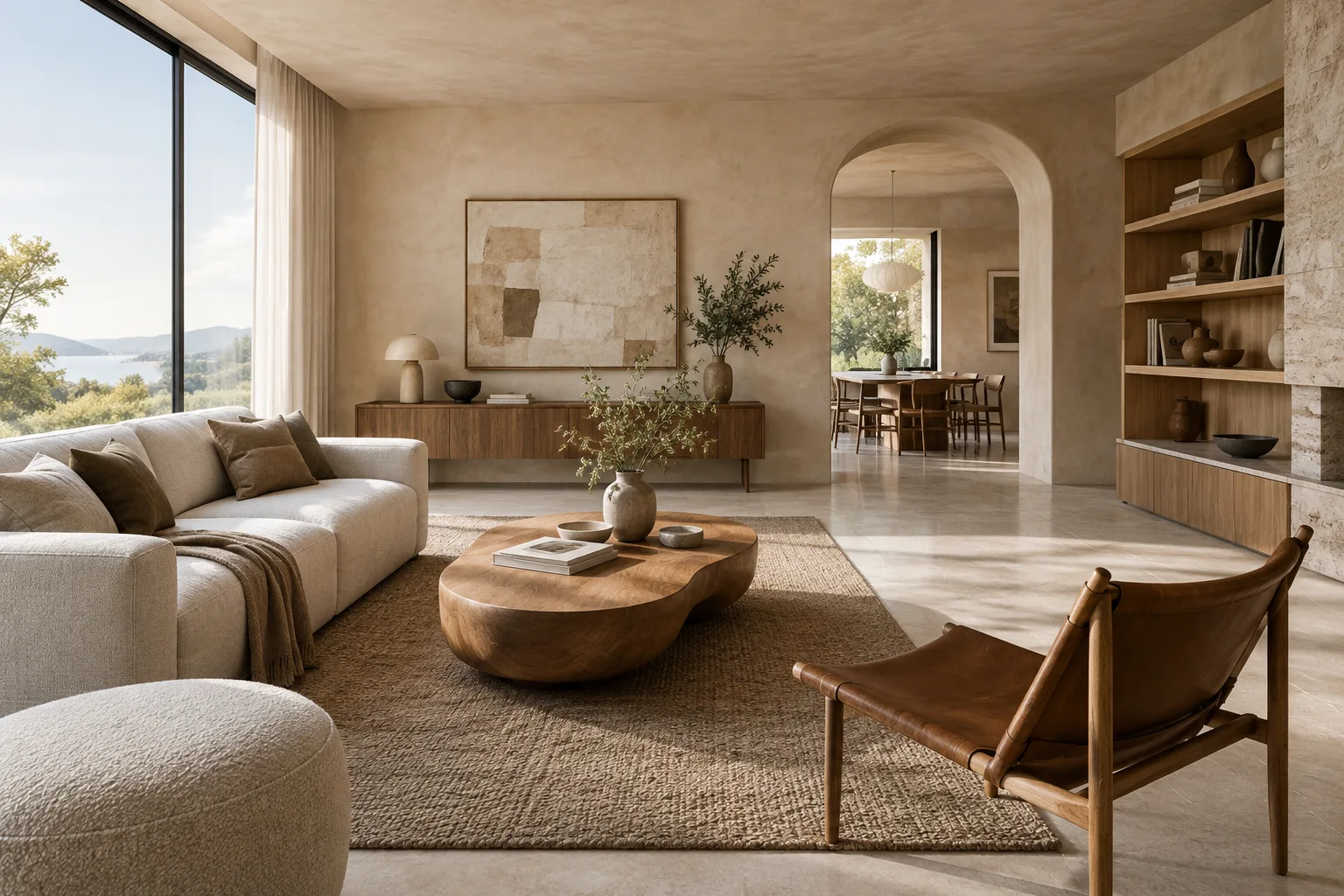
Create an architectural interior concept image of a compact apartment living room. Show a calm, contemporary space with a low sofa, a timber coffee table, pale stone flooring, and a large window. Use soft daylight and realistic material textures. Keep the composition uncluttered and focus on the relationship between the seating area and the window.This prompt specifies the room type, key furniture, material character, lighting, and visual focus. After getting the first result, identify what needs to change and provide a new instruction.
2. State the requested features and constraints clearly
Google’s prompt guide recommends making instructions clear and specific, and stating the constraints needed for the output. Describing separately what you want to keep and what you want to change makes an editing request easier to understand. Treat this approach as a prompt structure to try, not a guarantee.
Create an interior concept image of a small reading room in a home. Include one built-in bookshelf, a comfortable armchair, a side table, and a floor lamp. Keep the palette restrained with warm wood and neutral fabrics. Do not add a desk, dining furniture, or decorative text. Show the full seating area clearly.Here, the requested elements are defined, as well as what should not be added. If unwanted furniture appears in the result, specify exactly what to remove in your next request rather than glossing over it with a general instruction such as “make it better.”
3. Compare material and atmosphere options
Rather than mixing several goals into one prompt, change one design decision per iteration. For example, keep the same room description and vary only the floor and wall materials. This makes it easier to track which instruction affected the images when comparing them.
Create an architectural visualization of the same compact living room: a low sofa beside a large window, a timber coffee table, and a clear view of the seating area. Use a light stone floor, warm timber wall panels, and soft daylight. Emphasize the contrast between the natural materials without adding extra furniture.This example keeps the room layout and visual focus constant while emphasizing the material description. To try another variation, change only the material or lighting section of the prompt; leave the other wording as consistent as possible.
4. Edit an existing image with text
If you have an image that you’re entitled to edit, you can provide it to the model alongside a text instruction. Google’s documentation describes this method for tasks such as adding, removing, or changing elements, transforming a style, and adjusting colors. Keeping the requested edit narrow makes it clearer what change you want.
Using the provided interior image as the reference, keep the room layout, camera viewpoint, and existing furniture unchanged. Change only the wall finish to a light warm-gray plaster. Preserve the natural daylight and the overall restrained color palette.This instruction is written for use when you provide a reference image as input. It explicitly lists the features that should remain unchanged and focuses on a single edit. If an element that should have been preserved changes in the output, state that constraint more clearly in the next iteration.
5. Review and iterate on the result
After getting the first output, instead of rewriting the prompt from scratch, prepare a new instruction focused on a specific issue in the image. For example, if the materials aren’t distinctive enough, clarify only the material description; if the framing or furniture is problematic, describe the relevant part. Making one change—or a few related changes—in each iteration makes the results easier to compare.
Google’s prompt design guide notes that adding examples alongside an instruction can help guide the format, scope, or structure of the wording, and recommends trying different examples. For visual work, you can likewise keep the same scene description and update the features you want to change in a controlled way, so you can assess different options side by side.
Common mistakes
Writing vague requests: Without specifying the space, lighting, or materials, the request is open to interpretation. Make the most important design features specific.
Requesting many changes at once: It can be difficult to tell which instruction changed the result. Break edits into stages.
Not specifying what to preserve: When editing a reference image, separately state which elements—such as the layout, furniture, or lighting—must not change.
Treating the first output as a final design decision: Review the image and check whether it fits the intended description of the space and materials.
Uploading images without checking usage rights: Make sure you have the necessary rights to use the reference image.
Next steps
First, try both a short and a detailed prompt for the same interior. Then keep the scene description fixed and change just one feature, such as lighting or materials, to compare the results. For editing, use a reference image and a narrowly scoped instruction. Google’s documentation mentions 1K, 2K, and 4K resolutions for image generation; however, you should separately check whether the available output settings in the API are suitable for your workflow.
Use these images to explore concepts and discuss design options. For any image intended for implementation or presentation, separately check that the requested features of the space are actually visible.
Sources and license
This tutorial has been translated and adapted from Google’s Gemini API “Nano Banana image generation” and “Prompt design strategies” guides. Both sources are available under the CC BY 4.0 license. The architecture and interior design prompts above are not quoted from the sources; they were created for this tutorial using the guides’ approaches to clear instructions, specifying constraints, and iteration.
Sources
2 sourcesSource texts are not republished; short quotes are marked, everything else is our own summary and commentary.
For architecture firms and students in Turkey, this approach can help open up a quick discussion of material and atmosphere options during the early concept stage. In particular, keeping the same room description and changing just one feature makes the images easier to compare.
However, the sources do not explain the cost of API access or whether it suits an office’s workflow, so check the current terms before deciding. Usage rights for reference images also matter. Don’t treat generated images as final project representations without reviewing them as part of the design process.
Frequently asked questions
How do you generate an interior image with Nano Banana 2.1?
In a Gemini API request, use the `gemini-nano-banana-2.1` model and provide a text instruction describing the space, materials, lighting, and visual focus.
Can Nano Banana 2.1 edit an existing image?
Yes. Google’s documentation describes providing an image alongside a text instruction to make edits such as adding, removing, or changing elements.
What should you keep in mind when uploading a reference image?
You must have the rights to use the image you upload. It’s also helpful to clearly specify which elements to preserve and what change to make.