In brief
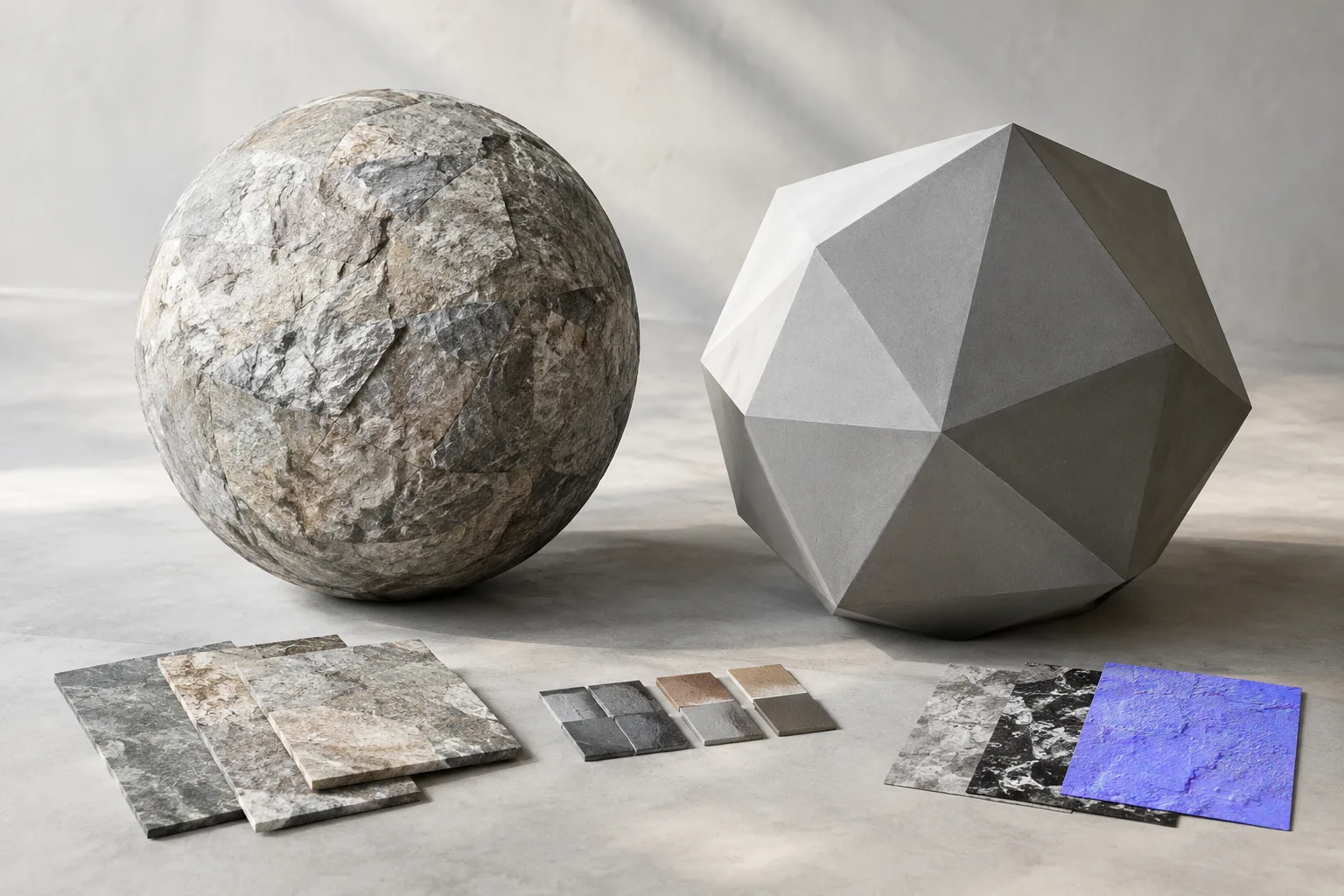
- Maps Baker can transfer maps using one low-poly mesh and one high-poly mesh; the source does not specify the transfer direction.
- Diffuse, Normal, Opacity, Roughness, and Metallic maps are listed for transfer.
- Vertex Color, AO, WorldNormal, Height, Alpha, and Position maps can be created from geometry data.
- SideFX’s tutorial was made in Houdini 17.5; this does not confirm compatibility with current versions of the tool.
SideFX’s Maps Baker tutorial presents a workflow in Houdini for transferring texture maps between two meshes or creating new maps from data on geometry. The tutorial identifies the tool as having been made in Houdini 17.5. SideFX’s general Houdini documentation page lists version 22.0.510, but this does not confirm that Maps Baker is compatible with that version. The guide below is limited to the functions described by SideFX.
1. First, determine what type of map you need
Maps Baker can be used for two main purposes: transferring textures from one mesh to another, or creating maps from geometry data. Deciding which workflow you need at the outset helps you choose the right source models and data. For example, use the transfer workflow when you need to move existing surface information from one model to another; use the creation workflow when you want to obtain values from geometry as texture maps.
SideFX’s tutorial introduces the tool as an HDA. It says the HDA works with meshes, but the source does not provide specific button names or menu paths in the interface. The steps below therefore outline the documented process rather than describing a particular interface layout.
2. Set up map transfer between meshes
Choose the two meshes for the transfer. The tutorial describes feeding Maps Baker one low-poly mesh and one high-poly mesh. Since the source does not specify the direction of the transfer, don’t make assumptions about it; check the direction settings in the interface of the tool you’re using. Identifying both meshes in advance clarifies which models will be involved.
Choose the map type you need. SideFX lists Diffuse, Normal, Opacity, Roughness, and Metallic maps. These are the types documented for transfer. Deciding on the desired output in advance helps keep the workflow focused and clear.
Check the material requirements. The tutorial states that only materials based on principledshader::2.0 or GameDev QuickMat are supported for transfer. Using a different material may put you outside the documented support scope. Checking the material type before starting can therefore help rule out one possible cause if the process does not produce a result.
Run the transfer and review the result. The tutorial explains the transfer process at a high level, but does not provide a detailed menu path, parameter values, or quality settings. Rather than assuming undocumented values, follow the HDA documentation in your Houdini installation. SideFX describes the tool as a solution implemented with COPs and VEX. The tutorial also highlights its speed, but provides no measurements or benchmarks.
3. Create maps from geometry data
Maps Baker can be used not only to transfer maps from one mesh to another, but also to create new maps from data on geometry. SideFX lists the built-in map types as Vertex Color, AO, WorldNormal, Height, Alpha, and Position. This approach is intended for workflows that need to use existing geometry information in map form.
Decide which data to create. The desired output should be one of the listed types, or any need for custom channels should be defined separately. This choice clarifies what data you want the tool to produce.
Check that the required data exists on the geometry. The tutorial says maps can be created from data stored on geometry. The relevant information must therefore be present on the source geometry for the intended output to be produced.
Consider the Custom Attributes multiparm option if you need custom channels. SideFX says this field can be expanded to add custom channels and that any number of custom channels can be defined. This lets you include project-specific data in the workflow rather than limiting output to the built-in list.
Review the advanced options for AO. The source says that settings such as AO can be changed in the Advanced tab, but does not specify values or recommend particular settings. It is therefore not possible to suggest a fixed value here. Check the relevant options based on your scene and desired output.
Where it fits in architectural visualization and production workflows
Architectural visualization teams can consider this tool when they need to transfer surface information between models with different levels of detail or create maps from geometry-dependent data. When preparing scene assets for different purposes, separating transfer tasks from map creation using geometry data makes it easier to track where information comes from. However, the sources do not specify a particular render engine, game engine, export format, or architectural software connection, so these integrations should not be assumed.
Key technical considerations include choosing the correct two meshes, using supported material types for transfers, and testing that the tool works in the target Houdini version. SideFX’s general documentation lists Houdini 22.0.510, while the Maps Baker tutorial was made in Houdini 17.5. These version details alone do not establish compatibility. The tutorial also says the tool is fast, but provides no timing data, so you should not form firm expectations about performance on your workstation.
Common mistakes
Assuming the transfer direction: The tutorial says to use two meshes but does not define the direction. Check the direction settings in the HDA you’re using.
Overlooking material support: The documented transfer support is limited to materials based on principledshader::2.0 and GameDev QuickMat.
Treating the tutorial’s version as a compatibility guarantee: The fact that it was made in Houdini 17.5 does not prove that the tool works in Houdini 22.0.510.
Confusing custom channels with built-in maps: Custom Attributes multiparm provides a way to add custom channels; these should be treated separately from the built-in map list.
According to SideFX, Maps Baker was developed using VEX in COPs and is open to customization. However, the source does not include performance tests, specific hardware requirements, or a compatibility table for current versions. Before adding it to a production pipeline, a small test with your files and Houdini version can help check these uncertainties in practice.
Sources
2 sourcesSource texts are not republished; short quotes are marked, everything else is our own summary and commentary.
Maps Baker’s practical value lies in handling both map transfer and map creation from geometry data in one tool. This could be useful for architectural visualization teams looking to manage model surface information and assess the need for custom channels. Although SideFX highlights the tool’s speed, it would be unwise to expect a specific time saving without performance measurements.
Offices in Turkey should test the tool with their Houdini version and material setup before adding it to a production pipeline. In particular, it’s important not to treat a tutorial made in 17.5 as a compatibility guarantee for 22.0.510. The sources do not specify licensing costs or hardware requirements, so these should be verified in your existing setup rather than assumed.
Frequently asked questions
Which maps can Houdini Maps Baker transfer?
SideFX’s tutorial lists Diffuse, Normal, Opacity, Roughness, and Metallic maps. Materials based on principledshader::2.0 or GameDev QuickMat are supported for transfer.
Which maps can Maps Baker create from geometry data?
It can create Vertex Color, AO, WorldNormal, Height, Alpha, and Position maps. Custom channels can be added using Custom Attributes multiparm.
Is Maps Baker compatible with Houdini 22.0.510?
The SideFX documentation provided does not confirm compatibility. The tutorial was made in Houdini 17.5; the 22.0.510 version listed in the general documentation does not, by itself, confirm compatibility.