In brief
- The model ID for image generation in the Gemini API is listed as gemini-nano-banana-2.1.
- The model can be used with text prompts, as well as image and text-image inputs.
- Clear, specific instructions help describe the task, visual features, and constraints in a prompt.
- Google says generated images include a SynthID watermark.
What will you learn in this guide?
This tutorial covers how to write prompts and edit images with text to create an architectural concept image using Nano Banana 2.1 through the Gemini API. The goal isn’t to expect a finished project image from a single generic prompt, but to run more controlled iterations by describing the space, camera feel, materials, lighting, and requested changes separately.
Google’s documentation describes Nano Banana as the name for Gemini’s built-in image-generation capabilities. Image generation can start from text, and an existing image can also be modified with text instructions. You can work with the model over multiple turns and iterate on an image. This approach can be a starting point for architects developing concepts, interior designers, students, and visualization teams looking for different mood options ahead of a presentation. The generated output is no substitute for project drawings or technical validation.
Requirements
You need access to the Gemini API and an API key to use in requests. The source documentation shows the Google GenAI client in its Python example and the
GEMINI_API_KEYvariable in its REST example.Use
gemini-nano-banana-2.1as the model name. The documentation lists this model as Nano Banana 2.1 and recommends it for new projects over the previous Nano Banana 2 model.To run the examples through the API, you can use Python, JavaScript, Java, Go, or REST; the source page includes examples for these options. This guide focuses on prompt design and workflow rather than code.
Check usage rights for any image you plan to use during editing. Google reminds users to have the necessary rights to uploaded images and not to generate content that infringes on others’ rights.
Step-by-step architectural image generation
1. Define the image’s purpose
Start by deciding what you want from the output: are you exploring the mood of a residential interior, looking for material ideas for a small courtyard, or creating a concept image for a presentation? Instead of packing several vague goals into one prompt, state the primary task upfront. For example, “Create a photorealistic concept image of a contemporary living room” is a more specific starting point than simply saying, “Make a beautiful room.”
2. Describe the space and visual style
A good architectural prompt clearly spells out decisions such as the type of space, basic geometry, materials, lighting, and framing. The prompt below is for a concept experiment independent of any real project brief:
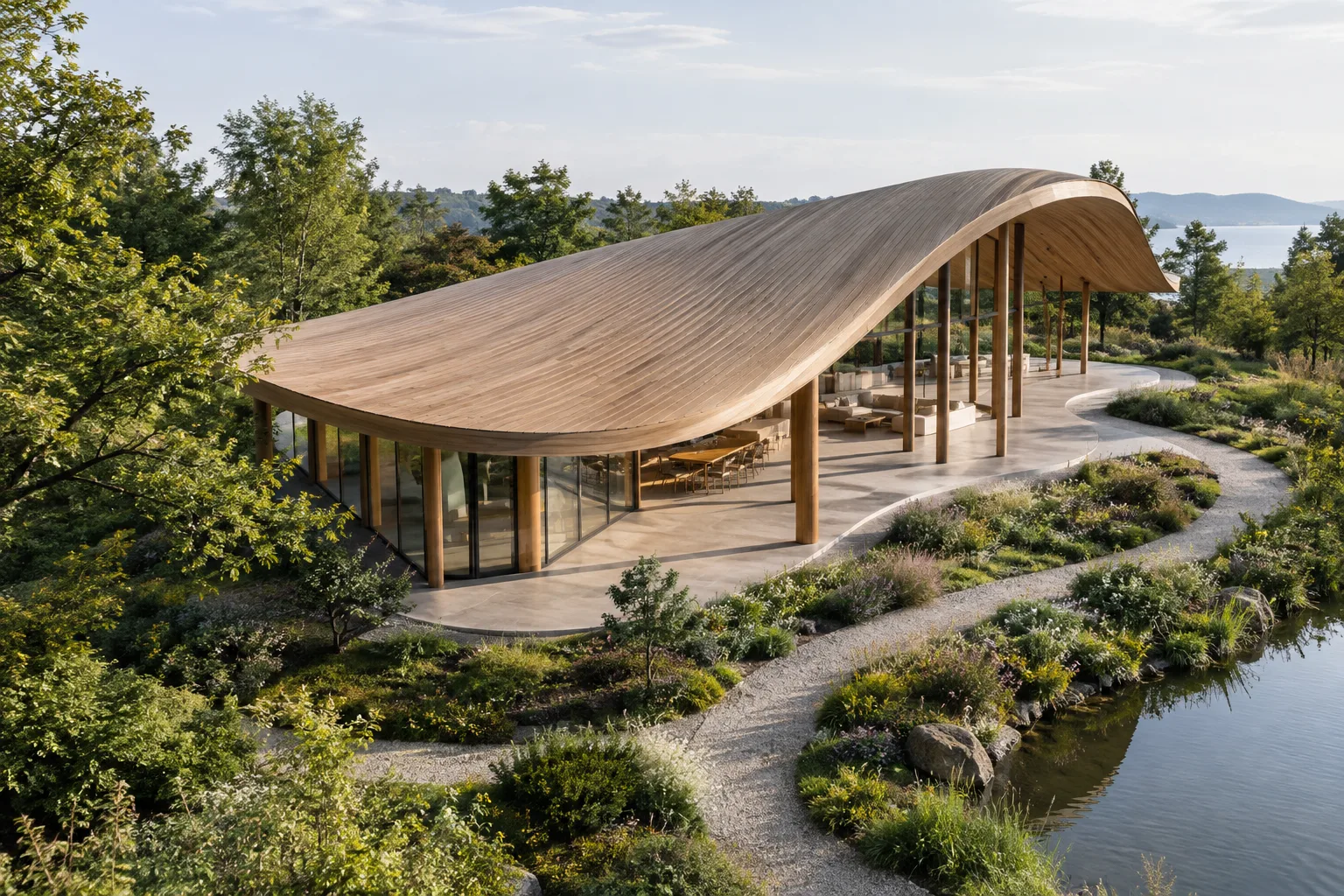
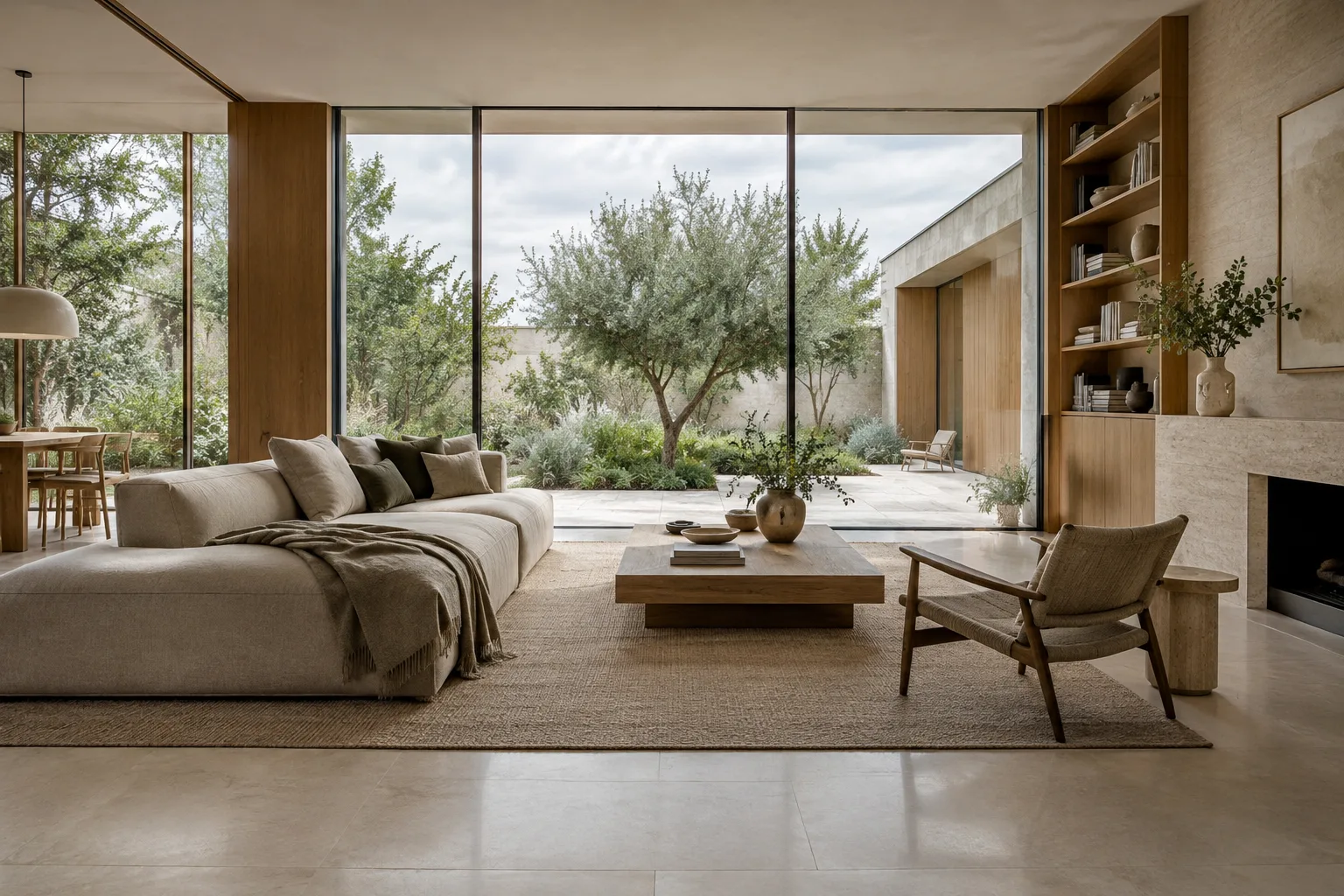
Create a photorealistic architectural concept image of a compact contemporary living room opening onto a planted courtyard. Use pale limestone flooring, warm oak wall panels, a simple low sofa, and large sliding glass doors. Show a calm eye-level interior view in soft morning light, with realistic material textures and gentle shadows. Keep the architecture restrained and the furniture secondary.The prompt specifies the room type, its relationship to the outdoor space, materials, amount of furniture, eye-level viewpoint, and lighting separately. To make the desired result clearer, describe the elements you want to see instead of adding more adjectives.
3. Compare prompts with small changes
Prompt design is an iterative process. After the first result, update one variable rather than rewriting the entire description. For example, changing the time of day or the dominant surface material makes it easier to track how each instruction affects the image. You could use this prompt for a second iteration:
Create a photorealistic architectural concept image of the same compact living room and planted courtyard. Keep the pale limestone floor, warm oak panels, furniture layout, and eye-level viewpoint. Change only the lighting to a subdued overcast afternoon, with soft daylight and low-contrast shadows.Clear phrases such as “Keep” and “change only” distinguish the elements that should stay the same from the one that should change. This can help when comparing mood variations for a design presentation, but you should check that each result matches the brief.
4. Provide an existing image as a reference
If you have an image you’re entitled to edit, you can send it to the API along with text instructions. The source describes this as providing text and image inputs in the same request. The image could be a sketch, a concept render, or another reference you’re permitted to work with. Describe the requested changes narrowly:
Use the supplied interior image as the visual reference. Preserve the room layout, camera viewpoint, window positions, and major furniture. Change the floor finish to pale limestone and make the daylight softer. Do not add new openings or change the room proportions.This prompt separates the requested material and lighting changes from the instruction to preserve the composition and spatial relationships. The reference image’s content may affect how the model interprets the request, so compare the result with the original drawing or model and validate critical design decisions separately.
5. Save the result and continue iterating
In the API documentation examples, the generated image data is retrieved through output_image and written to a file. For image generation, you can use a convenience feature to retrieve the final image block; for complex outputs where text and image content are interleaved, the documentation says the steps should be reviewed separately. In the next turn, describe only the points to adjust—for example, “keep the wall finish lighter” or “make the courtyard planting sparser.” Saving the prompts alongside the files makes it easier to track which description produced each result.
Common mistakes
Using generic, open-ended descriptions: Phrases such as “Make it more modern and impressive” don’t explain the desired result on their own. Describe the space, surfaces, lighting, and framing.
Requesting too many changes in one prompt: Changing the composition, materials, and lighting at once makes comparisons difficult. Test changes one at a time whenever possible.
Failing to specify what should stay the same: When editing a reference image, state what must remain fixed, such as the floor plan or camera viewpoint, and separately define what you want to change.
Treating the output as technical validation: An image can support a concept or presentation experiment, but it cannot by itself prove that project dimensions and design decisions are correct.
Overlooking image rights: Check that you have the right to use the reference image and that the generated content won’t infringe on others’ rights.
Impact on architecture, interior design, and archviz workflows
Nano Banana 2.1 can be considered for generating material and mood options during the concept stage, or for testing described changes to an existing image. Prompt-based iteration can be a practical idea-development tool, especially for students and design teams who need visual alternatives quickly. However, the sources don’t mention a specific CAD, BIM, or 3D software integration, compatibility list, or project-file editing feature. API usage, model selection, and transferring generated images into an existing workflow need to be planned separately. Google says outputs include a SynthID watermark; you should also consider in advance how the images will be used in presentations and deliverables.
Next steps
Start with a short, clear base prompt for the same space. Then run another iteration by changing only one of the following: lighting, materials, or framing. If you’re using a reference, clearly state which design elements must be preserved in the prompt and check that you have the right to use the image. Google’s prompt design guide recommends clear, specific instructions and using different examples to demonstrate format and scope. These principles also apply to architectural image prompts. When choosing results, consider not only their visual impact but also how well they fit the design intent and how they’ll be used by the team.
Sources and license
This tutorial has been adapted into Turkish based on information in Google AI for Developers’ Gemini API image-generation and prompt-design documentation. Both sources are available under the CC BY 4.0 license. The prompt examples for architecture and interiors were written specifically for this guide.
Sources
2 sourcesSource texts are not republished; short quotes are marked, everything else is our own summary and commentary.
For architecture firms and students in Turkey, this approach may be useful for quickly generating alternatives, especially when exploring concepts and moods. Being able to use a reference image alongside a prompt offers a way to discuss an existing idea instead of starting from scratch; however, the output is no substitute for a technical model or project drawing.
Before adding it to a workflow, assess API access and usage costs for your team; the sources don’t specify pricing or hardware requirements. Image rights, the SynthID watermark, and the process for transferring images into existing software should also be checked before delivery. The best use is not to validate design decisions, but to make alternatives visible and support team discussions.
Frequently asked questions
What is the Nano Banana 2.1 model name in the Gemini API?
The model ID is `gemini-nano-banana-2.1`. Google recommends Nano Banana 2.1 for new projects.
Can Nano Banana 2.1 edit an existing image?
Yes. According to the documentation, you can provide an image to the model along with text instructions and request changes to it.
Do images generated with Nano Banana have a watermark?
Google’s documentation says all generated images include a SynthID watermark.