In brief
- Blender 5.3 Beta can import Gaussian splat data from PLY and SPZ files, and can also load splats from USD.
- Drag and drop a supported file into the viewport, then confirm the import.
- In EEVEE, you may need to increase the sample count to reduce image noise.
- Gaussian splat tools in Blender are at an early stage; editing and EEVEE performance still have room for improvement.
What will you learn in this guide?
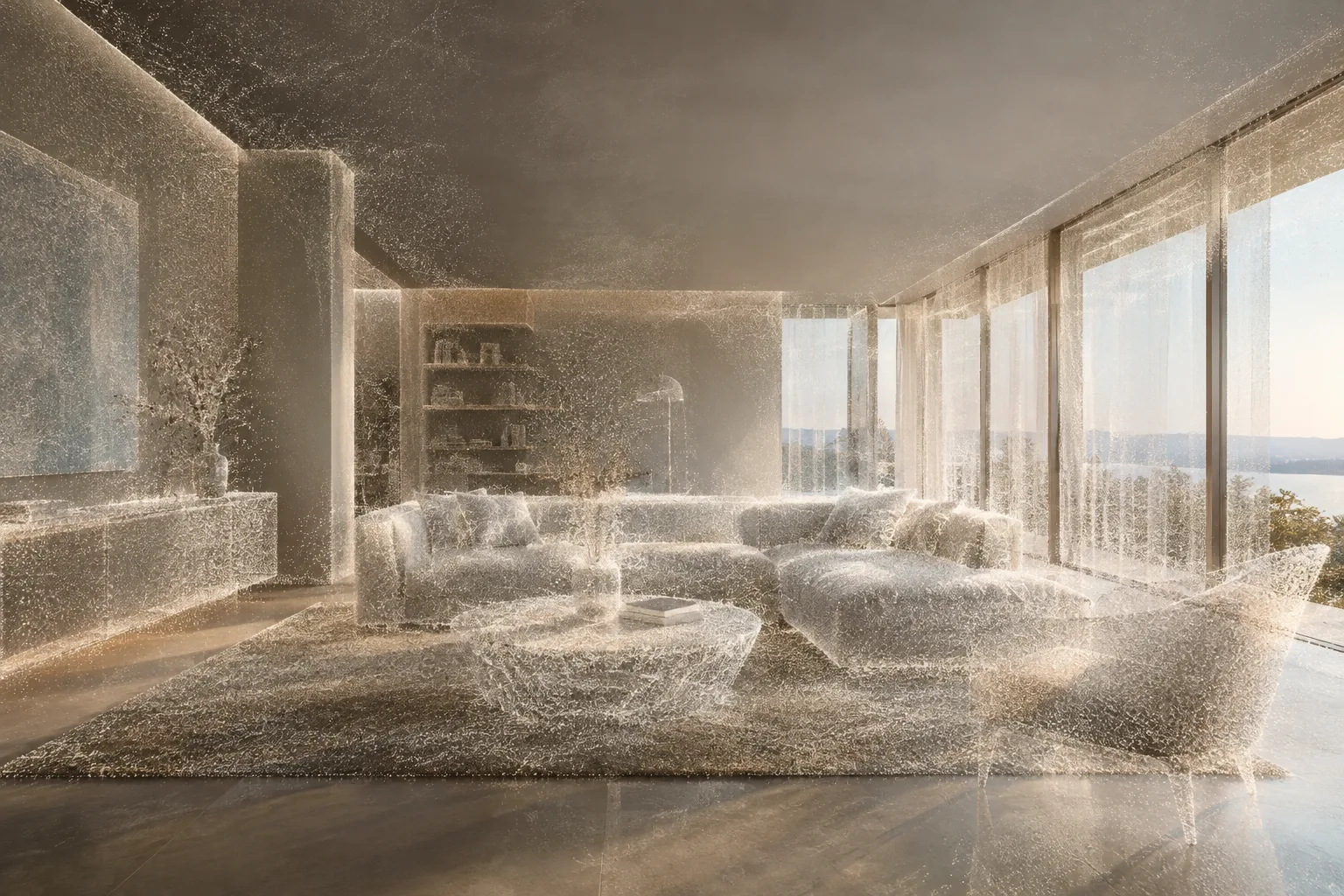
You’ll learn how to import a Gaussian splat scene into Blender 5.3, try different display and render options, and assess how the results differ. Gaussian splatting represents a 3D scene generated from photographs using many small Gaussian-shaped elements instead of a traditional mesh. The structure resembles a point cloud, but it can represent complex scenes, transparency, fine details such as hair, and lighting effects within a single object.
Blender’s support is at an early stage. So this guide focuses on trying out the available import and render features rather than presenting a complete modeling workflow. Keep this in mind when setting expectations, especially for relighting and editing splats.
Requirements
Blender 5.3 Beta, which includes Gaussian splat support.
A Gaussian splat file in PLY or SPZ format. Blender also supports loading splats from USD.
Optionally, different render options to experiment with: EEVEE, Workbench, and Cycles are among Blender’s built-in render engines.
The sources don’t state that you need to create an account for this process. They also don’t specify a minimum hardware requirement. However, according to Blender’s explanation, drawing splats that aren’t visible can affect EEVEE performance, particularly on lower-powered devices. That makes it important to test performance on your own hardware, especially with large scenes.
Importing a Gaussian splat scene
Open Blender 5.3 Beta. This guide covers the version that introduced Gaussian splat support. Don’t assume the same options are available in older versions.
Choose a supported file. Start with a Gaussian splat file in PLY or SPZ format. Blender’s developer post also says splats can be loaded from USD. Make sure the file actually contains Gaussian splat data; the file extension alone isn’t enough to determine what kind of 3D data it contains.
Drag the file into the viewport. Drag and drop the supported file into Blender’s viewport, then confirm the import. For a first test, opening the file in a separate working copy rather than replacing your entire scene makes it easier to compare different render engines.
Check the scene in the viewport. Make sure the object appears in the expected orientation and framing. At this point, don’t expect to edit the geometry like a conventional mesh: Gaussian splats in Blender are implemented as a type of point cloud, and, as the developers note, the splat editing tools are still limited in usability.
Display and render options
Quick previews with EEVEE
EEVEE displays splats by rasterizing them as camera-facing planes. The initial implementation uses a dithered approach for transparency. This can introduce random noise in the image, so increase the sample count under Render > Sampling > Viewport/Render. Since the sources don’t provide a single recommended value for every scene, increase it gradually and check the image again.
One current limitation in EEVEE is that elements behind other splats are often drawn as well. This can cause overdraw, and the impact may be more noticeable on lower-powered devices. For that reason, check not only image quality in a single frame but also performance while moving around the scene in the viewport and when rendering.
Displaying splats with Workbench
When using Workbench, viewport lighting settings apply to all objects. To preview the expected appearance of Gaussian splats, select Viewport Shading > Lighting > Flat. This view doesn’t replace a final assessment of materials and lighting; its purpose is to check how splats are displayed in Workbench.
Comparing with Cycles
Because Cycles uses ray tracing, it doesn’t use EEVEE’s camera-oriented approach in the same way. It calculates intersections between rays and Gaussian splats, and evaluates opacity using a stochastic method. This approach allows integration with ray-tracing features such as reflections and indirect lighting. However, in some scenes the Cycles result may differ from the rasterized appearance in EEVEE.
Open the same file in both engines and compare the same framing. Don’t automatically interpret a difference in appearance as a failed import: the two engines calculate splats differently. Blender’s developers also note that much of the splat data may have been prepared for EEVEE’s approach, so Cycles producing a different result from a perspective standpoint doesn’t mean it will be better or worse in every scene.
Try relighting
By default, splats are displayed with an emissive material that uses radiance data. You can change the material in the Shader Editor, and basic relighting support is also available for Cycles and EEVEE. However, radiance isn’t a standard color space; it also contains direction-dependent lighting information. Blender estimates the normal of a splat surface for simple relighting, and says this support is at an early stage. Don’t treat the result as a physically accurate material or a complete lighting reconstruction.
What does this mean for architectural and visualization workflows?
For architects, interior designers, and visualization teams, this feature makes it possible to view photograph-based scene captures in Blender and compare them across render engines. Those working with a splat representation of an existing space or environment can test a workflow that brings the data into a scene without converting it to a mesh. However, the sources don’t describe this as a production-ready pipeline connected to a specific BIM or design application.
Before using it in a project, verify that the file reaches Blender via PLY, SPZ, or USD, and review the EEVEE and Cycles results separately. Measure workstation performance with a large scene and account for the limited splat editing tools. The post refers to Blender 5.3 Beta; it makes no firm commitments about how the support and tools will change in future versions.
Common issues
Assuming the PLY extension means the file contains Gaussian splats: PLY can contain different kinds of 3D data. Make sure the file is a splat capture.
Mistaking EEVEE noise for a file error: Dithered transparency in the initial implementation can introduce noise. Increase the sample count and check the result again.
Assessing the scene with the wrong Workbench lighting: Use Flat lighting to see the expected appearance of the splats.
Expecting EEVEE and Cycles to produce identical results: The engines use different calculation approaches, so the same scene may look different.
Treating relighting as a finished feature: Support is at an early stage, and the normal estimation uses a simple approach.
Next steps
Start with a small scene. First check the import and framing, then test how changing the sample count affects EEVEE. View the same scene in Workbench and Cycles, too, and note the differences. If you need to change the lighting, treat experiments in the Shader Editor as a separate comparison. If performance remains low, don’t assume a more advanced optimization feature is available: Blender’s developer post identifies better GPU culling for EEVEE as an area for future development.
Source and license
This tutorial is adapted from “Splatting the Gaussians into Blender,” a post about Blender’s Gaussian splat support and limitations by Mark van de Ruit and Sergey Sharybin. The source explains the initial implementation in Blender 5.3 and how to use it; the text has been rewritten in Turkish.
Sources
1 sourceSource texts are not republished; short quotes are marked, everything else is our own summary and commentary.
For architecture firms and visualization teams in Turkey, Gaussian splat support is worth trying as a way to inspect photograph-based scenes in Blender. However, based on what the available sources describe, Blender 5.3 Beta’s features shouldn’t be treated as a complete production pipeline.
Rather than assuming additional licensing or hardware costs, it’s more sensible to first measure scene performance on your office’s existing hardware. In particular, test EEVEE’s overdraw and the differences in appearance with Cycles. The early-stage editing tools and relighting support mean that work intended for delivery requires additional checks.
Frequently asked questions
Which file formats can Blender 5.3 open for Gaussian splats?
Blender can import Gaussian splats from PLY and SPZ files, and can also load them from USD.
How do you import Gaussian splats into Blender?
Drag and drop a supported file into the viewport, then confirm the import.
Do EEVEE and Cycles display Gaussian splats in the same way?
Both engines support Gaussian splats, but they use different technical approaches. As a result, they may produce different images in some scenes.