In brief
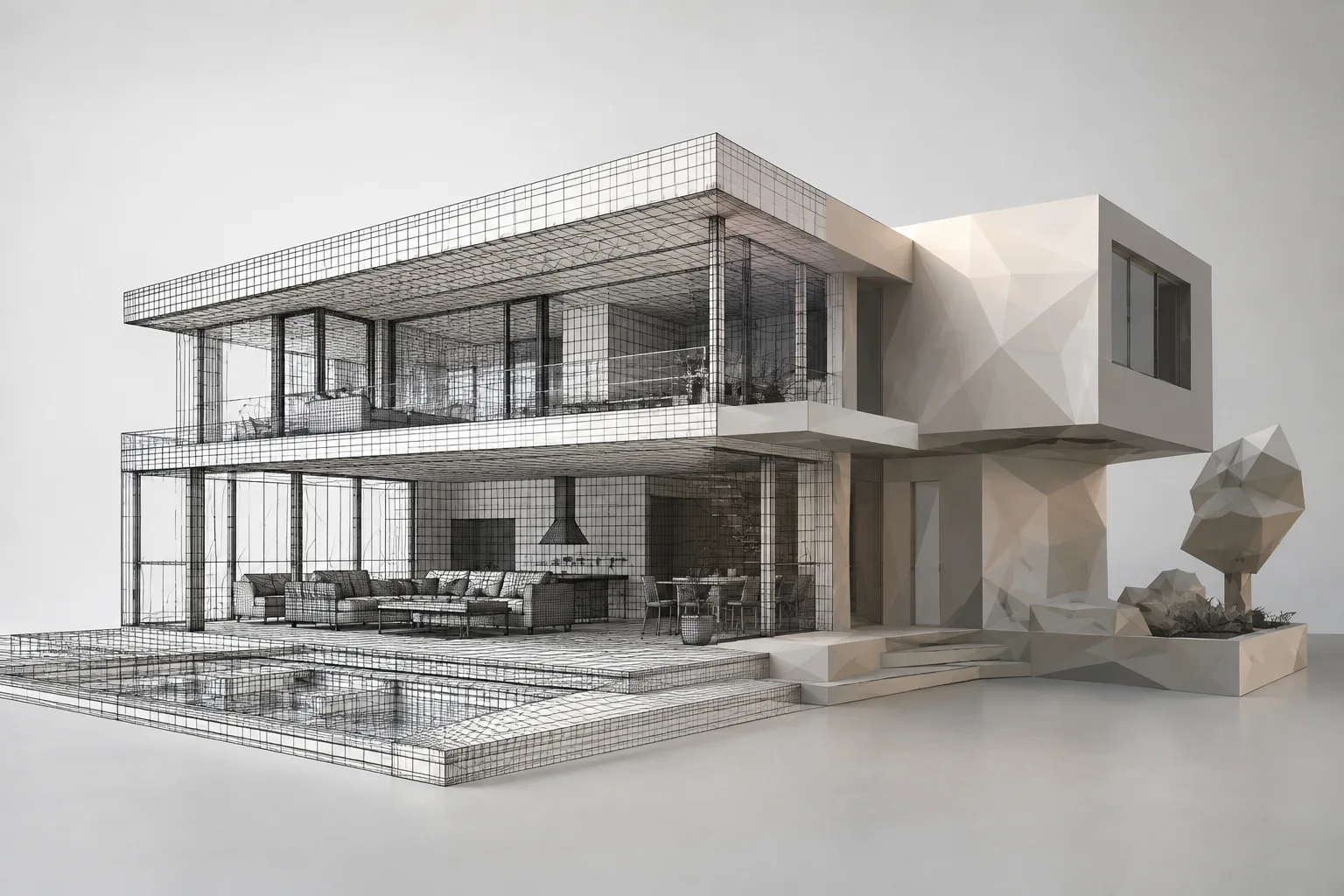
- The Decimate Modifier aims to reduce a mesh’s vertex and face counts while preserving its shape as much as possible.
- In Collapse mode, a Ratio of 1.0 leaves the mesh unchanged; 0.5 aims to retain about half the faces, based on triangle count.
- Decimate Geometry in Edit Mode directly reduces the face count of the selected geometry.
- Planar mode reduces detail in forms dominated by flat surfaces, while Un-Subdivide works primarily on grid-based meshes.
What you’ll learn
In this guide, you’ll learn how to simplify a mesh non-destructively with Blender’s Decimate Modifier, reduce selected geometry directly with the Clean Up tools in Edit Mode, and decide which approach may be more suitable in different situations. We’ll also look at what Collapse, Un-Subdivide, and Planar modes are designed to do, and how settings such as Ratio, Symmetry, and Delimit affect the results.
Simplification can be useful for meshes with high face counts, particularly after complex modeling, sculpting, or applying Subdivision Surface and Multiresolution operations. The goal is not just to lower the count, but to reduce unnecessary geometry while preserving the model’s essential shape. Every vertex and face in a carefully and efficiently modeled mesh may be needed to define its form, so applying Decimate automatically to every model is not the right approach.
Requirements
You’ll need Blender and a mesh to simplify. The relevant tools in the Blender Manual do not specify a particular version number, so this guide does not set a version requirement. The sources also do not provide hardware requirements. Before you begin, it’s useful to keep a copy of the mesh you’re editing: with the Modifier, you can inspect the result without changing the original geometry; Decimate Geometry in Edit Mode directly reduces the face count of the selected geometry.
This difference between the two approaches is central to choosing a method. If you want to be able to change the result and revisit the settings, consider the Decimate Modifier. If you want to work directly on specific geometry, use Decimate Geometry in Edit Mode. With the latter method, check which components are selected; the tool operates on the selected geometry.
Step-by-step simplification
Assess the mesh. Check whether the model has become dense due to complex modeling, sculpting, or applied Subdivision Surface or Multiresolution operations. A regular, efficiently modeled mesh in which every face is needed to define the shape may not need simplification. Also identify in advance the silhouette and important surface divisions that must be preserved.
Choose the non-destructive method. Use the Decimate Modifier to test simplification settings without changing the mesh. This modifier does not visualize the change in Edit Mode; the modifier itself displays the resulting face count. Keep this limitation in mind when reviewing the change, and don’t assume the operation hasn’t worked just because it isn’t visible in Edit Mode.
Start with a test using Collapse. This mode progressively merges vertices while taking the mesh’s shape into account. Ratio determines the proportion of faces to retain after simplification: 1.0 leaves the mesh unchanged, 0.5 aims to retain about half the faces, and 0.0 means removing all faces. Start with a high ratio, then check the change in shape and the remaining face count; don’t assume a single ratio will suit every mesh.
Keep the triangle count in mind. Ratio is calculated using triangles. If the mesh has quads or other polygons and Triangulate is disabled, the remaining face count may be higher than expected. For this reason, don’t treat the Ratio value as a guarantee of the final face count. Also check how the Triangulate option affects the resulting geometry.
Use Symmetry and Vertex Group if needed. Symmetry in Collapse mode helps preserve symmetry along a single axis. Vertex Group can be used to control which regions are simplified; Factor determines the group’s influence. When using these settings, check that the intended regions are in the correct group.
Choose another mode based on the mesh’s structure. Un-Subdivide attempts to remove edges created by a Subdivide operation, working in a similar way to reversing that operation. It is designed primarily for grid-based topologies; unexpected results may occur if the mesh has been edited after subdivision. Since two iterations correspond to one Subdivide operation, even values are generally preferred. Planar mode reduces detail in forms made up mostly of flat surfaces. Angle Limit determines which geometry is dissolved based on the angles between surfaces.
Try Decimate Geometry if you need to edit directly in Edit Mode. First make sure the geometry you want to reduce is selected, then use Mesh > Clean Up > Decimate Geometry. Ratio specifies the target triangle proportion here. For example, a value of 0.4 aims to retain 40 percent of the original triangle count by merging edges. You can select the X, Y, or Z axis for symmetry. Unlike the modifier, this operation directly reduces the selected geometry.
Common mistakes and checklist
A common mistake is to interpret Ratio as the exact number of polygon faces that will remain. The calculation is based on triangles, and polygons may be preserved when Triangulate is disabled, both of which can affect the final count. Also, don’t assume that every region needs the same degree of simplification; where appropriate, Vertex Group provides a way to control this by region.
Using Un-Subdivide on meshes without a regular grid topology, or on meshes that have been heavily edited after subdivision, can lead to unexpected results. Also review the effects of Angle Limit and the Delimit options in Planar mode. Delimit provides options to prevent dissolving in areas such as boundaries where face normals flip, boundaries between different materials, edges marked as UV seams, Sharp edges, or edges that are part of a UV map.
After the operation, inspect the model’s shape as well as its face count. Remember that the modifier’s result is not shown in Edit Mode; evaluate the remaining face count reported by the modifier alongside the visible result. When editing directly, check the selected area and symmetry axis again. These checks help prevent simplification from unintentionally removing divisions the model needs.
Using Decimate in architecture and visualization workflows
For anyone preparing architectural models, interior scenes, or archviz assets, Decimate offers an option for reducing the face count of complex or sculpted meshes. Simplification may be worth considering when dense geometry affects performance, but the manual does not promise a specific performance improvement. Review the result against the needs of the scene in question.
For offices and student projects, the key decision is whether to change the geometry non-destructively with a modifier or directly in Edit Mode. The modifier lets you evaluate settings, while Decimate Geometry in Edit Mode reduces the selected geometry. The sources do not specify which Blender version, add-on, license, or particular hardware is required; check compatibility with your current project setup rather than making assumptions.
Next steps
Start by comparing different Ratio values on the same mesh and observing where the shape changes. Then, on a suitable example, try Collapse, Un-Subdivide, and Planar to understand how their purposes differ. Planar may be suitable for a form with flat surfaces; Un-Subdivide for regular grid topology; and Collapse for simplification that takes the overall shape into account. Finally, explore the other tools in Clean Up: Merge by Distance merges nearby vertices, while Fill Holes closes holes under certain conditions. These tools are not substitutes for Decimate; they address different geometry issues.
Sources and license
This guide is adapted into Turkish from the “Decimate Modifier” and “Clean Up” pages in the Blender Manual. Both sources are licensed under CC BY-SA 4.0.
Sources
2 sourcesSource texts are not republished; short quotes are marked, everything else is our own summary and commentary.
For architecture and visualization teams, the practical value of Decimate is that it offers a way to reduce dense meshes according to the needs of a scene. The distinction between a non-destructive modifier and direct geometry editing is important, especially for work that may need to be revisited; the right method depends on the model’s source and the editing plan.
Offices and students in Turkey should treat these tools as a controlled simplification step, not as a guarantee of a specific performance improvement. Since the sources do not provide details on hardware, cost, licensing terms, or version compatibility, these points should be verified separately. Preserving the form required by the project should take priority over the face count.
Frequently asked questions
What does Blender’s Decimate Modifier do?
It attempts to reduce a mesh’s vertex and face counts while minimizing changes to its shape. It can be used on meshes made dense by complex modeling, sculpting, or applied subdivision operations.
What does Ratio mean in the Decimate Modifier?
It determines the proportion of faces to retain after simplification: 1.0 leaves the mesh unchanged, while 0.5 aims to retain about half. Since the calculation is based on triangles, the remaining face count may be higher than expected when the mesh contains polygon faces.
Where can I find Decimate Geometry in Blender?
In Edit Mode, go to Mesh > Clean Up > Decimate Geometry. It reduces the face count of the selected geometry.