In brief
- Proxies are lower-resolution or lower-quality copies of the original footage.
- Proxy resolution can be selected quickly from the View tab in Video Sequence Editor.
- Proxy files can be stored in one directory for the entire project or separately for each strip.
- Sequence Render Animation does not render Scene Strips by default.
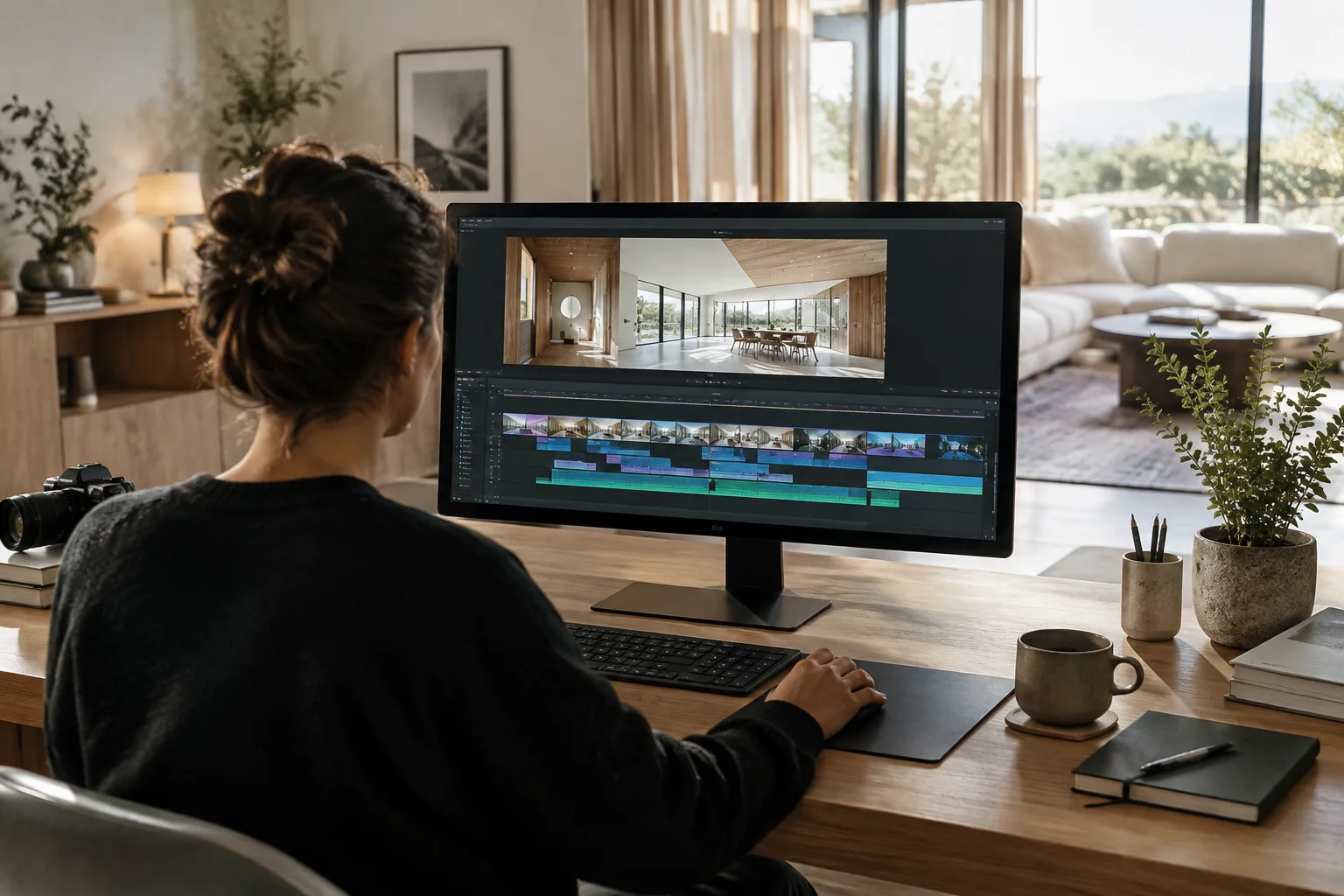
The Video Sequence Editor (VSE) tools described in Blender’s online manual let you use proxy files to make high-resolution footage easier to preview and navigate the timeline more smoothly. Proxies are lower-quality or lower-resolution copies of the original footage. They help keep playback smooth while editing, without compromising the visual fidelity of the final output. Since the manual does not specify a particular Blender version, the steps below are based on the current online documentation, whose version is unspecified.
1. Enable proxies quickly
If playing frames or scrubbing through the timeline is slow with high-resolution footage, creating proxies is a good first step. Open the VSE in Preview or Sequencer & Preview mode. Select a proxy size from Proxy Render Size in the View tab to enable that resolution for the strips and start generating smaller video files.
For more detailed settings, use the Proxy tab in the editor’s sidebar. It offers more controls, such as choosing proxy resolutions or preparing proxies for image sequences. The Proxy tab is unavailable when the editor is in Preview mode only; in that case, use the menu path View › Proxy › Setup.
2. Configure proxy location and quality
You can manage proxy settings project-wide or per strip. Per Strip lets each strip use its own storage location. With Project, proxies are collected in a single directory, which you set in the Proxy Directory field. To use a custom folder for individual strips, use Custom Proxy Directory.
The default location is BL_proxy/<clip name> under the path containing the source footage. Existing proxy files can also be used with the File option. In the Set Selected Strip Proxies pop-up, choose the resolutions to generate for the selected strips, specify whether existing files should be overwritten, and apply your choices with Set. The options for individual strips are available in the Strip Proxy & Timecode panel.
| Setting | Recommended value | Effect |
|---|---|---|
| Proxy resolution | Choose as needed; the manual does not recommend a specific resolution | Enables previewing with lower-resolution copies. |
| Quality | No single value is recommended in the manual; range: 0%–100% | Sets the lossy compression level. A lower value means smaller files and more noticeable quality loss, while 100% means no compression and larger files. |
| Storage | Per Strip or Project | Determines whether proxies are stored per strip or in a single directory for the project. |
| Overwrite | Choose as needed | Determines whether existing proxy files are overwritten. |
There is no single “best” quality or resolution setting. More compression can reduce storage requirements, but may increase the loss of image detail. Since you can select multiple resolutions, make your choice based on the balance between preview needs during editing and file size.
3. Control playback and the preview range
Along with creating proxies, limiting the section you repeatedly watch can help with slow previews. In the VSE, press P to set a Preview Range. Playback stays within this range, making it easy to review the same section repeatedly. When Sequence Render Animation is enabled, the rendered range is also limited to this range. Use Set Preview Range to Strips to set a range covering the selected strips, or Alt-P to clear the range.
To focus the timeline on selected strips, use Frame Selected (NumpadPeriod); to show all strips, use Frame All (Home). Use Timecode (Ctrl-T) displays seconds instead of frame numbers on the time axis. Refresh All (Ctrl-E) reloads files and refreshes the current frame preview when external files have changed. These controls make it easier to manage the view and playback range, especially when switching between different footage segments.
4. Check Scene Strip rendering and the editing scene
If a project contains different scenes or shots, using a separate Sequencer Scene for the VSE can help you manage editing versions in the same file. Open a workspace containing the VSE, then create a new Sequencer Scene with the New button in the header or select an existing scene. When working with multiple scenes, enabling Sync Scene Time updates the active scene according to the active Scene Strip in the timeline.
There is an important distinction at render time: Sequence Render Image and Sequence Render Animation do not render Scene Strips by default; they use the preview’s shading mode. To render Scene Strips, use the Render menu in the top bar. Alternatively, select Rendered via Sidebar › View › Scene Strip Display › Shading; this option is available only when the VSE is in Preview or Sequencer & Preview mode. Also check whether the Render menu offers separate options for the Sequencer Scene when the active scene differs from the Sequencer Scene.
Use in architecture and archviz workflows
When editing architectural animations, interior showcase videos or sequences made up of different camera shots, proxies can make assembly and preview more manageable with high-resolution source footage. Using proxies does not, by itself, determine the settings used to export the final image; for projects that include Scene Strips, be sure to check the render method and shading mode separately.
Common mistakes
Trying to fix slow playback only by navigating the timeline, without enabling proxy generation.
Overlooking that lowering proxy quality can affect image detail.
Forgetting that Sequence Render Animation does not render Scene Strips by default.
Assuming the entire scene will render when Preview Range is enabled; animation rendering may be limited to the active range.
Sources
3 sourcesSource texts are not republished; short quotes are marked, everything else is our own summary and commentary.
For architecture and visualization studios in Turkey, the practical value of a proxy workflow can be especially clear when editing and preparing presentation videos with high-resolution footage. Being able to choose project-wide or per-strip storage helps teams organize files to suit their workflow.
However, proxies are no substitute for final render settings. Keep in mind that increased compression can cause detail loss and that Scene Strips are not included in the default animation render. The manual does not recommend hardware or specify a proxy resolution, so studios should test with their own source footage and storage conditions, and verify version compatibility in the documentation for their Blender installation.
Frequently asked questions
How do I create proxies in Blender VSE?
In Preview or Sequencer & Preview mode, select a size from Proxy Render Size in the View tab. For more detailed settings, use the Proxy tab in the sidebar.
Where does Blender save proxy files?
By default, it saves them in the BL_proxy/<clip name> folder under the path containing the source footage. You can change this location by selecting a custom folder.
Does Blender’s Sequence Render Animation render Scene Strips?
Not by default. To render Scene Strips, use the Render menu in the top bar or set Scene Strip Display shading to Rendered in the appropriate mode.