In brief
- Nano Banana 2.1 is available in the Gemini API for image generation and conversational editing.
- The API can edit images by combining image input with text prompts.
- Google cites 1K, 2K, and 4K resolutions for Nano Banana 2.1.
- Generated images include a SynthID watermark.
What will you learn in this guide?
This guide covers how to prepare prompts, choose a model, and edit images with text for architectural and interior imagery through the Gemini API. The goal is not to produce a definitive project output with a single prompt, but to make experiments more controlled by clearly describing visual decisions such as composition, materials, lighting, and atmosphere. Generated images can be considered for concept development and presentation research; the sources do not claim that the outputs have the accuracy of technical drawings or construction documents.
Google’s prompt design guide recommends giving clear, specific instructions, describing the desired output format, and refining prompts through experimentation. The image generation documentation shows that, in addition to creating images from text, you can edit by providing an image and text together. The sample prompts below were written specifically for architectural use; they were not copied from the sources as code or ready-made prompts.
Requirements and model selection
This workflow relies on sending a prompt to an image model through the Gemini API. Google’s documentation shows the API key being used in the GEMINI_API_KEY header in a REST example; examples are also available for Python and other programming languages. These sources do not explain account setup, pricing, or a specific software version. Accordingly, no assumptions about installation or pricing are made here.
When choosing a model, consider the task descriptions in the documentation:
Nano Banana 2.1 is described as the primary model for high efficiency and is recommended for image generation and conversational editing. Google cites improvements in image quality, text generation, and multi-turn consistency at 1K, 2K, and 4K resolutions.
Nano Banana 2 is listed as the previous-generation high-efficiency option.
Nano Banana 2 Lite is described as the fastest and lowest-cost model; however, it is noted as not being optimized for multiple reference inputs or sequential multi-turn editing.
Nano Banana Pro is offered as a premium option for more complex visual tasks.
These descriptions come from the model provider. For projects where cost is a significant factor, check current pricing and access conditions separately; the source text does not provide a price table.
Step by step: preparing an architectural prompt
Define the image’s purpose. Choose a single main goal, such as an interior mood, facade material study, or landscape concept. First state what should be shown, then specify the type and use of the space.
Describe the composition. Include details such as camera direction, the elements to emphasize in the frame, and how much of the surroundings should be visible. These are natural-language instructions for the model to interpret, not technical parameters that guarantee a particular result.
Be specific about materials and lighting. Rather than using general terms such as “elegant” or “modern,” describe the surfaces and lighting character you want to see. You can also limit unwanted elements in your prompt.
The prompt below is for a simple residential interior concept:
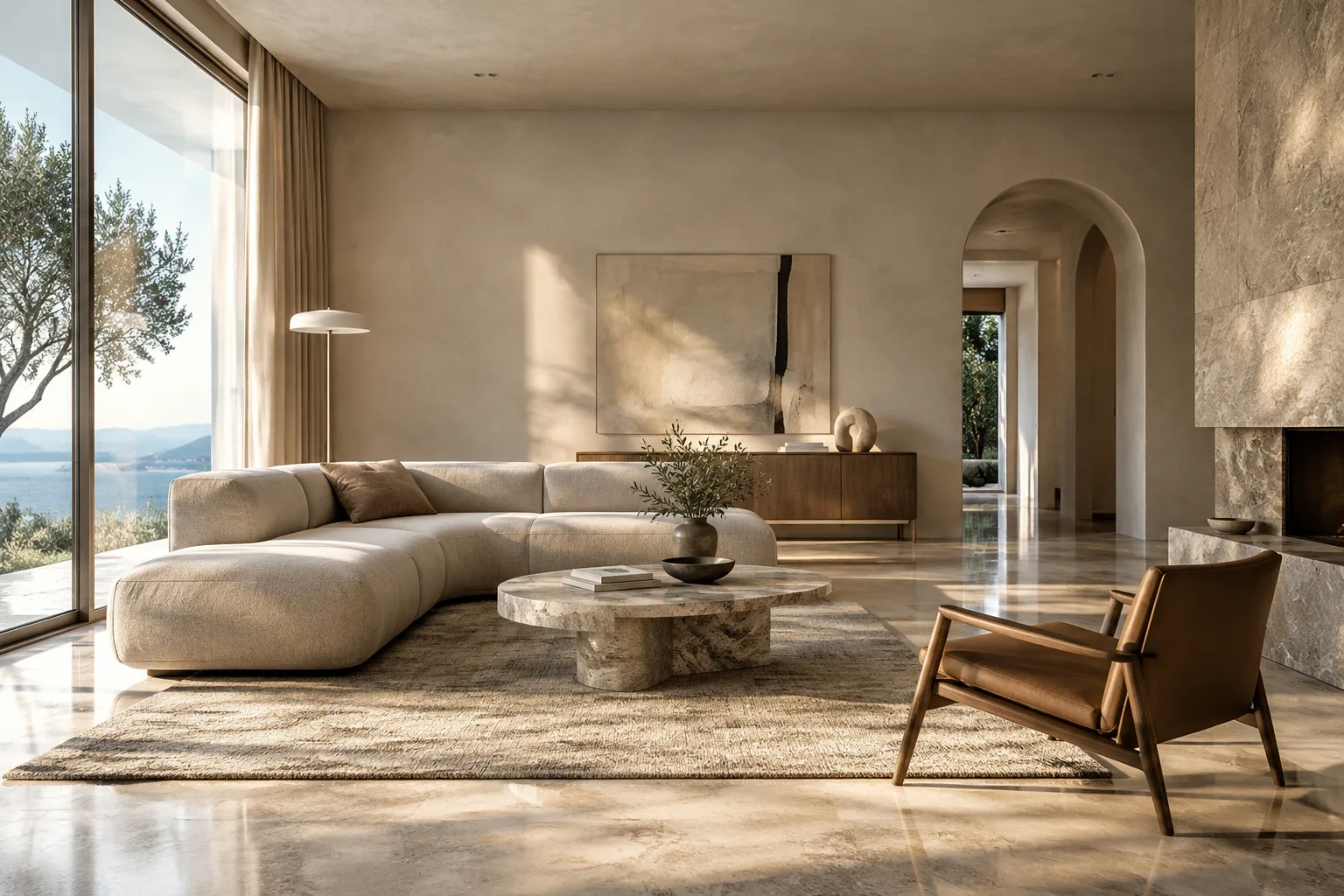
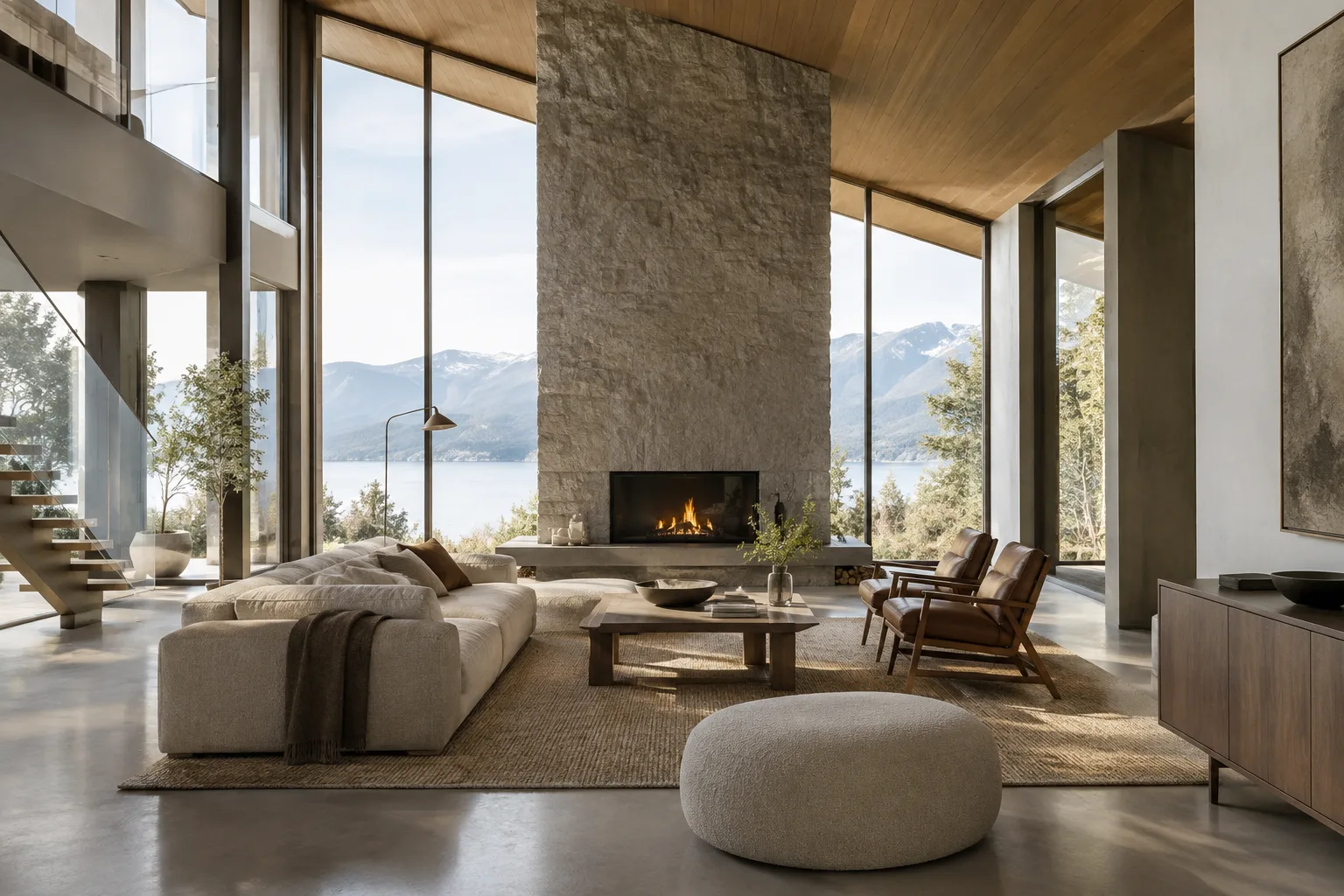
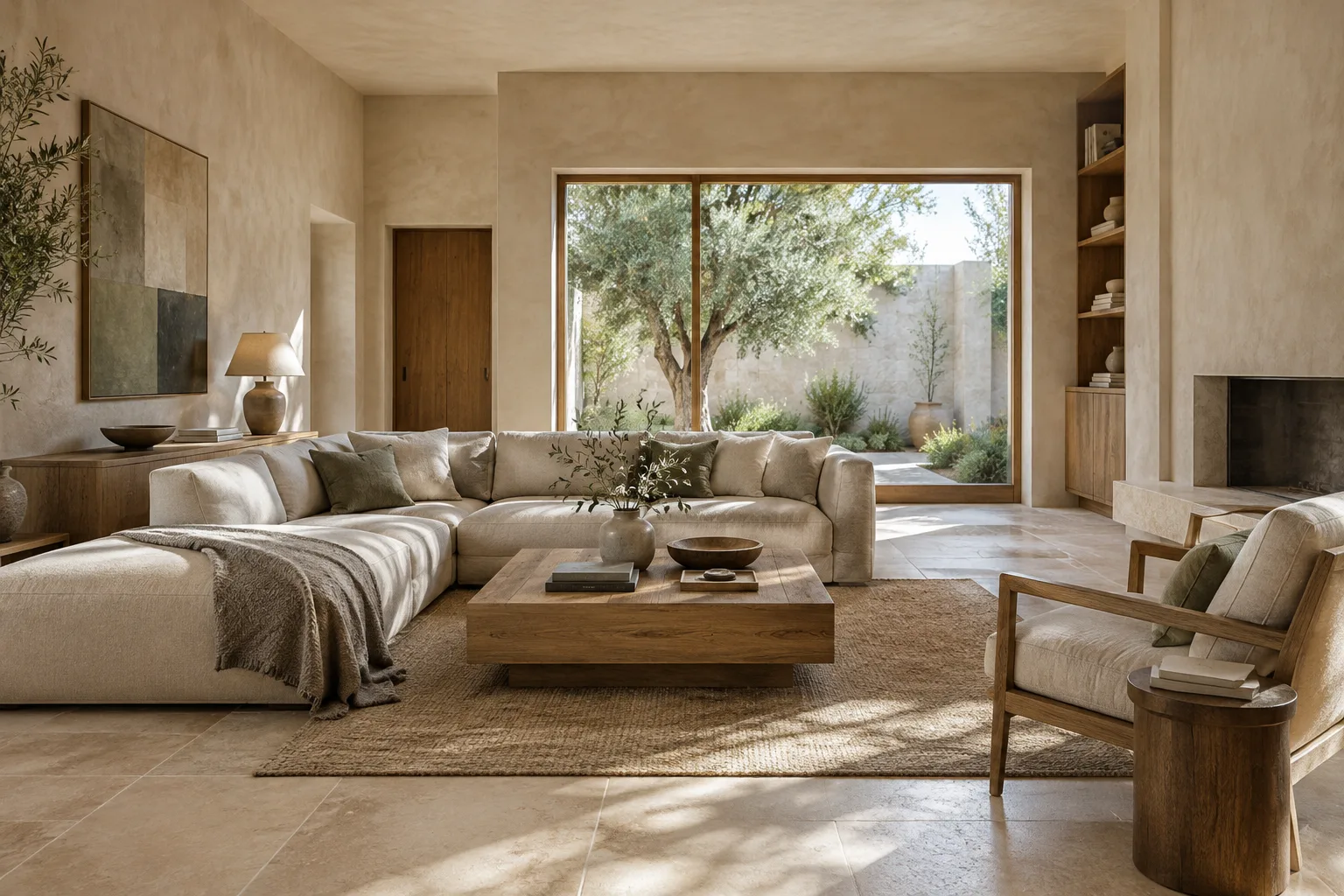
Create an architectural interior concept image of a calm contemporary apartment living room. Show a wide view from the entrance, with a low oak dining table, pale limestone flooring, warm white plaster walls, and a large window facing a planted courtyard. Use soft overcast daylight, realistic material textures, restrained furniture, and a clear uncluttered composition. Do not add people, signage, or decorative text.This description specifies the space, viewpoint, materials, lighting, and framing separately. Evaluate the first result; for example, if the daylight is too harsh, keep the same visual concept and try a new prompt that changes only the lighting description.
For facade studies, avoid turning the prompt into a long description of the entire project. Instead, limit it to selected visual goals:
Create an architectural visualization of a small public library facade on a quiet urban street. Compose the view at pedestrian eye level and show the full entrance, a shaded ground-floor reading area, brick surfaces, and a simple timber screen. Use muted daylight and realistic material appearance. Keep the building proportions calm and the street context understated. No people, signs, lettering, or logos.This example describes the facade together with its street context. Separate the requested design decisions from the areas where the model can interpret freely; the prompt does not ensure accuracy to a specific drawing or set of dimensions.
Work with a reference image. You can send an initial image to the API along with your text description. This lets you specify which elements in the existing image should change and which should stay the same—for example, by redefining the color palette or visual style.
Using the supplied interior image as the reference, keep the room layout and camera view recognizable. Change the floor to pale natural stone, make the wall finish a warm off-white plaster, and soften the daylight coming through the windows. Preserve the existing furniture arrangement. Do not introduce new objects or text.This prompt asks to preserve the layout of the source image while changing only a few visual qualities. Check how closely the result follows the instructions; do not automatically assume the output is correct for important design decisions.
Refine the result in small steps. Google’s prompt design guide recommends giving clear instructions and constraints, specifying the desired response format, and refining prompts iteratively. Rather than changing many variables at once in each round, focus on one aspect—for example, material tone, lighting, or framing. This makes it easier to see which instruction affected the result.
Common mistakes
Relying on vague adjectives: Instead of general descriptions such as “a beautiful interior,” explain the type of space, the feel of the materials, and the lighting.
Adding too many unrelated goals to one prompt: Keep the main visual goal clear, and state explicitly what you want to change in each iteration.
Assuming every detail in a reference image will be preserved: Give editing instructions, then check the result. The documentation supports image editing with prompts; it does not guarantee perfect preservation.
Ignoring usage rights: Make sure you have the necessary rights to any images you upload. Google also reminds users to comply with its Prohibited Use Policy.
Using the output as project data: The sources describe image generation and editing capabilities; they make no claims about accuracy in dimensions, regulations, or structural systems.
Next steps
Start by preparing a few prompt variations for the same design concept and comparing the results side by side. Then, where appropriate, edit a reference image with text to explore changes to materials, color, or lighting. The source documentation states that all generated images include a SynthID watermark. When choosing a model, compare your need for multiple references and sequential editing with the limitations described for the selected model. Details on API pricing, account conditions, and the use of project outputs are not explained in these sources, so verify them separately before starting a real workflow.
Sources and license
This guide is based on Google AI for Developers’ Nano Banana image generation and prompt design guides. Both sources are licensed under CC BY 4.0; their content has been adapted into Turkish in the context of architectural and interior image generation.
Sources
2 sourcesSource texts are not republished; short quotes are marked, everything else is our own summary and commentary.
For architecture firms and students in Turkey, this approach can make concept image research and material alternatives quicker to discuss. However, generated images should not be treated as dimensioned project outputs or technical validation; important design decisions need to be checked separately.
Before starting a workflow, verify API access and pricing conditions. The source describes the Lite model as the lowest-cost option but does not provide prices, so running comparative tests is a more reliable approach in actual use. The usage rights for uploaded references and the SynthID watermark on results should also be factored into presentation plans.
Frequently asked questions
Can Nano Banana 2.1 generate architectural images?
The Gemini API offers Nano Banana 2.1 for image generation and conversational editing. Architectural concept prompts can also be prepared as text input.
Can I edit a reference image with the Nano Banana API?
Yes. According to the documentation, you can send an image and text together to describe the desired changes; for example, you can revise certain elements of the image or its color palette.
Do images generated with Nano Banana have a watermark?
Google’s documentation states that all generated images include a SynthID watermark.