In brief
- World Partition divides a world into cells within a single persistent level and loads or unloads them based on streaming sources.
- A Level Instance groups multiple Actors into a repeatable level layout; saved changes are propagated to other copies.
- The documentation recommends Packed Level Blueprint for static buildings and dense visual layouts.
- Level Streaming Mode can add runtime overhead; using it extensively may affect performance.
This guide looks at the World Partition and Level Instancing workflows described in Unreal Engine documentation, with a focus on large architectural scenes, environments, and repeated visual components. The source documentation does not specify a particular Unreal Engine version, so menu names and behavior are presented as described there. World Partition reduces the need to manually split a large world into sublevels, while Level Instancing turns selected groups of Actors into reusable layouts.
1. Set up a large world with World Partition
World Partition keeps a world in a single persistent Level file and divides it into grid cells that can be loaded at runtime. Cells are loaded or unloaded based on the positions of streaming sources, such as the player. This means that at runtime, only the parts of the scene currently visible or being interacted with need to be loaded, rather than the entire scene.
When you start a new project, the Open World map type enables World Partition, One File Per Actor, Data Layers, and Hierarchical Levels of Detail by default. According to the source documentation, the example map includes 2 km x 2 km of terrain and an outdoor lighting setup. This ready-made map can be a starting point for a large environment scene.
Go to
File › New Level.Select the
Open Worldmap type.Click
Createto create the map.
If you are working with an existing Level, you can convert it using Tools › Convert Level. The documentation also describes a conversion workflow using WorldPartitionConvertCommandlet. The command below is the example given in the documentation; the project and map names in it are example values.
UnrealEditor.exe QAGame -run=WorldPartitionConvertCommandlet Playground.umap -AllowCommandletRenderingIn the conversion command, -ReportOnly produces a report on the possible conversion without carrying it out, while -ConversionSuffix adds the _WP suffix to the converted map for testing. Since -DeleteSourceLevels can delete source levels, do not use this option without first understanding its effects. Reviewing command-line options and conversion settings beforehand can help clarify the scope of the operation.
2. Configure cell streaming and Actor behavior
In a World Partition scene, Actors are associated with cells according to the Is Spatially Loaded setting in the World Partition section of the Details panel. If enabled, an Actor is loaded when it enters the range of a streaming source, unless it is assigned to a disabled Data Layer. If disabled, the Actor is loaded unless it is attached to a disabled Data Layer. This distinction matters when planning when distant environment elements should be present in the scene.
The positions of streaming sources and Runtime Grid settings determine which cells are loaded. The Player Controller is a streaming source by default; you can also use the World Partition Streaming Source component. For example, this component can preload cells around a location where the player will be teleported. Grid settings are found in the World Partition Setup section of World Settings. The cell size and loading range values in the documentation are examples of what the settings might look like, not universal recommendations.
| Setting | Example value in the documentation | Effect |
|---|---|---|
| Cell Size | 256 m x 256 m x 256 m | Sets the cell size used to generate streaming levels. |
| Loading Range | 768 m radius | Sets the distance from a streaming source up to which cells are loaded. |
World Partition documentation notes that using multiple runtime grids can negatively affect performance. Therefore, test the needs of the scene and its streaming behavior before increasing the number of grids. The Preview Grids option displays grid lines in the viewport, helping you visually check the layout.
3. Turn repeated scene layouts into Level Instances
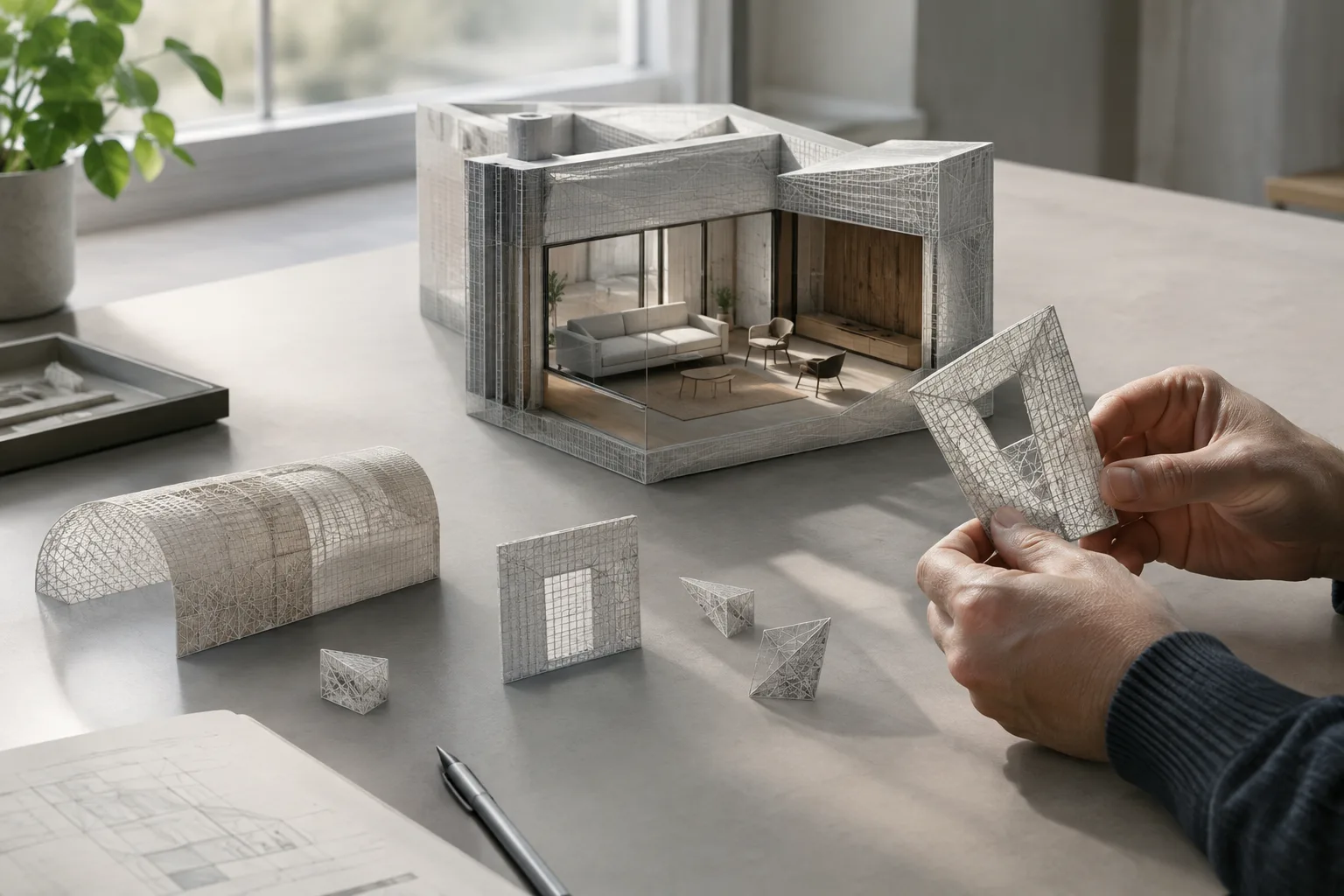
A Level Instance groups a set of Actors into a sublevel and lets you place multiple copies of that layout in a scene. For example, a repeated group of structures or a specific point of interest can be used as a single layout with this method. When changes made to one copy are saved, they are applied to the other copies as well.
Select the Actors you want to use together in the viewport or Outliner.
Right-click one of the selected Actors and go to
Level › Create Level Instance.In the window that opens, choose a pivot type. The documentation describes the
Center Min Z,Center, andPivot Actoroptions.Confirm the settings and save the new Level Instance.
To work on the layout, select the instance and use Level › Edit, or click the Edit button in the Details panel. While editing, other Actors appear faded. When you are done, select the Level Instance Actor in the Outliner and save your changes with Commit Changes in the Details panel. To exit without saving, press Esc twice. To propagate changes to the other copies, complete the save step after editing.
For static buildings and dense visual layouts, consider using Packed Level Blueprint. Right-click the selected Actors and go to Level › Create Packed Level Actor. The documentation describes this approach as combining static meshes into a single Blueprint Actor optimized for rendering. A Level Instance treats groups of Actors as a repeatable level layout, while Packed Level Blueprint combines static mesh layouts.
4. Choosing a workflow and avoiding common mistakes in architectural visualization
Architectural visualization teams can organize repeated building components or environment layouts as Level Instances, letting them use the same component in multiple locations. Changes to one instance propagating to the other copies can help maintain consistency across repeated layouts. For large environment scenes, World Partition’s cell streaming provides a way to manage the necessary areas rather than loading everything at once. However, the source material does not specify hardware requirements, licensing terms, or performance guarantees; projects should be tested at their intended scale. Outside the main World Partition world, Level Instances do not provide automatic streaming management or a streaming strategy.
Runtime behavior also requires attention. Level Instances and Packed Level Blueprints can work with World Partition Data Layers. Embedded Mode adds the Actors of instances using One File Per Actor to the World Partition grid at runtime; the documentation describes this as the default and recommended content workflow. By contrast, some Actors that do not use One File Per Actor may disappear at runtime. If those Actors are needed, consider Level Streaming Mode; however, this mode adds streaming overhead and is not recommended for extensive use due to performance concerns.
Common mistakes
Treating the documentation’s example cell size and loading range as fixed values recommended for every project.
Skipping
Commit Changesafter editing a Level Instance, preventing changes from being applied to the other copies.Assuming that breaking a Level Instance can be undone. According to the documentation, this operation cannot be undone; it removes the Actor and places the original assets in the scene, but does not delete the source from the Content Browser.
Overlooking the additional performance cost of using Level Streaming Mode extensively.
Sources
2 sourcesSource texts are not republished; short quotes are marked, everything else is our own summary and commentary.
For architecture and visualization studios in Turkey, these two features can make it easier to organize large environment scenes and repeated groups of structures in particular. Propagating Level Instance changes to copies has the potential to reduce the work involved in updating the same component in multiple locations.
However, the documentation does not specify hardware or licensing requirements, nor does it provide ideal cell settings that apply regardless of project scale. Instead of treating the example grid values as a standard, test scene streaming and check Embedded and Level Streaming behavior. Working with backups before conversion and other irreversible operations also makes team workflows safer.
Frequently asked questions
What is Unreal Engine World Partition used for?
It divides a large world into grid cells within a single persistent Level. At runtime, it loads or unloads cells based on the positions of streaming sources.
What is the difference between Level Instance and Packed Level Blueprint?
Level Instance groups Actors into a repeatable sublevel layout. Packed Level Blueprint combines static mesh layouts into a single Blueprint Actor.
Are Level Instance changes applied to other copies?
Yes. Changes are propagated to other copies when saved. After editing, use `Commit Changes` in the Details panel.