In brief
- VRayLightMix lets you change light intensity and color during or after rendering, right from the V-Ray Frame Buffer (VFB2).
- In Corona, the same function is provided through the CShading_LightMix and CShading_LightSelect render elements, and can be set up automatically with a single click from the Corona toolbar.
- In both systems, changes can be written back into the actual scene lights using "To Scene" (V-Ray) or baking (Corona).
- V-Ray 7 Update 3 (7.30.02) documentation notes that LightMix can in some cases produce negative pixels at values very close to zero.
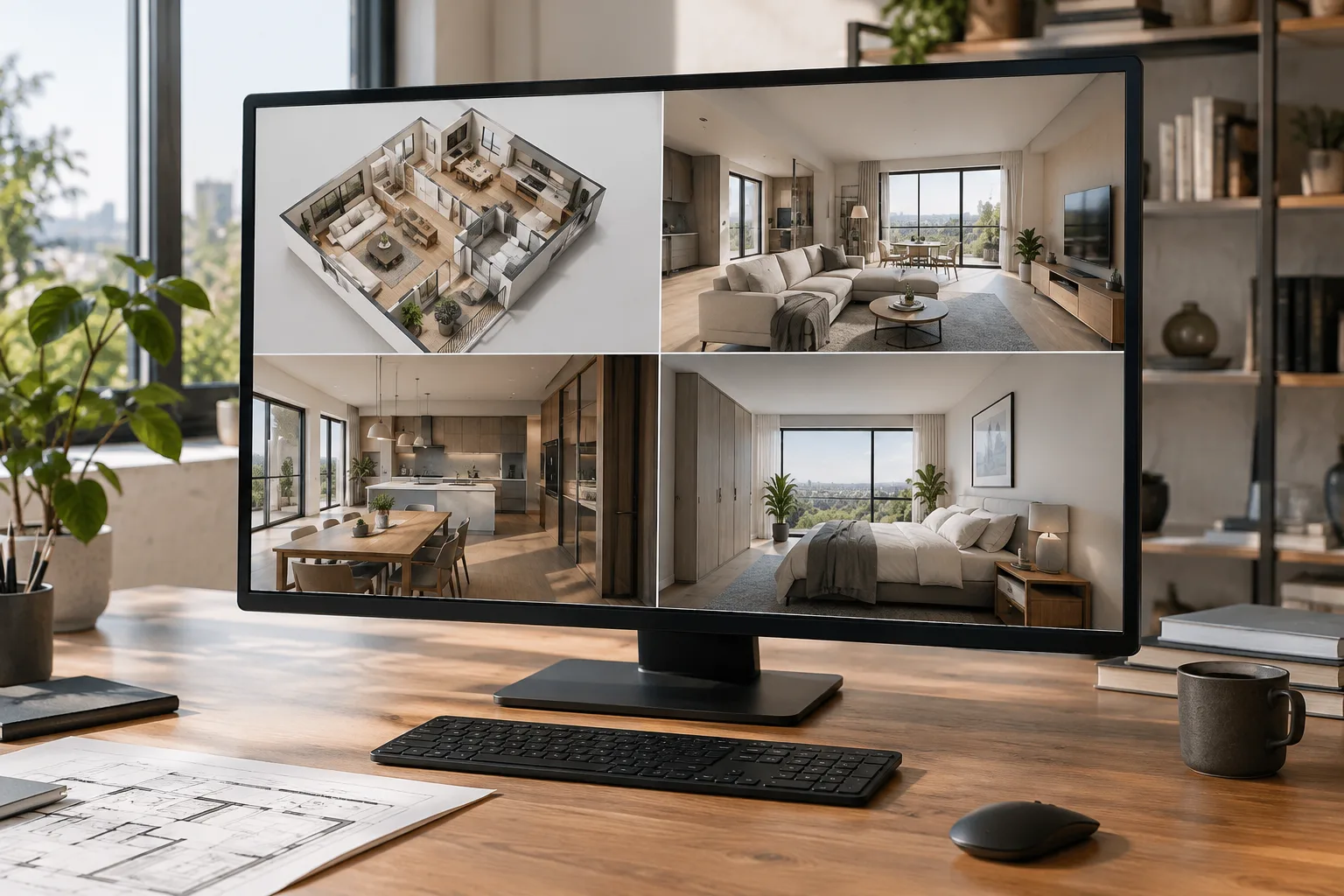
V-Ray and Corona Renderer offer one of the biggest time-savers for architectural visualization studios: LightMix. This render element lets you change the intensity and color of every light in a scene even after rendering is complete, straight from the Render Frame Buffer (VFB) — no need to re-render the scene to go from daylight to a night shot. This guide covers how to set up VRayLightMix in V-Ray and LightMix in Corona, what each setting does, and which mistakes to avoid.
What you'll learn
How to add the VRayLightMix and Corona LightMix render elements to a scene
How to group lights by Instanced, Individual, Grouped Lights, or Layers mode
How to write changes made in the VFB back into the scene ("To Scene" / bake)
The role of Denoise, Environment, and Self Illumination channels within LightMix
Requirements
This workflow requires V-Ray or Corona Renderer installed in 3ds Max. On the V-Ray side, the VRayLightMix render element works through the V-Ray Frame Buffer 2 (VFB2); on the Corona side, LightMix is managed from the LightMix tab in the Corona VFB and can also be used outside the 3D software on Corona EXR files via the Corona Image Editor. In both engines, your scene must have at least one light source, and the relevant render elements must be added from the Render Setup > Render Elements tab.
Step-by-step setup
Adding LightMix in V-Ray: From Render Setup > Render Elements, click Add... and select VRayLightMix, then render the scene. In the VFB > Layers section, set Source to LightMix — you can now adjust the lights. Alternatively, you can add it directly from the VFB using the "Add LightMix to the scene" option, though a new render is required for the changes to take effect.
Choose a grouping mode: In the VRayLightMix parameters, the Group by option lets you choose between Instanced lights, Individual lights, Grouped lights, Layers, or Manual light selects. Each mode automatically creates separate Environment and Self Illumination channels.
Automatic setup in Corona: From the Corona toolbar, or via the "Setup Interactive LightMix" button under Render Setup > Scene, the Corona Interactive LightMix Setup window opens. Here you choose how lights are grouped, whether hidden lights are included, and whether denoising is applied; clicking Generate automatically adds one CShading_LightMix element and a separate CShading_LightSelect element for each light.
Manual setup in Corona: Under Render Setup > Render Elements, add at least one CShading_LightMix and one CShading_LightSelect for each light you want to control; add the relevant lights to each LightSelect's Included light sources list, and check Include Environment Light to control the ambient light.
Adjusting lights in the VFB: Once rendering is complete (or during interactive rendering), adjust each light's Multiplier (intensity factor) and color values from the LightMix tab in the VFB. Individual lights can be toggled on/off via their checkboxes, and All controls them together.
Writing changes back to the scene: In V-Ray, the "To Scene" button writes all color/intensity changes made in LightMix back to the actual scene lights (except those in the Rest channel); in Corona, the same function is performed via the bake button. This step can be used after rendering has stopped.
Impact on the archviz workflow
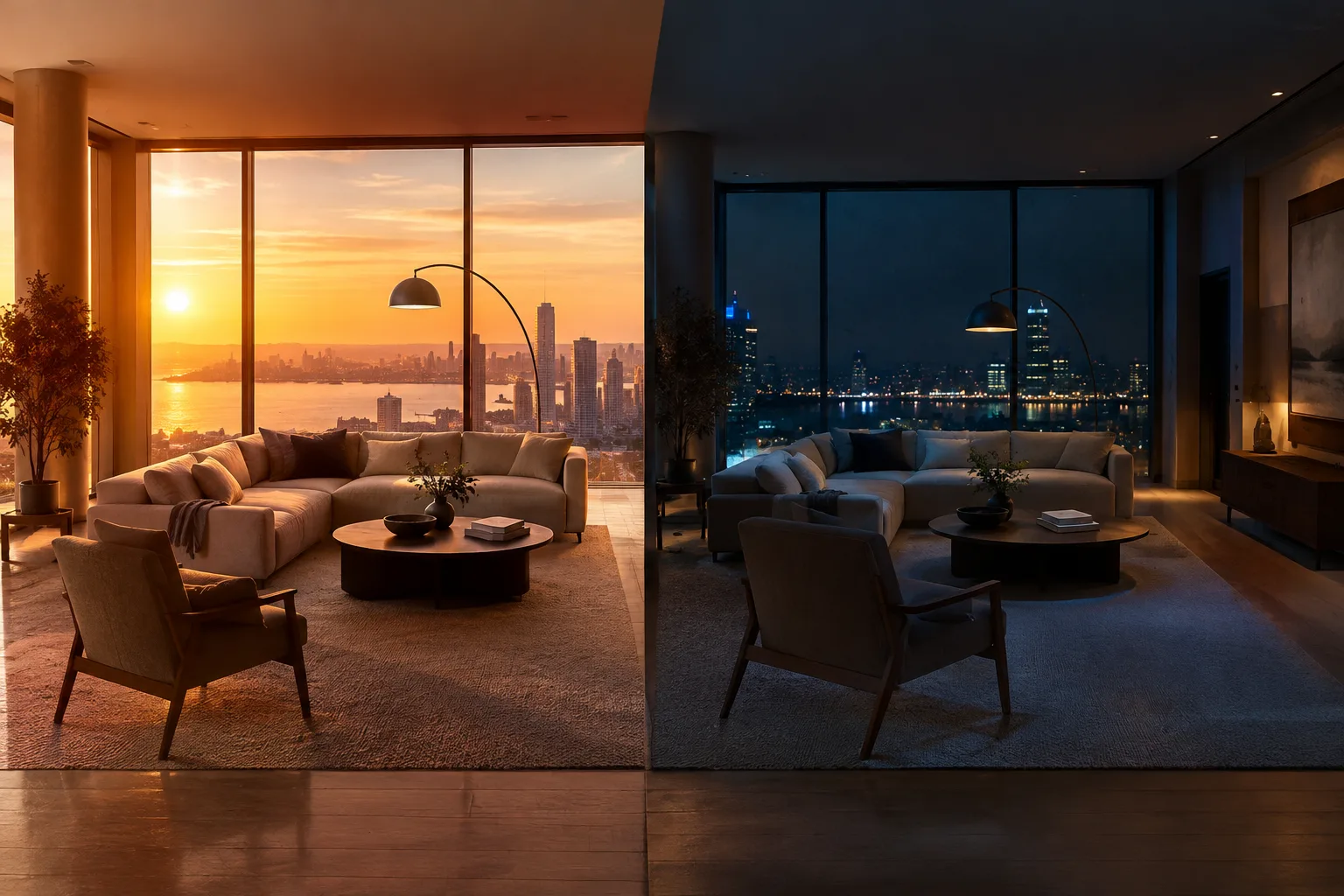
This feature is especially critical for client presentations: it becomes possible to render an interior scene once and produce daytime, evening, and nighttime variations from the same file. In the example from V-Ray's documentation, a sunset view is achieved using sunlight and soft exterior light, while a night view is obtained from the same scene by zeroing out the sun multiplier and increasing the intensity of interior lights. This saves on render time and hardware costs; especially in studios using GPU rendering, the time saved translates directly into faster project delivery. One compatibility point to watch: as of V-Ray 7 Update 2, Cosmos light assets containing VRayLuminaire are treated as a single entry in LightMix, and the "To Scene" transfer now applies only to VRayLuminaire — studios working with older scenes should take this change into account.
Common mistakes
Rendering lights at low intensity: V-Ray's documentation notes that rendering lights at low intensity and boosting them later in LightMix can introduce noise; instead, it's recommended to keep lights neutral (white) and at high intensity before rendering, then bring them down in LightMix afterward.
Exceeding the 254-light limit in V-Ray: On the V-Ray side, a single Light Select list supports a maximum of 254 individual lights; lights beyond that number automatically fall into the "Rest" channel and can't be controlled separately. Corona's documentation does not mention a numeric limit of this kind; in Corona, lights that aren't controlled are grouped under "Rest (unassigned)" unless the "Include lights not assigned to other LightSelect elements" option is enabled in the relevant LightSelect element.
Forgetting the denoise setting: To denoise the entire LightMix, the denoise option must be enabled on all LightSelect elements; if it's left off on even one element, the whole pass can't be output noise-free.
Risk of negative pixels: As noted in the V-Ray 7 Update 3 release notes, LightMix can produce negative pixels at values very close to zero; this should be checked before final compositing.
What's next
After learning LightMix, you can use the Save/Load feature for Light Mix presets in the V-Ray Frame Buffer to build ready-made lighting templates for recurring project types (such as residential interior sets). On the Corona side, VFB 2.0 allows multiple LightMix elements to be managed within the same render, letting you derive different composition scenarios from a single file.
Source and license
This guide has been adapted into English from Chaos's official documentation pages — the "VRayLightMix" (V-Ray for 3ds Max) and "LightMix" (Corona Renderer for 3ds Max) guides — along with the V-Ray 7 and 7.30.02 release notes.
Sources
3 sourcesSource texts are not republished; short quotes are marked, everything else is our own summary and commentary.
LightMix is a practical time-saver for archviz studios in Turkey: being able to generate multiple lighting scenarios (daytime, evening, night) from a single render means spending minutes instead of hours on client revisions. Especially on tight-deadline projects, it saves on render farm costs.
On the other hand, technical constraints like V-Ray's 254-light limit force light grouping on large scenes (mass housing, mall interiors); teams need to organize lights into sensible groups from the start of scene setup. Also, small but impactful details like the negative pixel warning in V-Ray 7 Update 3 should be added to the pre-final-output checklist.
Frequently asked questions
What's the main difference between VRayLightMix and Corona LightMix?
Both serve the same purpose: adjusting lights after rendering via the VFB. In V-Ray, this is provided through the VRayLightMix render element, while in Corona it's handled via the CShading_LightMix and CShading_LightSelect render elements; Corona also offers one-click automatic setup from the toolbar.
How can I permanently write LightMix changes back into the scene?
In V-Ray, the "To Scene" button in the VFB, and in Corona, the bake function, write the color and intensity changes made in LightMix back into the actual scene lights; this can be done after rendering has stopped.
How many lights can be controlled separately with LightMix in a V-Ray scene?
In V-Ray, each Light Select list supports up to 254 individual lights; lights beyond that number automatically fall into the ungrouped "Rest" channel and can't be controlled individually. Corona's documentation doesn't mention a numeric limit of this kind.