In brief
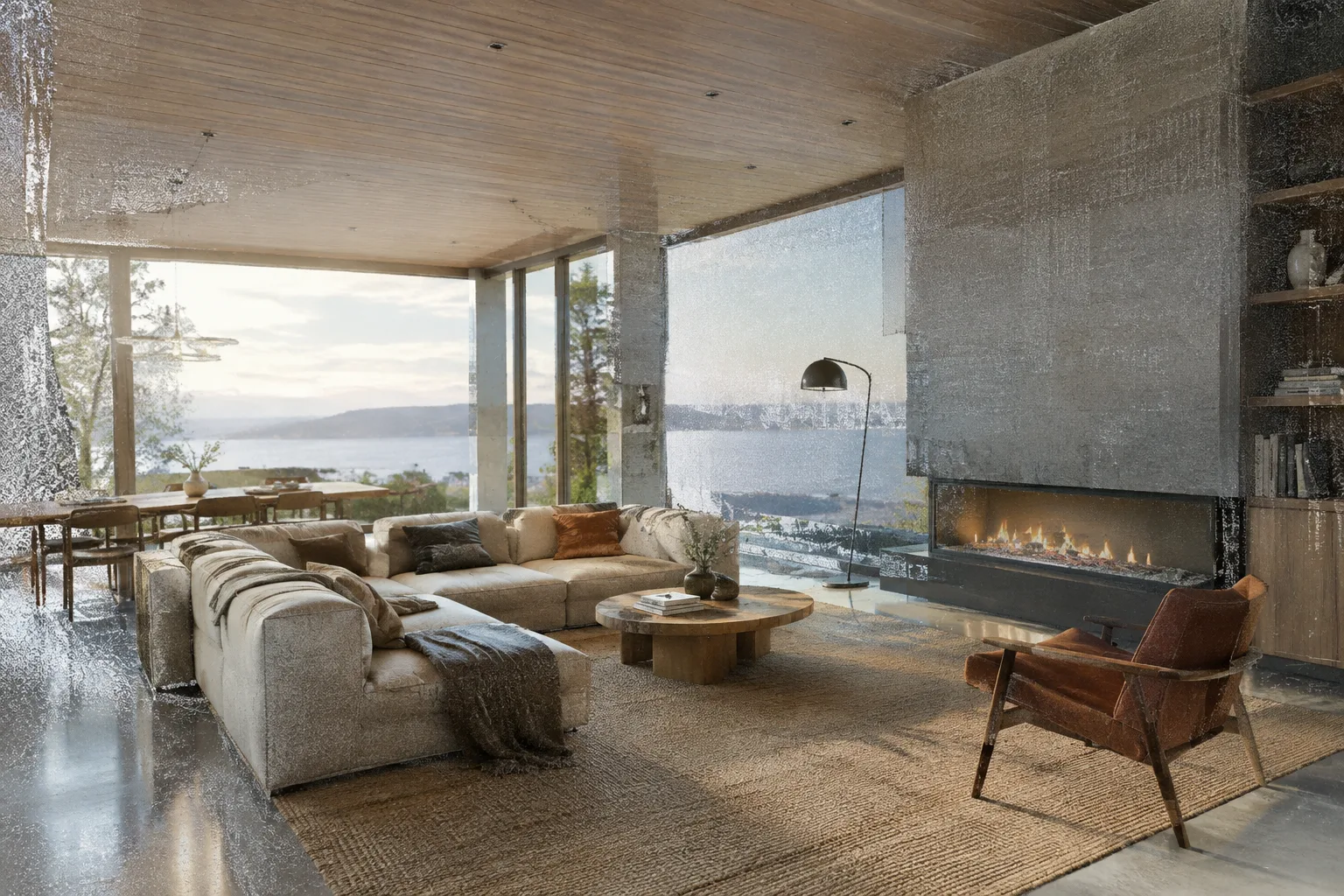
- Corona 16 now lets scene lights illuminate Gaussian Splats as well.
- The new AI Assistant matches the sky to a reference image, creates scatter from a simple prompt, and gives feedback on renders.
- Parallax Interiors and Parallax Displacement add behind-window spaces and surface depth without heavy geometry.
- Vantage Live Link now supports more Corona features, allowing real-time scene review.
With Corona Renderer's version 16, 3ds Max and Cinema 4D users get two major additions to their archviz workflow: Gaussian Splat Relighting and Corona AI Assistant. In this guide we explain what both features do, what requirements they need, and how to use them step by step. By following along you'll learn how to blend an existing interior or exterior scene with real location scans and how to shorten scene setup time using the AI Assistant.
What you'll learn
How to light Gaussian Splat scenes with Corona lights
How to add a sense of depth with Parallax Interiors and Parallax Displacement
How to create scatter by writing a prompt to the AI Assistant
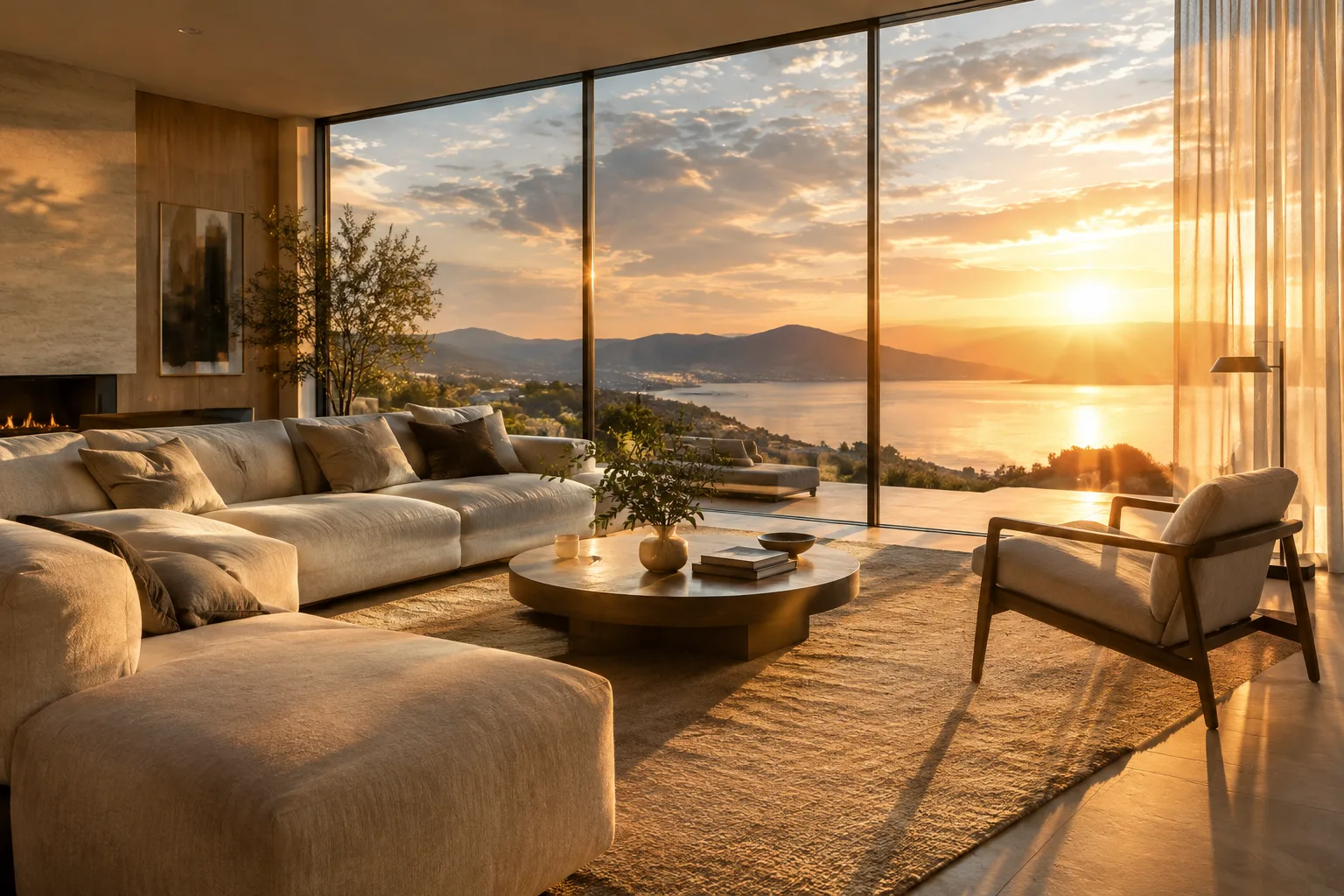
How to match the sky to a reference image
How to add a background image via the VFB and review in real time with Vantage Live Link
Requirements
To follow this guide you need 3ds Max or Cinema 4D with Corona 16 installed. Access to the Chaos Cosmos library is useful for scatter and material suggestions. Chaos AI credits are allocated for "AI enhanced scenes," "Nano Banana2" images and AI videos depending on your plan, so it's worth checking how many monthly credits are included in your license. Those who want real-time review with Vantage also need to enable the Vantage Live Link connection.
Step by step: lighting a Gaussian Splat scene
Import a Gaussian Splat into your scene; Corona can now naturally illuminate these splats with the Corona lights already in your scene, letting you place your 3D models inside real, scanned locations.
Alternatively, Corona can render 3ds Max's native Gaussian Splat objects directly, eliminating the need for a separate conversion step.
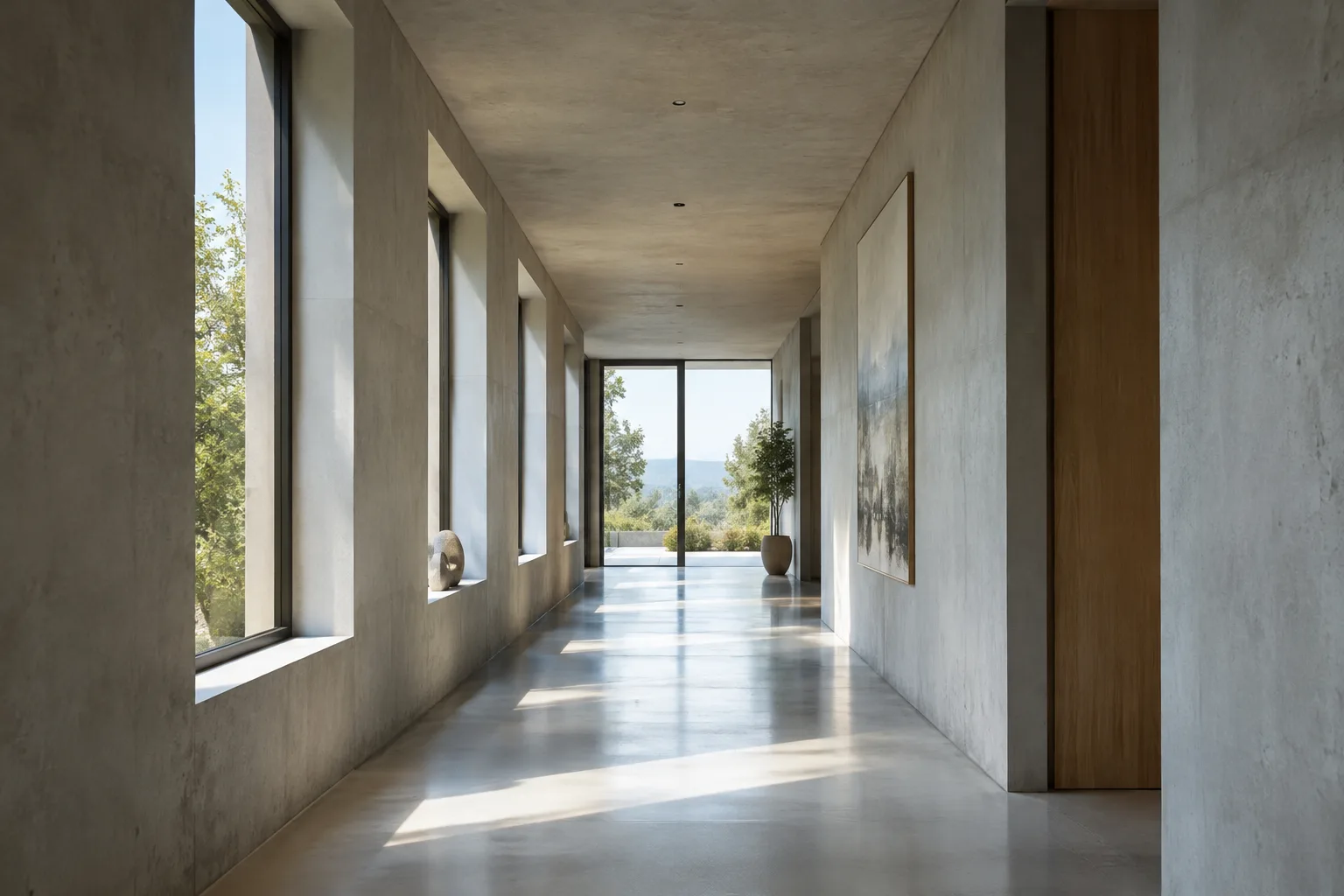
For additional rooms that should appear behind windows, use Parallax Interiors; this tool creates convincing interior depth without adding heavy geometry.
To enhance surface detail, add Parallax Displacement; this tool gives your scene believable surface depth without adding heavy geometry.
Scene setup with the AI Assistant
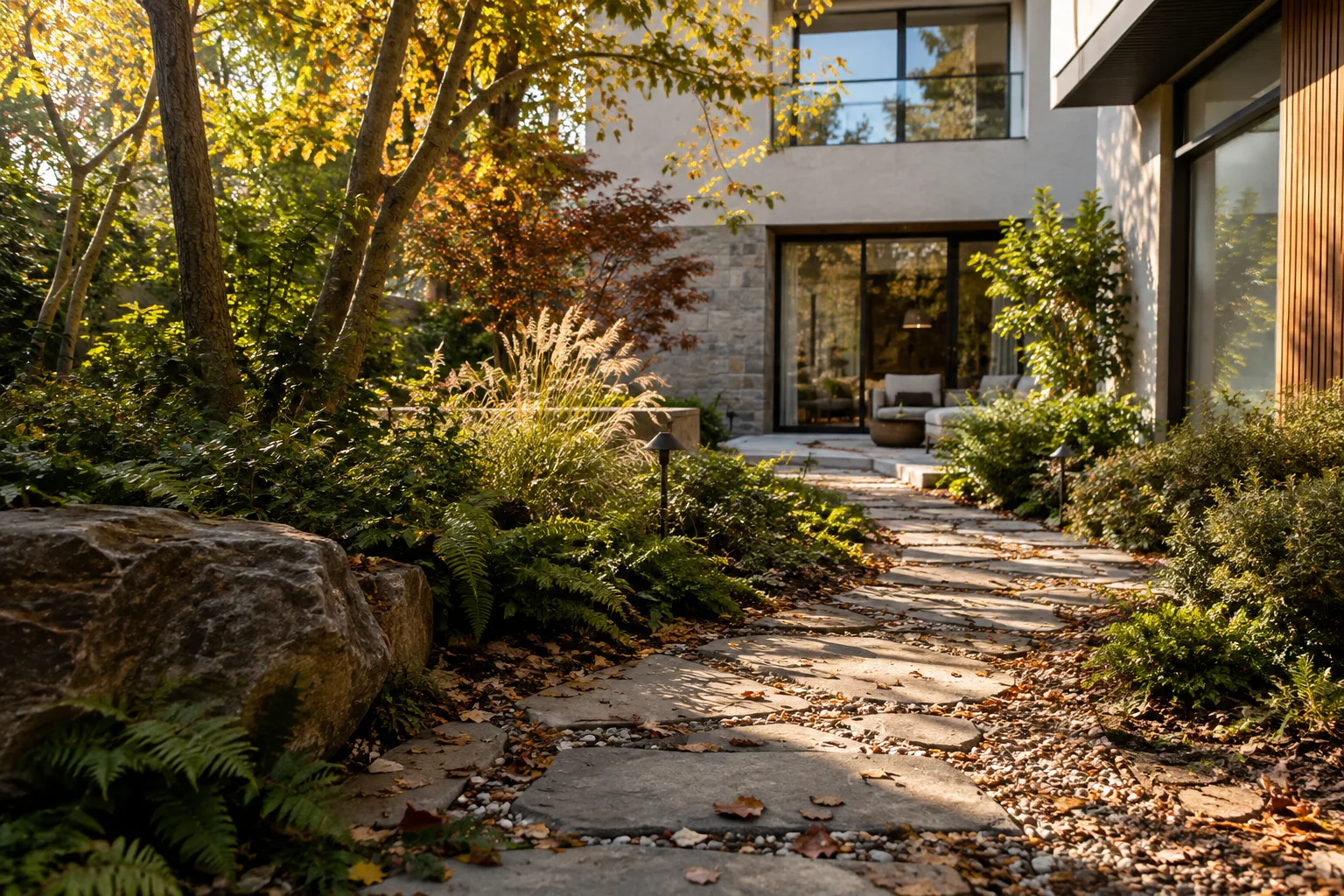
Corona 16's AI Assistant feature can match your scene's sky by looking at a reference image, create scatter from a simple text prompt, give feedback on your renders, and point you to the help documentation you need; control stays with the artist at every step. Below is a sample scatter prompt for an exterior garden scene:
Scatter low ornamental shrubs and scattered autumn leaves along the garden path, denser near the entrance and thinning out toward the lawn edgeThis prompt tells the AI Assistant which vegetation to scatter where and at what density; you can then manually fine-tune the resulting scatter to match your scene's scale. For sky matching, you simply upload a reference photo and enter a description stating you want the same light direction and cloud coverage.
Match the sky to the attached reference photo: warm late-afternoon light, soft directional sun from the left, light scattered cloudsThese two examples show how the AI Assistant's "create scatter from a simple prompt" and "match sky to reference image" capabilities can be adapted to an architectural garden/exterior scene.
Evaluating results with VFB and Vantage
You can now add a background image with a single click via the V-Ray Frame Buffer (VFB); the added image is preserved as captured, which saves time on projects combined with real location photos. For those who want to review the scene in real time, Vantage Live Link now supports more Corona features, so you can see lighting and material changes instantly. Robin Walker from the narrativ studio describes this interoperability as follows: "Anything which makes us 3D artists less of technicians and more of artists is a way forward in my opinion, and Vantage is one of them."
Impact on architecture and interior design workflows
These features appear particularly significant for archviz teams who want to photorealistically incorporate a real plot of land or an existing interior into their design. Thanks to Gaussian Splat Relighting, a terrain scan or existing building photo can be used as the new design's background with accurate lighting. The AI Assistant speeding up tasks like scatter and sky matching via prompts can save time in scene setup; however, since this is a credit-based system, teams with heavy usage need to track their monthly credit consumption. As the sources provide no information on hardware requirements, it's not possible to make a definitive recommendation on that front.
Common mistakes
Rendering after importing a Gaussian Splat without checking the lighting; since splat illumination depends on scene lights, skipping the lighting setup can make the result look unnatural.
Writing overly general or vague prompts to the AI Assistant; giving concrete details like density, location and light direction in scatter and sky-matching requests produces more consistent results.
Overusing Parallax Interiors and Parallax Displacement, unnecessarily complicating the scene; these tools substitute for geometry, but using them on every surface can affect render times.
Next steps
After trying these techniques, you can deepen your scene setup and VFB workflow by checking out Chaos Academy's free Corona courses. You can also add ready-made assets from the Corona Cosmos library to the scatter you create with the AI Assistant to build richer exterior scenes.
Source and license
This guide was adapted into English based on explanations from Chaos's official Corona Renderer promotional page and the Chaos Docs Gaussian Splat Relighting documentation; the sample prompts were written originally based on the techniques described in these sources.
Sources
3 sourcesSource texts are not republished; short quotes are marked, everything else is our own summary and commentary.
For archviz offices and students in Turkey, these two Corona 16 features can offer a practical time saving: Gaussian Splat Relighting makes it easier to incorporate a real plot of land or existing structure into a presentation, while the AI Assistant has the potential to reduce repetitive work in scene setup. However, since the AI features are credit-based, studios with heavy usage need to calculate their license plan and credit consumption in advance.
In our view, the most valuable aspect is that time-consuming manual tasks like scatter and sky matching can be sped up with prompts; this can save time in presentation preparation. Still, it's worth remembering that these tools are assistive features where control remains with the user, and the final aesthetic decisions should still be made by the artist.
Frequently asked questions
What can the AI Assistant in Corona 16 do?
The AI Assistant can match your scene's sky to a reference image, create scatter from a simple text request, give feedback on your renders, and point you to the relevant help documentation; control stays with the user.
What does Gaussian Splat Relighting do?
Thanks to this feature, the Corona lights in your scene can now also illuminate Gaussian Splats, letting you place your 3D models inside real, scanned locations with natural lighting.
Can Corona render native 3ds Max Gaussian Splats directly?
Yes, according to Chaos, Corona can now directly render 3ds Max's native Gaussian Splat objects as well.