In brief
- The Scene State system is built on creating sub-states for five components: Environment, Lights, Objects, Materials and Post.
- Two special states, ORIGINAL SCENE and SAVED SCENE, restore the loaded scene's settings and the last saved scene's settings respectively, and cannot be deleted.
- Scene States can be tagged to cameras via the Camera tab > Camera lister, so calling that camera automatically activates the corresponding variation.
- The system was first introduced in Chaos Vantage 2.0.0 (27 June 2023), and every change can be individually reset through the Scene State Changes dialog.
Interior and architectural visualization teams using Chaos Vantage usually duplicate separate files to produce different lighting scenarios, material options or environment settings from the same scene. According to Chaos's official documentation, the Scene States system was designed to solve this within a single file and was first introduced with Chaos Vantage 2.0.0 (27 June 2023).
What the Scene States system does
The system consists of three parts: the Scene sub-state rollout in each tab (Environment, Lights, Objects, Materials, Post), the Scene states dropdown found on each camera thumbnail, and the Scene states tab in the right panel. Sub-states hold different versions of individual components (for example, only the lights), while a combination of these sub-states is called a "scene state," which can be switched across the entire scene in real time.
Two special states stand out: ORIGINAL SCENE reverts to how the scene looked when loaded and cannot be deleted; SAVED SCENE reverts to the last state saved via "Save Scene" or "Save Scene As," and it also cannot be deleted. In addition, a special sub-state called NONE allows other components to change without affecting the settings in that particular tab at all — for example, you can set up a variation that only changes the lights without affecting objects, visibility or materials.
Basic usage: creating a state with one click
Configure the desired lighting, material and environment settings in the scene.
Click the Create new scene state button in the toolbar or the Scene state tab.
Repeat the same step for each new variation.
According to the documentation, these steps are sufficient in most cases; users who want more detailed control can follow the advanced workflow below.
Advanced usage: setting up sub-states separately
The advanced method consists of two stages: first creating a sub-state for each scene component, then combining them in the Scene states tab.
Creating sub-states:
Go to the tab of the component to be changed (
Environment,Lights,Objects,MaterialsorPost).Adjust the parameters as desired.
Click the Create button in the Scene state rollout.
Give the sub-state a name.
Repeat these steps for each component covered by the variation.
Combining into a scene state:
Open the
Scene statestab in the right panel.Click Create to add a new scene state to the list.
Select the relevant sub-states from the Environment, Lights, Objects, Materials and Post dropdown menus.
Click Update on the scene state to preserve the setup.
After this stage, the selected sub-states can be toggled on and off together as a single variation.
Linking to cameras and preparing for render
| Step | Location | Effect |
|---|---|---|
| Camera matching | Camera tab › Camera lister | A scene state is assigned from the dropdown of the selected camera; the variation activates when that camera is called |
| Sub-state update | Update scene sub-state button in the relevant tab | Updates only that component without updating the entire scene state |
| Deleting a state | Double-click in the Scene state lister | The scene state is permanently removed |
Tagging a camera with a specific scene state ensures the scene automatically switches to the corresponding lighting/material/environment combination when you call that camera from the camera list. This can also be specified in the Common settings dialog when rendering HQ images or sequences.
Significance for architectural and interior presentations
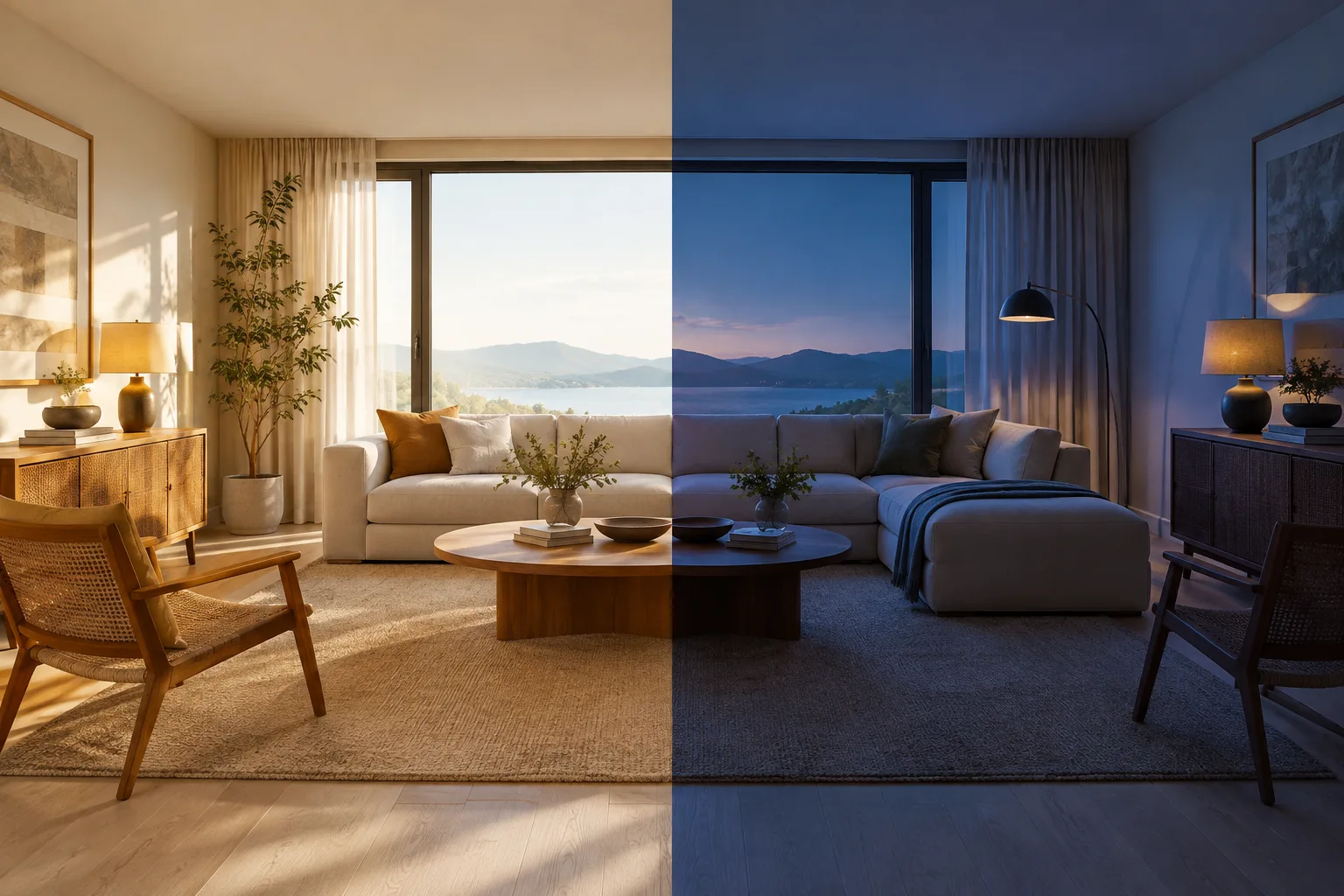
For interior architects and archviz studios, this system makes it possible to store day/night lighting, different wall cladding or furniture material options, or color alternatives for client approval, all within a single file on the same plan. Instead of duplicating separate scene files, batch rendering can be achieved through automatic camera-based switching. No additional hardware requirement is specified; the system uses Chaos Vantage's existing GPU-based real-time rendering infrastructure.
Common mistakes
Clicking Create directly in the Scene states tab without first creating sub-states and leaving the dropdowns empty; this results in an incomplete combination.
Forgetting to Update the linked scene state after updating a sub-state; according to the documentation, updating a sub-state does not automatically update the linked scene state, so it must be triggered manually.
Trying to delete or manually update the ORIGINAL SCENE or SAVED SCENE states; these two states remain fixed in the system.
Looking only at the Scene State Changes dialog instead of
File › Scene Editsto track all changes made in the scene; the two offer different scopes.
Sources
3 sourcesSource texts are not republished; short quotes are marked, everything else is our own summary and commentary.
Many archviz teams in Turkey still duplicate separate scene files for day/night or material options; this is an error-prone method in terms of both disk space and synchronization. The Scene States system offers a way to produce controlled variations from a single file, which can save time, especially during client approval processes.
However, the benefit of the system depends on disciplined setup; forgetting to manually update the linked scene state after updating a sub-state will likely be the most common mistake. Standardizing camera-state matching at the start of a project will greatly simplify the rendering process for teams, especially on interior projects with many variations.
Frequently asked questions
When was Scene States added to Chaos Vantage?
The system was first introduced in Chaos Vantage 2.0.0, released officially on 27 June 2023.
Can the ORIGINAL SCENE and SAVED SCENE states be deleted?
No, according to the documentation these two special states cannot be updated or deleted; they restore the scene to its loaded state and its last saved state, respectively.
How do I link a scene state to a specific camera?
Simply select the relevant camera from the Camera lister in the Camera tab and assign the desired scene state from the dropdown menu on the right.