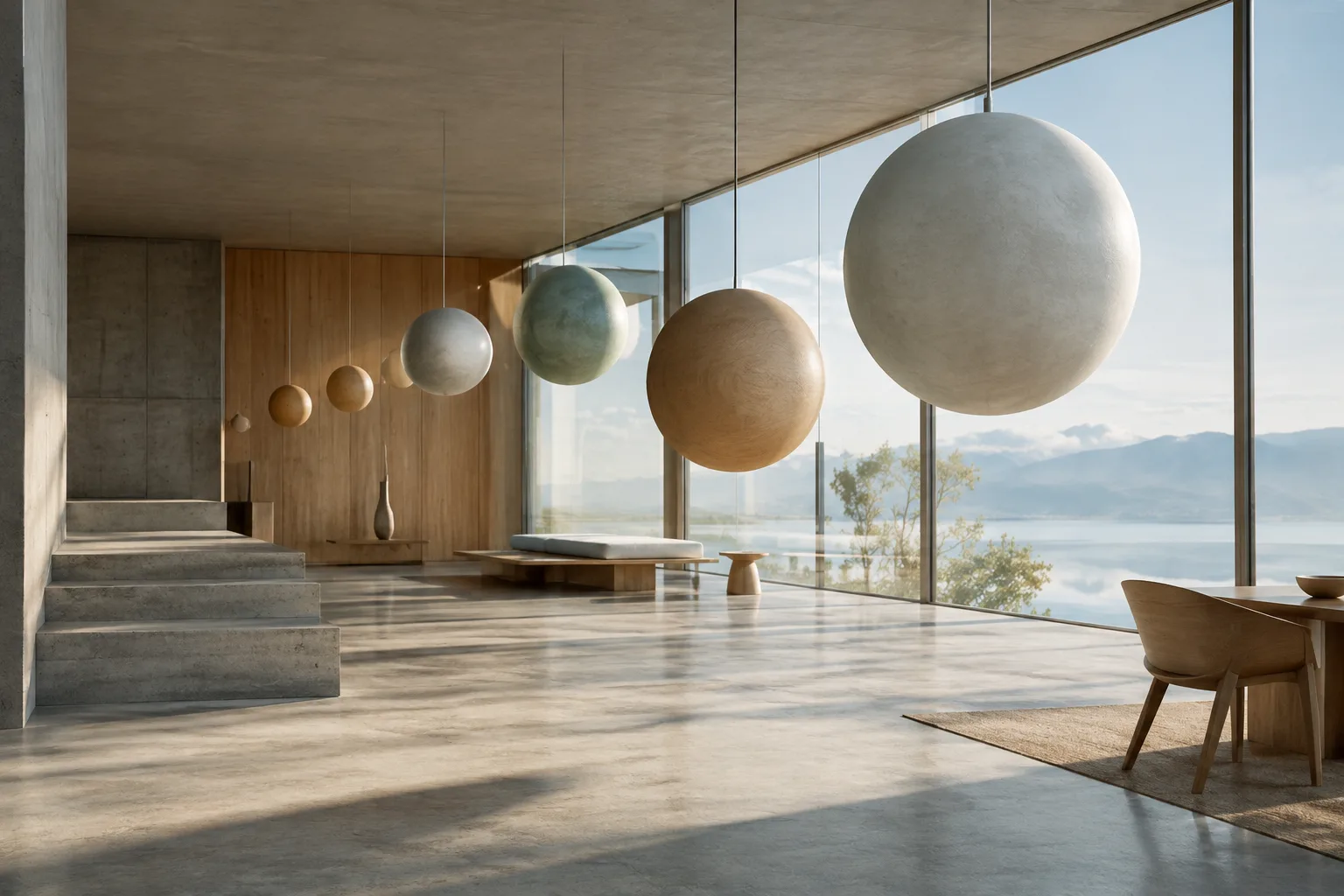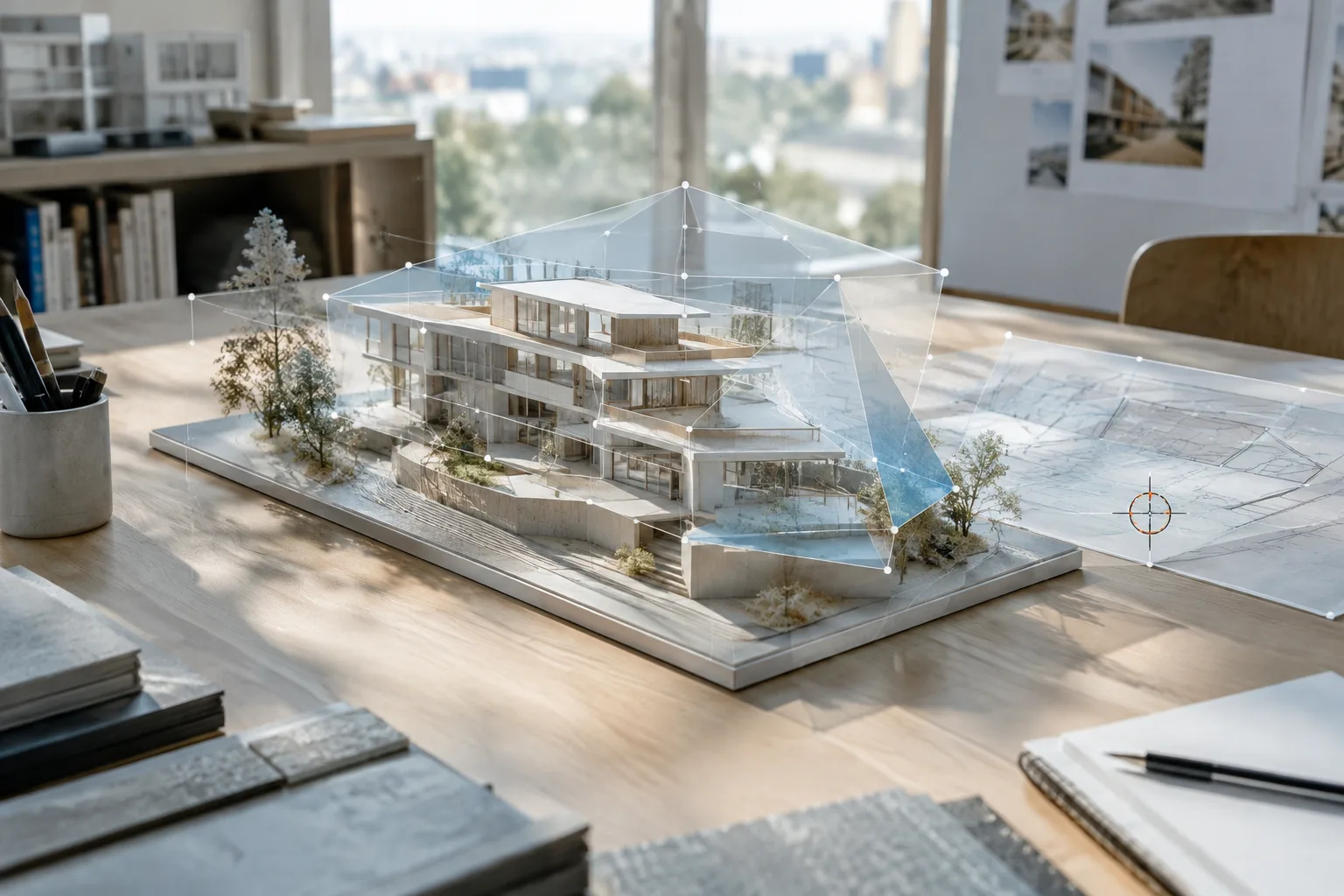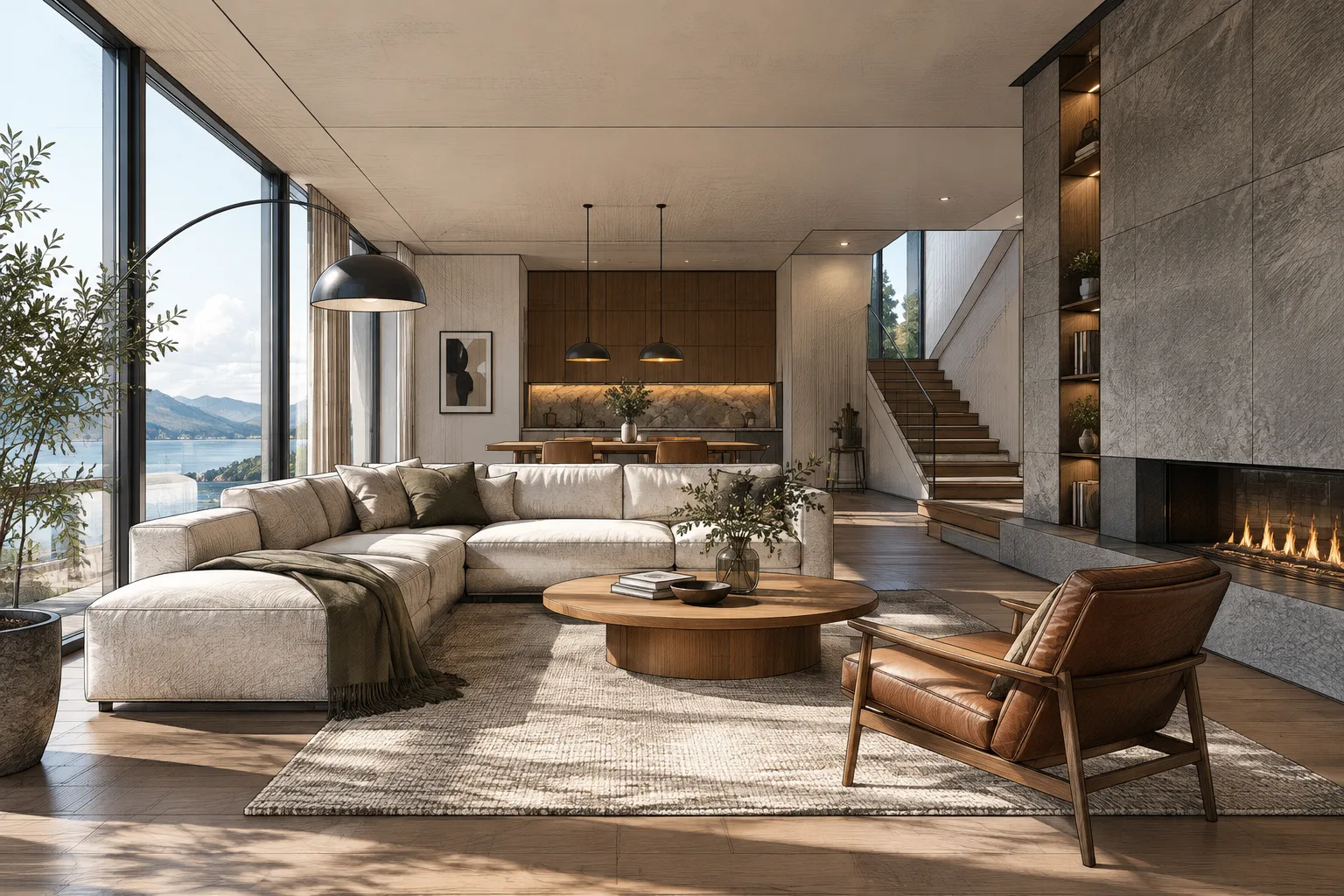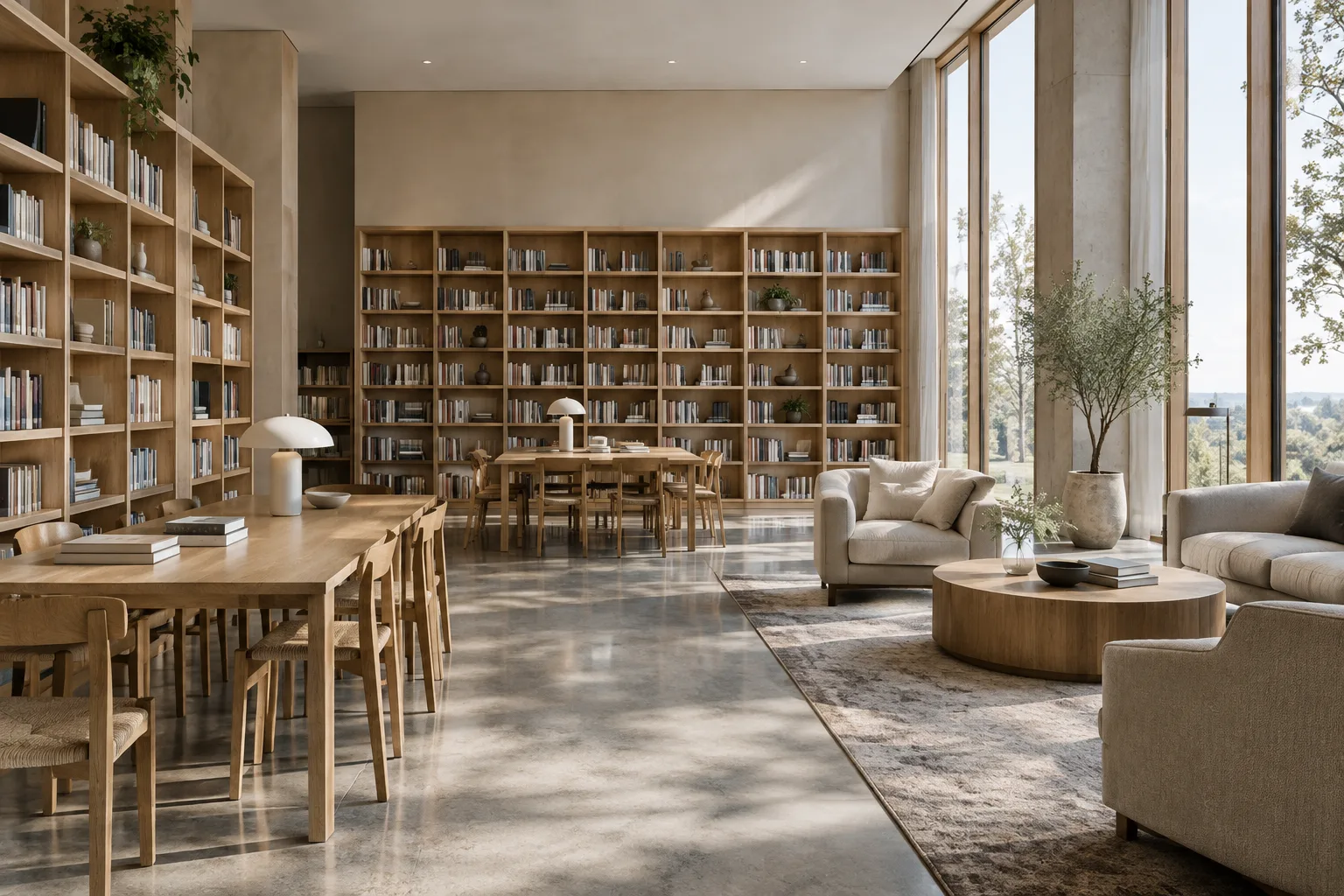
In brief
- Nano Banana 2.1 is available in the Gemini API for image generation and conversational editing.
- Clearly describing the space, materials, lighting, and framing in prompts can help guide results.
- An existing image can be used as an input for editing with text instructions.
- Generated images include a SynthID watermark; you must have the necessary usage rights for any uploaded images.
What you’ll learn in this guide
You’ll learn how to structure prompts when using Nano Banana 2.1 to develop architectural ideas, explore interior atmospheres, and request controlled changes to an existing image. The examples focus on describing a space’s key characteristics, specifying framing and lighting, identifying elements that should remain unchanged, and refining the output over several iterations.
The prompts here are original examples written for architectural projects, not copies of examples from the sources. Generative images can be used for design research and to develop presentation alternatives. However, the sources do not state that the model guarantees architectural dimensions, regulatory compliance, or technical accuracy. So don’t treat its outputs as construction documents or technical documentation.
Requirements: model, access, and image inputs
The official Gemini API documentation lists the Nano Banana 2.1 model under the name gemini-nano-banana-2.1. It describes the model as the primary efficiency model for image generation and conversational editing, and notes improvements in image quality, text rendering, multi-turn consistency, and grounding with Google Search. Nano Banana 2.1 is recommended for new projects.
This guide covers image generation and editing through the Gemini API. The source texts do not detail API access or account requirements, and no pricing information is provided here, so no estimates of usage costs should be made. For API automation, the documentation includes examples in Python, JavaScript, Java, Go, and REST. The sources do not specify any requirements for local computer hardware.
Text instructions are shown as a sufficient input for generating an image from scratch. For editing, you can provide an image together with text; the documentation describes use cases such as adding, removing, or changing elements, and changing a style or color scheme. You must have the necessary rights before uploading an image that belongs to someone else.
When writing a prompt, define four key parts: the type and purpose of the space; the architectural elements to create or preserve; the lighting and material character; and, finally, the framing and any unwanted changes. Making instructions clear and specific, and limiting the requested response or output, are among the approaches recommended in Gemini’s prompt design guide.
Step-by-step: writing architectural prompts
Define the space and objective. The first prompt should clearly state the room type, its purpose, and the desired visual approach. Rather than cramming many unrelated goals into one instruction, clarify what you want to explore in the image.
Create an architectural interior visualization of a compact reading room in a contemporary public library. Use pale oak shelving, a polished concrete floor, soft natural daylight, and a calm, restrained atmosphere. Show the room from a human eye-level viewpoint with the seating area and bookshelves clearly visible. Do not add people or signage.This example describes the space’s function, primary materials, lighting, atmosphere, and viewpoint together. The constraint “Do not add signage” also rules out an element that might otherwise need to be removed later.
Describe the framing and spatial relationships. Instead of saying only “a modern living room,” explain which area should stand out and how the elements are positioned in relation to one another. This makes it easier to understand which design decision the image is intended to address when comparing alternatives.
Create a photorealistic interior concept for a small apartment living room. Frame the view from the entrance toward a large window; place a low sofa along the left wall and a round dining table near the window. Use warm neutral finishes, soft overcast daylight, and a clear view of the circulation path. Avoid decorative clutter.The positioning details and the request to “show the circulation path clearly” turn this prompt from a general style description into a brief with a design purpose. Don’t treat the output as having the same precision as project drawings; verify the layout and dimensions separately.
Describe material and lighting decisions separately. Rather than using a long list of potentially conflicting adjectives, describe the appearance of the materials and the effect of the lighting in the space. Comparing visual options by changing just one main variable in the same scene also makes the exploration process easier to follow.
Generate an interior visualization of a minimal kitchen with matte light-grey cabinet fronts, a veined stone island, and brushed metal details. Use late-afternoon side light from the right to create gentle shadows across the island. Keep the palette muted and the camera view wide enough to show the full kitchen work area.This prompt describes the cabinet finish, island, metal details, and direction of the light separately. In the next iteration, changing only the stone’s appearance or the quality of the light makes it easier to assess which instruction affected the result.
Request a single change to an existing image. The API documentation explains how to edit an image by using text and an image together as inputs. For example, if you want to test a wall color in a concept image, specify both the change and the elements that should be preserved in the same instruction.
Edit the provided interior image by changing only the painted wall color to a muted terracotta tone. Preserve the room layout, furniture positions, camera viewpoint, floor finish, and lighting. Do not add or remove objects.This example separates the element you want to change from the visual decisions that should remain fixed. Still, a request to change “only” one thing does not guarantee perfect preservation in every case; compare the output with the reference image.
Treat the first result as input for another iteration, not a final decision. Gemini can work conversationally with images, and Nano Banana 2.1 is described as having improved consistency in multi-turn editing. Rather than listing every issue with the first image at once, prioritize a single objective in the next request.
Keep the current room composition and materials. Make the daylight softer and reduce the contrast in the shadows. Do not change the furniture, camera viewpoint, or wall color.This follow-up instruction aims to retain the previous image’s composition while revisiting the lighting and shadows. If the change doesn’t happen, restate the request using more concrete, concise language, and check the result visually.
Common mistakes
Vague descriptions: Instead of relying on subjective terms like “better,” “stylish,” or “spacious,” explain which visible elements and atmosphere you want. Gemini’s prompt guide recommends clear, specific instructions.
Packing too many objectives into one prompt: Asking for changes to materials, layout, lighting, and camera all at once can make it difficult to tell which instruction affected the result. Separate your priorities and, when possible, test one decision per iteration.
Not specifying what to preserve: In image editing, it may not be enough to state only what should change. Clearly identify the framing, layout, or materials that should stay the same, then check the output.
Using an image without verifying it: The sources do not guarantee architectural accuracy or dimensions. Users are also responsible for ensuring they have the rights to uploaded images and that generated content does not violate the service’s prohibited use policy.
Next steps
Prepare separate tests for different lighting, material, or framing descriptions of the same room, and note how each instruction affects the image. The Nano Banana 2.1 documentation mentions 1K, 2K, and 4K resolutions; check the latest API usage details before adding these options to your workflow. The documentation also states that all generated images include a SynthID watermark.
Don’t use image generation as a substitute for project decisions. Use it to discuss alternatives with your team, explore atmosphere, or make a conceptual direction visible. Handle decisions such as construction, dimensioning, and material selection through the project’s own validation processes.
Sources and license
This guide has been adapted into Turkish using Google’s “Nano Banana image generation” and “Prompt design strategies” documentation for the Gemini API. Both sources are available under the CC BY 4.0 license. The architectural prompts are original examples written for this guide.
Sources
2 sourcesSource texts are not republished; short quotes are marked, everything else is our own summary and commentary.
For architecture firms and students in Turkey, this approach may be especially useful for quickly visualizing atmosphere and material alternatives during early-stage concept development. Writing a prompt like a concise design brief can make it easier for a team to discuss what they are exploring; however, it’s important to remember that a generated image is not a document guaranteeing dimensions or technical accuracy.
The sources provided do not explain Nano Banana 2.1’s API costs or access requirements, so firms should review the costs and terms of use separately before using it on real projects. The sources also do not specify local hardware requirements. When using reference images, it’s important to check usage rights, account for the SynthID watermark on generated images, and have the design team verify the results.
Frequently asked questions
Can Nano Banana 2.1 be used to generate architectural images?
It’s available in the Gemini API for image generation and conversational editing. You can try architectural prompts to create concept and interior image alternatives, but the sources do not guarantee technical accuracy or dimensional precision.
Can Nano Banana 2.1 edit an existing interior image?
The documentation describes editing by providing an image together with a text instruction, including changes such as adding, removing, or replacing elements. You must have the necessary usage rights for any uploaded image.
Do images generated by Nano Banana 2.1 have a watermark?
According to the Gemini API documentation, all generated images include a SynthID watermark.