In brief
- The Gemini API documentation lists the Nano Banana 2.1 model ID as gemini-nano-banana-2.1.
- The model supports both text-to-image generation and editing with text and images provided together.
- Google reports multi-step editing consistency and support for 1K, 2K, and 4K resolutions for Nano Banana 2.1.
- The documentation states that generated images contain a SynthID watermark.
What will you learn in this guide?
This tutorial outlines an approach to writing prompts for anyone looking to create architectural and interior images with Nano Banana 2.1 through the Gemini API. First, you’ll see which aspects of a scene to describe, then how to frame an editing request using a reference image. The final section covers common prompting mistakes and ways to incorporate the outputs into your workflow.
The examples here are intended for design research, atmosphere studies, and developing visual ideas before a presentation. Generated images should not be treated as dimensionally accurate drawings, BIM models, or construction details; they are visual drafts that help open up design decisions for discussion.
Requirements: model and access
This guide is based on the workflow in Google’s Gemini API image-generation documentation. The documentation gives the model ID for Nano Banana 2.1 as gemini-nano-banana-2.1. Working with the API requires a Gemini API client and authentication credentials; the REST example in the documentation uses an API key. Python and JavaScript client examples are also provided. Since the source does not specify a required client version, no version number is given here.
You can create an image from scratch with a text prompt, or request edits by submitting an image together with text. The example workflow passes image data and its MIME type; for different file types and larger payloads, the documentation also points to the image understanding guide. Make sure you have the necessary rights to use uploaded images. Google also reminds users to comply with its Prohibited Use Policy.
Model selection is another consideration at the outset. According to the documentation, Nano Banana 2.1 is the main high-efficiency model for image generation and conversational editing. Nano Banana 2 Lite is designed for speed- and cost-sensitive tasks and is not optimized for multiple reference inputs or sequential editing. For more complex image tasks, Nano Banana Pro is offered as the premium option. The steps here focus on 2.1; the source materials do not provide the cost of a particular use case or the pricing applicable to your account.
Step-by-step prompt writing
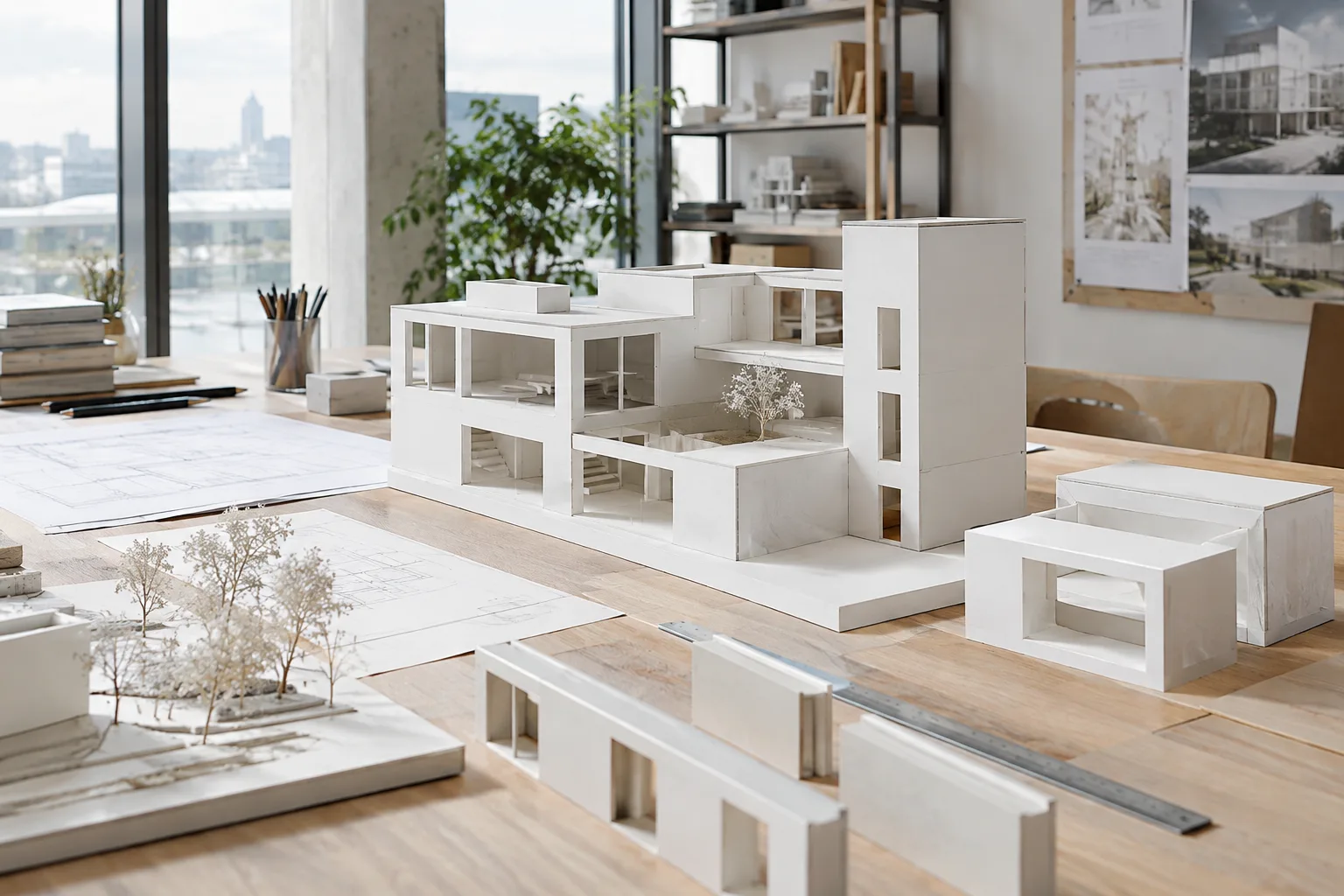
Define the scene’s purpose and main subject. Instead of a broad phrase like “a modern interior,” clearly describe the type of space and what the image should show. For example, the prompt below describes a residential living area for a design presentation:
Mimari tasarım sunumu için çağdaş bir konutun oturma alanını gösteren fotogerçekçi bir iç mekân görseli oluştur. Açık planlı mekânda oturma alanı, yemek bölümü ve mutfak birlikte algılansın. Sade doğal malzemeler, yumuşak gün ışığı ve dengeli, sakin bir atmosfer kullan. Kadrajda mobilyaların mekânsal ilişkisi açıkça görülsün.This prompt brings together the intended use, spatial scope, material feel, lighting, and framing requirements. Prioritizing the elements you need makes it clearer which aspects of the scene the model should emphasize.
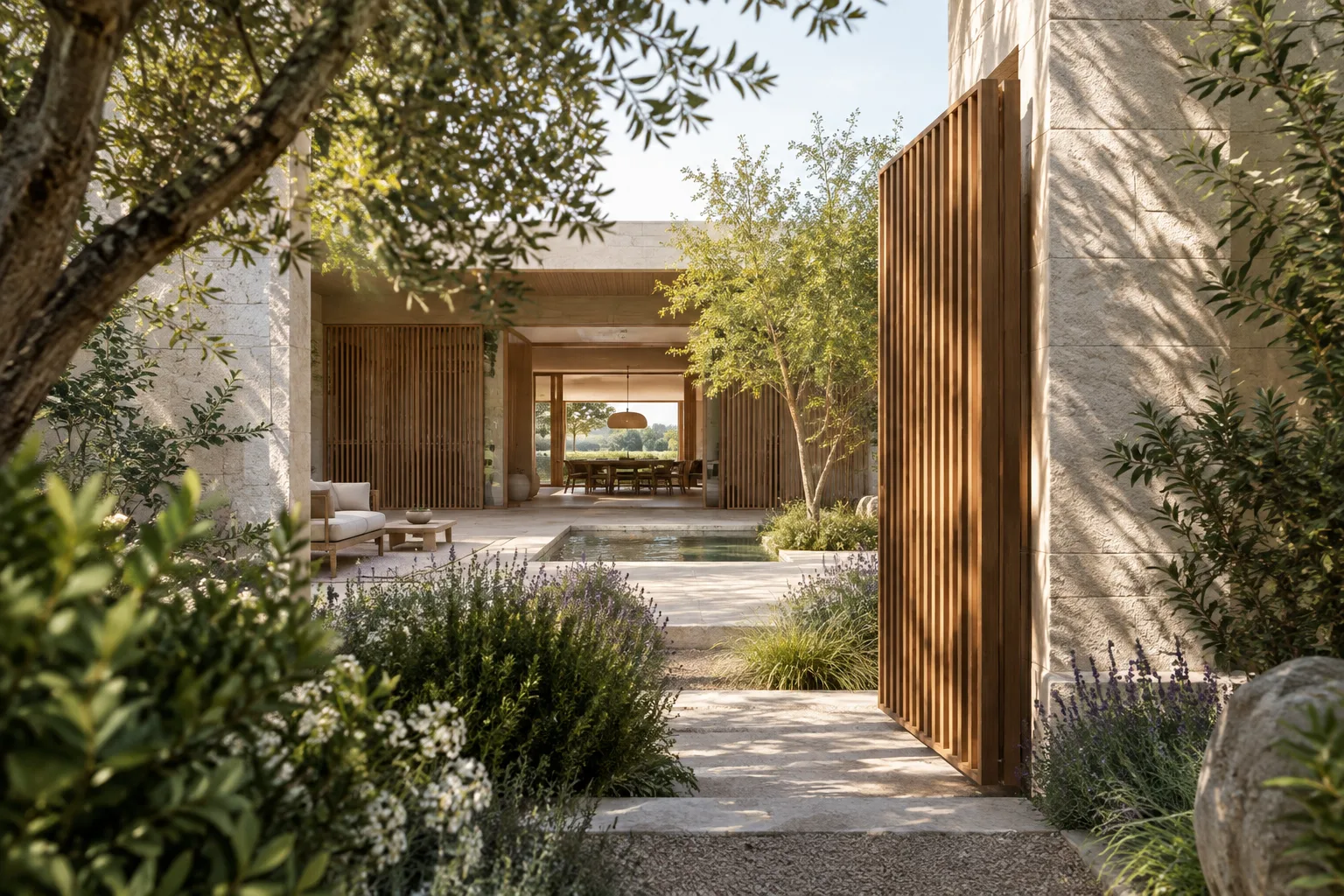
Describe the visual style and constraints. Google’s prompt design guide recommends giving clear, specific instructions and including constraints where necessary. The example below can be used to develop an atmospheric image from an existing courtyard sketch:
Bu avlu eskizini temel alarak bir mimari atmosfer görseli üret. Mevcut yapı kütlelerini ve avlunun genel düzenini koru. İnsan ölçeğinde bitkilendirme, oturma elemanları ve yumuşak öğleden sonra ışığı ekle. Görsel dili sakin ve doğal tut; yeni bina kütlesi veya okunaklı yazı ekleme.The instructions “preserve” and “do not add” set boundaries for the editing task. Still, don’t assume the sketch’s geometry will remain unchanged in the result; compare the output with the source drawing and identify any necessary corrections.
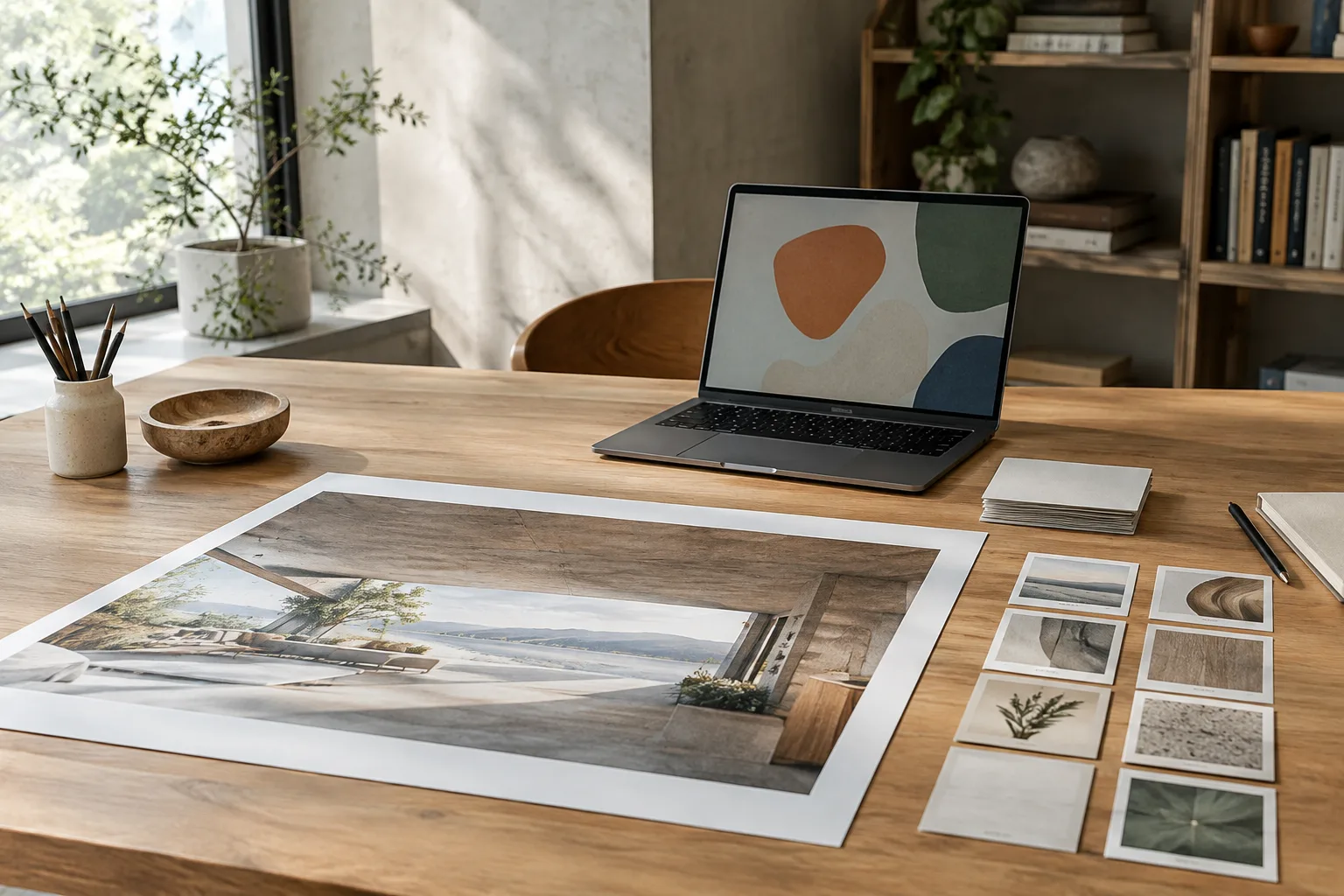
Submit the reference image together with text. The editing example in the API documentation shows that a text input and an image input can be used in the same request. In an architectural workflow, this could mean requesting changes based on a sketch, concept image, or reference image you have the rights to use. For example, focus on a single variable when working on a façade:
Bu cephe görselini düzenle. Pencere açıklıklarının yerini ve bina kütlesini koru; yalnızca cephedeki malzeme hissini açık renkli doğal taş olarak değiştir. Işık ve kamera yönünü mevcut görselle tutarlı bırak. Yeni kat, pencere veya yapı bölümü ekleme.When attaching a reference image, check that the file is in a type supported by the API; the source documentation directs users to a separate page for supported MIME types. Using multiple images is also possible, although file and payload requirements are not detailed in this source.
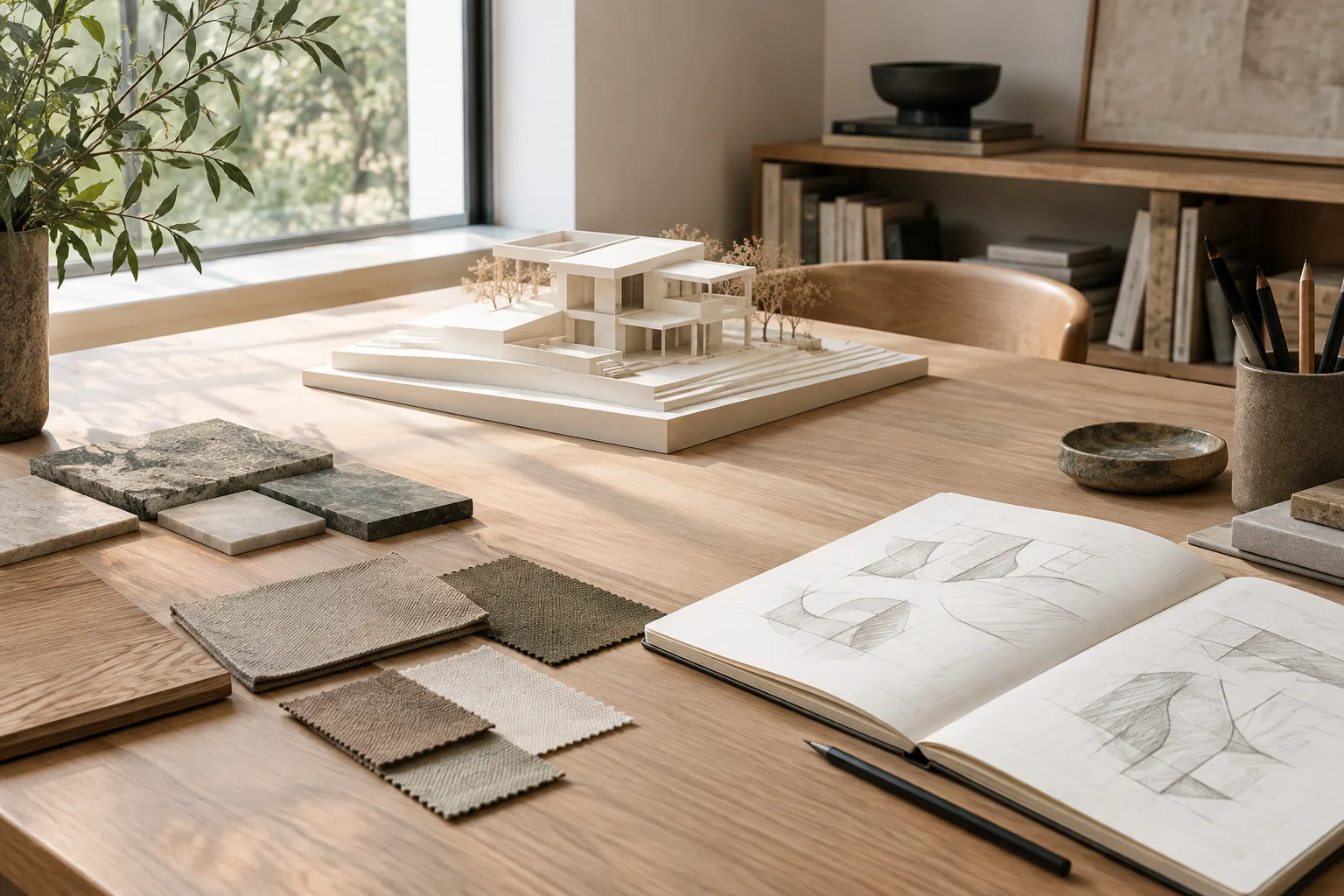
Refine the result conversationally. The Gemini image-generation documentation says images can be edited conversationally with text, allowing for iteration. Instead of changing everything in the first result at once, focus on a single priority in the next request:
Önceki görseli temel al. Mobilya yerleşimini ve kamera açısını koru; yalnızca gün ışığını daha yumuşak ve dağınık hâle getir. Malzemeleri, renk paletini ve mekândaki diğer öğeleri değiştirme.This approach makes it easier to assess which instruction changed which part of the image. Review the result after each round; if it is not suitable, make the prompt more specific. Google’s documentation describes prompt design as an iterative process that requires experimentation and refinement.
Common mistakes
Vague descriptions: Phrases like “make it more beautiful and modern” do not explain which design decision should change. Make the goal concrete by specifying aspects such as materials, lighting, framing, or spatial relationships.
Conflicting instructions: Saying “preserve the existing layout” and “completely change the plan” in the same prompt makes the direction unclear. Specify separately what should stay and what should change.
Requesting too many changes in one round: Changing the façade material, camera angle, landscaping, and lighting all at once makes the result harder to evaluate. Break requests into stages and continue from the previous image when making multi-step edits.
Uploading images with unclear rights: Google reminds users to have the necessary rights to uploaded images and not to generate content that infringes on others’ rights. Check the source of the reference and whether you have permission to use it.
Treating the output as technical verification: Image generation does not verify the dimensions in a drawing or whether a design complies with regulations. Use the image for concept communication and discussion, and review technical decisions separately against the project documents.
Its place in architecture and visualization workflows
Architects, interior designers, and visualization teams can explore this approach to develop early-stage atmosphere alternatives, material options, and presentation concepts. Teams with a sketch or an image they can use as the basis for editing may find the workflow of submitting text and images together particularly useful. For Nano Banana 2.1, Google provides information about image quality, text generation, multi-turn consistency, and different resolution options. These are feature descriptions in the provider’s documentation, not a guarantee of the same result for every project image.
The source does not include a list of local computer hardware requirements; it describes API access. It would therefore be inaccurate to infer graphics card or processor requirements for a workstation. Teams should also review API terms, costs charged to their own accounts, image rights, and the intended role of generated outputs in the project workflow. The information that generated images contain a SynthID watermark should also be considered when planning presentations and deliverables.
Next steps
Start by choosing a single space or façade and testing different atmosphere prompts against the same initial image. Note what changes in each attempt so you can compare which parts of the prompt affect the result. Then apply the same approach to image editing, changing only one priority in each round.
If generation will be part of an application, review the Python, JavaScript, or REST examples in the documentation to set up the API workflow. This tutorial does not include code because its focus is architectural prompt design. Consult the relevant official documentation separately for image rights, API pricing, and supported file types.
Source and license
This tutorial has been adapted into Turkish using information from Google’s Gemini API image-generation documentation and prompt design guide. Both sources are available under the CC BY 4.0 license. The architectural example prompts were written specifically for this guide.
Sources
2 sourcesSource texts are not republished; short quotes are marked, everything else is our own summary and commentary.
For architecture and visualization teams in Turkey, Nano Banana 2.1 could be considered a tool for quickly exploring atmosphere and material alternatives at the concept stage. In particular, the approach of developing a sketch through text instructions could contribute to idea generation for early presentations.
However, the available sources do not clarify API pricing or local hardware requirements. Before moving to regular use, it is important to check account costs and image usage rights, and to position the output as a visual draft rather than a technical project document. The SynthID watermark should also be taken into account in the delivery process.
Frequently asked questions
How do you generate architectural images with Nano Banana 2.1?
You can generate images by sending a text prompt through the Gemini API. The documentation lists the model ID as gemini-nano-banana-2.1.
Can Nano Banana 2.1 edit an existing image?
Yes. The API workflow can take text and an image together as input; you can request that elements be added or removed, or that the image’s style be changed.
Do images created with Nano Banana 2.1 contain a watermark?
According to Google’s Gemini API documentation, all generated images contain a SynthID watermark.