In brief
- Imagen is no longer available in the Gemini API; Google recommends switching to Nano Banana models for image generation.
- The text-to-image example in the official guide uses the model name gemini-nano-banana-2.1.
- An existing image can be sent to the API alongside a text prompt and used as an input for editing.
- Generated image data can be retrieved from the output_image field in the response.
What will you learn in this guide?
This guide offers a basic workflow for anyone looking to generate architecture- and interior-focused images through the Gemini API. We’ll cover how to request a new concept image from text, how to submit a reference image alongside text for editing, and how to retrieve the result from the response. The example prompts are written to clearly describe elements such as the space’s function, material character, lighting, and framing.
This method is not a substitute for construction drawings or a verified design document. It is an API workflow that can be used for idea development, exploring atmosphere, and evaluating visual alternatives. Before using a result to inform project decisions, review whether it aligns with the design intent and available references.
Requirements
Google’s Gemini API documentation uses gemini-nano-banana-2.1 as the model name for Nano Banana 2.1. The Python example in the source uses the google.genai client; image generation requires access to the Gemini API, an API key, and a Python environment set up to work with this client. The source doesn’t provide details on how to obtain the required API access or the client installation command, so no specific setup method or package version is given here.
For image editing, you’ll also need a reference image that you’re authorized to use. Google reminds users to respect the necessary rights for uploaded images and comply with its Prohibited Use Policy. Details on image file formats and sending multiple images are covered in the API’s image understanding documentation; no additional assumptions about compatibility should be made here.
Step by step: Generate an architectural image from text
Define the purpose of the output. Choose what you want the image to depict, such as a residential interior, public space, or small building concept. Focusing on one space and one visual goal for your first attempt makes it easier to track the elements in your prompt.
Describe the space and atmosphere. Specify the function, the material and lighting qualities you want to emphasize, and the framing. The following is an original starting-point example for an interior concept image:
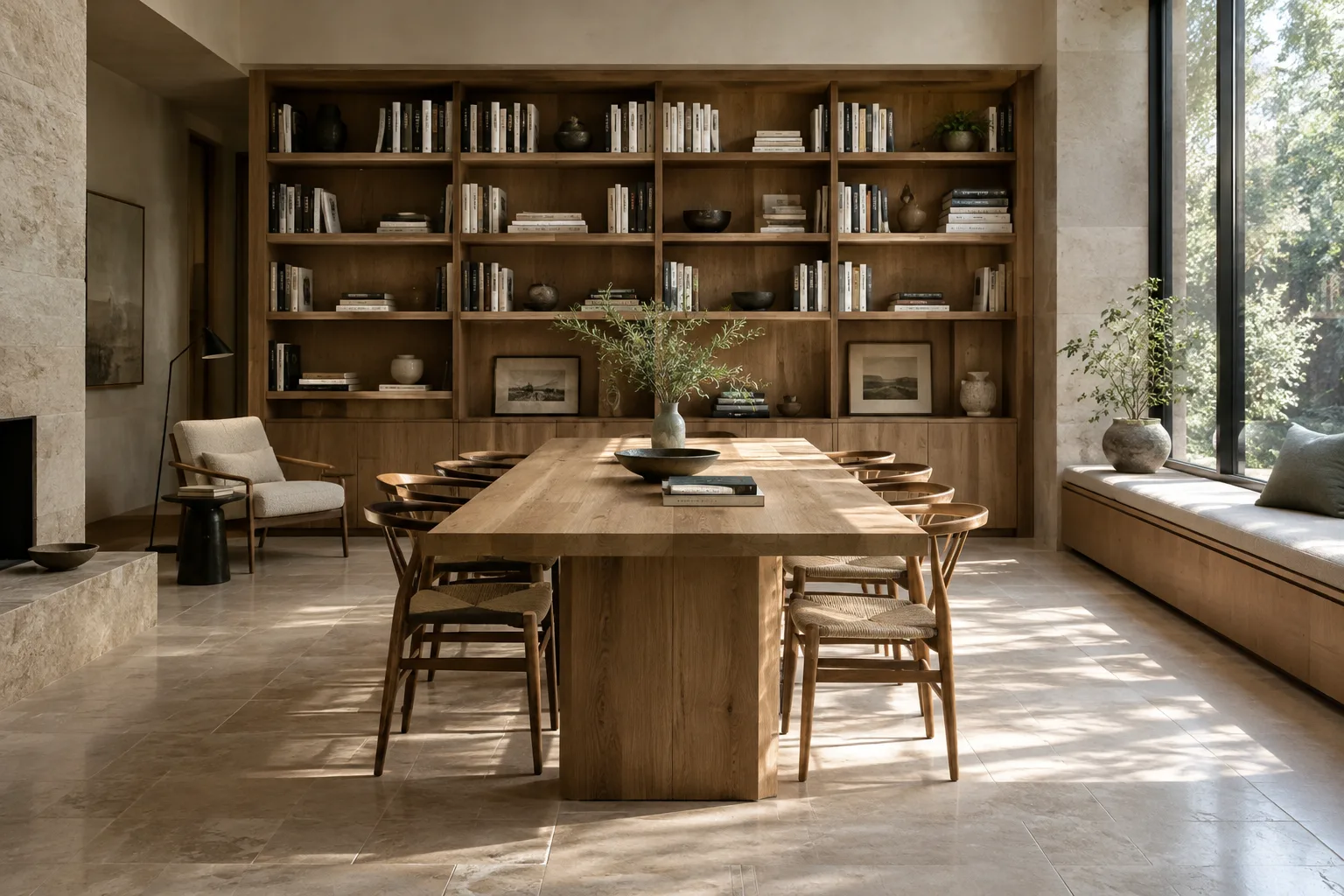
Create an architectural concept image of a quiet reading room in a small urban library. Show a long oak reading table, built-in bookshelves, pale stone flooring, and soft daylight entering from a tall side window. Use a calm, restrained material palette and a human-eye-level wide interior view. Focus on spatial atmosphere and clear circulation.The details in the prompt explain the design intent you want to see in the image. This text is a natural-language instruction to the model, not an API parameter. Check the materials, scale, and spatial relationships in the result, then describe only the elements you want to change more clearly in your next attempt.
Use the model and prompt in an API request. In the official Python example,
client = genai.Client()is created, and the model name and text input are passed to theclient.interactions.createcall. In your own application, you’ll need working API access and an active key to use this setup. The example decodes theinteraction.output_image.datafield in the response from base64 and writes it to a file. The source example uses a PNG filename; this should not be treated as a general guarantee for every possible output format.Keep prompts comparable. When exploring different atmospheres for the same space, leave the core design description unchanged and vary the lighting or material emphasis. For example, the prompt below explores softer daylight and a calmer atmosphere in the same type of workspace:
Create an architectural visualization of a compact home office in a renovated apartment. Include a simple timber desk, built-in storage, a reading chair, and a large window. Emphasize soft overcast daylight, muted natural materials, and an uncluttered composition. Show the complete room from a human-eye-level interior viewpoint.This example describes the furniture and space alongside the atmosphere and framing. Changing several features at once can make it difficult to tell which wording affected the result, so making small adjustments between attempts produces more useful comparisons.
Edit a reference image with text
The Gemini API documentation explains that an image can be submitted alongside a text prompt for editing requests, such as adding, removing, or changing elements. The request input includes both text and image content. In an architectural workflow, this can be used to explore a particular atmospheric or material direction in an existing concept image; however, the source doesn’t guarantee that dimensions or geometric accuracy will be preserved.
You can use the following as an editing prompt with an interior image you have the rights to use:
Using the provided interior image as a reference, explore a warmer material direction for the room. Keep the overall spatial layout and camera viewpoint recognizable. Shift the atmosphere toward soft late-afternoon daylight, with warmer timber accents and a calm, understated interior mood.The prompt specifies which aspects of the reference should be preserved and which should be explored. Compare the output side by side with the original image, paying particular attention to how well the framing, spatial relationships, and requested changes have been handled. For sensitive project decisions, don’t treat an image-generation result as measured or verified design data.
Common mistakes and next steps
Vague description of the space: Saying only “a modern interior” doesn’t define the intended function or atmosphere. Clearly specify the room type, the elements to emphasize, and the framing.
Too many goals in one prompt: Changing all the materials, lighting, and composition in a single attempt makes comparisons difficult. Establish the core description of the space first, then work on one variable at a time.
Overlooking image rights: Google asks users to pay attention to the rights associated with uploaded images. Only submit images you’re authorized to use during the editing process.
Treating the output as project validation: The sources describe image-generation and editing workflows; they don’t promise technical suitability, dimensional accuracy, or construction-document accuracy. Evaluate the output as part of concept exploration.
For your next attempts, prepare several separate prompts for the same space and change only the description of the lighting, materials, or framing. To retrieve image data from the API response, follow the official example’s output_image field and base64 decoding step. For more input images, supported MIME types, and detailed API usage, refer to the official image understanding and image generation documentation.
In architecture and interior design workflows, this approach can be useful, especially for early-stage exploration of atmosphere and discussing alternatives based on an existing image. The available sources don’t provide enough information about data transfer to rendering or modeling software, license terms, or hardware requirements, so no assumptions about compatibility or cost should be made.
Sources and license
This guide is based on Google’s Gemini API image generation and Imagen migration guides. Both sources are licensed under CC BY 4.0; the content has been adapted into Turkish and reworked with original prompts for architecture and interior workflows. The source code examples are licensed under Apache 2.0.
Sources
2 sourcesSource texts are not republished; short quotes are marked, everything else is our own summary and commentary.
For architecture firms and students in Turkey, image generation through an API is an option worth considering, particularly for concept and atmosphere exploration. The workflow for editing an existing image with a prompt can also open up discussion of alternative design directions; however, the output shouldn’t be treated as proof of dimensional, geometric, or construction accuracy.
The sources don’t explain pricing, hardware requirements, or usage license terms. Before making decisions about generation volumes or project use, it’s important to check the current API terms and image usage rights separately. For teams, the most practical approach is to run small tests and compare the results with the original design data.
Frequently asked questions
What is the Nano Banana 2.1 API model name?
The model name used in Google’s example is `gemini-nano-banana-2.1`.
Can an existing architectural image be edited with the Gemini API?
According to the documentation, an image can be provided as input alongside a text prompt, and changes can be requested. The rights to the uploaded image must be respected.
Can Imagen be used in the Gemini API?
According to Google’s migration guide, Imagen has been shut down in the Gemini API and is no longer available. The guide recommends switching to Nano Banana models for image generation.