In brief
- Nano Banana 2.1’s Gemini API model ID is listed as gemini-nano-banana-2.1.
- The model is described as supporting image generation and multi-turn editing at 1K, 2K, and 4K resolutions.
- For image editing, an image can be included in the API request alongside text instructions.
- The source states that all generated images include a SynthID watermark and that you need usage rights for any images you upload.
What will you learn in this guide?
In this guide, we’ll cover how to create an architectural concept image with Nano Banana 2.1, edit an existing image using text instructions, and refine the results in a controlled way. Rather than writing one broad prompt and waiting for the result, the goal is to establish a workflow that clearly describes the space, framing, materials, lighting, and limits on what can change.
Google’s Gemini API image generation documentation uses the name Nano Banana for Gemini’s built-in image generation capabilities. The documentation lists Nano Banana 2.1 under the model ID gemini-nano-banana-2.1 and recommends it for new projects. The model is positioned for image generation and conversational editing. According to the documentation, it offers image quality at 1K, 2K, and 4K resolutions, along with improvements to text rendering and multi-turn consistency.
Requirements and setup
This method works through the Gemini API. The source includes examples in Python, JavaScript, Java, Go, and REST; the Python example uses the google-genai client. The REST example sends an API key for authentication. This guide doesn’t describe an interface tied to a specific local software version or desktop application: the workflow involves sending the API a request containing text and, if needed, an image. The sources don’t specify pricing or account access requirements, so no assumptions should be made about them.
Before you begin, decide how you intend to use the image: for concept exploration, an atmospheric image for a client presentation, or an alternative material study based on an existing frame. This decision affects the level of detail in your prompt and which reference images you send. Before uploading an image from another source, make sure you have the necessary usage rights. Google also states that all generated images include a SynthID watermark.
Step-by-step architectural image generation
1. Describe the scene and framing
In your initial request, specify the type of space, the camera position, which elements the image should focus on, and the overall mood. The source’s prompt design recommendations advise making instructions clear and specific, stating constraints separately, and describing the desired output format. The example below is a request to generate an image of a residential interior from scratch:
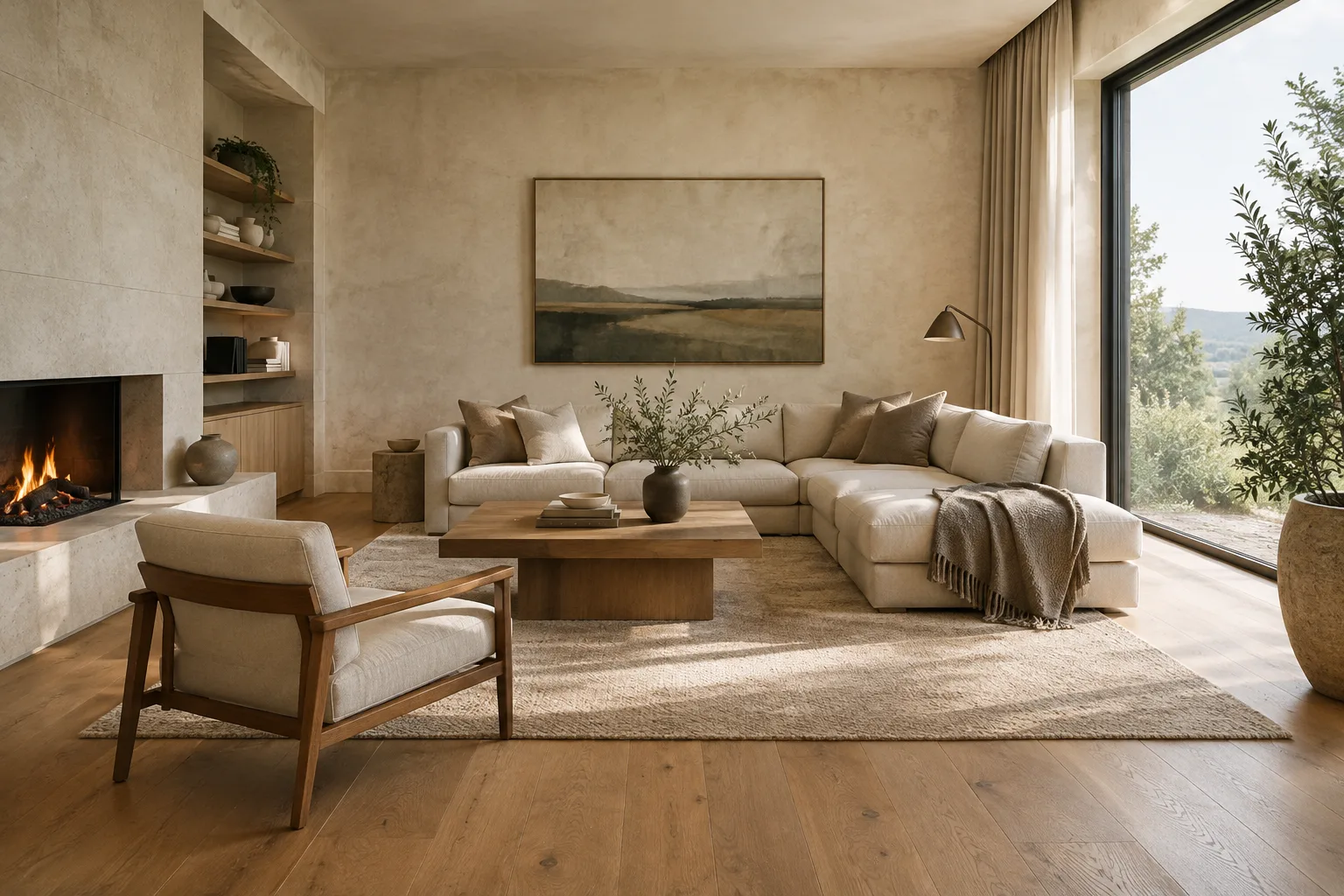
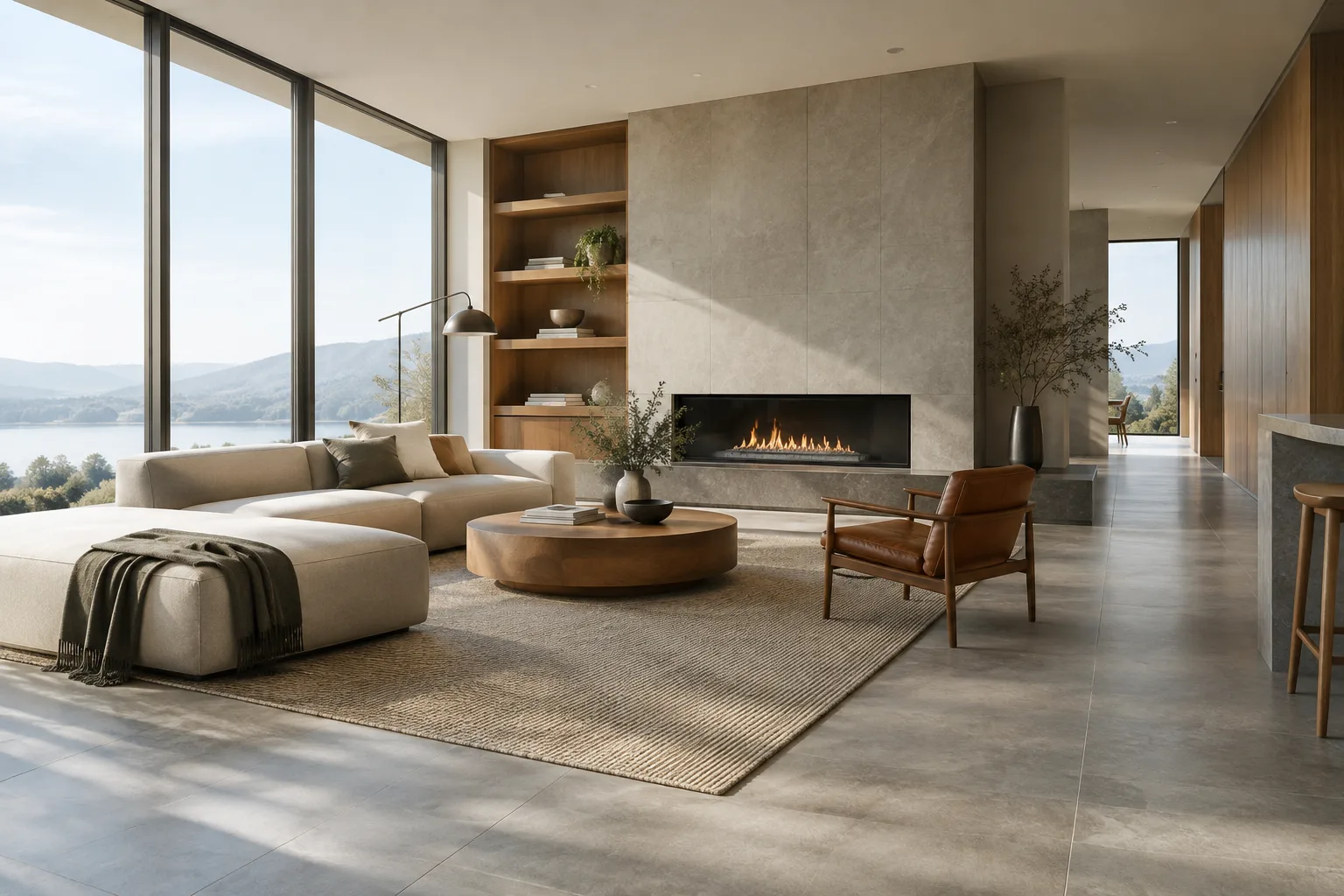
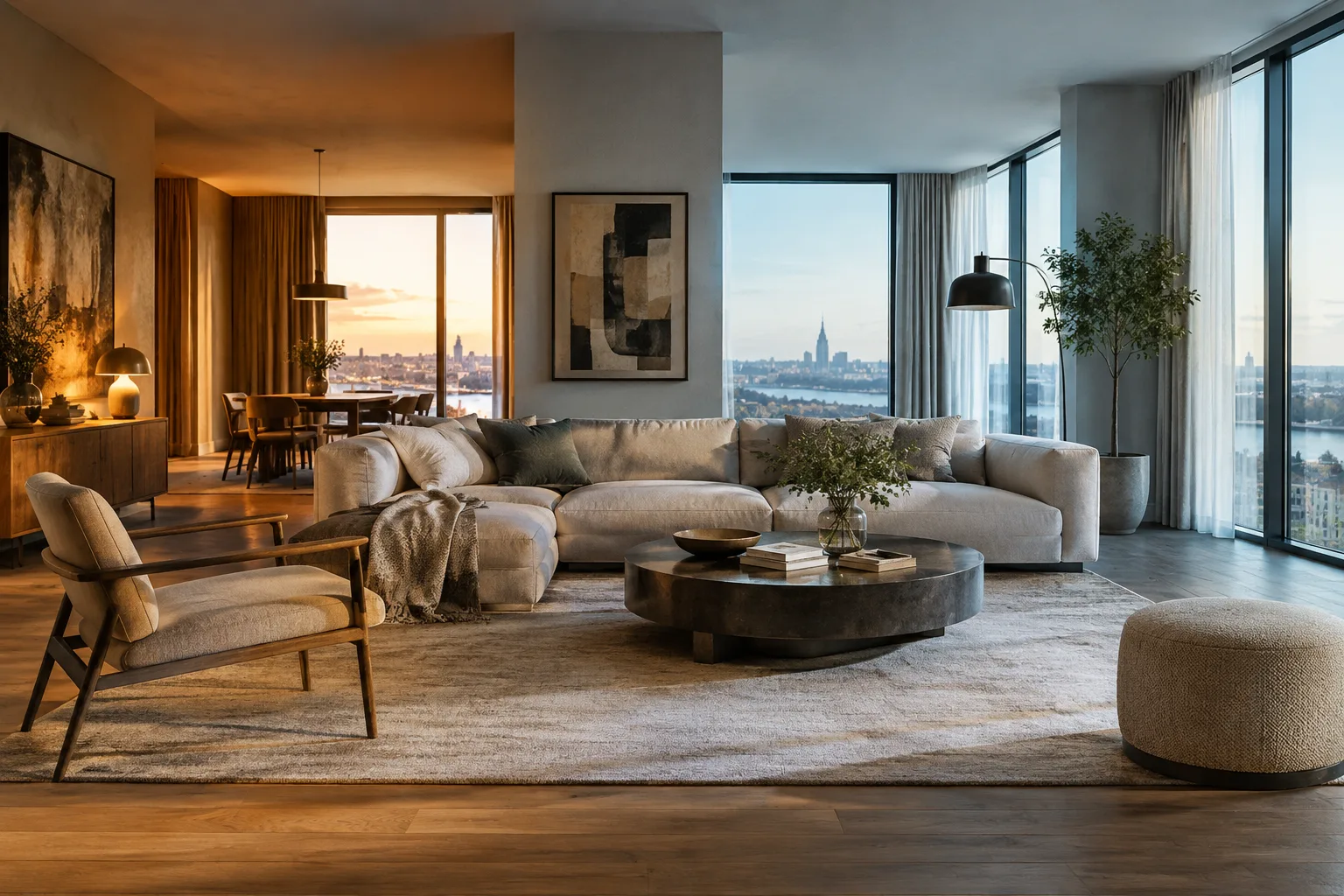
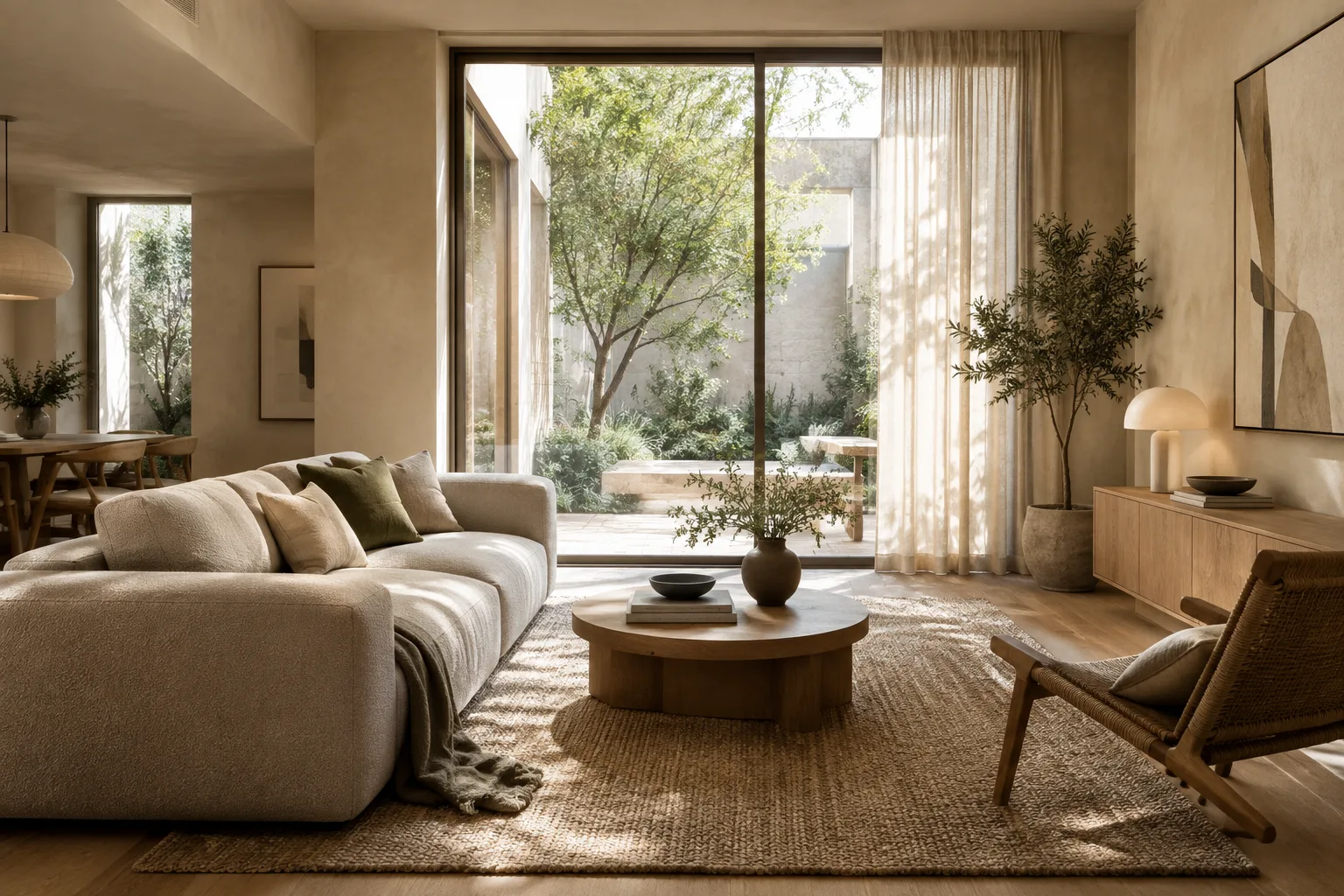
Create a photorealistic architectural visualization of a compact urban apartment living room. Show the full seating area from eye level, with a clear view toward the window. Use pale oak, warm off-white plaster, muted natural fabrics, and soft daylight. Keep the composition calm and uncluttered. Do not add people, signage, captions, or decorative text.This prompt separately defines the type of space, camera height, visible area, material palette, and elements to exclude. Don’t treat the first output as the final decision. If the framing or material balance is off, issue a new instruction targeting only that element instead of rewriting the entire description.
2. Add an existing image as a reference
The Gemini API documentation shows that you can edit an image by providing an image input alongside text. In this approach, include the starting image in the API request, then specify what you want changed and what should stay the same. To use the example below, add your own image as an image input in the same request:
Using the supplied interior image as the starting point, change the floor finish to light natural oak and the curtains to a warm gray linen. Keep the room layout, camera viewpoint, window positions, and furniture placement unchanged. Preserve the existing daylight mood.The instruction specifies both the edits and the elements to preserve. This limits the task to a specific change rather than asking the model to reinterpret everything. Still, check the result: the sources don’t guarantee that the model will preserve every architectural element exactly. If an important difference appears, review the image and make your instructions more explicit.
3. Request one main change at a time
You can describe multiple edits in a single request, but focusing on one main issue per turn makes revisions easier to assess. For example, you could address materials first, then lighting or color balance. This makes it easier to compare the effect of different decisions.
Revise the supplied architectural image by making the daylight softer and more diffuse. Keep the camera, room layout, materials, furniture, and color palette unchanged. Do not introduce new objects.Here, the prompt explicitly holds everything except the lighting constant. Don’t use this text on its own after the initial request; include the image you want to edit in the new request as well. The API documentation explains that image and text inputs can be used in the same interaction. If you’re not happy with the result, narrow down only the lighting description in the next turn; don’t add new furniture or material changes at the same time.
4. Clarify alternatives and output expectations
For concept exploration, describe how alternatives should differ so you can compare different moods. It may not be clear whether you want all options side by side in one output or as separate images, so specify the expected presentation format. The model selection documentation lists 1K, 2K, and 4K resolutions for Nano Banana 2.1, but the source doesn’t show an example of an API request parameter for setting these values. For that reason, this guide doesn’t describe a specific way to configure them.
Create a photorealistic architectural visualization of the supplied courtyard concept, keeping its building arrangement and viewpoint. Explore a quiet, shaded daytime atmosphere with restrained planting and natural stone. Return one coherent scene, with no labels, captions, or written annotations.This request uses the existing concept image as its starting point and describes the atmosphere. Depending on the project stage, target just one element in the next turn, such as planting density, the appearance of the stone, or the quality of the light. Explicitly stating that you don’t want text in the image can also be a useful constraint when generating images for presentations; still, always review the output before delivery or presentation.
Common mistakes
Relying on vague adjectives: Instead of using ambiguous terms such as “stylish,” “modern,” or “better” on their own, describe the space, material family, lighting, and framing concretely.
Requesting too many changes at once: Changing the materials, camera, and lighting in a single revision makes it harder to tell which instruction affected the result. Start with the most important change.
Requesting an edit without including the image: For image-to-image editing, include the source image in the request; text alone doesn’t specify which frame to work on.
Overlooking usage rights: Check that you have the rights to use any reference image you upload. Also bear in mind that generated images include a SynthID watermark.
Next steps: architecture and visualization workflows
Nano Banana 2.1 may be useful for early concept exploration, interior mood alternatives, and material studies on an existing frame, using the text-based image generation and editing approach described in the sources. For an architecture office, it’s more practical to treat these outputs as supporting visuals for discussing options rather than replacements for design decisions. Since the sources don’t provide a verified guarantee about architectural dimensions, project geometry, or technical suitability, don’t treat the image as project data; have the design team review it.
Students and visualization artists can build an experimental workflow by creating controlled variations from the same starting image and noting prompt changes. Teams should separately evaluate API access, pricing, usage rights, and deliverable requirements; the source texts don’t provide details about pricing or licensing plans. While resolution options are listed, the examples don’t explain how to select a resolution. So before using this workflow on a real project, verify the results and technical requirements with your own API access.
Sources and license
This guide was adapted into Turkish based on Google’s Gemini API image generation documentation and its prompt design strategies guide. Both sources are provided under the CC BY 4.0 license. The architectural prompts in this guide were written specifically for it.
Sources
2 sourcesSource texts are not republished; short quotes are marked, everything else is our own summary and commentary.
For architecture offices and students in Turkey, this approach can help teams quickly explore and discuss alternatives for mood and materials at an early stage. In particular, requesting changes to an existing image may reduce the need to describe every idea from scratch; however, the sources don’t explain API costs or access requirements.
Before adopting it for regular use, check pricing, image usage rights, and compatibility with your office’s delivery standards. Resolution options are listed, but the source doesn’t show how to configure them. It’s best to treat generated images as visual alternatives that need to be reviewed by the team, not as technical project data.
Frequently asked questions
What is Nano Banana 2.1’s Gemini API model ID?
The documentation lists the model ID as `gemini-nano-banana-2.1`. It’s listed for image generation and conversational editing.
Can you edit an existing architectural image with Nano Banana 2.1?
Yes. The source shows that you can edit an image by including it as an input in the API request alongside text instructions.
Do images generated with Nano Banana include a watermark?
According to Google’s documentation, all generated images include a SynthID watermark.