In brief
- Nano Banana 2.1 is available in the Gemini API for image generation and conversational editing.
- The API examples show how to create a new image by sending the model a text prompt.
- To edit an image, you can send it to the model along with a text prompt.
- Google’s guide recommends giving clear, specific instructions and refining prompts iteratively.
What you’ll learn in this guide
We’ll cover how to request an architectural concept image with Nano Banana 2.1, modify a generated image with a new text prompt, and write clearer prompts. The examples were created specifically for interior design and architectural visualization workflows. They’re starting points to test and refine during image generation—not commands that guarantee a particular design outcome.
The Gemini API documentation lists Nano Banana 2.1 among the models available for image generation and conversational image editing. You can create a new image with a text prompt; in the image-editing example, both text and an image are sent as inputs in the same request. So this guide covers prompt writing through the API, not modeling or render settings in 3D software.
Requirements: model and access
The workflow centers on the Gemini API and the model ID gemini-nano-banana-2.1. The official examples cover several languages, including Python and JavaScript. The request examples send text to the model using an API client, while the image-editing example sends image data and its MIME type in addition to the text. The REST example uses an API key. Anyone working with the API will therefore need to obtain the required access and key; the documentation doesn’t specify any additional desktop modeling software for the image generation covered here.
The documentation mentions 1K, 2K, and 4K resolutions for Nano Banana 2.1, but the prompt examples in this guide don’t define a resolution parameter. Describing the desired composition in text is not the same as technically setting the output dimensions. Check the latest Gemini API information separately for usage, access requirements, and potential costs; no pricing information is provided in the sources here.
Step by step: writing an architectural image prompt
Define the image’s purpose. Clarify whether the prompt is asking for a concept proposal, material exploration, or an edit to an existing image. Rather than combining many vague goals in one request, make the priority clear.
Describe the space and key design decisions. Be clear about the intended use, main spatial elements, materials, lighting, and atmosphere. The prompt design guide in the sources recommends giving clear, specific instructions and adding constraints for the output. The first prompt below is an example request for creating a new image:
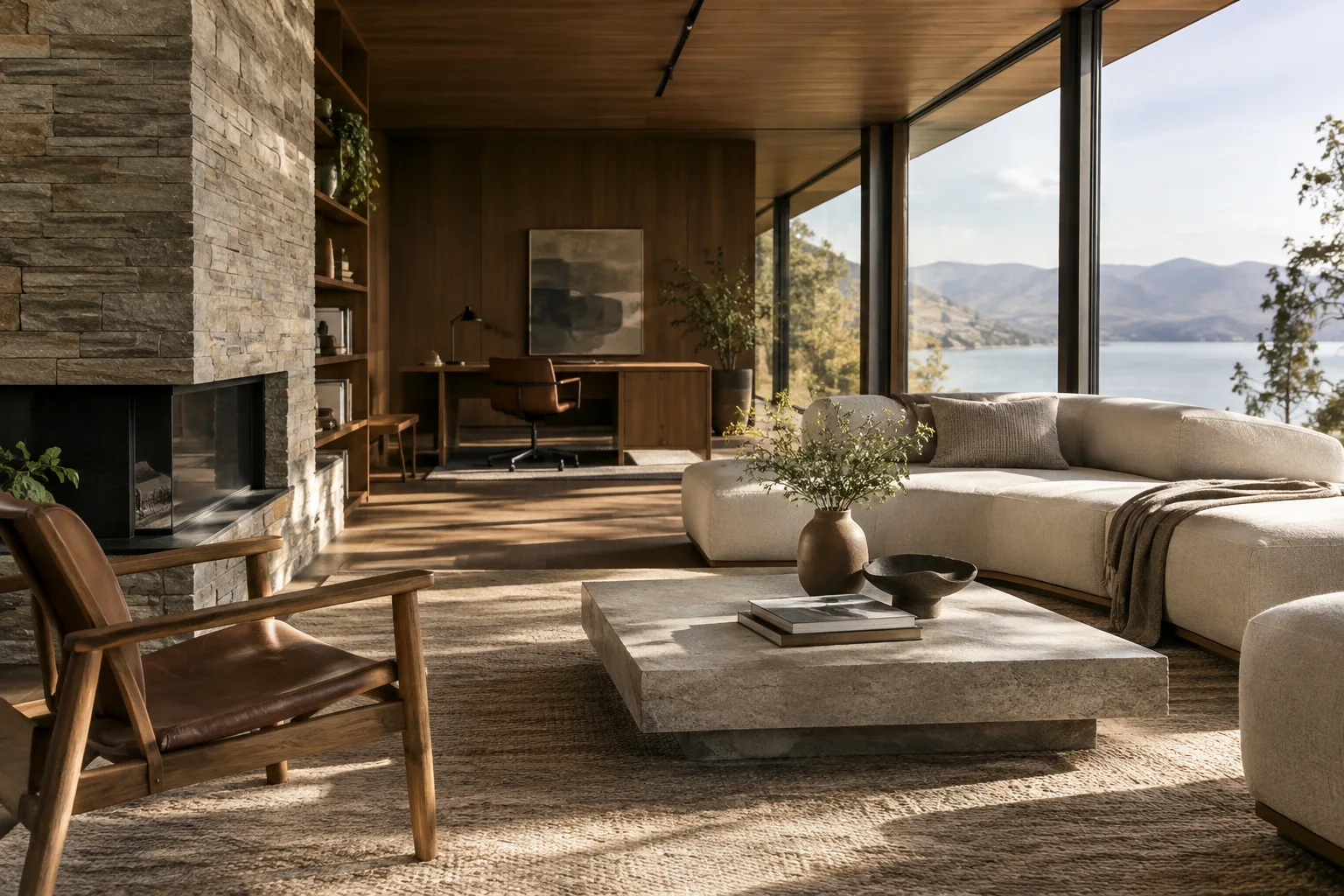
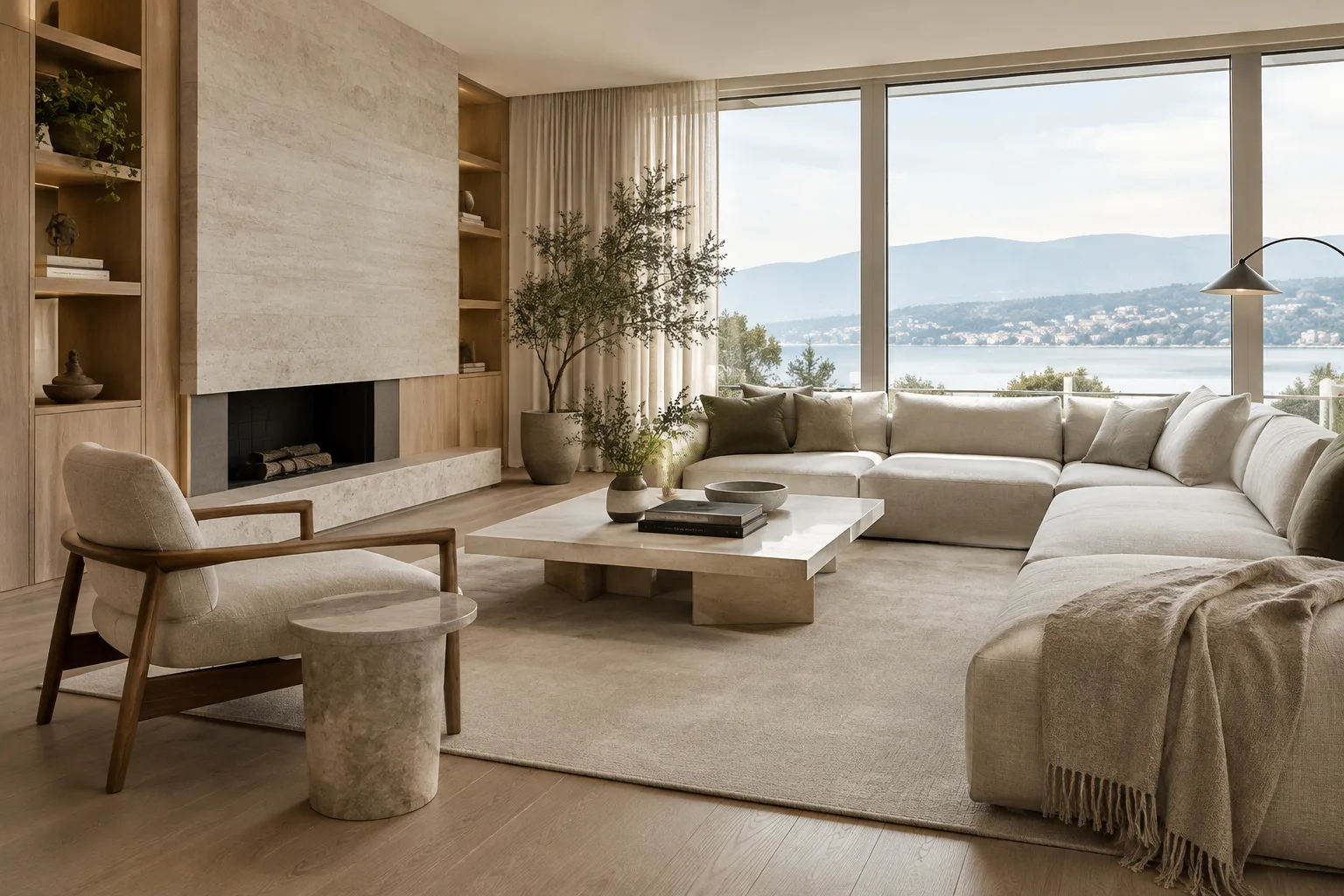
Generate a photorealistic interior concept image of a calm, functional living area in a contemporary apartment. Include a seating group, a low coffee table, a bookcase, and a large window in the frame. Use light-toned wood, matte stone surfaces, and linen-textured fabrics. Opt for soft daylight, natural shadows, and restrained colors. Keep the layout easy to read; decorative details should not compete with the main furniture.This prompt separately specifies the use case, the elements to include in the frame, the materials, and the lighting approach. Assess the overall direction of the space in the first result, then refine the prompt with a narrower request for anything that’s missing or incorrect. As the guide emphasizes, prompt design is an iterative process that requires testing and refinement.
Edit using an image reference. If you have an image you’re authorized to use, you can provide it as an input along with a text prompt. The documentation says image edits can be requested to add or remove elements, make changes, switch styles, or adjust color. The second example is an original prompt for preserving the main layout of an uploaded interior image:
Edit the interior image I attached. Preserve the window opening, wall positions, and basic furniture layout. Change only the upholstery on the seating group to a light beige linen-like fabric, and make the coffee table light-toned wood. Do not change the direction of the daylight or the existing framing. Do not add any decorative objects.When using this request, also include the image in the API call; sending only the text won’t provide the source image to the model. The editing examples in the documentation show image data and its MIME type being passed as inputs. It’s also important to check that you have the rights to use and share the uploaded image.
Refine one thing at a time after reviewing the result. If there’s a problem with the output, first identify which feature you want to change: material, lighting, color, or an element in the frame. Limit the next prompt to that change. For example, you could try the following prompt to change the color direction of a concept image:
Keep the spatial layout, furniture arrangement, and framing of this interior concept. Make the palette warmer and more natural: use light wood, off-white, and soft earth tones. Keep the surfaces matte and the lighting as soft daylight. Do not add new furniture or decorative items.The prompt clearly states which aspects to preserve and which to change. Don’t assume the model will apply the request perfectly every time; review the result and revise the prompt if needed.
Common mistakes
Vague descriptions: A request like “make a better interior” doesn’t clarify what should change. Specify the space’s purpose, materials, and lighting approach.
Conflicting goals: Don’t ask to preserve the existing layout and completely change the space in the same prompt. State separately what should stay and what should change.
Changing everything at once: Changing materials, colors, furniture, and lighting simultaneously makes it harder to tell which instruction led to a different result. Try the most important change first.
Expecting edits without attaching the image: An edit based on an image requires that image to be included as an input. Also make sure you have the necessary rights to use the image.
Expecting technical guarantees from a prompt: You can describe expectations for composition or quality in text, but these examples aren’t technical settings that guarantee output dimensions or a specific level of architectural accuracy. They shouldn’t be treated as a substitute for design decisions or construction drawings.
Next steps: adapting the workflow for studios and visualization
Use your first attempts to open up discussion around concept options and explore materials or atmosphere—not to finalize project decisions. When editing an image, stating which elements should be preserved can help communicate the design intent more clearly; the resulting image still needs to be checked against the project requirements. Saving the prompts and outputs from multiple iterations makes it easier to compare which descriptions work well.
Because this workflow uses the API, studios should review access, terms of use, and costs before getting started. The sources don’t provide pricing information. Technically, the key details are how the image is added to the API and which model ID is called; the sources don’t specify local hardware requirements, so no particular graphics card or workstation can be assumed to be necessary. Before uploading images from real projects, separately assess usage rights and whether sharing is appropriate.
Sources and license
This guide has been adapted into Turkish based on Google’s Gemini API documentation for image generation and editing, and its prompt design guide. Both sources are available under the CC BY 4.0 license. The architectural example prompts in this article were written specifically for this guide.
Sources
2 sourcesSource texts are not republished; short quotes are marked, everything else is our own summary and commentary.
Nano Banana 2.1 may be worth considering for architecture and interior design teams looking to generate concept images or test limited changes to an existing image. Clear prompts can provide a quick starting point, especially when discussing material and atmosphere options that haven’t yet been finalized; however, the results are no substitute for project accuracy or technical drawings.
For offices and students in Turkey, it’s important to review API access requirements, usage costs, and the rights involved in uploading project images before getting started. The sources don’t provide pricing or local hardware requirements, so budget and technical suitability should be assessed by checking the latest API terms rather than making assumptions.
Frequently asked questions
Can Nano Banana 2.1 edit an existing interior image?
The Gemini API documentation includes an example of image editing with image and text inputs. The prompt can describe additions, removals, or changes to style or color.
How can you use Nano Banana 2.1?
The source includes examples of using it through the Gemini API, with several client options, including Python, JavaScript, and REST.
Does Nano Banana 2.1 require a specific graphics card for architectural rendering?
The sources don’t specify any particular local graphics card requirement. The examples describe sending requests to the Gemini API.