In brief
- Nano Banana 2.1 is listed in the Gemini API with the model ID gemini-nano-banana-2.1.
- The Gemini API supports not only image generation from text prompts but also editing with images and text together.
- The documentation recommends using clear instructions and specific constraints in prompts, then testing and refining the results.
- The official guide specifically reminds users to have the necessary rights to use uploaded images.
What you’ll learn in this guide
Nano Banana 2.1 is listed among the models offered in the Gemini API documentation for image generation and conversational editing. In this guide, we’ll look at how to describe the type of space, material feel, lighting, framing, and features that should be preserved, rather than prompting with a broad request like “draw a modern building.” We’ll also see how editing an existing image differs from generating one from scratch.
The prompt examples below were created for this guide on architectural and interior visualization; they are not copied from the cited sources. Generated results should be treated as concept exploration and visual experimentation. The sources do not guarantee technical drawing accuracy or compliance with project requirements.
Requirements: model and API access
The workflow is described using the Gemini API. The official image generation documentation includes examples in Python, JavaScript, Java, Go, and REST. In the REST example, the request is sent using an API key, and the generated image data can be retrieved from the interaction.output_image property in the response. The SDK examples also show how to create an interaction and save the resulting image. Choose a language and API access method based on your team’s existing development environment.
The model selection section gives Nano Banana 2.1 the ID gemini-nano-banana-2.1. The documentation describes it as an efficient default option for image generation and conversational editing, and reports improvements in areas such as image quality, text rendering, multi-turn consistency, and grounding with Google Search. These are the provider’s descriptions of the model; they do not guarantee the same result for every prompt.
To edit an image, send a reference image together with a text prompt. The official guide reminds users to have the necessary rights to use uploaded images and not to generate content that infringes on others’ rights. The source does not specify a particular price, access plan, or hardware requirement, so avoid making assumptions about these.
Step-by-step architectural prompt design
1. Define the purpose of the image
First, decide what the output will be used for: exploring the mood of a residential facade, considering interior material options, or creating a concept image for a presentation. Then describe the building or space type and the main elements of the scene. Rather than combining many conflicting goals in one prompt, clearly state the image’s priority.
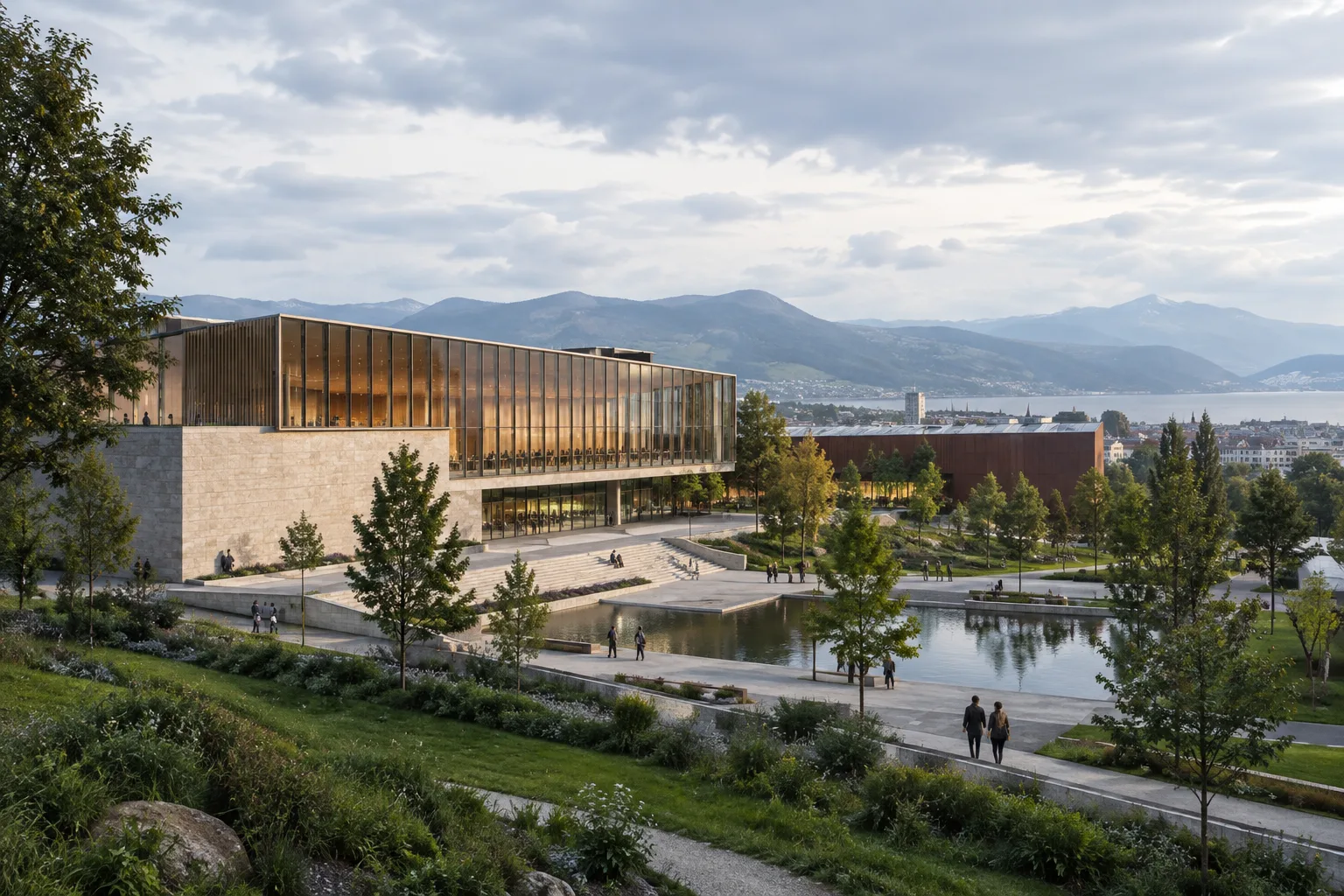
Create an architectural concept image of a compact urban library, with a calm public entrance, a clear view of the main volume, warm natural materials, soft overcast daylight, and a restrained editorial composition. Focus on the relationship between the building and the street.This starting prompt separately describes the building type, focus of the scene, lighting, and compositional approach. If the scale of the space or its relationship to the surroundings isn’t clear enough in the first result, clarify only that point in the next prompt.
2. Describe materials and lighting separately
In an architectural image, naming a material alone is not always enough. Specify which surface it belongs to and how you want it to look in the scene. Describe the lighting in clear terms too, such as daylight, soft shadows, or evening illumination.
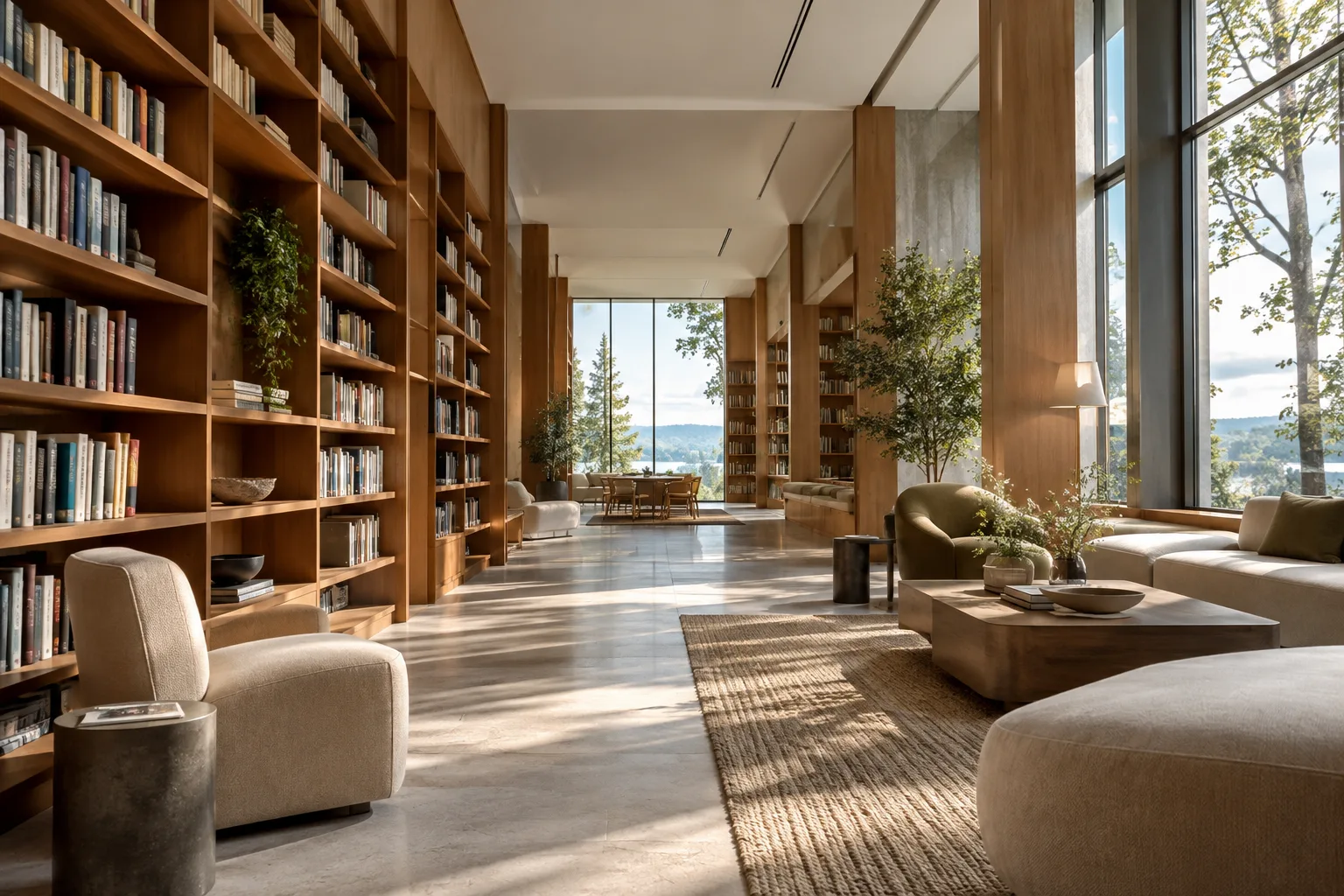
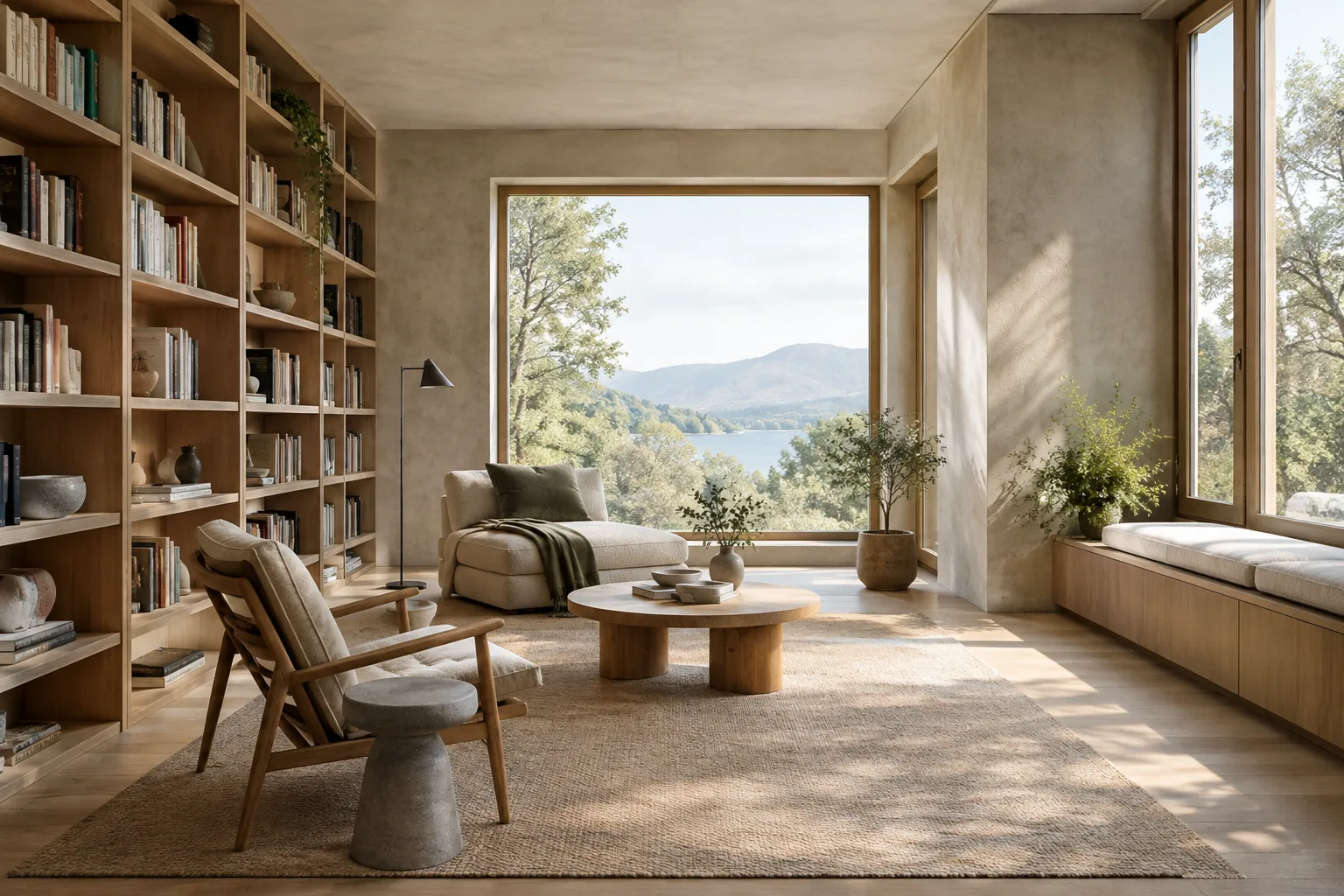
Create a quiet interior visualization of a small reading room. Use pale oak on the built-in shelves, a matte mineral finish on the walls, and a stone floor with subtle texture. Let soft daylight enter from one side and keep the furniture simple and secondary to the room's proportions.This example ties materials to specific surfaces and makes the room’s proportions a visual priority. If the material effect is too strong in the first output, explicitly ask for the surface to look more subdued in a follow-up prompt.
3. Specify framing and visual hierarchy
Tell the model how the result should be viewed. For example, you can ask for the entrance to be visible, the main volume to dominate the frame, or the depth of the interior to read clearly. Instead of adding many incidental objects, specify which element should stand out.
Show a contemporary courtyard housing project from a human eye-level viewpoint. Keep the shared courtyard in the foreground and the residential facades clearly legible behind it. Use a balanced composition with a few people for scale, while keeping the architecture as the main subject.This prompt describes the viewing height, foreground, background, and role of the people in the scene. If the scale figures distract from the architecture, ask in a new round for fewer people and more clearly defined building volumes.
4. Request changes to an existing image
If you have a reference image, you can provide it to the API with text to request edits. The source explains that an image and text can be used in the same interaction, and that editing prompts can be used to add, remove, or change elements, or transform the style or color scheme. Separate the features to change from those to preserve.
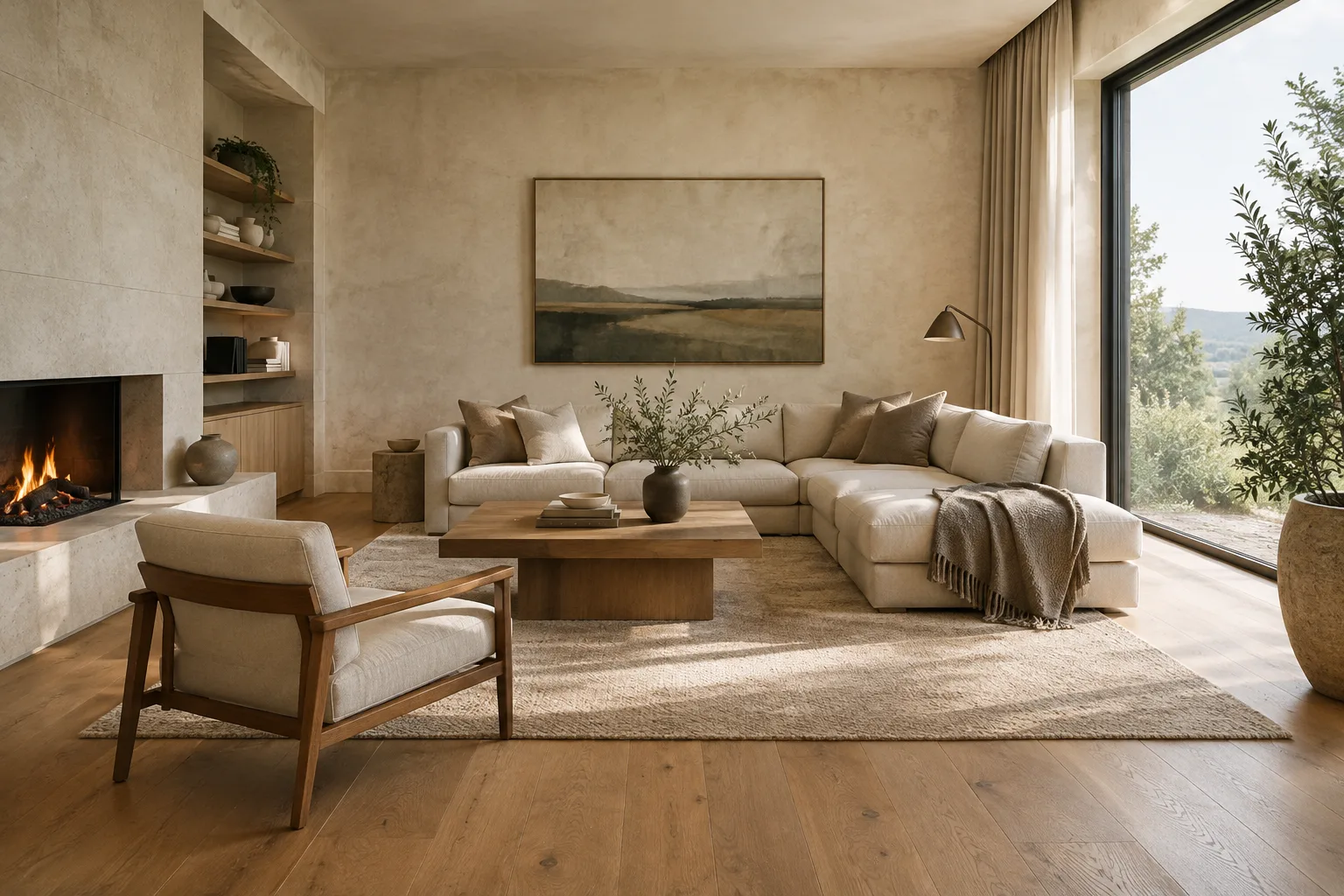
Using the provided interior image as the reference, change the wall finish to a light mineral plaster and make the daylight softer. Preserve the room layout, camera viewpoint, window positions, and furniture placement; do not add new architectural elements.This example separates the requested edits from the existing room layout. If important parts of the reference image aren’t preserved, list the elements to retain more explicitly in a follow-up prompt and focus on one type of change at a time.
5. Check text in images
Nano Banana 2.1’s model description mentions improvements to text rendering. Still, check the output separately to make sure any text intended for a project presentation is correct. If you don’t need signs or titles in the image, saying so in the prompt can help prevent unwanted text from appearing.
Create a clean architectural presentation image of a small community pavilion in a landscaped public space. Show the building, paths, planting, and soft daylight. Keep the scene free of signs, captions, labels, and decorative lettering.Use clear, specific instructions in your prompts, and include the desired output format and any constraints. The Gemini prompt design guide notes that examples can help the model understand the expected format, and emphasizes that prompt writing involves testing and refinement.
Common mistakes
Relying on generic descriptions: Phrases like “a beautiful interior” don’t provide enough direction about the space type or visual priorities. Add the intended use, materials, lighting, and framing.
Changing too many variables at once: It can be difficult to understand why the result changed. Change one main feature in a follow-up prompt and compare the result.
Not explicitly asking the model to preserve the reference: Specify the floor plan, camera viewpoint, or window positions if they’re important to retain during editing.
Treating the output as project data: The sources explain image generation and editing, but don’t verify dimensions, regulatory compliance, or construction accuracy. Use the image to develop ideas, not as a substitute for design decisions.
Overlooking image rights: Check that you have the right to use the reference image you upload, and avoid content that could infringe on others’ rights.
Next steps: adapting the workflow for studios and students
Start by preparing a few prompt variations for the same scene, changing just one quality in each, such as lighting, material, or framing. This makes it easier to assess which description produces a result closest to the design intent. Then try making small edits to the selected image using text and a reference image together. The Gemini API documentation provides examples for image generation with Python, JavaScript, Java, Go, and REST; your team can explore the method that fits its development environment.
For architecture and interior design students, this approach can help visually explore mood and material options at an early stage. Visualization teams can use it to work on concept variations, but should independently check the accuracy of the outputs and image usage rights. Since the sources don’t explain API access or potential costs, check the official API information when planning production scale. Google also mentions a SynthID watermark for Nano Banana 2.1, so usage conditions and requirements during delivery should be reviewed separately.
Sources and license
This guide has been adapted into Turkish based on Google AI for Developers’ “Nano Banana image generation” and “Prompt design strategies” documents. Both sources are licensed under CC BY 4.0. The architectural prompt examples were created specifically for this article.
Sources
2 sourcesSource texts are not republished; short quotes are marked, everything else is our own summary and commentary.
For studios and students, the most practical use is quickly exploring material and atmosphere options in the early stages of design. Image generation can help bring an idea into discussion, but it cannot validate project accuracy or construction decisions on its own. It’s better to treat the output as a design input.
Before incorporating it into their workflow, teams in Turkey should check API access, potential usage costs, and image usage rights; the sources don’t include pricing information. Also, since the improvements described in the model documentation don’t guarantee the same quality in every result, testing with reference images and prompts should not replace review before delivery.
Frequently asked questions
How do you generate architectural images with Nano Banana 2.1?
You can generate images from text prompts by using the `gemini-nano-banana-2.1` model in the Gemini API. Clearly describe the space type, materials, lighting, and framing in your prompt.
Can Nano Banana 2.1 edit an existing interior image?
The Gemini API documentation describes an editing workflow that accepts text and an image together. In your prompt, you can specify separately which features should change and which elements of the space should be preserved.
Which API model is used for Nano Banana 2.1?
The official documentation lists the model ID as `gemini-nano-banana-2.1`. Image data can be retrieved from the `output_image` property in the interaction output.