In brief
- UV unwrapping turns mesh surfaces into one or more UV islands, allowing 2D images to be mapped onto the model.
- Baking requires a UV map on the mesh and a Color Attribute or Image Texture target.
- Cycles uses the scene’s render settings during baking; the bake type determines which surface information is captured.
- Margins around UV islands help reduce seam issues caused by texture filtering and mipmapping.
What will you learn in this guide?
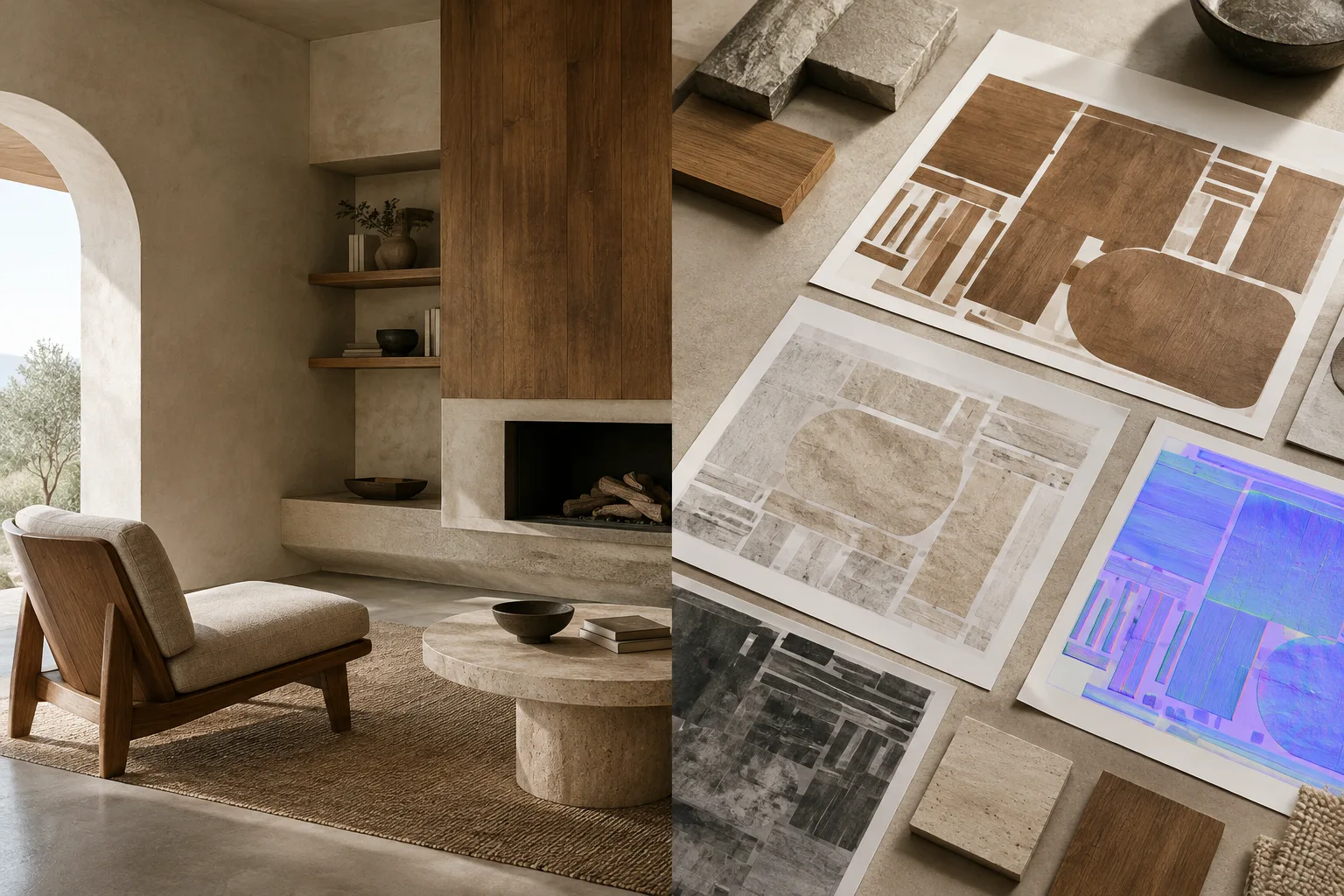
Texturing an architectural model involves more than choosing a material. You also need to prepare UV coordinates, which determine where and how an image appears on the model. Blender’s UV workflow covers unwrapping mesh surfaces onto a 2D plane and arranging UV islands. You can then use Cycles to bake color, normals, ambient occlusion, shadows, or other surface information into an image.
This guide first walks you through preparing and unwrapping a model, then setting a bake target and creating the appropriate map. The aim isn’t to apply one recipe to every model, but to choose the right method for the architectural object’s geometry and intended use.
Requirements
The workflow is described using Blender and Cycles. The source guides don’t specify a particular Blender version, so no version requirement is given here. The sources also don’t mention any account requirements.
Before you begin, prepare the following:
A mesh to unwrap. Meshes created in Blender may not have UVs by default.
For baking, a UV map and a Color Attribute or an image connected to an Image Texture node to use as the target.
Geometry suited to the selected bake type. For example, Selected to Active is used to transfer information from a high-detail object to the active object.
Consider when to unwrap the model if you’re still working on its geometry. The official guide recommends starting UV unwrapping once only minor changes to the geometry remain. You can add faces or subdivide existing ones after the UVs are ready, but you may need to check how the new faces are mapped and adjust the UVs if necessary.
1. Prepare the mesh for UV editing
Unwrap the mesh in Edit Mode in the 3D Viewport. Selecting the UV Editing workspace from the workspace selector at the top gives you a 3D Viewport in one area and a UV Editor in the other. You can work in Vertex, Edge, or Face Select mode.
Think of UVs as a 2D projection of the model’s surface: points on the model correspond to coordinates in the UV map, edges to lines, and faces to UV surfaces. These coordinates determine how an image or texture is positioned across the mesh. Since different faces of a model can be assigned to different UV textures, you can also work with separate texture layouts for different parts of a single model.
If the model’s curves or shape call for it, consider marking seams before unwrapping. Then select the required mesh faces in the 3D Viewport and use one of the Unwrap methods in the UV menu. After unwrapping, inspect the resulting islands in the UV Editor; you can change the last operation’s settings in the Adjust Last Operation panel. Add a test image to check for distortion in the image you plan to use, and review the UV layout.
2. Inspect and adjust the UV islands
Once unwrapping is complete, inspect how the UV islands are distributed across the image area. A face’s UV coordinates determine how the texture image fits that face, so problems with island placement can make the texture look unexpected on the model. At this stage, assess your UV Editor adjustments alongside any changes to the model’s geometry.
If you add faces or subdivide existing ones after creating the UVs, the new geometry may be added to the UV map automatically. Even so, check that it has been mapped correctly; remap or adjust the UVs if needed. The important thing is not to assume the job is done just because unwrapping has finished: verify the mapping on the surface using a test image.
3. Choose the bake target and map type
To bake, the mesh needs a UV map and you need to set an output target. The target can be the active Color Attribute layer or an image connected to the active and selected Image Texture node. If you’re baking to an image, the bake output may not be generated for a material without an active and selected Image Texture node.
In Cycles, the bake type determines which information is written to the map. For example:
Ambient Occlusion bakes ambient occlusion information without taking the scene’s lights into account.
Shadow transfers shadow and lighting information.
Normal writes surface normals to an RGB image.
Diffuse, Roughness, Emit, Glossy, and Transmission generate the corresponding material passes.
Combined combines material, texture, and lighting information, excluding specularity.
Choose a bake type based on how you plan to use the map. For example, select Normal if you need a normal map; if you need lighting information, choose a type that includes the information you want. Cycles ties bake quality to the scene’s render settings, so account for the effects of settings such as sampling and light bounces.
4. Run the bake and verify the output
Set the target image or Color Attribute layer, choose a bake type, and start the process from the Render Bake panel. When baking to an image, the Clear Image option clears the existing image before baking. Check whether it’s enabled based on whether you need to preserve the current image.
The margin around UV islands helps prevent discontinuities along seams. This is because image filtering and mipmapping can affect UV boundaries. The Extend margin method expands edge pixels outward; Adjacent Faces uses neighboring faces across the seams. You can also set the margin size in pixels.
After baking, check not only that the map was created, but also the UV island boundaries and how the image looks on the model. If you see unexpected gaps or seams, first check that the correct target is selected, then review the UV layout and margin settings.
Common mistakes
Starting a bake without a UV map: The mesh must have a UV map to bake.
Targeting the wrong image node: Check that the Image Texture node is active and selected; materials that aren’t targeted may not produce output.
Choosing a bake type that doesn’t match your needs: Normal, Ambient Occlusion, and Shadow produce different information. Decide what output you need first.
Ignoring the seam margin: A zero or insufficient margin can cause discontinuities at UV boundaries during image filtering.
Not checking UVs after changing the geometry: Even if new faces are added to the map, you may need to review their placement.
When using Selected to Active to bake from a high-detail model to an active low-detail model, rays are cast from the low-poly object toward the high-poly object. If the high-detail object doesn’t fully enclose the low-detail one, the Max Ray Distance or Cage options can help. When using a cage, you can also specify a Cage Object. The source guide also notes that combining high-poly objects used as the bake source can help reduce bake memory issues.
Next steps
Start by testing UV unwrapping, a test image, and baking on a small, representative part of the model. If the result looks right, apply the same approach to the rest of the model. If you plan to use the map for a different purpose, choose the bake type accordingly. For a normal bake, you can use Object or Tangent space; Tangent is the default and is considered suitable in most cases. For accurate results, the normal space selected during baking must match the Normal Map space setting in the image texture.
Sources and license
This guide was adapted into Turkish using the UV unwrapping introduction and Cycles Render Baking guides in the Blender Manual. Both sources are licensed under CC BY-SA 4.0.
Sources
2 sourcesSource texts are not republished; short quotes are marked, everything else is our own summary and commentary.
For architecture and interior visualization teams, the practical value of this workflow is that it lets you transfer surface information into separate maps and test the UV layout before production. If you’re planning real-time use or further texture work, it’s worth deciding on the right bake type and target early in the process.
For offices and students in Turkey, one strength of the guide is that it explains the basic steps without making claims about additional licenses or hardware. However, since bake quality depends on the scene’s render settings, it’s important to test results with the settings used in your project. You should also verify how the Blender version you plan to use behaves and whether its output is compatible with your subsequent workflow.
Frequently asked questions
Do you need a UV map to bake in Blender?
Yes. According to the Blender Manual, baking requires a UV map on the mesh and a selected Color Attribute or Image Texture target.
What types of information can Blender Cycles bake?
Bake types include Ambient Occlusion, Shadow, Normal, Diffuse, Roughness, Emit, Glossy, Transmission, and Combined.
How can I reduce gaps along UV seams?
When baking to an image, you can add a margin around the UV islands. Blender offers the Extend and Adjacent Faces methods.