In brief
- Depth of field is determined by focus distance, aperture, and focal length working together.
- A lower f-stop creates more noticeable blur in the foreground and background.
- In a Cinematic Camera Actor, you can enter a Manual focus distance, while Tracking locks focus onto an object in the scene.
- According to the documentation, the aperture blade simulation that shapes bokeh is supported with Epic or Cinematic scalability settings.
What will you learn in this guide?
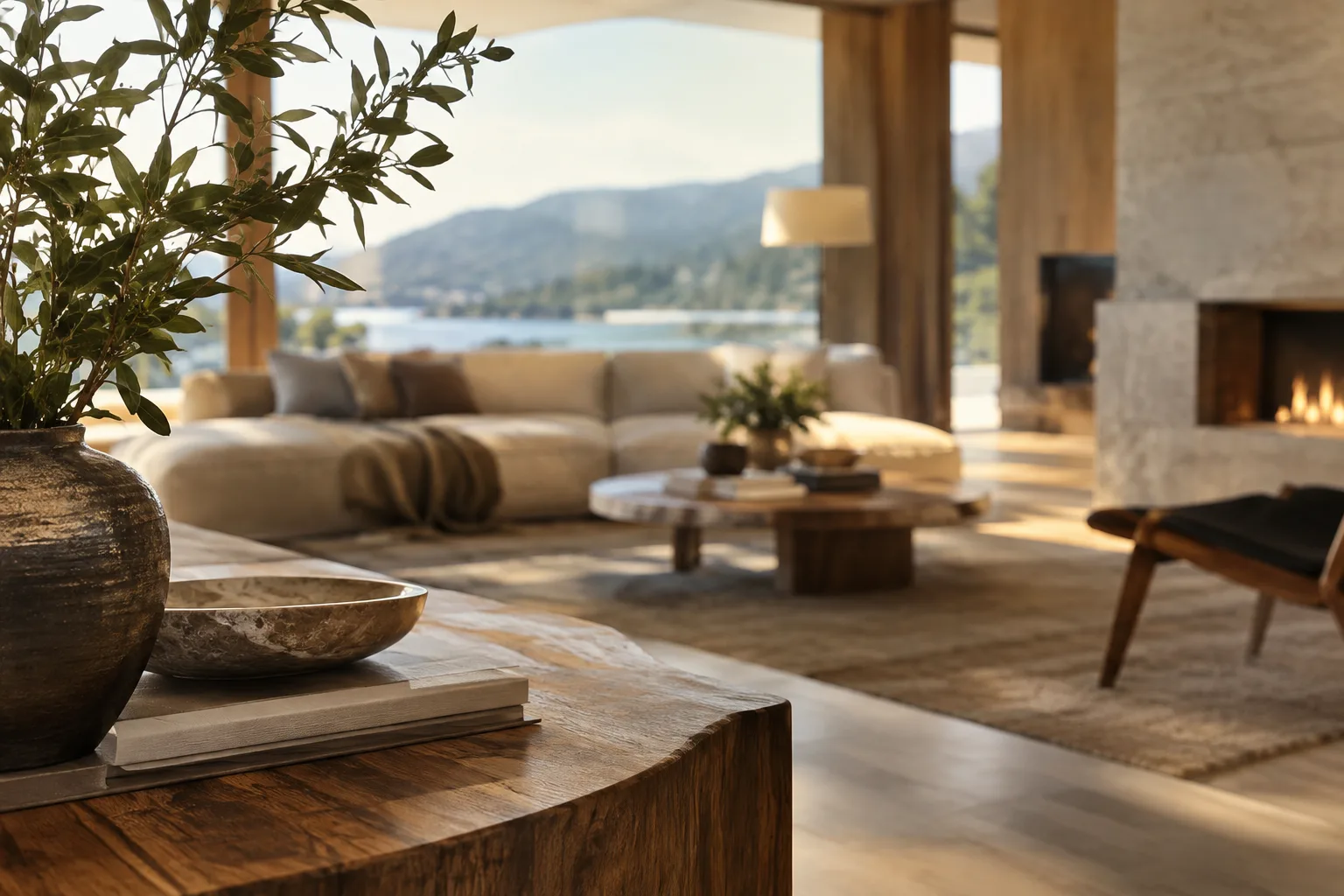
Depth of field brings the area in focus into prominence while blurring the areas in front of and behind it. In architectural visualization, this effect can be used to highlight a piece of furniture, a material detail, or a specific point in an interior. But blur is not just an effect setting: focus distance, aperture, and focal length all need to be considered together.
In this guide, you’ll adjust these three variables in turn using Unreal Engine’s cinematic depth of field approach, view focus layers, and check for common mistakes. The goal is not to blur the entire scene, but to make a deliberate choice about what should remain sharp to support the visual narrative.
Requirements and version notes
This guide is based on the principles of cinematic depth of field described in the Unreal Engine documentation. You can use a Cinematic Camera Actor or Cine Camera Actor to adjust camera settings. The documentation associates the cinematic depth of field method with the Deferred Shading and Clustered Forward rendering paths on desktop and console platforms.
One of the sources is a version page for Unreal Engine 4.27; the other provides a general explanation of cinematic depth of field. As a result, menu and feature names may differ in the version you’re using. The sources do not specify hardware requirements. For aperture simulation, the documentation says Engine Scalability must be set to Epic or Cinematic; at lower quality settings, bokeh may appear as uniform circular shapes.
Set up depth of field step by step
Identify the main subject in the frame. First, choose the object or part of the space you want the viewer to focus on. In an interior shot, the focus point might be an object on a table, a seating area, or an architectural detail in the background. Focus distance is the distance from the center of the camera lens to the subject you want in focus.
Choose a focus method. The Focus Settings section of the Cinematic Camera Actor includes Focus Method options. Manual lets you specify or animate a particular focus distance. Tracking ties focus to a specific object in the shot. None disables the depth of field effect. For a static architectural shot, Manual gives you control over the target distance; for a moving shot, consider whether tracking an object is appropriate.
Set the focus distance for the scene. As the subject moves closer to the camera, you can expect the background to fall further out of focus. Changing the focus distance also moves the plane of focus in the scene. For example, bringing an object in the foreground into focus may blur a more distant wall or window. As you adjust the value, look not only at the target object but also at how blur is distributed across foreground and background elements.
Control the aperture with f-stop. Lower f-stop values correspond to a wider aperture and produce a shallower depth of field, resulting in more foreground and background blur. Higher f-stop values increase the depth of the in-focus area. The documentation compares f/1.4, f/2.8, and f/5.6; the key is not to apply one value to every scene, but to choose based on the amount of sharpness you want.
In Unreal Engine, changing the f-stop does not affect light intensity as it would on a real camera. So don’t assume you need to compensate for exposure when adjusting the aperture to control depth of field. This difference is especially important to keep in mind if you’re aiming for a visual match with real-world camera behavior.
Consider focal length alongside framing. Focal length is measured in millimeters; as it increases, the field of view narrows. The documentation gives examples of 50 mm, 75 mm, and 100 mm. Increasing focal length has an effect similar to zooming in, and can make out-of-focus areas more noticeable. To preserve the architectural framing, recheck the field of view and composition when changing focal length.
View the focus layers. In the viewport, open the Show menu and enable Advanced > Depth of Field Layers to inspect which areas are in focus. In the documentation’s visualization, black represents the in-focus area, green the foreground, and blue the background. This view helps you understand how the selected focus affects not just the main subject but other parts of the scene as well.
Check the bokeh shape and camera limits. The number of aperture blades affects the shape of the bokeh; fewer blades create more angular shapes, while more blades produce rounder ones. In the Cine Camera Actor settings, you can define the lens’s min/max f-stop, aperture blade count, and focal length limits. The selected f-stop must fall within the defined lens range.
Common mistakes
Blurring everything: If you increase depth of field to the point where the main subject is no longer readable, the scale of the architectural space and the relationships between materials can fade into the background. Check which elements need to remain sharp, then adjust focus distance, f-stop, and focal length separately to identify what’s causing the effect.
Changing focal length just to get more blur: Focal length also changes the field of view. Adjusting a variable that affects framing without checking the composition can therefore undermine the intended architectural view.
Assuming real-camera exposure behavior: According to the documentation, changing f-stop in Unreal Engine does not control light intensity. When adjusting depth of field, don’t assume the scene’s exposure will behave as it would with real camera settings.
Assuming bokeh simulation works at every quality level: Aperture blade simulation requires the Epic or Cinematic scalability setting. If the shape appears circular at lower quality settings, that may mean the blade setting isn’t being applied.
Impact on the architectural visualization workflow
This method helps establish visual hierarchy in interior shots that highlight a particular design element and in cinematic camera moves. Architecture and interior design offices can use Manual focus to set a repeatable focus point for static presentation images, and consider Tracking for moving shots. For archviz artists, the most important thing is to ensure depth of field doesn’t overshadow design decisions or make the space harder to read.
Before adding this to your workflow, check which Unreal Engine version and quality settings you’re using. The sources give no specific hardware requirements or licensing costs, so no further assumptions can be made on these points. The scalability condition specified for aperture simulation is something teams producing output at different quality settings should test in particular.
Next steps
First, keep the focus distance fixed in the same camera and scene while changing the f-stop; then keep the f-stop fixed and compare focal lengths. Finally, shift focus to different objects. Taking notes on the framing and where the in-focus area begins in each test makes it easier to identify which variable caused the result. If you’re using camera movement, try animating the Manual focus value or using Tracking, depending on what the shot requires.
Sources and license
This guide has been adapted into Turkish based on Epic Games’ “Cinematic Depth of Field in Unreal Engine” documentation and the Unreal Engine 4.27 “Cinematic Depth of Field Method” page. The sources are identified as freely licensed.
Sources
2 sourcesSource texts are not republished; short quotes are marked, everything else is our own summary and commentary.
Depth of field can help direct a client’s attention to a specific point in architectural presentations, but excessive blur can make it harder to read the overall space and design decisions. Offices should therefore test the effect not only in close-ups but also in wide shots.
For teams in Turkey, the practical value of this approach lies less in any need for a new hardware investment—which the sources do not mention—and more in checking the quality settings correctly. In particular, aperture simulation is specified as requiring Epic or Cinematic scalability settings. It’s worth verifying the look across different workstations and delivery settings, while also keeping version differences in mind.
Frequently asked questions
Which settings affect depth of field in Unreal Engine?
Focus distance, aperture f-stop, and focal length all contribute. Together, these variables determine the position and depth of the in-focus area, as well as the appearance of blur.
What happens when you lower the f-stop in Unreal Engine?
A lower f-stop creates a shallower depth of field and more blur in the foreground and background. In Unreal Engine, this setting does not control light intensity.
Can focus be locked onto an object in Unreal Engine?
The Tracking focus method in the Cinematic Camera Actor ties focus to a specific object in the shot. Manual lets you enter an exact focus distance or animate it.