In brief
- Veo 3.1 can generate 8-second videos at 720p, 1080p, or 4K resolution.
- The model supports landscape 16:9 and portrait 9:16 video formats.
- Up to three reference images can be used to guide generation.
- Gemini API access and an API key are required; the sources do not specify pricing or the required client software version.
What will you learn in this guide?
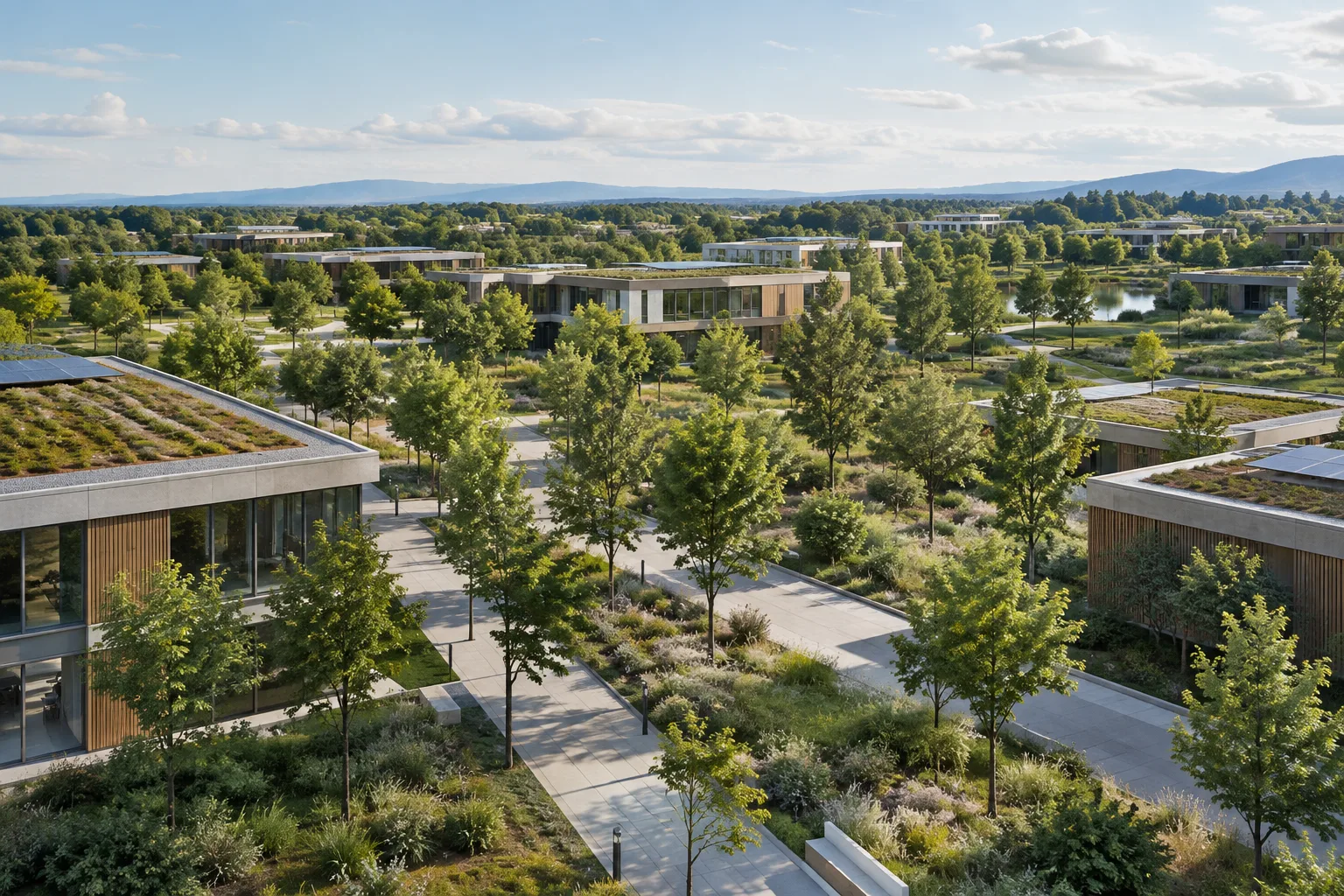
Veo 3.1 can be explored as a way to create short camera moves for architectural projects, clips that convey an interior’s atmosphere, or video segments for presentations. Don’t assume that a single render frame is simply converted into a moving video: the model supports using up to three reference images to guide generation. You can therefore use an existing image as a visual reference and describe in your prompt how the scene should move. This guide covers how to describe a scene’s key features, choose a landscape or portrait frame, and incorporate reference images if available.
The model can generate 8-second videos with natively generated audio. Google’s guide lists 720p, 1080p, and 4K resolution options, along with landscape 16:9 and portrait 9:16 formats. These are output options; on their own, they do not guarantee architectural accuracy or flawless results for the requested camera movement.
Requirements and getting started
Veo 3.1 is available programmatically through the Gemini API. You can obtain an API key from Google AI Studio. Since the sources do not specify a required account plan, price, client library version, or special hardware requirement, don’t assume any of these and build them into your workflow. The API examples show usage with Python, JavaScript, Go, Java, and REST, but do not specify a version number.
The documentation also includes an important API detail: a note on the Veo page says the feature is currently available only through the generateContent API, while examples on the same page also include a call named generate_videos. When developing your application, don’t assume these two references are interchangeable; confirm the API route and model name you intend to use in the latest official guide. The examples show the model ID as veo-3.1-generate-preview.
Before starting the workflow, gather your materials: a short text description of the scene, any reference images you want to use for guidance, and how the video will be used. Veo 3.1 supports reference images and can be guided by up to three of them. The listed capabilities also include generating a video by specifying its first and last frames, and extending videos previously generated with Veo.
Step-by-step architectural video prompts
The prompts below are original examples written for architectural and interior projects, not examples copied from the source documentation. Try each one separately. Rather than asking for many different scenes and movements in a single prompt, describe the space and camera movement clearly.
Exterior approach shot: Use this to show the building’s massing and surroundings in a single move. Specify which part of the building should stand out and the direction of movement.
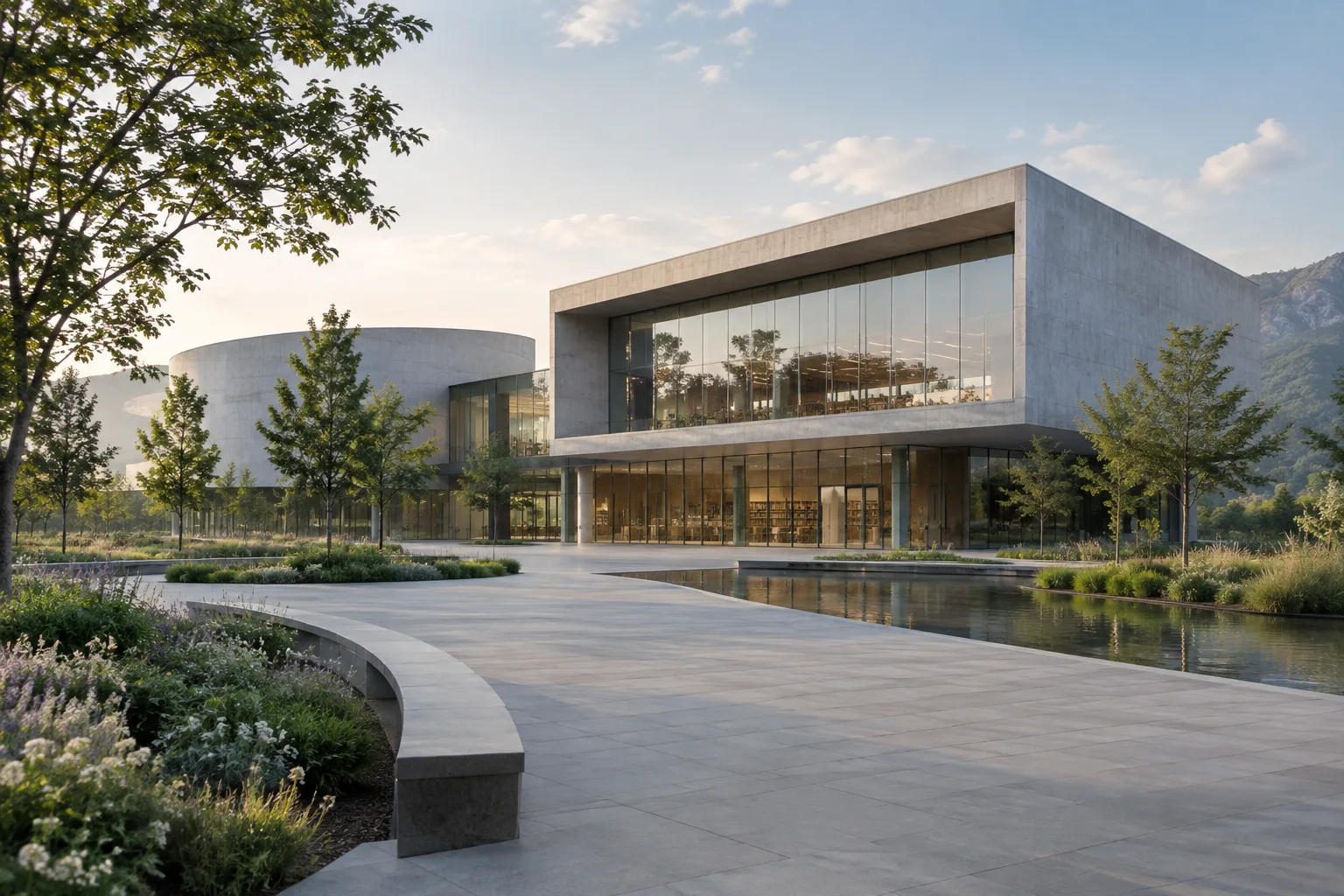
Photorealistic architectural visualization of a contemporary cultural building. The camera moves slowly and steadily toward the building from across the plaza; keep the façade rhythm, entrance canopy, and surrounding landscape visible. Daylight, natural material textures, landscape 16:9 framing.This prompt specifies the type of space, camera movement, elements to keep visible, and framing. Check separately whether the façade elements remain consistent in the generated video.
A gentle camera move through an interior: Describe both the scene and the movement to convey circulation or material relationships in a short shot.
A photorealistic residential interior: open-plan living area, wood surfaces, and large windows. The camera moves slowly from the entrance toward the living area; keep the furniture and window openings clearly visible in the frame. Soft daylight, natural colors, landscape 16:9 video.This prompt makes clear which direction the interior should be viewed from. Compare the result with your project visuals; check whether the doors, windows, furniture, and circulation relationships have changed.
Portrait presentation framing: Portrait format is one of the video options listed as supported in the source. Describe the key architectural feature within the portrait frame.
Architectural visualization of a contemporary home designed for a narrow urban lot, in a vertical 9:16 frame. The camera starts at sidewalk level and rises smoothly toward the upper floors of the façade; keep the entrance, balconies, and roofline within the frame. Realistic daylight and restrained material colors.This prompt specifies the portrait aspect ratio and camera movement together. Check whether the result suits the intended presentation format and whether any important parts of the building fall outside the frame.
Guiding generation with reference images: If you use one or more images, describe in the prompt how they should guide the scene. Veo 3.1 supports up to three reference images.
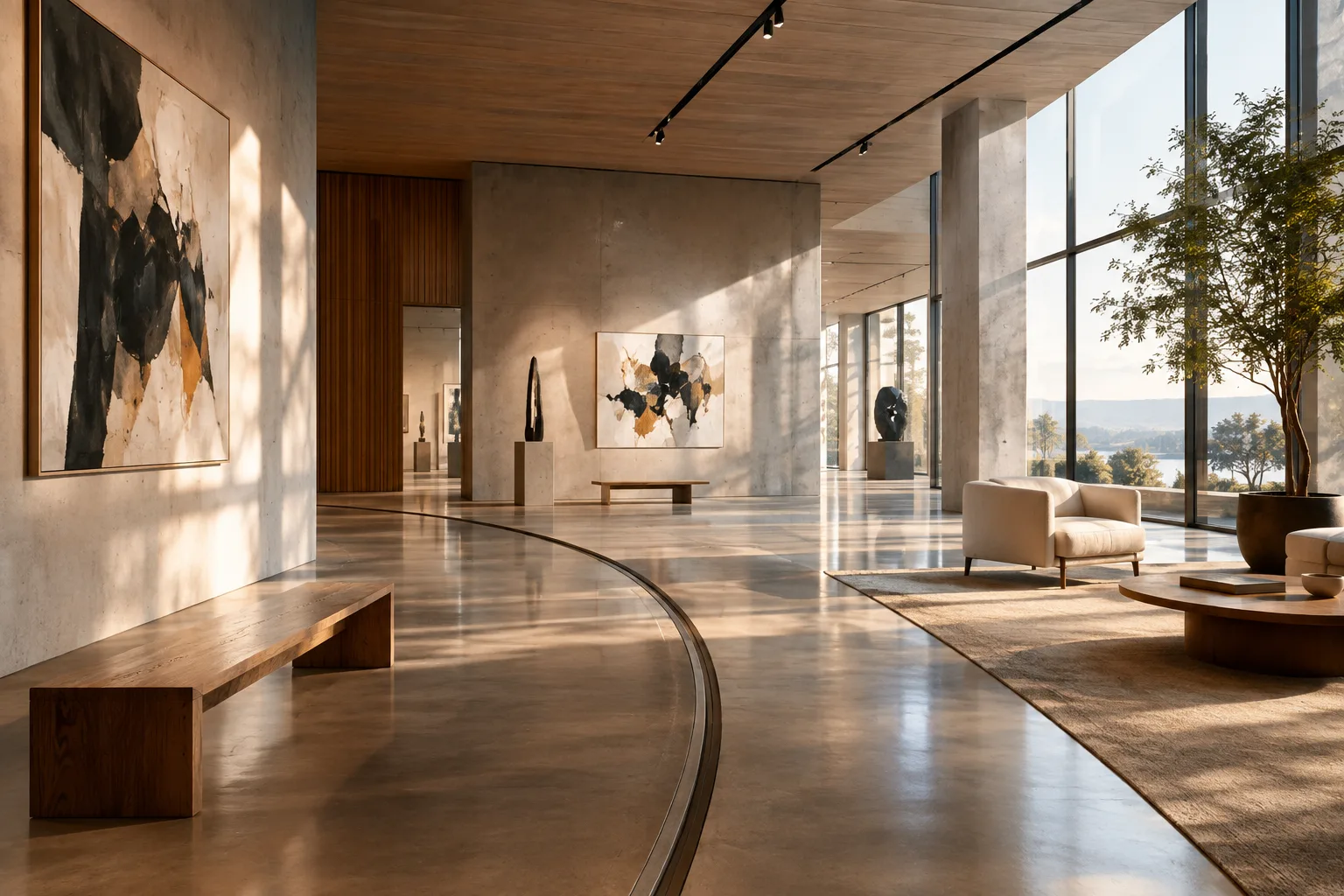
Create a video of a boutique hotel lobby that retains the material and color approach shown in the reference images. As the camera slowly pans from the reception area toward the seating area, keep the ceiling height and main circulation route visible. Calm, natural lighting; landscape 16:9 framing.Here, the prompt asks the references to guide the material and color approach; this does not guarantee an exact reproduction of an existing model or project geometry. Treat the result as a visual communication experiment, not a substitute for design decisions.
Setting the direction with first and last frames: The source lists the ability to guide generation by specifying the first and last frames. You can use this approach to test the idea of a short transition between two different views.
Create a short architectural camera move that starts with the first frame of a museum gallery and ends at the main exhibition wall shown in the final frame. The camera moves forward slowly; maintain continuity throughout the space, including the wall surfaces and lighting arrangement. Photorealistic look, landscape 16:9 framing.When selecting the first and last frames, aim for the same space and viewpoints that can be connected. Describe the movement between them in the prompt, too; don’t assume in advance that the transition between the two frames will turn out a particular way.
Common mistakes and checklist
Adding too many variables: Asking for multiple spaces, numerous camera moves, and unrelated visual goals in one clip makes the result harder to assess. Start with a single scene and movement.
Not describing the camera: Rather than giving a vague direction such as “an impressive architectural video,” state where the camera starts and which way it moves.
Leaving out the output format: Specify landscape 16:9 or portrait 9:16 in the prompt, based on your intended use. The source lists both formats as supported.
Treating the output like a technical drawing: The use described in this guide is for short visual presentation and storytelling experiments. Don’t use the generated video as a construction project or for dimensional verification; check the architectural elements.
Following API examples without checking they’re current: The API note and example call names in the documentation use different wording. Confirm the correct access route in the latest guide before coding.
Where it fits in architectural and visualization workflows
Short camera moves are worth exploring for architecture firms and visualization teams looking to communicate a presentation idea, show an interior atmosphere in motion, or create an alternative video draft for project communications. Students can also explore how to present the same scene using different framing or camera approaches. However, the sources do not specify a direct connection between Veo 3.1 and any particular 3D software, or state that it preserves model geometry.
So, confirm the applicable license and cost terms first; the sources do not disclose pricing. They also do not provide hardware requirements, so it would be incorrect to infer that a specific graphics card or local rendering capacity is required: access is described through the Gemini API. Work with reference images, frame selection, and resolution options, and keep the result separate from project documents that require technical accuracy. Analyzing existing videos is a different use case from generating them; Google’s video generation guide points to a separate video understanding guide for that purpose.
Next steps
For your first test, choose one scene and one camera move, then try the same idea separately in landscape and portrait framing. If you use a reference image, compare the resulting materials and spatial relationships one by one. If you need continuity of motion, explore Veo’s video extension feature; the source says videos previously created with Veo can be extended. If you need to analyze existing footage rather than generate new content, refer to the video understanding guide.
Sources and license
This article draws on information in Google’s Gemini API Veo 3.1 guide and video generation guide; the architectural and interior-focused prompt examples are original. The source documents are licensed under CC BY 4.0; the content has been adapted into Turkish.
Sources
3 sourcesSource texts are not republished; short quotes are marked, everything else is our own summary and commentary.
Veo 3.1 may help firms and students quickly test ideas for short presentation clips, and could be useful in particular for scenes told through camera movement. However, the sources do not explain pricing, access plans, or hardware requirements for Turkey. It’s therefore important to confirm the API terms before estimating production volume and costs.
For work that requires architectural accuracy, the video should not be treated as a replacement for the project model. The option to guide generation with reference frames is useful, but the sources do not say that geometry or all design decisions will be preserved exactly. The best approach for firms is to test the output as a draft and visual communication asset, then review the selected frames and spatial relationships as a team.
Frequently asked questions
How long are videos generated with Veo 3.1?
According to Google’s guide, Veo 3.1 can generate 8-second videos with natively generated audio.
Which resolutions and aspect ratios does Veo 3.1 support?
The guide lists 720p, 1080p, and 4K resolutions, as well as landscape 16:9 and portrait 9:16 video formats.
Can Veo 3.1 videos be guided with reference images?
Yes. According to the source, up to three reference images can be used to guide video generation.