In brief
- According to Google’s documentation, Gemini Omni Flash can generate short videos from text and images, and edit videos through conversational prompts.
- A well-structured prompt can describe the subject, action, scene, and camera approach.
- Google says Veo 3.1 Preview was shut down in the Gemini API on 22 October 2026 and recommends switching to Gemini Omni Flash.
- Camera angles and advanced shot descriptions can produce variable results; you don’t need to use every component in every prompt.
What will you learn in this guide?
This guide helps you turn ideas for short videos into prompts for architectural visualization and interior presentations with Gemini Omni Flash. Instead of describing a space simply as “a beautiful interior,” you can think separately about what the video will show, what kind of movement it will include, what the setting will look like, and how the camera will behave.
In its Gemini API documentation, Google describes Gemini Omni Flash as a model that can generate short videos from text and images, and supports editing through multiple turns. The guide’s editing examples include changing an element or varying the perspective. The sources don’t say that results will precisely match a specific architectural dimension, material, or construction drawing, so it’s more appropriate to treat generated clips as visual content for communicating a design idea.
Requirements and current model information
In Google’s video generation guide, Gemini Omni Flash is shown generating videos and editing them conversationally through the Gemini API. The model ID in the documentation is gemini-omni-1.1-flash. The sources don’t explain account setup, pricing, usage quotas, or specific hardware requirements. Check API access and current terms of use separately before generating content.
One other important change: Google says Veo 3.1 Preview was shut down in the Gemini API on 22 October 2026. As a result, workflows using the old preview version may need to switch to Gemini Omni Flash or another GA model specified by Google. The examples in this guide are designed for Gemini Omni Flash.
You don’t have to combine every element into one long sentence when writing a prompt. Google’s guide treats the subject, action, scene and context, camera angle, and camera movement as separate components. You don’t need to use all of them in every video, either.
How to create an architectural video prompt step by step
Choose the main subject of the video. The subject is the person, object, or space the video focuses on. For an architectural example, it could be a home’s entry hall, a furnished living room, or a building model. Name clearly what viewers should look at, rather than using a general description such as “interior.”
Choose a visible action. Unlike a static render, a video involves movement. The camera might move toward the space, travel along a surface, or show a breeze gently moving the curtains. Define one main movement instead of trying to fit many successive events into a short clip.
Describe the space and atmosphere. Specify where the scene takes place and under what conditions. Details such as daylight, dusk, reflections after rain, or dust particles visible in sunlight can establish the setting. Describe the materials and atmosphere of an interior, but note that the sources don’t describe any material or architectural-dimension checks whose accuracy is guaranteed.
Choose the camera’s viewpoint and movement. You can use a shot description such as wide shot, bird’s-eye view, eye level, or close-up. If movement is needed, describe a static camera, a slow pan, tilt, dolly, or a camera moving sideways. Google specifically notes that advanced angles may not be officially supported and that results can vary in consistency.
Simplify the description around one main idea. The subject, movement, setting, and camera should work together in the prompt. Build a scene that can be clearly shown in a short video instead of adding many unrelated events. If the first result isn’t what you wanted, clearly describe the element or perspective you want to change in the next editing turn.
The sample prompts below were created specifically for this guide. Their being written in English doesn’t mean English is required by Google’s documentation; the sources don’t specify a required prompt language.
Example 1 — Slow camera movement through an interior:
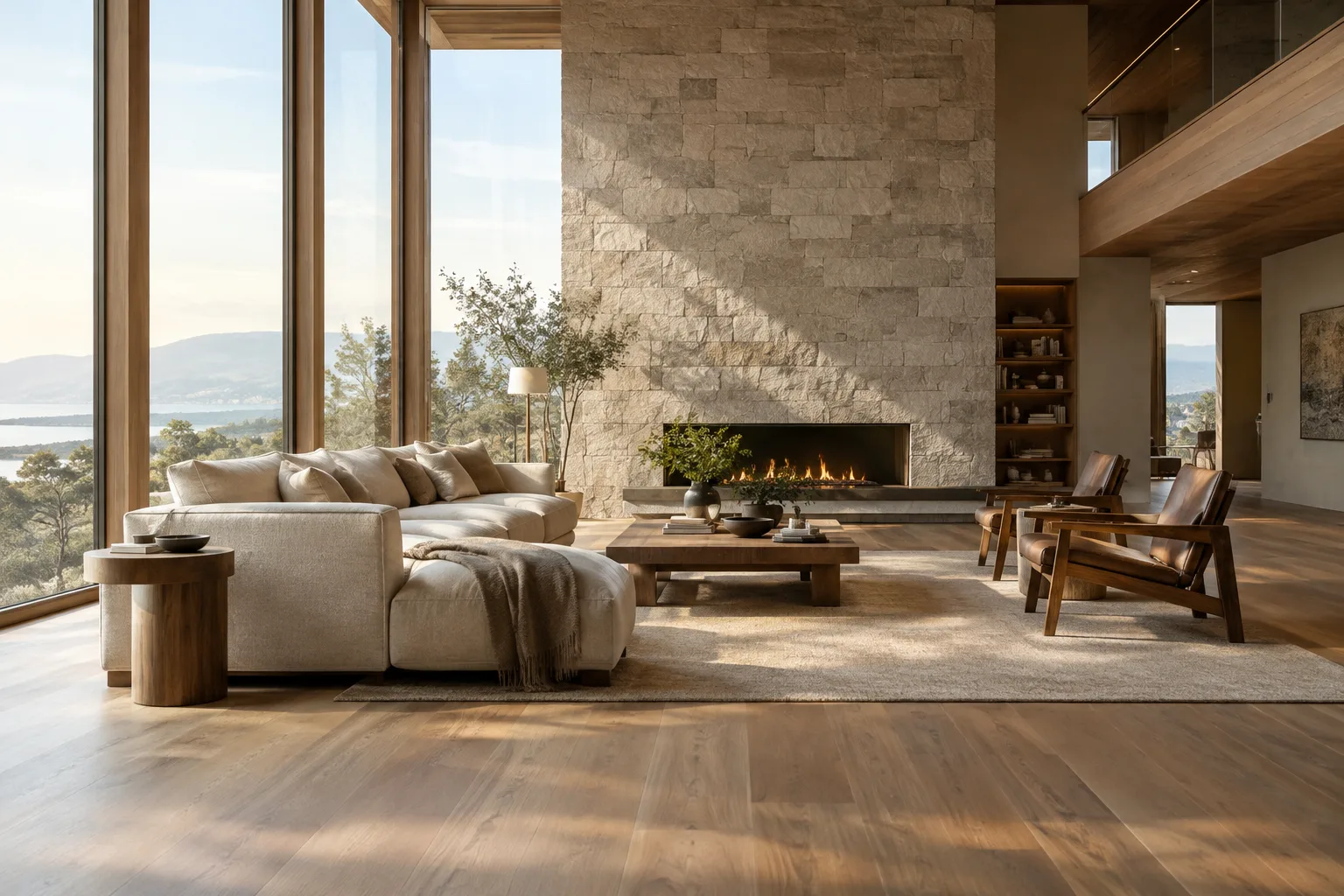
A wide architectural video of a calm contemporary living room at early morning. Soft sunlight enters through tall windows and moves gently across the timber floor. A slow dolly in toward the seating area, keeping the room and its proportions in view. Quiet, natural atmosphere.This example makes the space the main subject, uses morning light as a setting detail, and the approaching camera as the single defining movement.
Example 2 — An elevated shot of a façade:
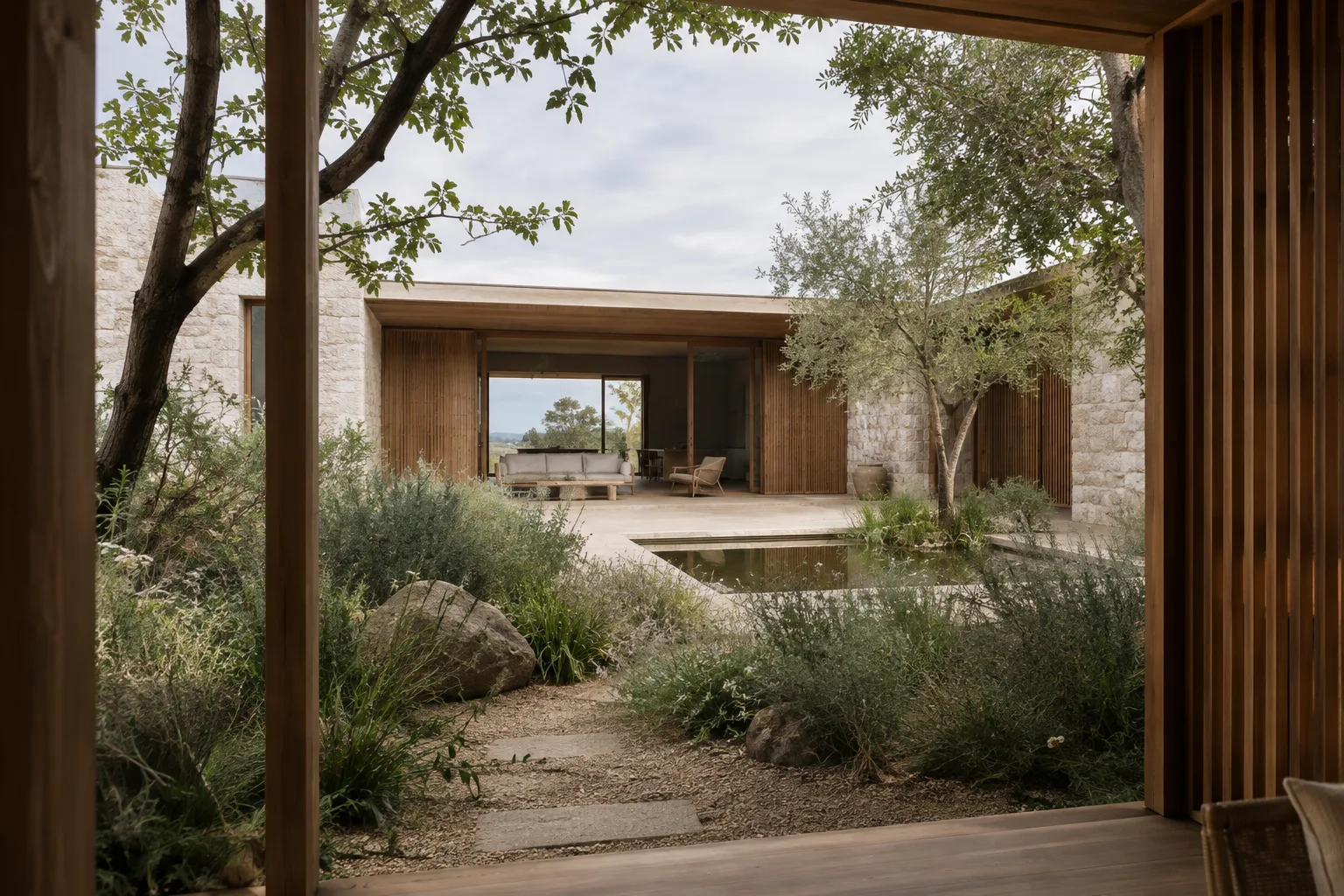
A bird's-eye view of a small courtyard surrounded by a contemporary residential building. Leaves move gently in a light breeze while the camera slowly pans across the courtyard, revealing paving, planting, and the building edges in soft overcast daylight.Here, the bird’s-eye view helps communicate the courtyard’s overall layout. The moving leaves and horizontal camera movement bring motion to the scene. According to the guide, advanced camera angles may not produce equally reliable results in every case.
Example 3 — A close-up of material and detail:
A close-up architectural video of warm light falling across a textured stone wall beside a timber door. The camera slowly tracks right along the surface, revealing subtle shadows and material texture. Still, quiet interior, soft afternoon light.Rather than showing the whole building, this prompt focuses on the relationship between surfaces around the wall and door. The close-up and lateral movement suggest a presentation that highlights the feel of the materials.
Common mistakes
Naming the space but leaving everything else unclear: A general description of the subject doesn’t describe the video’s movement or framing. Think separately about what will be shown, what movement will take place, and the conditions of the scene.
Packing too many events into a short clip: Google’s guide recommends describing longer transformations with the clip duration in mind. In a video prompt, prioritize one clear action over many competing movements.
Not connecting the camera term to the scene: A bird’s-eye view can help show a courtyard or plan layout, while a close-up focuses on surface details. Match the camera description to the idea the video should convey.
Treating the first result as final: Gemini Omni Flash supports multi-turn conversational editing. If a particular element or perspective isn’t as intended, try a new turn that clearly describes the change instead of making the whole prompt more complicated from scratch. Still, the sources don’t guarantee that every change will produce the desired result.
Next steps for architecture and visualization workflows
Architecture firms and visualization teams can use short videos as presentation content to communicate a space’s atmosphere or design concept. Interior designers can create scenes that emphasize material and lighting relationships, while architects can highlight camera movements such as an approach or an overall view. Students can also use the guide’s components to try a single scene idea with different angles and movement descriptions.
For actual project delivery, separately check that the generated video meets expectations for dimensions, detail, and visual consistency. Google’s sources don’t provide specific hardware requirements, licensing costs, or guarantees of architectural accuracy. If you’re planning paid use or client delivery, review the current API terms and project requirements in advance. To get started, choose a single interior scene, define one main movement, and try another editing turn after noting what you want to change in the result.
Sources and license
This guide was adapted into Turkish using Google AI for Developers’ Gemini API video generation documentation and Google Cloud’s video generation prompt guide. Both pages specify a CC BY 4.0 license for their content unless otherwise stated. This article summarizes technical information from the sources; the prompt examples were written specifically for architectural and interior scenarios.
Sources
2 sourcesSource texts are not republished; short quotes are marked, everything else is our own summary and commentary.
For architecture firms and visualization teams in Turkey, Gemini Omni Flash may be a practical way to experiment with turning an existing presentation idea into short animated scenes. It can be useful to think about prompt components separately, especially in concept videos that communicate atmosphere, camera movement, and the perception of materials.
However, the sources don’t explain pricing, quotas, licensing costs, or hardware requirements. Before regular production or client delivery, clarify API access and terms of use; videos shouldn’t be presented as proof of architectural dimensions or project accuracy. Teams using Veo 3.1 Preview should take the transition information into account.
Frequently asked questions
Can Gemini Omni Flash generate architectural videos?
Google describes Gemini Omni Flash as a model that can be used to generate short videos from text and images. Architectural and interior prompts can be created for this general video generation capability.
What should an architectural video prompt for Gemini Omni Flash include?
You can include the subject, action, scene context, and camera direction. Google notes that not every prompt needs to include all of these components.
Is Veo 3.1 Preview still available in the Gemini API?
According to Google’s documentation, Veo 3.1 Preview was shut down in the Gemini API on 22 October 2026. Google recommends switching to Gemini Omni Flash or the specified GA models.