In brief
- Mapping Randomizer applies random offsets, rotations, and scaling to textures by object or surface element.
- The Randomize by setting offers different distribution scales, including Instance, Mesh Element, and Polygon.
- Multi Map can randomly distribute different textures or solid colors across objects in a single material.
- The official release notes for Corona 16.0, dated November 4, 2026, state that Mapping Randomizer export to Vantage has been improved.
What you’ll learn in this tutorial
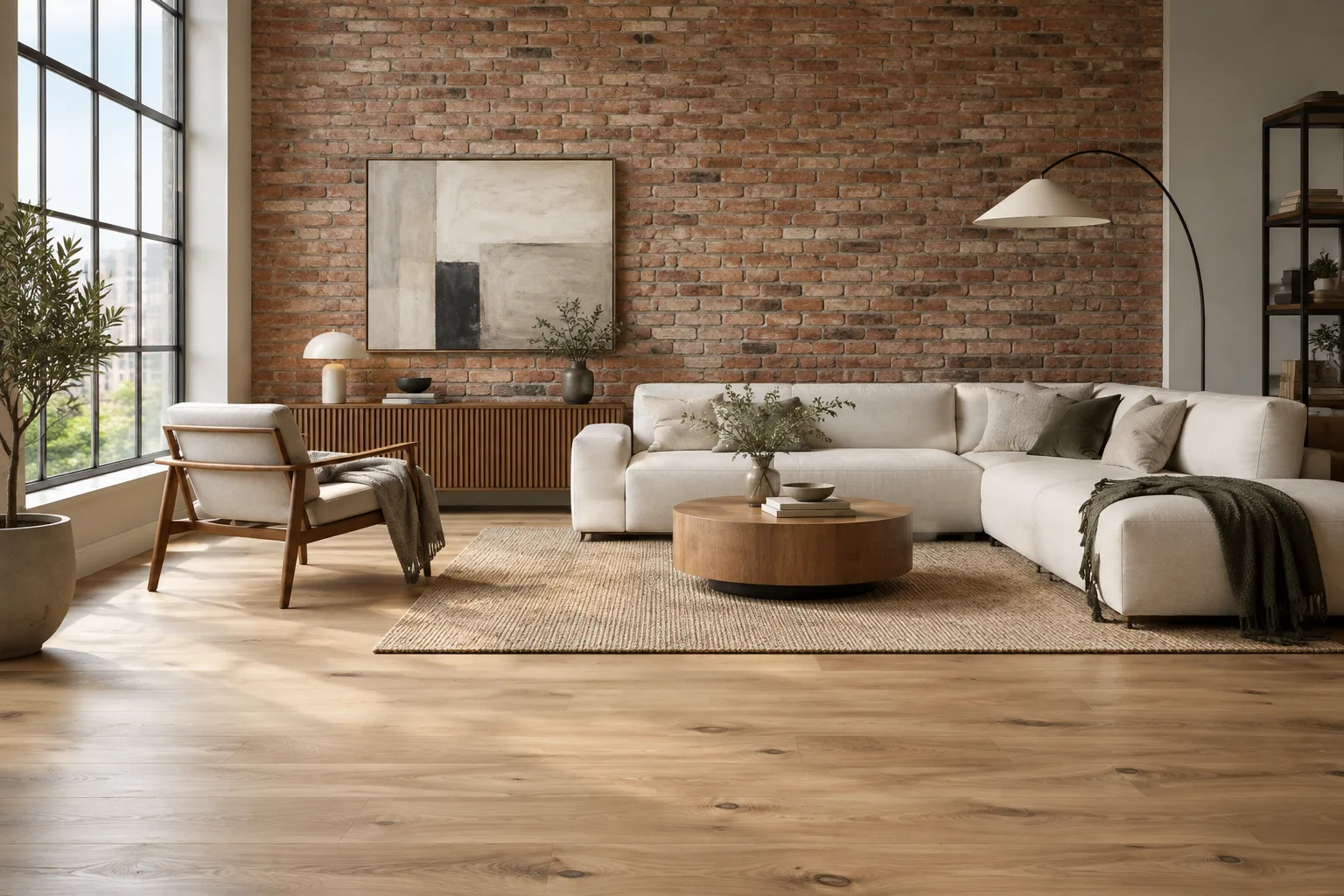
Wood flooring with identical-looking grain or a large brick wall with a repeating pattern can make surfaces look artificial in a render. Corona Mapping Randomizer helps reduce the visibility of these repetitions by randomly changing the position, angle, and scale of a texture on the map. Corona Multi Map can assign different textures or colors to objects or surfaces, depending on the selected distribution method. Used together, the two tools can add variation to both texture mapping and color appearance.
In this tutorial, we’ll assign different texture positions to a wood surface, try to preserve the horizontal courses in a brick pattern, and use Multi Map to introduce color variation. The key is to break up repetition without losing the material’s structure and legibility.
Requirements
You’ll need a 3ds Max scene with Corona and an editable material. The tools described in Chaos documentation are part of the Corona map and material workflow.
You’ll need a bitmap or procedural map to connect to the Mapping Randomizer input. The tool supports both types of map.
The sources do not specify an account requirement, minimum software version, or license type for the steps below. No additional requirements should be assumed.
The official notes for Corona 16.0 for 3ds Max are dated November 4, 2026. They include improvements related to Vantage export; they do not state that the basic mapping steps work only in this version.
Step-by-step texture variation
1. Identify where the texture repetition appears
First, select the surface where repetition is noticeable, such as wood flooring, stair treads, or a brick wall. Connect the bitmap to the relevant input on the material and check the current texture orientation. Randomizer is not a tool for correcting texture orientation to suit the design. If the orientation is off, correct it separately using a method such as UVW editing or rotation in the bitmap properties.
2. Connect Mapping Randomizer to the material chain
Place Corona Mapping Randomizer between the map and the material property: connect the map to the Randomizer input, then connect its output to the material channel where it will be used. The tool is not intended only for base color maps; the source says it can also be used this way with grayscale bump, RGB normal, and displacement maps.
The Randomizer’s effect is not visible in the viewport preview. Don’t judge the result by the viewport alone; create a test render and inspect the changes there.
3. Choose which elements receive randomization
The Randomize by setting determines the units used to distribute map changes. The Instance option can distinguish between different scene objects or scatter instances. Mesh Element uses groups of triangles connected by edges, while Polygon uses mesh faces. The same selection can produce different results depending on how the model is divided. Choose the option based on the scene’s geometry.
You can use multiple distribution options at the same time; all active selections contribute to the result. If the image becomes too varied, test the options one at a time to see which distribution works best. The Seed value determines the permutation of random results. To get a different arrangement with the same mapping ranges, change the Seed and render again.
4. Try changes to position and orientation on wood
On repeating elements such as floorboards, the U and V Offset options let the texture appear at different positions on different pieces. In Chaos’s stair example, the offset range is set to 0–1 on both axes, allowing the texture to shift by its own width along one axis and its height along the other. This setting depends on the texture layout in the example; it is not a ready-made recipe for every bitmap.
Adjust the rotation and scale ranges as needed. If the orientation generated by Randomizer does not suit the wood grain, correct it separately using a method such as UVW Xform or rotation in the bitmap properties. In Chaos’s stair example, this correction is made by rotating the texture 90 degrees. This value is also specific to the example; check the result in your own scene.
5. Keep the brick courses aligned
Free offsets along U and V can reduce repetition in a brick texture, but uncontrolled changes along V can break the alignment of the courses. Using the Step value for V Offset limits the intervals at which offsets occur. When the value is 0, movement is not restricted to an interval; larger steps group the permitted positions into specific intervals.
The example texture from Chaos has 7 rows of bricks in one segment. The documentation calculates a value of 0.143 by dividing 1 by the number of rows in this texture, preserving the horizontal courses despite changes in position. For your own texture, first count the rows or columns in a segment and calculate the Step value accordingly. Using the example value directly with a bitmap that has a different structure may not preserve the same alignment.
6. Set up tile transforms and transitions
When Randomize each tile is enabled, changes to the position, rotation, and scale of individual tiles in the texture can be determined independently. Number of tiles controls how many tiles are used along the U and V axes. Since the UV scale of the input map can affect the total number of tiles, consider the map scale as well as this setting when making adjustments.
Blending controls the transition between neighboring tiles. At low values, seam lines may be more visible; at high values, texture details may become excessively soft. High quality blending increases the computational cost to better hide tile boundaries. According to Chaos, render times can increase by up to a factor of two in computationally intensive cases. Before using this option, compare the visual difference and render time in a test render.
7. Add Multi Map for color or texture variation
Corona Multi Map can use multiple maps or solid colors within a single material, according to different distribution modes. You can add textures individually or load multiple files using Batch load textures. Randomize by affects the distribution method, while Seed affects the random order.
Multi Map is not limited to the diffuse channel; Chaos documentation also lists reflection level and bump among its uses. Mix amount affects how input colors are blended and randomized in tone. Hue random controls hue variation, Saturation random controls saturation, and Gamma random controls changes in the midtones. Check in the render that these differences do not alter the material’s basic appearance.
Common mistakes
Looking for the result in the viewport: The Mapping Randomizer effect is not shown in the viewport preview. Check it in a test render.
Shifting the brick courses: Leaving V Offset unrestricted can break the alignment of the mortar joints. Set the Step value according to the texture layout.
Over-softening transitions: High blending can blur texture details. Adjust the values based on the rendered result.
Leaving texture orientation to chance: Randomizer does not automatically correct an incorrect UVW orientation. Adjust the orientation separately.
Overlooking the impact of name changes: Some distribution modes, such as Instance, Decal, and Material name, use object, decal, or material names. Changing these names can also change the result.
Next steps
Start with a test render of a single surface using one randomization method. Then change the Offset, Step, scale, and Seed settings separately to observe the effect of each. Add Multi Map afterward if you need color variation; remember that texture mapping and color distribution are controlled separately.
For scenes exported from Corona to Vantage, assess compatibility separately. The Corona 16.0 for 3ds Max release notes say that Vantage supports more Multi Map randomization modes and that Mapping Randomizer export has been improved. This does not mean every material will look exactly the same in every scene; verify the export with the materials you use.
Sources and licensing
This tutorial was adapted into Turkish from the “Corona Mapping Randomizer” and “Corona Multi Map” documents in the Chaos Help Center, as well as the official release notes for Corona 16.0 for 3ds Max. All sources are official Chaos documentation and are provided under free licenses: K2, K1, and K4.
Sources
3 sourcesSource texts are not republished; short quotes are marked, everything else is our own summary and commentary.
For architecture firms and visualization teams in Turkey, the practical benefit of these tools is that they reduce the need to rebuild scene geometry from scratch while breaking up the impression of repetition. A small test render on wood, brick, or surfaces duplicated with scatter can speed up material decisions and help catch excessive randomness early.
Because high-quality blending increases computational cost, its visual benefits should be weighed against render time. Teams using Vantage should review the Corona 16.0 notes and verify the export in their own scenes. The sources do not explain pricing, license terms, or hardware requirements; for these, consider the conditions of your existing workflow.
Frequently asked questions
What does Corona Mapping Randomizer do?
It helps reduce texture repetition by randomly changing the position, rotation, and scale of bitmap or procedural maps. It can be used on material properties such as color, bump, normal, and displacement.
Is Corona Mapping Randomizer visible in the viewport?
No. According to Chaos documentation, its effect is not shown in the viewport preview; you need to render the scene to check the result.
Can Corona Multi Map and Mapping Randomizer be used together?
Yes. Mapping Randomizer can vary texture mapping, while Multi Map can vary color or map distribution; the two tools can be used together.