In brief
- Gemini Omni Flash can be used for video generation and conversational video editing in the Gemini API.
- Prompts should clearly and explicitly describe the scene, task, and expected result.
- You can work with text and images, and refine results over multiple turns.
- Veo 3.1 Preview was removed from the Gemini API on 22 October 2026.
What you'll learn in this guide
An architectural video prompt involves more than just saying “show a building.” Clearly stating which aspects of the scene you want to see and defining the scope of the request provides a more specific starting point for the generation process. This guide covers how to create prompts focused on architecture and interiors for Gemini Omni Flash in the Gemini API, add image references where available, and refine the output through conversational editing turns.
Gemini Omni Flash is offered for generating short videos from text and images and editing them over multiple turns. The documentation includes examples such as replacing an element in an image and changing the perspective. The architectural prompts below do not present these documented capabilities as guaranteed controls for specific camera movements or preserving architectural features. The requested outcomes are instructions you can try; the sources do not state that they will be applied consistently in every output.
Requirements and scope
Service: Gemini API.
Model: Gemini Omni Flash. It is documented as a model for video generation and conversational video editing.
Input: Text and images can be used. The model is presented as having multimodal reasoning capabilities that support text, image, audio, and video inputs together.
Version, account, and hardware: The source documentation does not specify a particular software version, account setup step, or hardware requirement. Check the official Gemini API documentation for API access and current terms of use.
If you're working from an architectural image, explain its role in the prompt: for example, say whether you want to use it only as a starting image or intend to change specific elements. Don't assume that instructions of this kind will definitively preserve a particular architectural feature. Since the sources do not provide values for clip duration, output resolution, or custom camera-control parameters, these technical limits should not be presented as established facts.
Step-by-step prompt writing
1. Separate the scene from the task
Start by describing the content and setting. Rather than making a generic request like “create a video,” choose a specific scene, such as a residential courtyard, museum entrance, or small interior. The prompt design guide recommends making instructions clear and explicit.
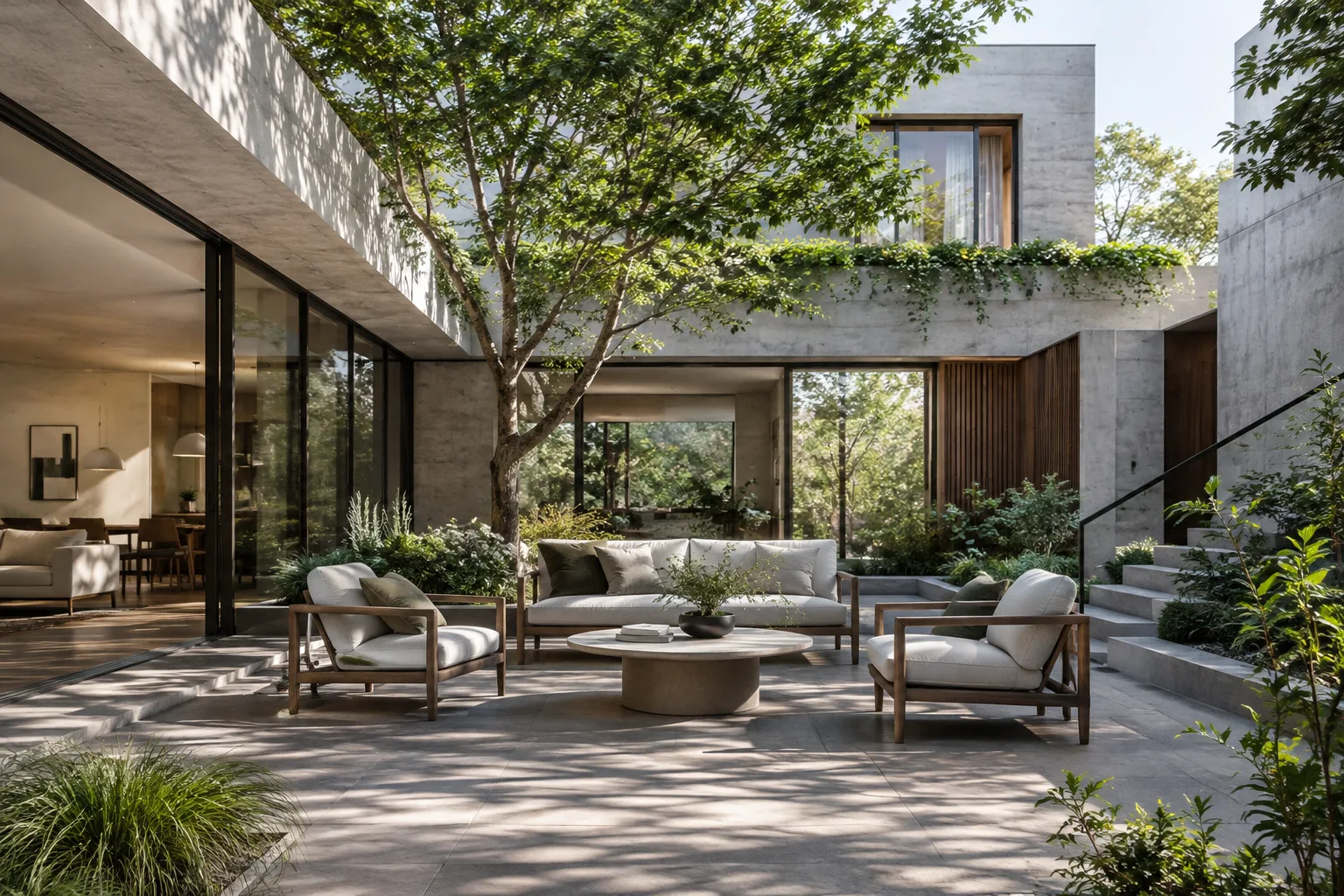
Create a short architectural video introducing a residential courtyard. Focus visually on the courtyard's shared-use area and its relationship to the building. Clearly describe which elements should stand out in the result.This example is a starting prompt that describes the requested space and visual focus. It does not guarantee a specific camera path or that every detail of the courtyard will be preserved; review the result and revise the prompt as needed.
2. Explain the role of any image reference
Gemini Omni Flash can work with text and images. When including a reference, state in the prompt why you're using it and what you want to change. However, the sources do not describe preserving specific elements in the image or limiting changes only to the requested area as guaranteed features of the example instructions.
Use the interior image I've attached as a reference for this video request. Create a short video focused on the shared workspace. Take into account which aspects of the image I want to appear in the video.This describes the presence of a reference and the focus of the video. Review the output to assess whether the image has been used as requested; don't assume that every detail in the prompt will be reproduced exactly.
3. Reduce ambiguity
Adjectives such as “more impressive” or “better” can be interpreted in different ways. Instead, describe the scene and the spatial relationship you want the video to highlight. The prompt design guide recommends stating generation constraints clearly and testing and refining prompts for their intended use.
Create an architectural video showing a museum entrance hall. Make the spatial relationship between the entrance hall and the reception area visible. Interpret which areas I want to emphasize in the video according to this description.This prompt uses words to define the scene and narrative focus. Since the sources do not confirm control over a specific camera movement, don't treat this example as a precise camera command. If the first result misses the mark, narrow the focus of the description and try again.
4. Use conversational editing turns
Gemini Omni Flash supports conversational editing over multiple turns. The documentation gives changing perspective and replacing an element as examples of editing. In a follow-up prompt, you can therefore describe the change you want to make briefly and specifically.
Change the perspective of the previous video to show the courtyard from a different angle. The element I especially want to change in this edit is the perspective.This example is based on the perspective change mentioned in the documentation; it does not mean the exact requested angle is guaranteed. Review the result and make your request clearer in the next turn. If you want to replace an element, name it; don't assume the rest of the scene will remain unchanged.
5. State the scope and constraints
The prompt design guide says you can provide clear instructions about the format or limits of the response. In an architectural video prompt, you can also specify which area you want to emphasize and define the scope of the request. However, since the sources do not provide custom video parameters or technical output values, don't add these as though they were documented settings.
Create a short video depicting movement through an interior. Emphasize the spatial relationship between the shared workspace and the meeting area. I want a narrative focused on these two spaces.This example limits the generation request to a specific spatial relationship. Check how the result handles the described relationship; there's no guarantee that the prompt will fully constrain the scope. Try different phrasings and refine them based on the output.
Common mistakes
Relying on vague adjectives: Instead of “a beautiful building video,” describe the building and the spatial relationship you want the video to emphasize.
Treating instructions as guarantees: Requests about camera movement or preserving specific architectural features are example prompts; the sources do not confirm precise control over them.
Not explaining the reference's role: State in the text why you're adding the image and how you want it to be used.
Assuming unspecified technical values: The sources do not specify duration, resolution, price, or hardware requirements; don't present these as facts without verification.
Confusing video generation with video analysis: The video understanding guide, which covers analyzing existing videos, is separate. This tutorial focuses on video generation and conversational editing.
Where it fits in an architecture and visualization workflow
Architects, interior designers, students, and visualization teams can consider this approach for exploring a spatial concept through a moving visual narrative or discussing design alternatives. The model's ability to work with text and image inputs allows reference images to be added as context in a prompt. Multi-turn editing support also makes it possible to experiment by adding a new request to a previous output. However, it should not be treated as a control that guarantees specific camera movements or preserves architectural decisions exactly.
The sources do not say that generated videos can replace technical production drawings, dimensional verification, or project documentation. It is therefore more prudent to treat the tool as an option that may support visual storytelling and concept development, rather than as a substitute for design decisions. Offices and students in Turkey should separately research API access, pricing, and hardware requirements; the provided documentation does not explain these details.
Next steps
Create prompts for the same space with different descriptions of the visual focus, then compare the outputs against your requirements. If you use an image reference, state in the prompt why you're including it. Requesting a single change in each editing turn can make it easier to assess which instruction the result responds to; even so, there's no guarantee that the specified elements will be preserved.
The Gemini API documentation lists gemini-omni-1.1-flash as the model name for video generation. Veo 3.1 Preview was removed from the Gemini API on 22 October 2026. The official guide recommends moving to Gemini Omni Flash or GA models available through Gemini Enterprise Agent Platform to avoid disruption.
Sources and license
This tutorial has been adapted into Turkish using Google's Gemini API video generation guide and prompt design strategies guide. Both sources are licensed under CC BY 4.0.
Sources
2 sourcesSource texts are not republished; short quotes are marked, everything else is our own summary and commentary.
Gemini Omni Flash may be practically useful to architecture teams by making it possible to discuss spatial ideas visually through short video experiments. Its ability to work with text and image inputs, along with multi-turn editing support, could be useful for early-stage visual storytelling experiments. However, the sources do not say that specific camera movements or the preservation of architectural features are guaranteed, so outputs should be checked.
Before deciding to use it in Turkey, research API access and pricing; the provided documentation does not specify costs or hardware requirements. Offices and students should treat the tool as a controlled visual experimentation option, not a replacement for existing project verification processes. Workflows using Veo 3.1 Preview should also take into account the stated discontinuation date and migration options.
Frequently asked questions
Can Gemini Omni Flash generate architectural videos?
In the Gemini API, it is offered for generating short videos from text prompts and images. It also supports conversational editing of videos over multiple turns.
How do you edit an architectural video with Gemini Omni Flash?
You can write a follow-up prompt that clearly specifies the change you want to make to the previous output. The documentation includes changing perspective and replacing an element as examples of multi-turn editing.
Is Veo 3.1 Preview still available in the Gemini API?
No. Veo 3.1 Preview was removed from the Gemini API on 22 October 2026. The official guide recommends moving to Gemini Omni Flash or GA models on Gemini Enterprise Agent Platform.