In brief
- Gemini Omni Flash can be used for video generation and conversational video editing in the Gemini API.
- The model can create short videos from text prompts and images.
- Generated results can be refined over multiple turns through the Interactions API.
- Veo 3.1 Preview was discontinued in the Gemini API on 22 October 2026.
What will you learn in this guide?
Gemini Omni Flash is available in the Gemini API for generating short videos from text prompts and images, as well as editing videos conversationally. When working with the model, useful fundamentals include describing the prompt clearly, setting boundaries for the desired output, and refining the request after reviewing the result. In this guide, we’ll adapt these approaches to architectural and interior visualization scenarios.
The examples focus on turning an interior concept into a moving presentation, requesting a video from a reference image, and changing a specific element in a previous output. The sample prompts were written specifically for this guide; they are not copied from the source guides. There is no guarantee that every prompt will produce the same result. Prompt design is an iterative process that requires testing and refinement.
What you’ll need
The basic requirement for this workflow is access to the Gemini API and use of the Gemini Omni Flash model for video generation. Google’s video guide gives the model ID as gemini-omni-1.1-flash. If you want to use an image as the starting input, you’ll also need to provide it with the request. The sources do not explain account setup, pricing, or usage limits; check the latest API documentation separately for that information.
The documentation points to the Interactions API for editing results over multiple turns. Since the sources do not describe a specific desktop application, plugin, or integration with architectural software, this guide is limited to prompt creation and the general approach to working through the API. The model is covered here as a tool for generating new videos and making conversational edits, not for analyzing video.
One transition note is also important: the Gemini API version of Veo 3.1 Preview was discontinued on 22 October 2026. If your previous workflow used this preview, Google recommends switching to Gemini Omni Flash or to generally available models offered through the Gemini Enterprise Agent Platform.
Step-by-step prompt preparation
1. Define the scene and task clearly
In your first prompt, clearly describe the space, the purpose of the video, and the main elements you want to see. Instead of a general instruction such as “create a video of a modern interior,” specify the type of space, its material character, the lighting mood, and the elements that should take priority in the frame. This applies the source’s recommendation to give clear, specific instructions to an architectural scenario.
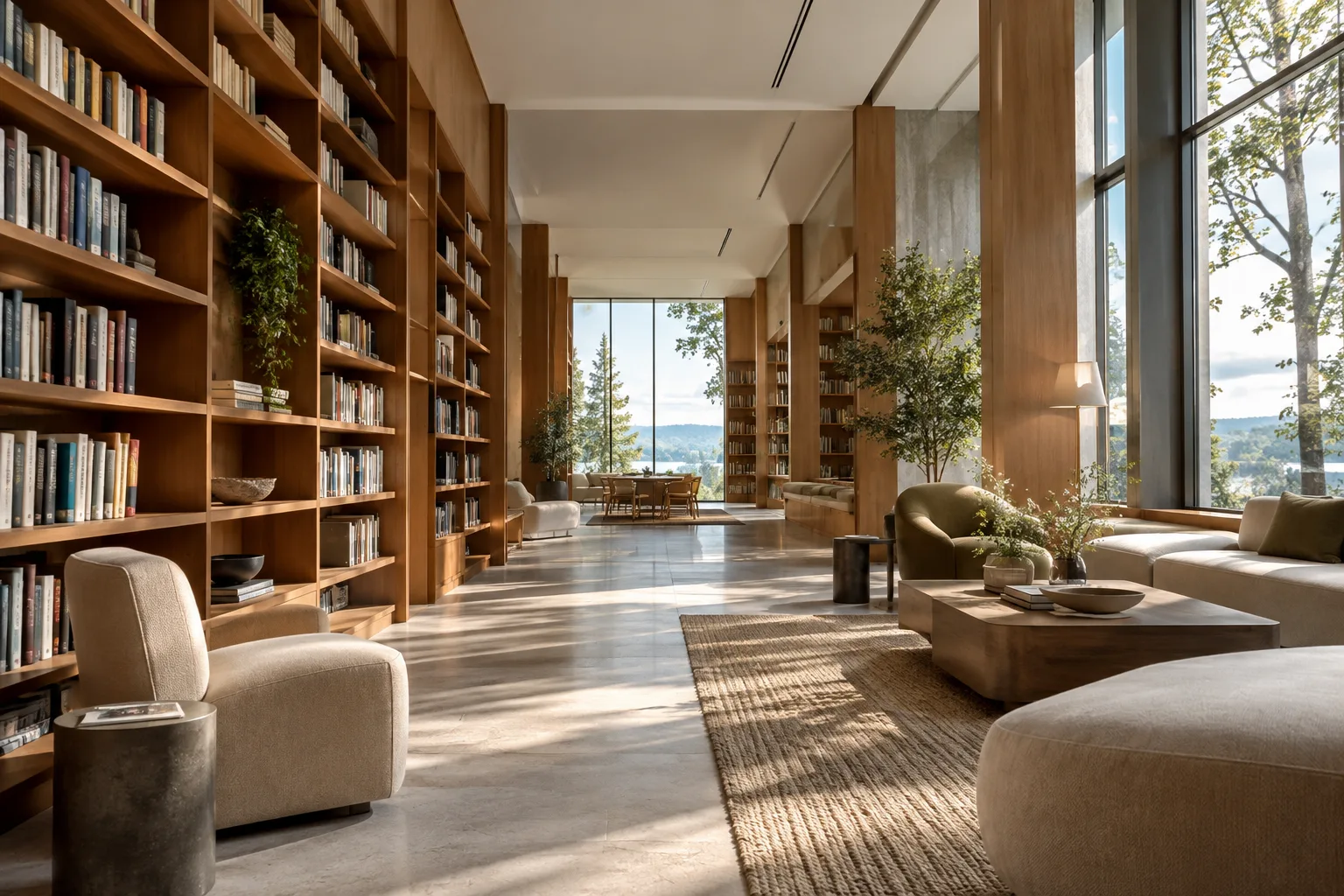
Create a short architectural visualization video of a quiet reading lounge in a contemporary public library. Show warm timber surfaces, pale stone flooring, built-in bookshelves, and soft daylight entering from tall windows. Keep the furniture layout calm and uncluttered, with the reading area as the visual focus.This prompt describes the space’s function and key visual features. After reviewing the first result, identify what’s missing and give a more targeted instruction in the next turn.
2. Use a reference image with a written description
Gemini Omni Flash is described as being able to generate videos from images as well as text prompts. So if you have a concept image, explain in words which qualities of the image should be preserved and what should change in the video. Describing the image’s content helps clarify which features the model should focus on.
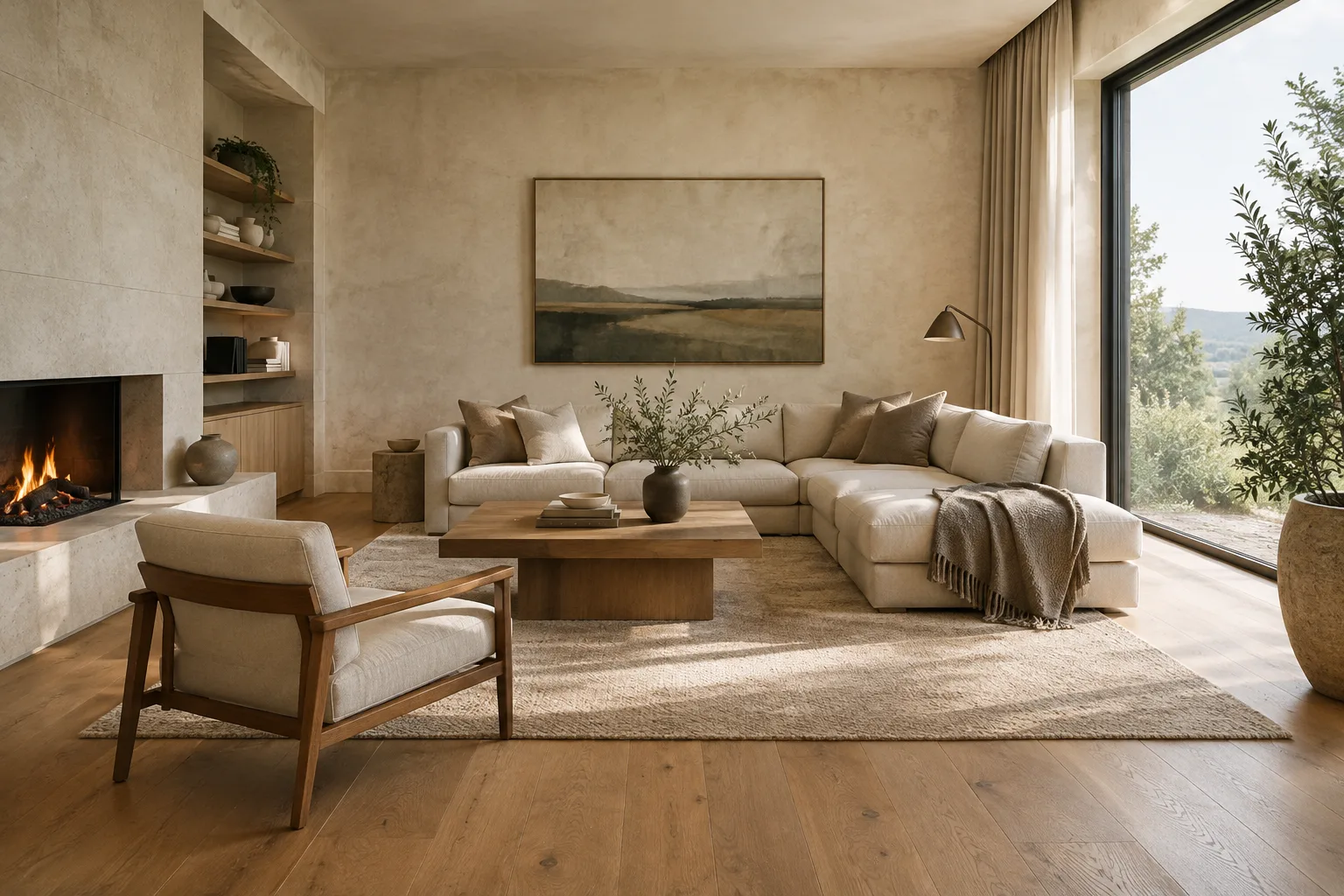
Using the provided interior reference image, create a short video that preserves the room's material palette, furniture arrangement, and overall composition. Show the space as a calm hospitality lounge, keeping the existing architectural character as the main focus.In this example, the layout and material character are identified as elements to preserve. Add the image to the API request, and specify in the prompt which features you want to retain. The sources do not specify a particular file format or technical parameter for adding an image.
3. Set boundaries in your request
In an architectural presentation, it can matter not only what should appear, but also what must not change. The prompt design guide notes that you can give the model generation constraints. The example below makes the request to preserve design decisions explicit.
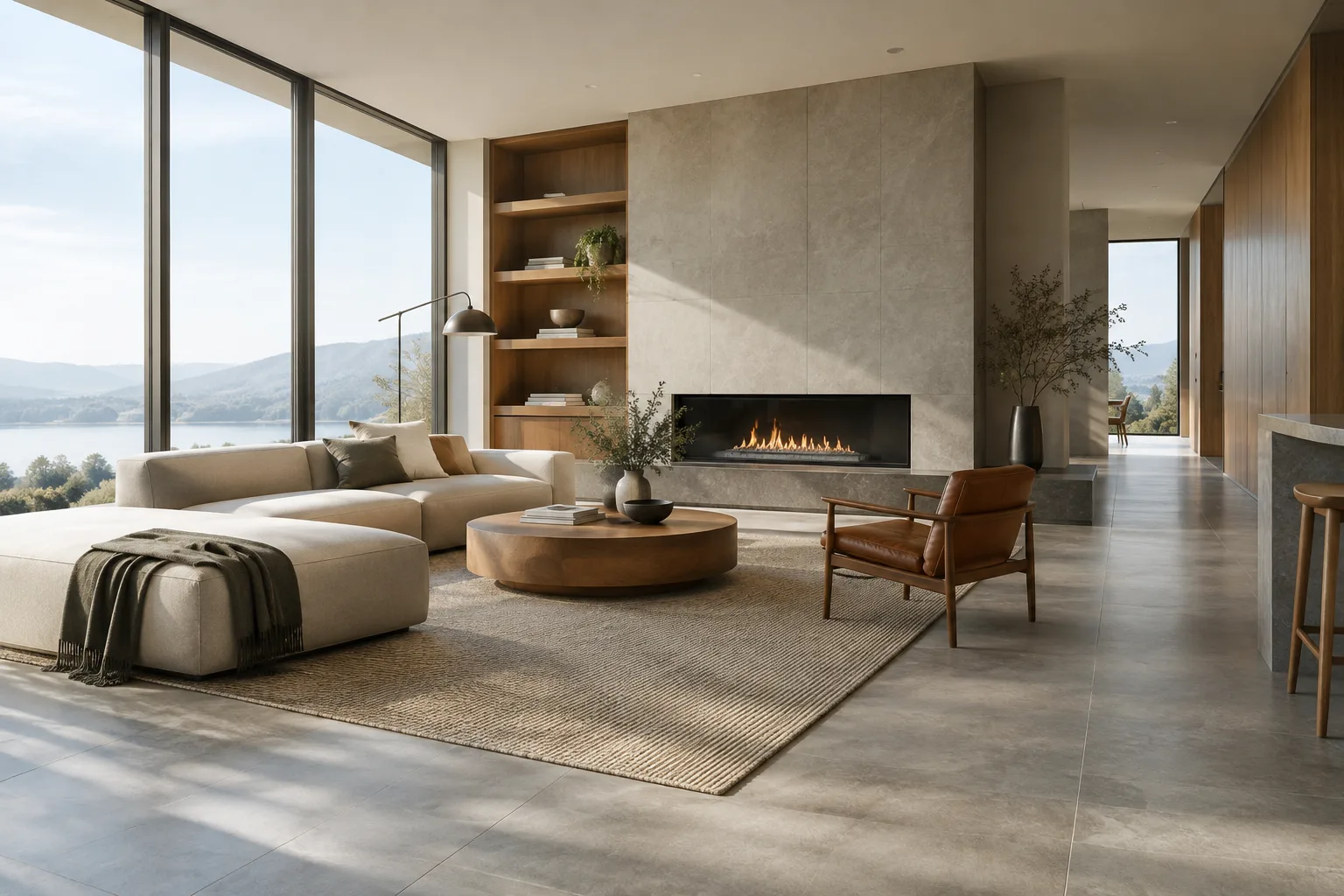
Create a short video of this small apartment living room. Preserve the wall openings, room proportions, and location of the main seating area. Keep the visual attention on the relationship between the window, the sofa, and the daylight; do not introduce new architectural elements.This prompt focuses on preserving the main components of the existing design. Still, don’t assume that every constraint in the prompt will be followed exactly in the result; review the output and request corrections if needed.
4. Edit the result over multiple turns
Rather than treating the first generation as the final result, identify one specific thing you want to change and continue from there. Google says that the Interactions API supports refinement over multiple turns; examples of edits include replacing an element and changing the perspective.
In the previous video, replace the pendant lights with simple recessed ceiling lights. Keep the room layout, material palette, and overall visual character unchanged.This example asks to change only the lighting element while preserving the rest of the design decisions. Rather than requesting several changes at once, assess the result and specify the next correction in a separate turn. This makes it easier to track the effect of each request.
5. Describe the perspective change explicitly
Changing the perspective is mentioned in the source as an example of multi-turn video editing. You can describe the desired view in text, but the guide doesn’t provide specific camera commands or technical parameters. So the example below uses a natural-language request rather than a specific tool setting.
Revise the previous video to show the same interior from a viewpoint near the entrance, looking toward the main seating area. Preserve the room's design and material choices.The request specifies both the desired view and the design features that should remain unchanged. Check whether the result meets your expectations; if needed, describe the viewing direction more explicitly in a new turn.
Common mistakes
Giving an ambiguous description: A short phrase like “a stylish lobby video” doesn’t explain how the space should look. Describe its function, material character, and visual focus.
Changing too many decisions at once: Bundling lighting, furniture, and perspective into the same correction can make the result harder to evaluate. Address changes in separate turns.
Not explaining the role of the reference image: If you don’t say which features of the image should be preserved, your expectations may not be clear enough. Specify priorities such as composition, layout, or materials.
Using the output without reviewing it: Prompts are a starting point; generation is still an iterative process. Review the visual output against the design decisions and presentation goals.
What could change in an architecture and visualization workflow?
For architecture firms, interior designers, and archviz artists, short video generation could be useful for presenting a concept in motion or experimenting with how a space is presented. Generating a video from a reference image and then editing it conversationally offers a way to develop an idea step by step. However, the sources do not confirm direct integration with any particular CAD, BIM, or rendering software, so don’t assume that outputs can be transferred into an existing project automatically.
Accurately representing a design matters in real projects. It’s best to treat generated video as a visual draft that requires review, not as a measured, verified technical output. Firms should separately investigate API access, pricing, and terms of use; students should also assess accuracy and suitability before using the results in client presentations or project submissions. Hardware requirements are not mentioned in the sources, so there isn’t enough information to recommend a specific graphics card or computer.
Next steps
Start with a concept image and a short, clear prompt. Note which design decisions you want to preserve in the first video, then request one change per turn and compare the results. Saving prompts in a reusable working document can help you track which descriptions work best across different scenes. For more advanced use, review the API documentation; this guide covers the approach to creating requests but doesn’t provide code or interface instructions for making an API call.
Sources and license
This guide is based on Google’s “Video generation in the Gemini API” and “Prompt design strategies” guides. Both sources are licensed under CC BY 4.0; the content has been adapted into Turkish, and the sample architectural prompts were written specifically for this guide.
Sources
2 sourcesSource texts are not republished; short quotes are marked, everything else is our own summary and commentary.
For architecture firms and visualization teams in Turkey, Gemini Omni Flash is an interesting option for experimenting with concept presentations in short video form and producing alternative visual presentations. In particular, the approach of starting with a reference image and refining the result step by step could be useful in early-stage design communication.
However, the sources don’t explain API access, pricing, usage limits, or hardware requirements. These costs and access terms should therefore be verified separately before incorporating the tool into a production pipeline. Generated videos should also be treated as visual drafts that need review, not as technically accurate outputs or final design decisions.
Frequently asked questions
What do you need to generate videos with Gemini Omni Flash?
According to Google’s guide, Gemini Omni Flash can be used in the Gemini API; its model ID is given as `gemini-omni-1.1-flash`. The source does not specify account setup or pricing information.
Can Gemini Omni Flash edit generated videos?
Yes. Google says that multi-turn conversational editing is supported through the Interactions API. Examples include replacing an element and changing the perspective.
Is Veo 3.1 Preview still available in the Gemini API?
No. Veo 3.1 Preview in the Gemini API was discontinued on 22 October 2026. Google recommends switching to Gemini Omni Flash or to generally available models offered through the Gemini Enterprise Agent Platform.