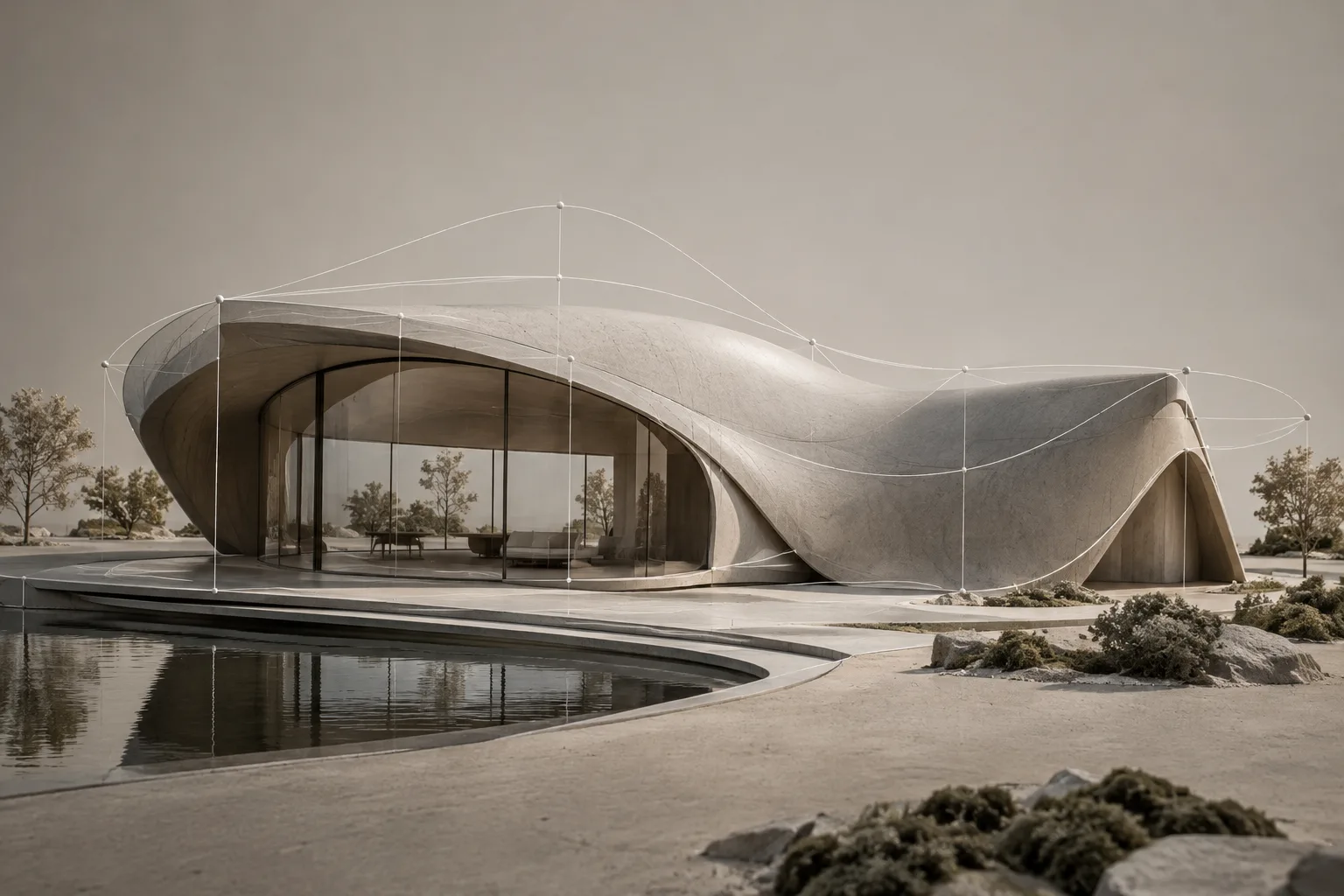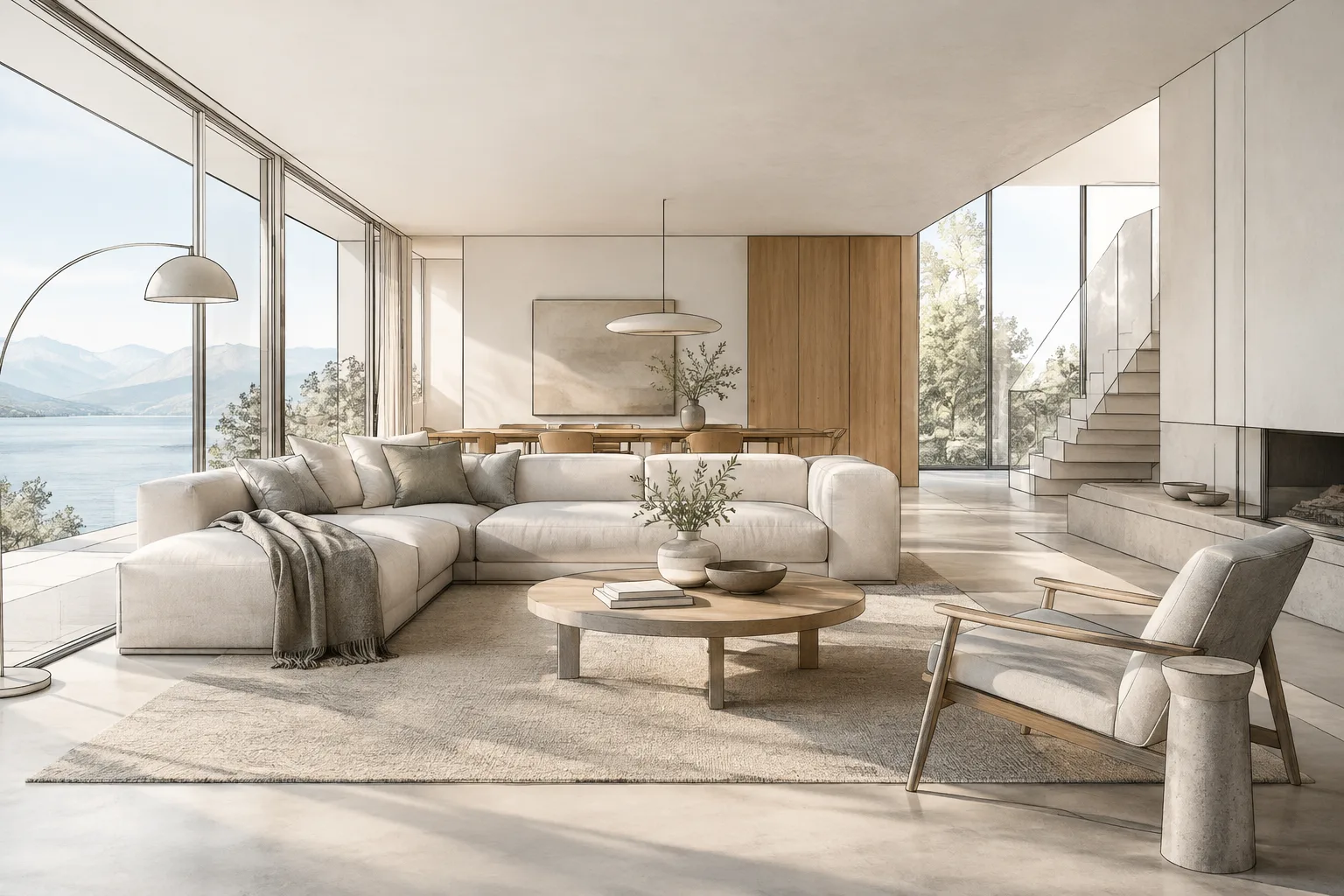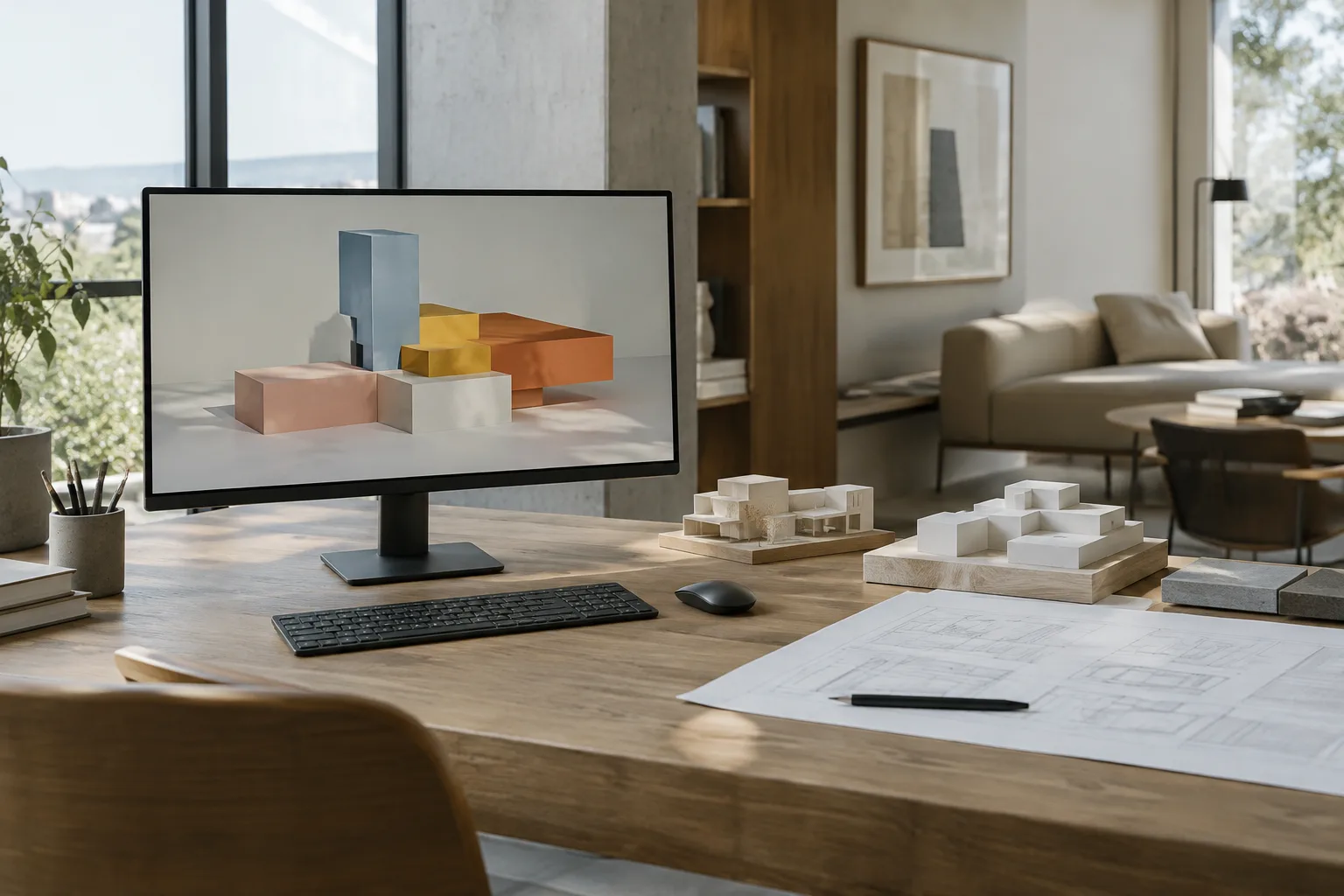
In brief
- Images can be sent to the Gemini API via URL, inline image data, or the Files API.
- Google’s documentation uses the model name gemini-3.8-flash in its code examples.
- For inline image data, the combined request size—including text, instructions, and image data—is limited to 20 MB.
- The Files API is recommended for large files or images you plan to reuse.
What will you learn in this guide?
You can send an architectural render, interior photo, or material sample to the Gemini API and ask for a description or answers to specific questions about the image. Google’s image understanding documentation lists use cases such as image description, classification, and visual question answering. It also notes that additional training can improve accuracy for object detection and segmentation in certain scenarios. This does not guarantee the same level of accuracy for every image or architectural task.
In this tutorial, you’ll learn step by step how to send an image to the API, narrow the scope of your question, and use the response in a project review. We prepared the sample prompts for architectural and interior design workflows; they are not copied from the source documentation.
Requirements and image selection
Google’s Gemini API guide includes examples for Python, JavaScript, Java, Go, and REST. The workflow below is based on sending an image to the API alongside text instructions. The code examples use the model name gemini-3.8-flash. The top of the documentation also states that Gemini 4 Argon is available; however, the image submission code examples presented here use gemini-3.8-flash. So, check the current API documentation for the model you’re using before changing the model name.
You can send an image in one of three ways: via URL, as inline image data, or through the Files API. The URL method is described as suitable for publicly accessible images. With the inline method, the image is sent in base64 format; the total request size must not exceed 20 MB, including text prompts, system instructions, and image data. The Files API is recommended for larger files or when you plan to use the same image in multiple requests. The request examples also include the image’s MIME type.
Have an image ready for review that you could use in a project presentation. If it contains details that require verification, such as dimensions, materials, or spatial qualities, don’t ask the model to present them as definitive facts. Check interpretations based on the image against project drawings and source documents.
Step-by-step architectural image analysis
1. Choose an image transfer method
For a small image and a one-off test, you can use inline image data. If you plan to reuse the image or the file is large, opt for the Files API workflow. In Google’s examples, this workflow starts with uploading the file; the returned URI and MIME type are then included in the request alongside the text input. The way you access the API may vary depending on your programming language; the source includes examples for Python, JavaScript, Java, Go, and REST.
2. Ask for a general description
For your first request, ask the model for a brief, observation-based description of the render as a whole. This example defines the response’s scope and format upfront.
Describe this architectural image based only on elements that are visible. Briefly list the type of space, the main visible materials, the character of the lighting, and notable elements in the frame. Do not guess information that cannot be determined from the image; list any uncertainties separately.Phrases such as “based only on elements that are visible” and “list any uncertainties separately” help keep the response grounded in observation. Google’s prompt guide recommends giving clear, specific instructions; you can also specify the desired response format in the prompt.
3. Focus on a specific spatial element
After the general description, choose one topic. For example, ask separate questions about the appearance of materials, lighting, or framing. Instead of requesting many different kinds of assessment in a single prompt, split the task up. That makes it easier to track which response answers which question.
List the surfaces visible in the image separately. For each surface, describe only its visible color, texture, and sheen. If you cannot determine the actual product name or manufacturer from the image, say so explicitly.This prompt does not ask the model to invent product identities; it asks for observable surface qualities. The response may offer a design insight, but it is not a substitute for material sourcing information.
4. Narrow the review with visual question answering
When asking about a specific area, describe its location using visible cues in the image. Also specify whether you want a short answer or a list. Gemini models can be used for visual question answering, but don’t expect them to establish details that cannot be distinguished in the image.
List the visible items in the seating area on the right side of the image. Describe each item in one short bullet point. Do not guess details that cannot be reliably identified from the image.Adjust the location description to match your image. If you notice that the model has misplaced an item, ask about a more narrowly defined area and review the response again.
5. Specify the output format
If you’re comparing review notes as a team, spell out the fields you want in the prompt. Google’s prompt strategies guide explains how you can steer model behavior with a response format, constraints, and examples. This does not replace the API’s structured output feature when you need a complex, precise schema.
Use the following headings for this interior image: Overall impression of the space, visible surfaces, lighting, notable elements in the frame, and points of uncertainty. Write no more than two short bullet points under each heading. Do not add information that is not visible in the image.Before adding the response to your project notes, compare each point with the image. If the requested headings are missing or the response is too general, try again with an example or clearer constraints. Google’s documentation specifically emphasizes that prompt design is an iterative process.
Common mistakes
Asking for too much in a single prompt: Combining image description, design critique, material identification, and implementation suggestions in one request makes the scope unclear. Break up the task and focus on a single goal in each request.
Treating information that cannot be inferred from the image as fact: Don’t try to verify a surface’s actual product or spatial information that isn’t visible using a render alone. Flag uncertainties in the response and compare them against technical documents.
Ignoring the image transfer method: Inline image data is subject to a total request limit of 20 MB. The documentation recommends the Files API for large images or images you plan to reuse.
Not specifying the response format: The model may respond at different lengths or in different formats if you don’t clearly define them. Specify headings, the number of bullet points, and the scope upfront.
Next steps: adapting the workflow for studios and education
Test your initial prompts on different types of architectural images and compare which wording produces consistent, verifiable notes. Google notes that prompt design requires experimentation and refinement, so don’t assume one template will produce the same results for every project. If your team uses this workflow, recording the image transfer method and model name can make comparisons easier.
This approach may be useful for architectural studios, interior designers, and students who want to draft initial image descriptions and review headings. However, the generated text is not a source for drawings, measurements, or material verification. Confirm image interpretations against project documents, and review uncertain or unanswered points separately before turning them into design decisions.
Sources and licensing
This tutorial is based on the technical workflows in Google AI for Developers’ Gemini API “Image understanding” and “Prompt design strategies” documentation. Both sources are licensed under CC BY 4.0; the content has been adapted into Turkish and explained with new sample prompts for architectural image analysis.
Sources
2 sourcesSource texts are not republished; short quotes are marked, everything else is our own summary and commentary.
For architecture studios and students, one of the most practical uses of the Gemini API is getting a quick description of an image and creating a starting point for review notes. Focused questions about materials, space, and lighting can support an image review before a presentation; however, it’s best not to treat the response as technical verification.
Teams in Turkey should also review API pricing and access conditions before incorporating the workflow; the cited sources do not provide pricing information. Image size and whether the file will be reused also affect the choice of transfer method. In particular, always compare model output against drawings and documents before making decisions about the project, measurements, or product selection.
Frequently asked questions
How do I upload an architectural image to the Gemini API?
You can send an image via URL, as inline base64 data, or through the Files API. The Files API is recommended for large files or images you plan to reuse.
What is the size limit for inline image data in the Gemini API?
The total request size—including text prompts, system instructions, and inline image data—is limited to 20 MB.
Can the Gemini API analyze architectural renders?
Gemini models can be used for image description, classification, and visual question answering. Technical details that cannot be inferred from the image should be verified separately.