In brief
- FLUX.2 can use multiple image references in a single generation and editing workflow.
- Black Forest Labs says up to 10 reference images can be used in the same project.
- Depending on the model option, images can be generated or edited at up to 4 megapixels.
- FLUX.2 [dev] is available with open weights, along with reference inference code for local use.
What will you learn in this guide?
You can use FLUX.2 to explore architectural and interior concepts, create scene variations, and experiment with changes to an existing image. This guide covers how to describe a new space in text, combine different image references in the same project, and make prompts more explicit. The five examples below were created specifically for architectural visualization and can be copied and adapted.
Black Forest Labs presents the FLUX.2 family as offering image generation and editing, the ability to use multiple references together, and support for complex prompts. The company says up to 10 images can be used as references at the same time, and outputs can reach up to 4 megapixels. These figures come from the manufacturer; don’t assume every model option and use case offers the same workflow.
Requirements: which approach should you choose?
For experimenting without code, you can use Black Forest Labs’ Playground. The company says FLUX.2 [pro] and [flex] are available through Playground and the API. Which access option you need for image generation and editing depends on the model and how you plan to use it. Since the sources don’t specify account requirements or pricing for Playground, check these in advance.
For local use, FLUX.2 [dev] open weights are available on Hugging Face and can be run with the manufacturer’s reference inference code. The Diffusers documentation also provides an example of generating an image from a text prompt with Flux2Pipeline. However, the documentation warns that running FLUX.2 on consumer hardware can be expensive. Account for hardware, memory, and speed requirements before experimenting; no specific graphics card or software version is required here.
Before you begin, decide what you want to do: generate a space from scratch, edit an existing image, or combine several references? If you already have images, note which one describes the space and which ones describe the materials or furniture. This makes it easier to explain the role of each source in your prompt.
Prepare a prompt in five steps
1. Describe the space in text
Start by specifying the type of space, viewpoint, main materials, and lighting conditions. For your first attempt, choose a small number of clear attributes that will help you assess the result, rather than packing several very different requests into one prompt.
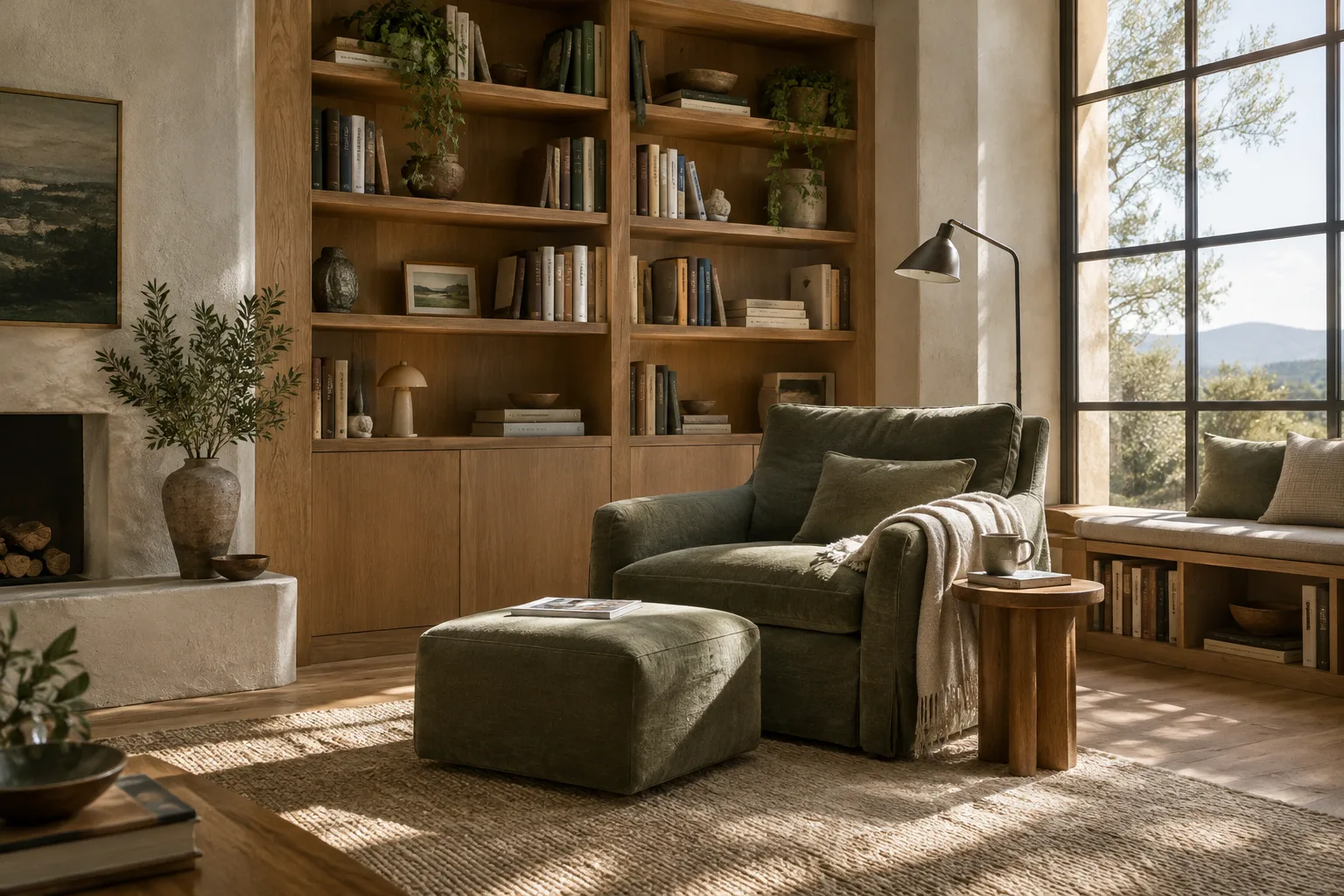
A photorealistic architectural interior visualization of a compact urban apartment living room, viewed from the entrance at eye level. Pale oak flooring, warm off-white walls, a built-in bookcase, a low modular sofa and a large window with soft overcast daylight. Calm, restrained material palette, realistic proportions, coherent perspective, no people, no signage.This prompt describes a small apartment living room, specifying the room’s function, camera position, materials, and lighting separately. If the first result has a composition problem, adjust the viewpoint; if the materials feel off, revise the surface descriptions and try again.
2. Combine reference images according to their roles
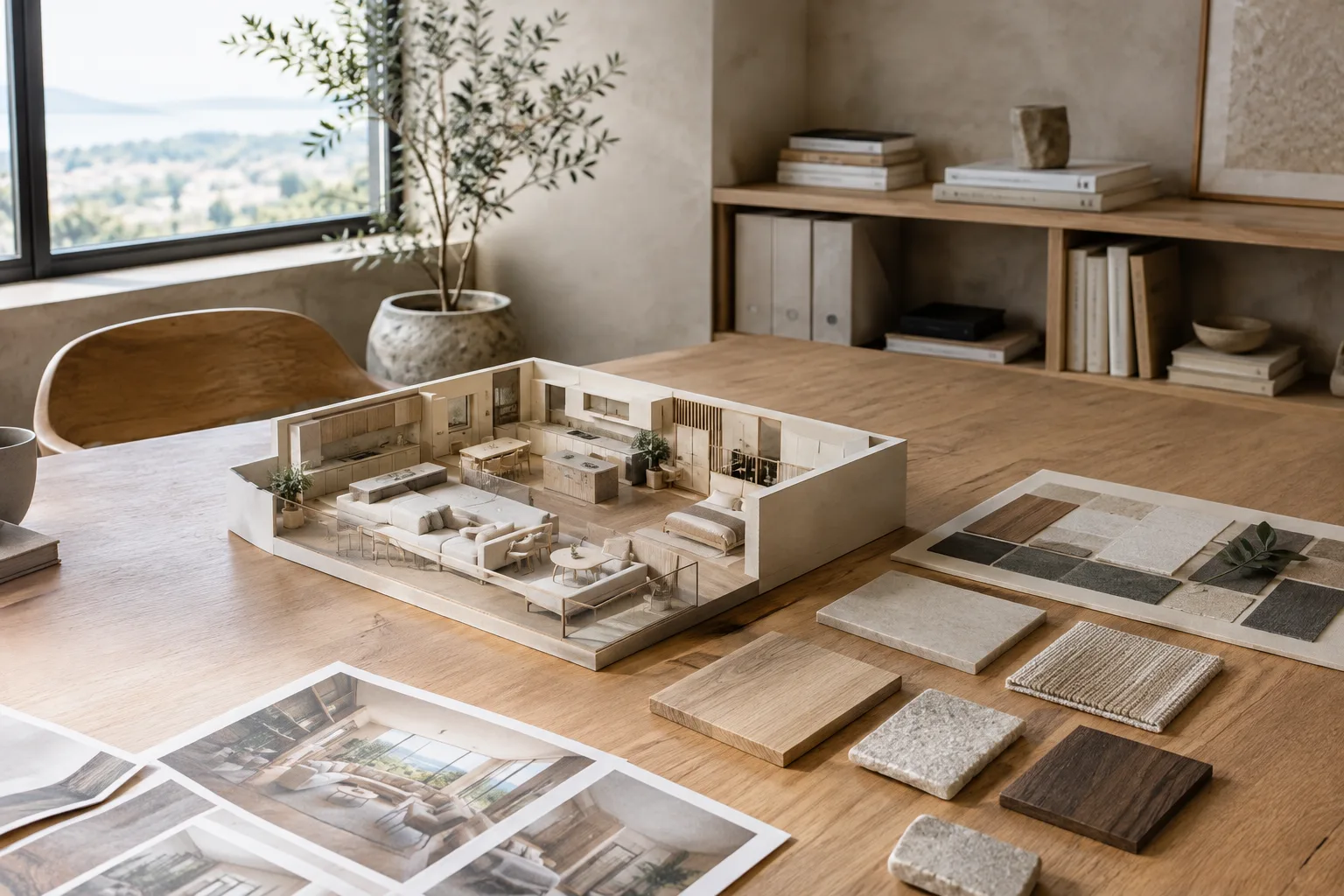
FLUX.2 supports multiple references. You could use one image for the overall space, another for the material feel, and a third for the furniture form. Clearly describe the role of each image in the prompt. Rather than expecting one reference to supply every feature, specify which elements should come from each source.
Use the first reference image for the room layout and camera perspective. Use the second reference image only for the pale stone wall finish, and the third reference image for the rounded timber dining table. Create a photorealistic contemporary dining area with natural daylight, consistent scale, and clear circulation space. Keep the room architecture from the first reference.In this example, the first image defines the space and framing, while the others describe the surface and furniture character. The manufacturer says up to 10 images can be used as references simultaneously, but you don’t need that many for every project. Start with a small number of clearly defined references.
3. Request changes to an existing image
FLUX.2 supports editing with text and image references. When working on a render, specify in the same prompt both the features to preserve and the element you want to change. For example, you might want to keep the camera, wall openings, and main massing fixed while changing only the floor material.
Edit the provided interior image. Preserve the camera position, room proportions, window openings, and built-in cabinetry. Change only the floor finish to light natural oak with subtle grain. Keep the existing daylight direction and make the new material fit the scene's perspective and lighting.This prompt attempts to limit the scope of the edit: it targets only the floor while preserving the composition and fixed elements. If other elements change in the result, make the preservation requirements more explicit or simplify the references and try again.
4. Describe materials and lighting separately
Materials, color, and light affect one another in an image. Instead of using vague phrases such as “better materials,” describe the surface type and appearance, as well as how the light affects the scene. The manufacturer also lists handling light and spatial relationships, along with color matching, among FLUX.2’s capabilities; still, check the results against your project requirements.
Create a photorealistic bathroom interior with honed light limestone walls, a matte charcoal vanity, brushed metal fixtures, and a pale terrazzo floor. Soft daylight enters from a high side window and creates gentle shadows. Keep the material colors distinct, the surfaces believable, and the perspective consistent.This example names each material separately to keep the surfaces distinct, and also describes the window light and shadow quality. If a color or finish is critical, don’t treat the generated result as an approved material sample; consider it an image that needs to be checked before informing a design decision.
5. Structure the prompt and compare results
Organize the composition, lighting, materials, and features to preserve in a clear sequence. If you change too many things at once, it becomes difficult to tell which instruction affected the result. Keep the core prompt fixed and change one attribute at a time—for example, vary only the daylight or wall finish.
For FLUX.2 [flex], the manufacturer says the number of steps can balance detail and latency. If this setting is available in your API or development workflow, it may be useful to compare different values with the same prompt. The Diffusers documentation says that more inference steps can generally improve quality, but make processing slower. This behavior depends on the model and settings; the same result is not guaranteed in every case.
Common mistakes
Making too many changes in one prompt: If the result misses the mark, adjust one variable rather than changing the space, furniture, materials, and lighting all at once.
Not specifying the role of each reference: When using multiple images, explain which one describes the layout and which one describes the materials.
Failing to list what should stay unchanged: For image editing, explicitly list the camera, openings, or main elements that must remain fixed.
Treating a generated image as technical verification: Image generation can support design exploration and presentation alternatives; the sources don’t describe it as a substitute for measured project documentation or construction verification.
Ignoring hardware and access requirements: Local use can be expensive on consumer hardware. Check access and licensing terms before choosing between Playground, the API, or open weights.
Next steps for architecture and visualization workflows
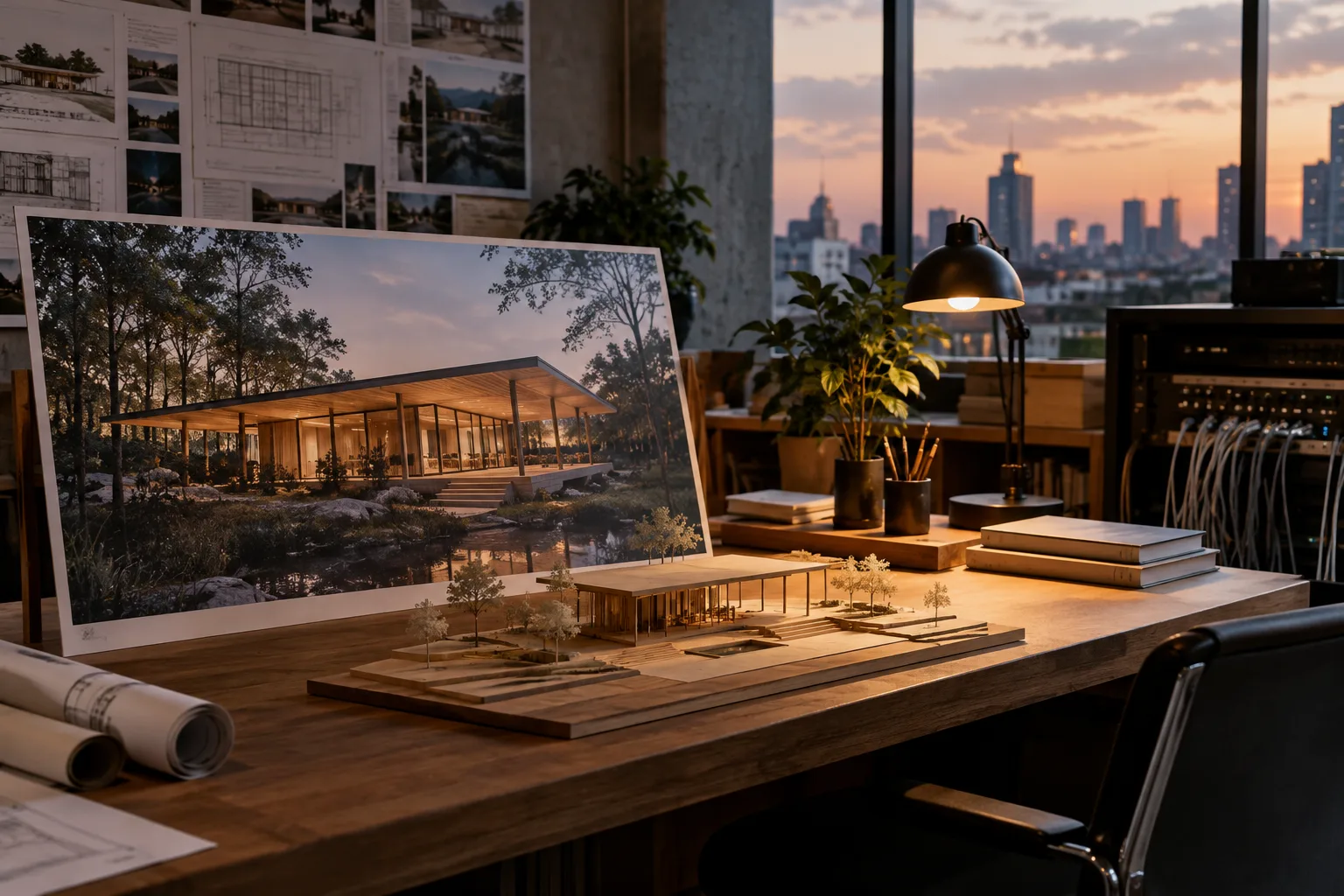
Architects, interior designers, and visualization artists can consider FLUX.2 for quickly exploring variations in atmosphere, materials, and framing during early concept development. Multiple references may help when experimenting with changes to furniture or surface character while retaining a space’s overall layout. Generating multiple images can also make it easier to compare options before a presentation.
Before incorporating it into your workflow, however, review model access, the applicable license terms for commercial use, and the hardware requirements if you plan to run it locally. Black Forest Labs directs users to a separate channel for commercial licensing information for [dev]; don’t assume that the availability of open weights alone grants every usage right. Also compare generated outputs against project dimensions, material decisions, and drawings.
Sources and licensing
This guide was adapted based on the FLUX.2 product page and announcement post from Black Forest Labs. The Diffusers FLUX.2 documentation is licensed under Apache-2.0; the relevant technical usage information has been summarized in Turkish and adapted for this guide. The example prompts were written specifically for this guide.
Sources
3 sourcesSource texts are not republished; short quotes are marked, everything else is our own summary and commentary.
For architecture firms and visualization teams in Turkey, FLUX.2’s most practical benefit is the ability to explore variations in space, materials, and atmosphere within a single image workflow during the early stages. Using multiple references may help generate new options while preserving specific parts of an existing design; however, the outputs are not a substitute for technical project data.
Pricing and licensing terms should be reviewed separately for each method of use; in particular, the phrase “open weights” alone should not be treated as sufficient assurance for commercial projects. Local use should also be evaluated in terms of hardware costs and processing time. The right approach for firms is to test the tool first with limited concept experiments and verify the results against dimensions, materials, and project decisions.
Frequently asked questions
How many reference images can FLUX.2 use at once?
Black Forest Labs says FLUX.2 supports up to 10 image references at the same time. It helps to clearly describe each reference’s role in the prompt.
What image resolution can FLUX.2 generate?
The manufacturer says FLUX.2 supports image generation and editing at up to 4 megapixels.
Can FLUX.2 run on a local computer?
FLUX.2 [dev] open weights are available on Hugging Face and can be used with the manufacturer’s reference inference code. The Diffusers documentation warns that running it on consumer hardware can be expensive.