In brief
- The Image API supports generating images from text prompts and editing existing images.
- The Responses API supports image generation in conversations and edits across multiple steps.
- The documentation recommends gpt-image-2.5-sunburst for precise editing and gpt-image-2.5-flare for fast, high-quality everyday generation.
- The API reference lists options for image size, output format, quality, and background.
What will you learn in this guide?
There are two main ways to create architectural and interior images with GPT Image: generate a new image from a text prompt or edit an existing image with a prompt. This guide looks at when to use each approach, how the API options differ, and how to write example prompts for architectural workflows.
The examples focus on visualizing an interior concept, changing a specific design element in an existing room image, and breaking the editing process into several steps. Prompts are text instructions for an image-generation system; they do not guarantee that the output will precisely match an architectural drawing or technical project. Review the results before treating them as design decisions or production documents.
Requirements and API selection
The source documentation lists two model names for GPT Image: gpt-image-2.5-sunburst and gpt-image-2.5-flare. The provider positions Sunburst for tasks where editing precision is a priority, and Flare for fast, high-quality everyday image generation. This distinction comes from the provider’s description; don’t assume either model will perform better for a particular architectural task without testing it.
Image generation is available through the API. Use the Image API to generate or edit an image with a single prompt. The source describes two functions for this API: generating a new image from text and partially or fully changing an existing image with a prompt. The Responses API is an option when you need image generation in a conversation or an iterative, multi-step workflow. This API can accept a File ID as image input.
The source text does not explain account setup, local computer requirements, or hardware recommendations. The provided documentation also contains no pricing information. Before implementation, verify API access, current pricing, and the working environment separately, and check that the model IDs mentioned here are available in your environment.
The API reference lists PNG, WebP, and JPEG as output formats, and low, medium, high, xhigh, max, and auto as quality options. Available sizes are listed as 1024×1024, 1024×1536, 1536×1024, and auto. The background options are transparent, opaque, and auto. These are the options documented for the API; check the relevant API documentation to confirm how they are exposed for each model and workflow.
Step by step: Generate a concept image from a text prompt
Define the purpose of the image. Be clear about whether you need an atmospheric image for a presentation or an interior alternative for exploring materials. Describing a single main scene makes the first result easier to evaluate.
Describe the architectural elements clearly. Use short, clear sentences to specify details such as the type of space, key materials, daylight, camera angle, and overall character of the image. The example below is an original prompt for generating an image from scratch:
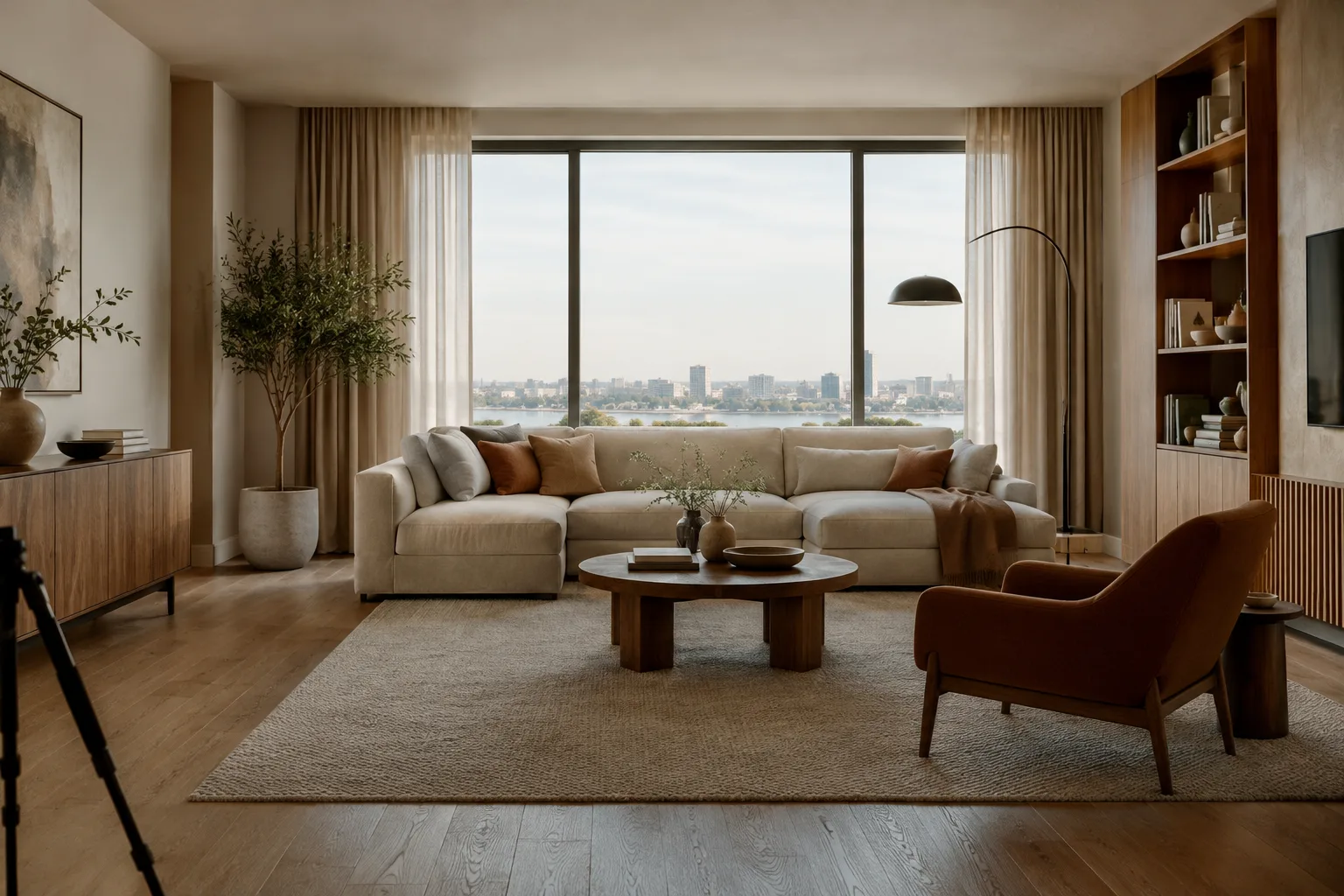
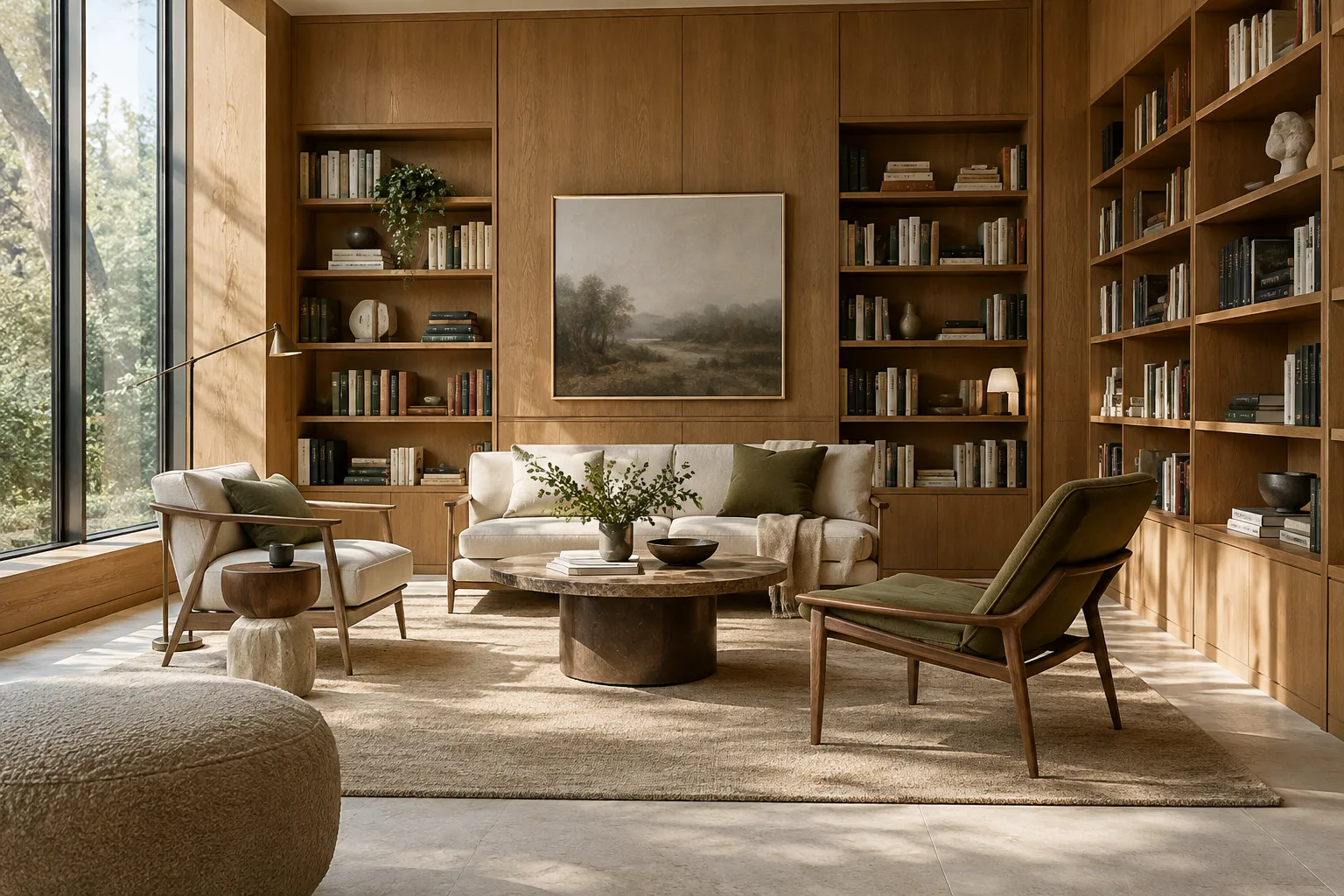
Create an architectural interior visualization of a compact contemporary reading room, with warm oak wall panels, a pale stone floor, built-in shelving, soft daylight entering from a tall side window, a calm neutral palette, and a wide eye-level view. Show a considered composition with realistic material textures.This prompt focuses on a single interior scenario and describes its materials, lighting, camera height, and overall atmosphere. After generation, note what worked and refine or adjust the prompt for your next attempt. This example is not taken from the source text; it was created for this guide as an architectural use case.
Treat the first result as design input. Check the spatial relationships, material feel, and suitability for your presentation. The provider’s documentation says the Image API can generate images from text, but makes no guarantees about architectural dimensions, regulatory compliance, or drawing accuracy. Use the image for communicating a concept, not as a substitute for technical verification.
Step by step: Edit an existing image
Choose a source image and limit the change. The Image API allows you to edit an existing image partially or completely. In your prompt, distinguish between the overall scene that should remain intact and the design element you want to change. The source text does not explain the detailed masking steps for editing, so we don’t describe a specific interface or menu path here.
Edit the provided interior image by changing the dining chairs to simple light-oak chairs with slim legs. Keep the room layout, camera viewpoint, window placement, dining table, and existing daylight consistent with the input image.This example limits the change to the chairs and identifies the room layout and camera viewpoint as elements to preserve. Check whether the editing output actually retains those elements. If it changes more than intended, make the requested intervention clearer in your next prompt.
Don’t bundle too many changes into one prompt. For example, address the material appearance first, then the lighting atmosphere in a subsequent attempt. This makes it easier to compare which prompt produced which change; still, review the output at every step.
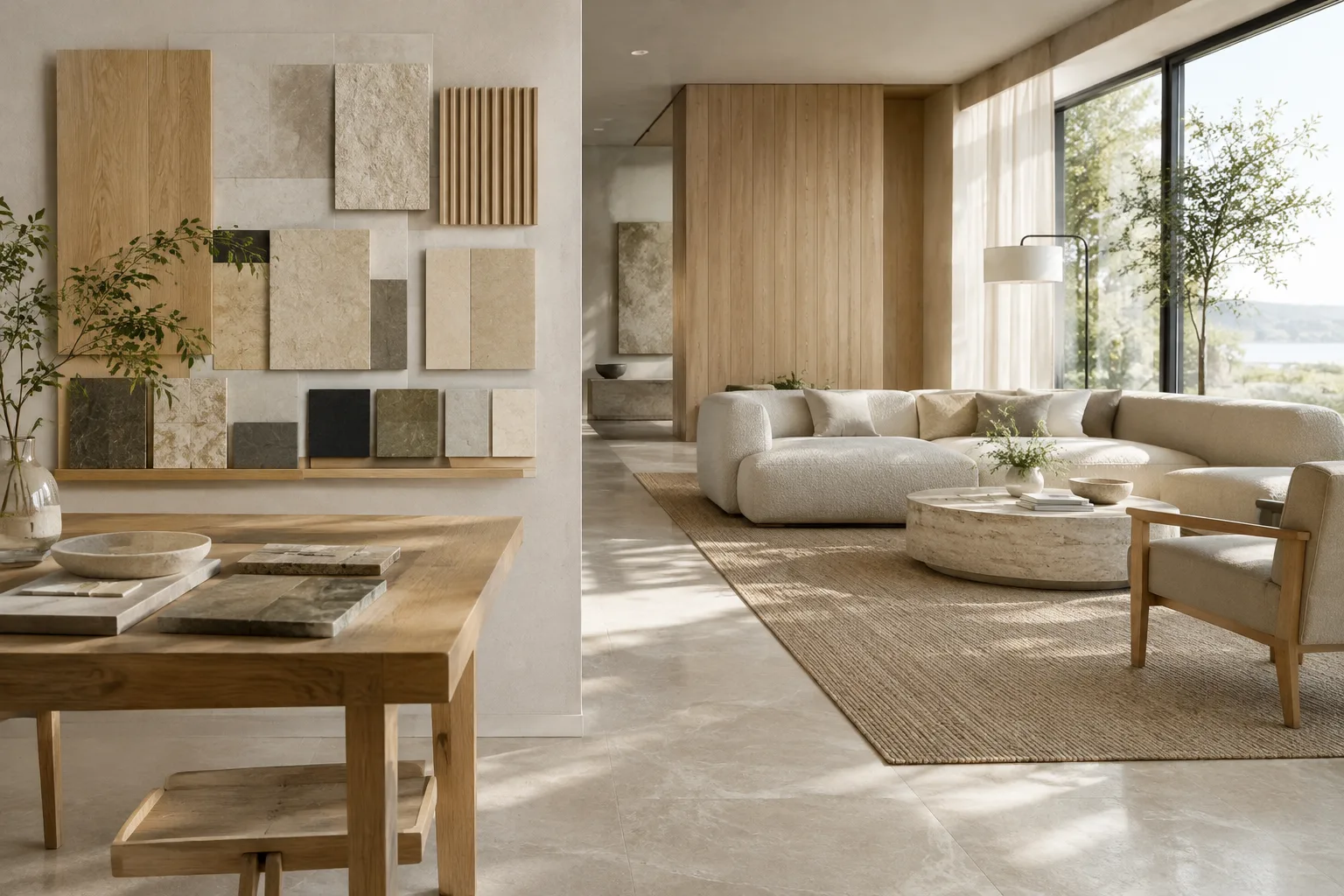
In the provided living-room image, change only the wall finish behind the sofa to a muted mineral plaster texture. Preserve the furniture arrangement, sofa color, floor, window, and camera framing.This prompt focuses on changing the appearance of a single surface. When exploring material options, try different alternatives using the same source image and a similar prompt structure. Check that the other elements remain consistent in every result.
Consider the Responses API for conversational, iterative editing. The source says the Responses API supports multi-turn editing and can accept a File ID as image input. In this kind of workflow, you can start with a general editing request, review the result, and then make revisions with follow-up prompts. Multiple rounds don’t remove the need to check the output at every stage.
Common mistakes
Leaving the prompt vague: Name the elements you want to generate or change instead of making broad requests such as “make a better interior.”
Failing to say what should stay the same: When editing an existing image, specify features such as the layout or viewpoint that should be preserved.
Assuming technical accuracy: Don’t present the generated image as a scaled project drawing or a verified architectural solution; the sources make no such compliance claim.
Ignoring output options: The API reference lists options for size, quality, format, and background. Choose settings that suit your needs and check the documentation to confirm that the relevant workflow supports them.
Treating model selection as a hard-and-fast rule: The recommendations for Sunburst and Flare are the provider’s guidance. Compare results for your project type.
Implications for architecture, interior design, and archviz workflows
This approach may help architects and interior designers preparing concept presentations, as well as visualization teams looking to explore material or atmosphere alternatives quickly. In particular, the editing workflow can reduce the need to describe a scene from scratch when only limited changes to an existing image are needed. For a new concept, consider text-to-image generation with the Image API; for a process involving repeated revisions, consider the Responses API’s multi-turn workflow.
That said, image generation shouldn’t replace modeling, dimensioning, or project coordination. The design team should review the results and verify materials, geometry, and spatial relationships. The sources don’t specify local hardware requirements, so it isn’t possible to recommend a particular GPU or computer class. Before getting started, offices and students would be better served by clarifying API access, pricing, output usage terms, and file transfer within the workflow.
Next steps
Start with a concept image and describe only a few key features in the prompt. After reviewing the result, try the editing workflow by making a single change to the same scene. If you need multiple rounds of revision, explore the Responses API’s documented support for multi-turn editing and image input via File ID. Before production, decide which output format and size to use, and have the design team review the final image.
Sources and licensing
This guide was prepared with original examples based on OpenAI’s official GPT Image prompting guide [K1] and the information in the Images API reference [K2]. Both sources are official API documentation. Since the provided content does not specify an explicit Creative Commons license, the example prompts were not copied from the sources; they were written for this guide for architectural and interior design scenarios.
Sources
2 sourcesSource texts are not republished; short quotes are marked, everything else is our own summary and commentary.
For architecture firms and visualization teams in Turkey, one of the most useful aspects is that generating new concepts and editing existing images can be handled as separate workflows through the API. This could be particularly useful when exploring alternatives before a presentation; however, it wouldn’t be appropriate to use the output as a source of dimensional, geometric, or project accuracy.
Before making a decision, check API access and current pricing; the sources contain no pricing information or local hardware requirements. It’s important for teams to evaluate prompts and revisions systematically and test model selection against their own project examples. Treat the guidance on Sunburst and Flare as the provider’s claims.
Frequently asked questions
Can GPT Image edit an existing architectural image?
Yes. The Image API can partially or fully change an existing image with a new prompt. The Responses API also supports multi-turn editing in a conversation.
What’s the difference between the Image API and the Responses API?
The Image API provides workflows for generating or editing an image with a single prompt. The Responses API supports the image-generation tool for conversational and multi-step workflows, iterative editing, and image input via File ID.
Which image sizes and formats does GPT Image support?
The API reference lists 1024×1024, 1024×1536, 1536×1024, and auto as size options. PNG, WebP, and JPEG are listed as output formats.