In brief
- In the Gemini API, Nano Banana 2.1 is identified as `gemini-nano-banana-2.1`.
- The model can generate images from text and edit an image using an image input and text prompt.
- Google’s documentation lists 1K, 2K, and 4K resolutions for the model.
- Open-licensed guides recommend clear instructions, explicit constraints, examples, and iterative testing.
What you’ll learn in this guide
This guide offers a beginner-friendly workflow for using prompts with Nano Banana 2.1 to create architectural concepts and interior images. The goal isn’t to expect a perfect result from a single short description, but to clearly specify a space’s function, materials, lighting, and framing, then refine the generated image in a controlled way.
Google’s Gemini API documentation presents Nano Banana 2.1 for generating images from text and editing images conversationally. You can provide an image as input and use a text prompt to change, add, or remove certain elements. The examples below were created specifically for architectural use; they don’t guarantee a particular result.
Requirements
This workflow requires access to the Gemini API and an API key to send requests. The model’s API name is gemini-nano-banana-2.1. Google’s documentation includes examples using Python, JavaScript, Java, Go, and REST. The example prompts here are designed to be adapted as text input in an API call; the sources don’t specify a particular software version needed to use them.
For image-editing steps, use an image you’re authorized to work with. Google reminds users that they must have the necessary rights to uploaded images. Model outputs include a SynthID watermark. Although the documentation lists support for 1K, 2K, and 4K resolutions for Nano Banana 2.1, this guide doesn’t assume that a particular resolution is suitable for every use case.
Step by step: Writing an architectural prompt
Describe the space’s use and defining character. Start by saying what kind of space is being designed, who will use it, and the overall atmosphere of the scene. Then add visual decisions such as framing and lighting. Rather than padding the first prompt with unnecessary adjectives, prioritize details that will affect the image.
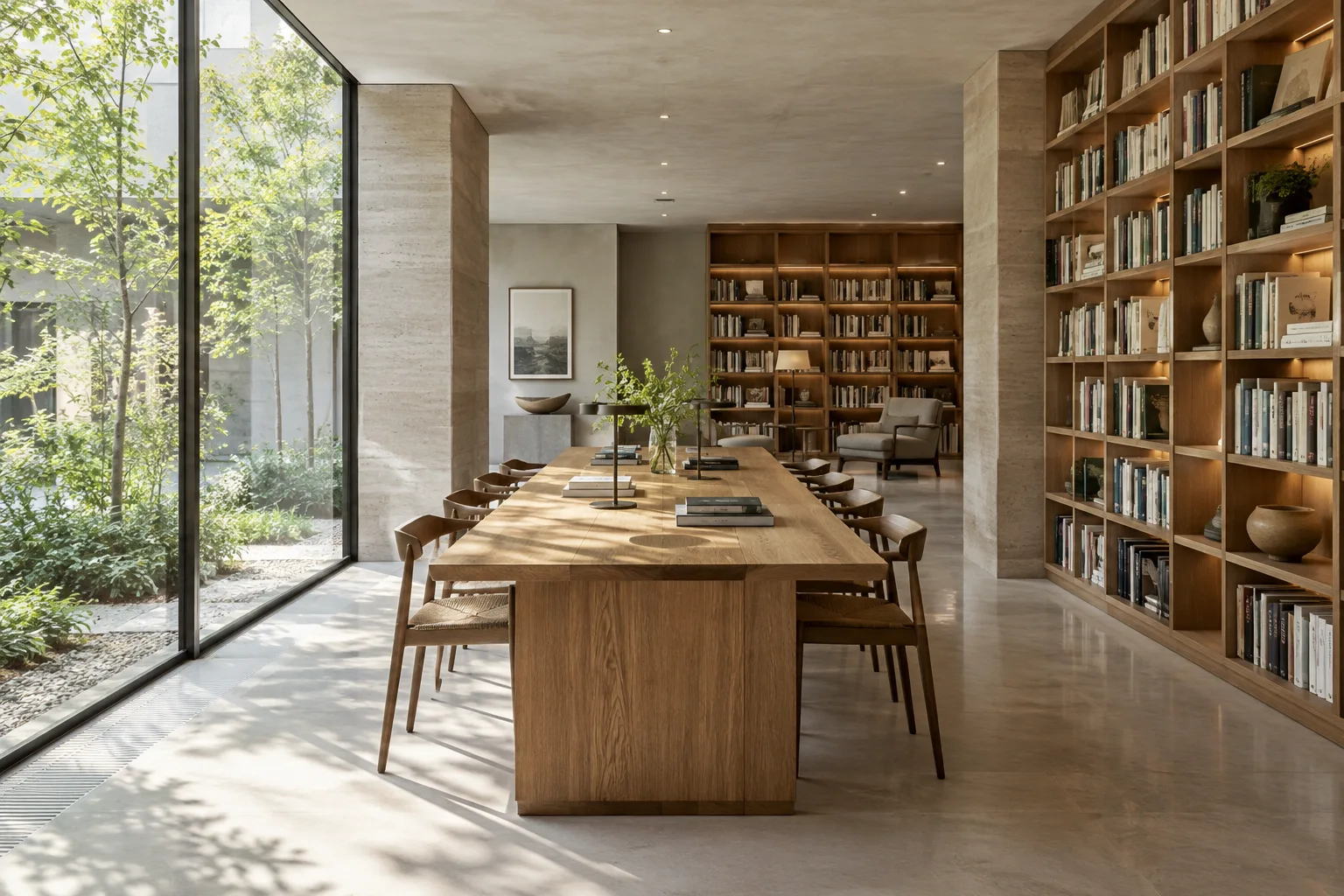
Create an architectural visualization of a quiet neighborhood library reading room. Show a long shared reading table, built-in bookshelves, a clear circulation path, and a view toward a planted courtyard. Use warm timber, pale mineral surfaces, soft morning daylight, and a calm eye-level camera view. Keep the composition uncluttered and materials believable.This prompt describes the program, key spatial elements, material feel, lighting, and camera angle separately. If the layout or atmosphere differs from what you expected in the first output, clarify only the points you want to change in the next prompt.
Define the interior’s materials and lighting. Instead of relying on open-ended words such as “warm” or “modern,” specify which surfaces should read as which materials. The direction of daylight and the overall brightness of the scene can also make the description more concrete.
Create an interior visualization of a compact apartment kitchen and dining area. Use matte off-white cabinet fronts, a light oak dining table, brushed metal fittings, and a muted green backsplash. Show diffuse afternoon daylight entering from the left. Keep the room practical, uncluttered, and naturally proportioned, with a three-quarter view of the kitchen and table.The prompt separates material and lighting decisions, while also stating which areas the framing should show. If the colors or surfaces stray from what you want, redefine the relevant material and its location rather than describing the entire scene again.
Explore an alternative atmosphere for a concept image. Don’t expect an image-generation tool to validate a design decision on its own. Instead, write a separate prompt to visualize the same spatial idea with a different atmosphere or lighting description. This example is intended to generate a new scene.
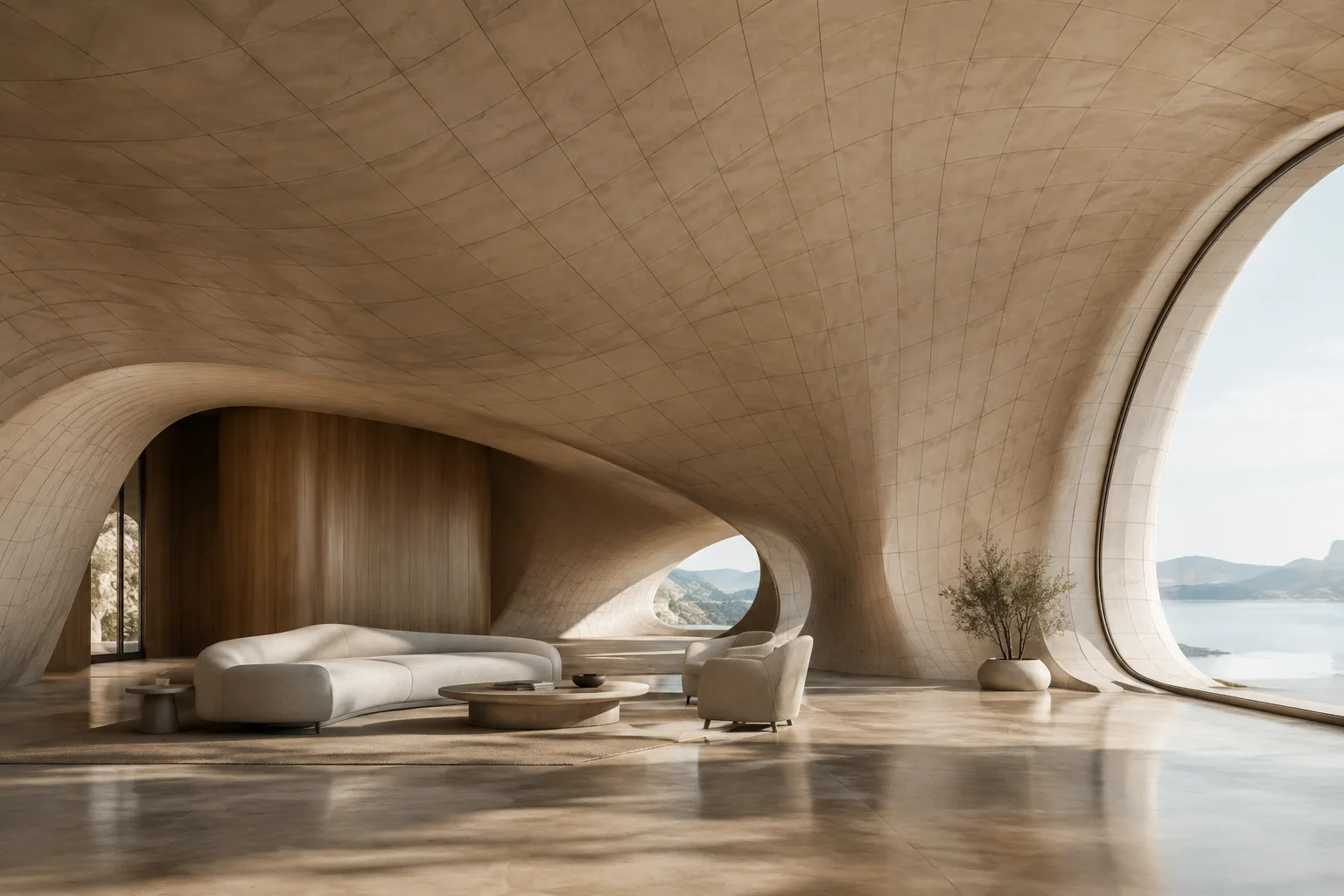
Create a conceptual visualization of a small contemporary art gallery with a sequence of connected rooms. Use pale stone floors, simple white walls, carefully spaced artworks, and a single sculptural timber bench. Let soft overcast daylight enter through high openings. Use a wide interior view that makes the route through the rooms easy to read, with restrained colors and minimal decoration.The prompt defines the sequence of spaces, display layout, seating element, and lighting together. Rather than treating the output as a substitute for a design proposal, use it as a concept image for exploring the space’s atmosphere and presentation style.
Request a single change to an existing image. For image editing, provide an image you’re authorized to use alongside a text prompt. Focus the request on the element you want to change, and clearly state which details should be preserved. The sources document this approach as providing an image and requesting changes in text.
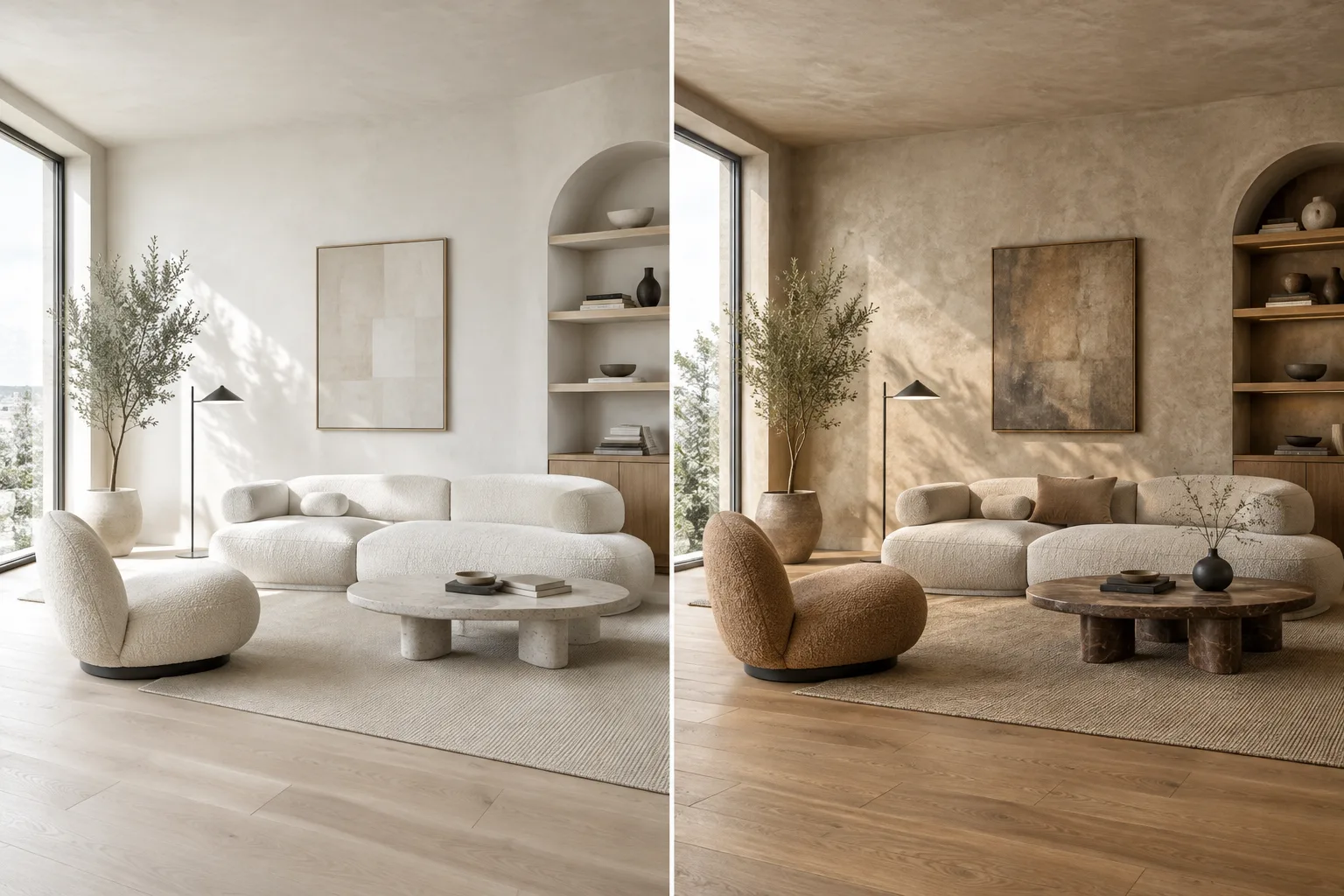
In the provided interior image, change the sofa upholstery to a deep rust-colored fabric. Keep the room layout, camera viewpoint, windows, lighting, and all other furniture unchanged. Preserve the existing visual style and do not add new objects.This prompt targets a change to the color and fabric, and separately specifies that the framing, layout, and other furniture should remain unchanged. If other unwanted changes appear, be more explicit in your next attempt about which elements should stay fixed.
Refine the output in small steps. Google’s prompt design guide recommends clear, specific instructions, stating constraints, and improving prompts through testing and observation. Rather than changing several things at once after the first image, start by addressing a single aspect, such as composition or lighting.
Refine the provided interior visualization by making the daylight softer and reducing contrast in the shadows. Keep the architecture, furniture positions, material palette, camera viewpoint, and overall composition unchanged. Do not introduce additional objects.This editing prompt focuses on lighting and shadows instead of rebuilding the entire image. You can iterate on an image using text prompts with the model’s conversational editing feature; review each output and narrow the next request accordingly.
Common mistakes
Vague descriptions: Phrases such as “a beautiful interior” don’t explain the materials, function, or framing. Specify the type of space and the desired visual character.
Too many changes in one prompt: When requests to add new elements, change the lighting, and rework the framing are made all at once, it becomes difficult to tell what affected the result. Break changes into stages.
Failing to specify what should stay the same: When editing an image, explicitly state any layout, viewpoint, or elements that must not change.
Treating the first output as a final design decision: Image generation doesn’t replace design validation or technical drawings. Evaluate the image in the context of concept development and presentation research.
Overlooking image rights: Make sure you have the right to use the image you upload.
Next steps: Using it in architecture and visualization workflows
Architects and interior designers can explore this approach in the early concept stage to investigate atmosphere, material direction, or alternative ways of depicting a space. Archviz artists can use prompts to try generating a new image from text or request a limited change to an existing one. These are workflow applications of the image generation and editing capabilities described in the sources; the sources don’t provide information about direct compatibility with a specific CAD, modeling, or rendering application.
Before introducing it into an office workflow, clarify API access, image rights, and how the team will review outputs. The sources don’t provide pricing, so it wouldn’t be appropriate to make assumptions about costs. Hardware requirements also aren’t specified, so no particular computer or GPU can be said to be required. Although resolution options are listed, assess which one suits the work based on the outputs and intended use.
Sources and license
This guide has been adapted into Turkish based on Google’s Gemini API image-generation documentation and its prompt design guide. Both sources are licensed under CC BY 4.0. The prompts for architectural use were created specifically for this article.
Sources
2 sourcesSource texts are not republished; short quotes are marked, everything else is our own summary and commentary.
For architecture offices and visualization teams in Turkey, the most practical uses may be exploring atmosphere and material alternatives early in the process or testing limited changes to an existing image. Writing clear prompts makes it easier to track which decisions affect the result; however, generated images shouldn’t be treated as project validation or technical documentation.
Before using the tool in an office, API access, image usage rights, and costs should be assessed separately; the sources don’t specify pricing or hardware requirements. As a result, it isn’t possible to recommend a particular budget or GPU. It’s important for the design team to review the outputs and test prompts according to its workflow.
Frequently asked questions
What do I need to generate architectural images with Nano Banana 2.1?
You need access to Google’s Gemini API and an API key to send requests. The model’s API name is `gemini-nano-banana-2.1`.
Can Nano Banana 2.1 edit an existing interior image?
Yes. The Gemini API documentation describes providing an image with a text prompt to make edits such as adding, removing, or changing elements. You must have the necessary rights to use the uploaded image.
Which resolutions does Nano Banana 2.1 support?
The sources list 1K, 2K, and 4K resolutions. They don’t provide workflow-specific recommendations on which option to use.