In brief
- The Gemini API documentation presents Nano Banana 2.1 as its main efficiency model for image generation and conversational editing.
- According to the documentation, the model can generate images at 1K, 2K, and 4K resolutions.
- You can provide a reference image and request additions, removals, style changes, and color adjustments.
- Google says all generated images include a SynthID watermark.
What will you learn in this guide?
This guide focuses on creating more descriptive prompts for architectural and interior concept images with Nano Banana 2.1. Instead of describing a space simply as “a modern living room,” we’ll look at how to specify its purpose, viewpoint, material character, lighting, and framing separately. We’ll also cover how to provide an existing image as a reference and build an editing request in stages.
The prompt examples here are new descriptions prepared for architecture and interior design, not copies of examples from the sources. Generated results are not a substitute for project drawings or technical verification. It’s better to treat images as options for concept development, exploring an atmosphere, or presentation.
Requirements and model selection
In Google’s Gemini API image generation documentation, Nano Banana is the name used for Gemini’s native image generation capabilities. The page lists Nano Banana 2.1 under the model name “gemini-nano-banana-2.1” and recommends it for new projects. According to the documentation, the model offers high efficiency for image generation and conversational editing, with improvements in image quality, text processing, multi-turn consistency, and Google Search grounding. 1K, 2K, and 4K resolutions are also listed.
The same page provides examples of image generation and editing through the Gemini API, including examples for Python, JavaScript, Java, Go, and REST. However, the source does not explain account setup, pricing, or availability in Türkiye in this article; check current API access and pricing separately before getting started. The API examples create a client, send a model and text input, and then receive image data as output.
If you plan to use a reference image in your workflow, you need the right to upload it. Google advises checking that you have the necessary rights to uploaded images and avoiding content that infringes on others’ rights. According to the documentation, all generated images include a SynthID watermark.
Step-by-step guide to writing architectural prompts
1. Define the scene’s purpose and main subject
Start by stating what the image should depict: for example, a residential interior, the entrance to a public building, or a façade connected to a landscape. Then describe the scene’s main subject. Giving clear, specific instructions is one of the prompt strategies recommended for Gemini. The example below defines both the intended use and the main feature of the scene.
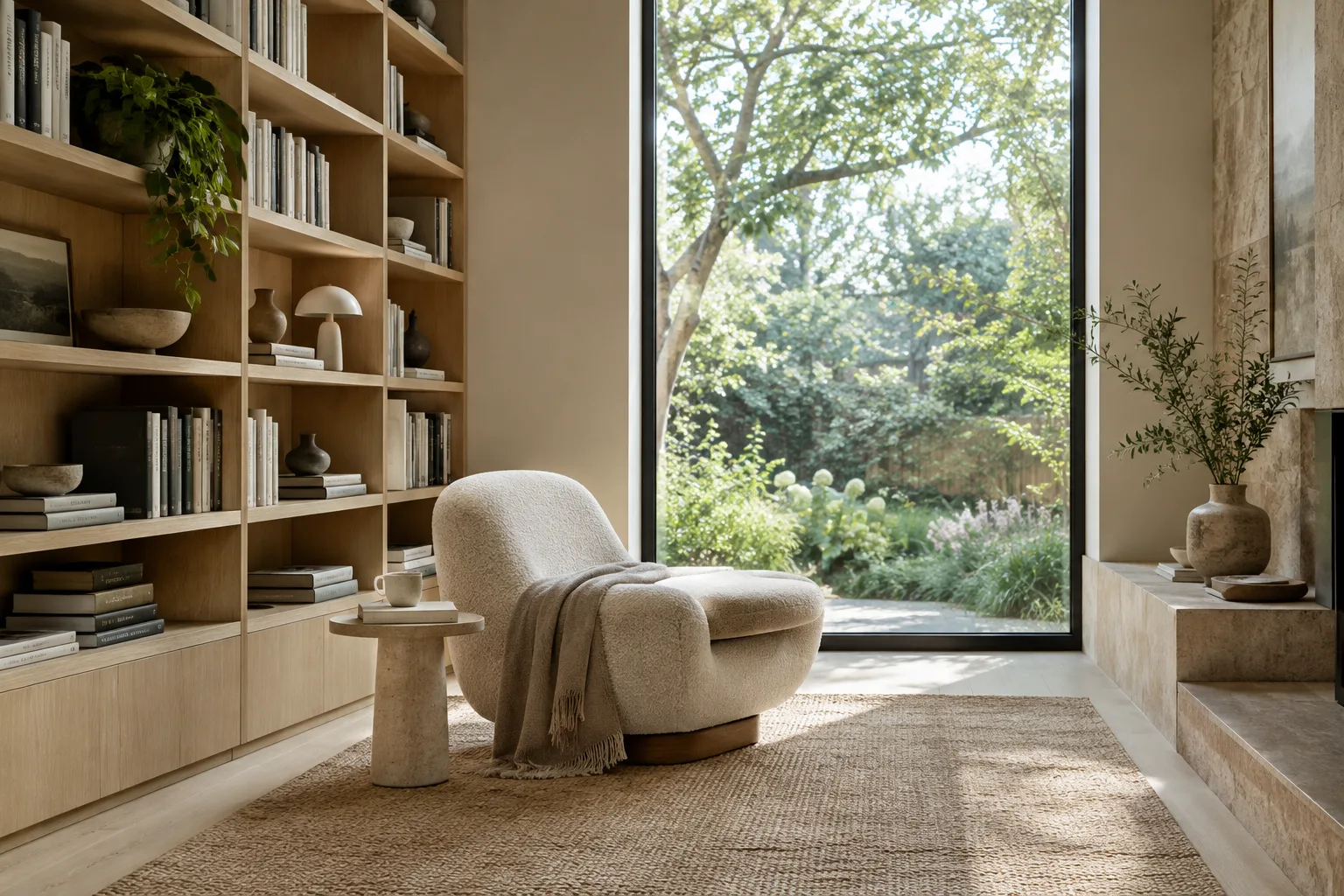
Create an architectural concept image of a compact reading room in a contemporary home. Show a built-in book wall, a simple reading chair, and a large window facing a quiet garden. Keep the room calm and uncluttered.This opening prompt specifies the room’s function and the features you want to see. If the first result doesn’t meet your expectations for the furniture or atmosphere, change only the relevant description rather than rewriting everything.
2. Describe the viewpoint and framing
How a scene is viewed has a direct impact on how clearly the design idea comes across. State your framing preferences explicitly, such as eye level, a corner view, or a bird’s-eye view. The source documentation demonstrates using descriptive language in image prompts; the architectural terms used here are examples.
Create an interior concept image of a small apartment kitchen, viewed from the dining area at eye level. Include the kitchen island and the full run of cabinetry in one balanced frame. Keep the composition clear and avoid an extreme wide-angle look.This description specifies where the kitchen is viewed from and which areas should be in frame. If the counters or cabinets aren’t visible in the result, clarify only the framing and visible features in the next turn.
3. Specify materials and lighting separately
Don’t leave materials and lighting to general adjectives. Describe surfaces such as wood, stone, or plaster, and specify the direction of the daylight. To keep the requested look consistent, avoid unnecessary or contradictory adjectives.
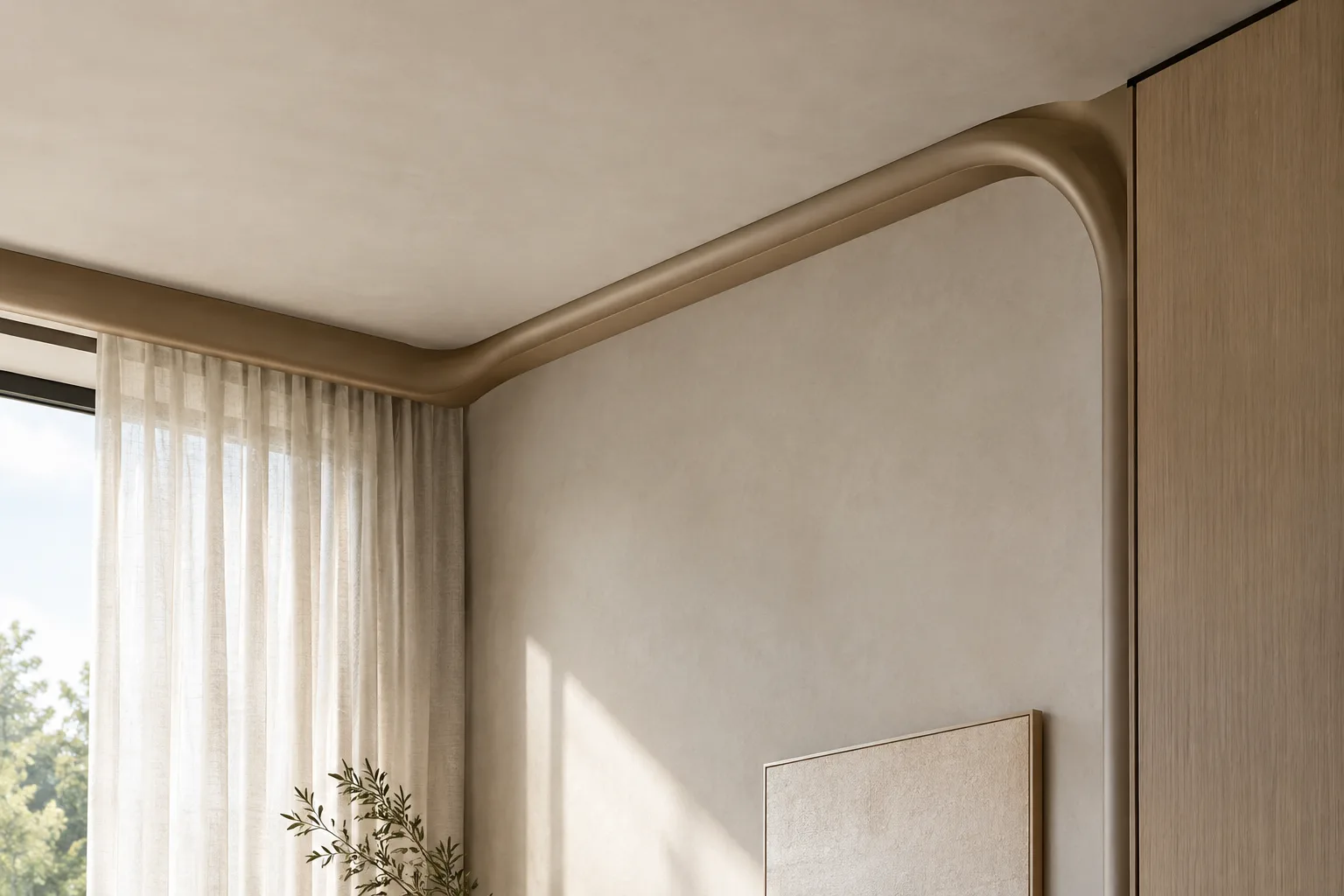
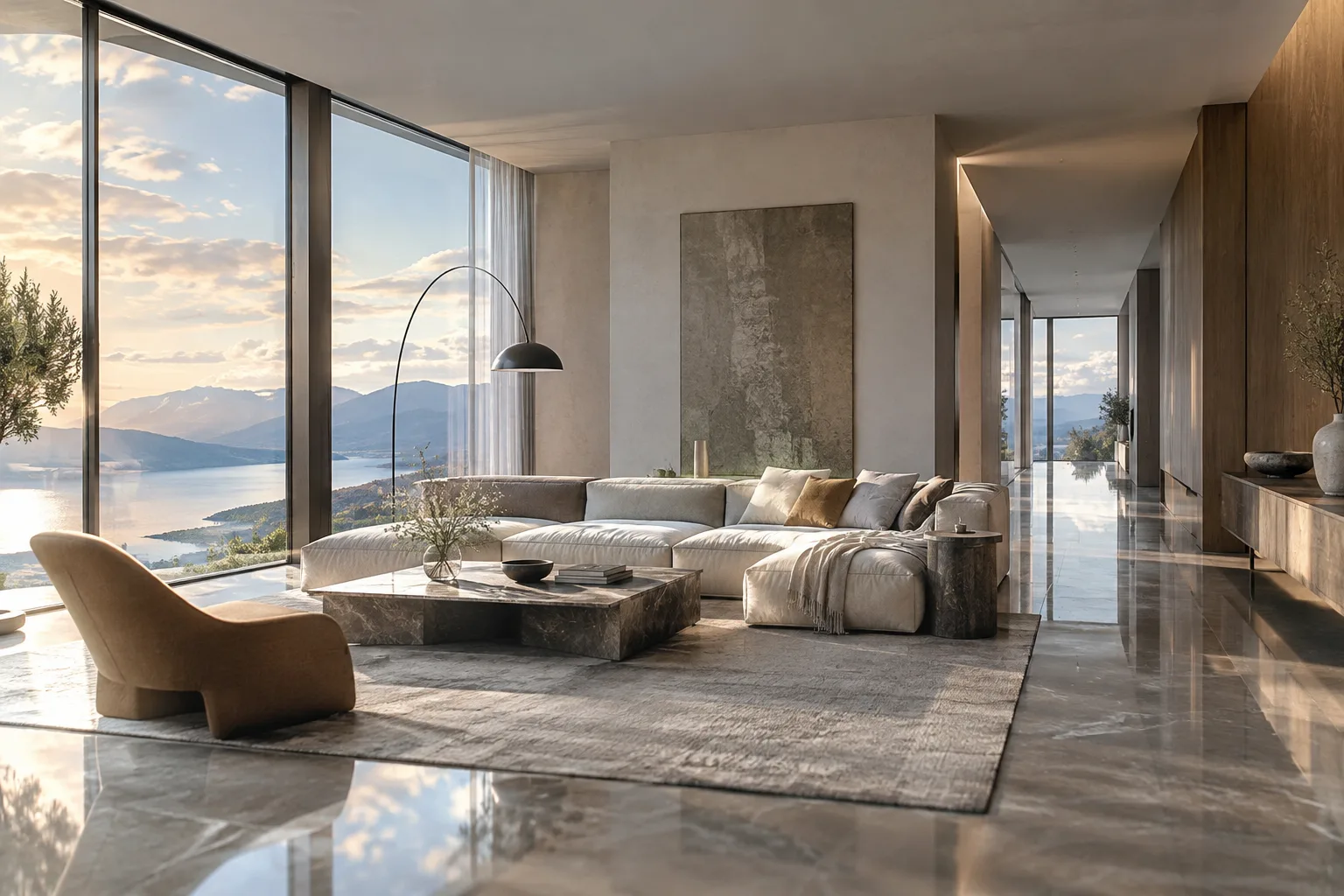
Create a calm living-room interior concept with pale oak cabinetry, a light stone floor, and matte plaster walls. Soft morning daylight enters from the left through a tall window. Use restrained colors and realistic surface textures.The example brings together the surfaces, direction of light, and overall color approach in one request. It doesn’t guarantee a specific product code or technical specification for a material; treat the image as a starting point for material exploration.
4. Request edits using a reference image
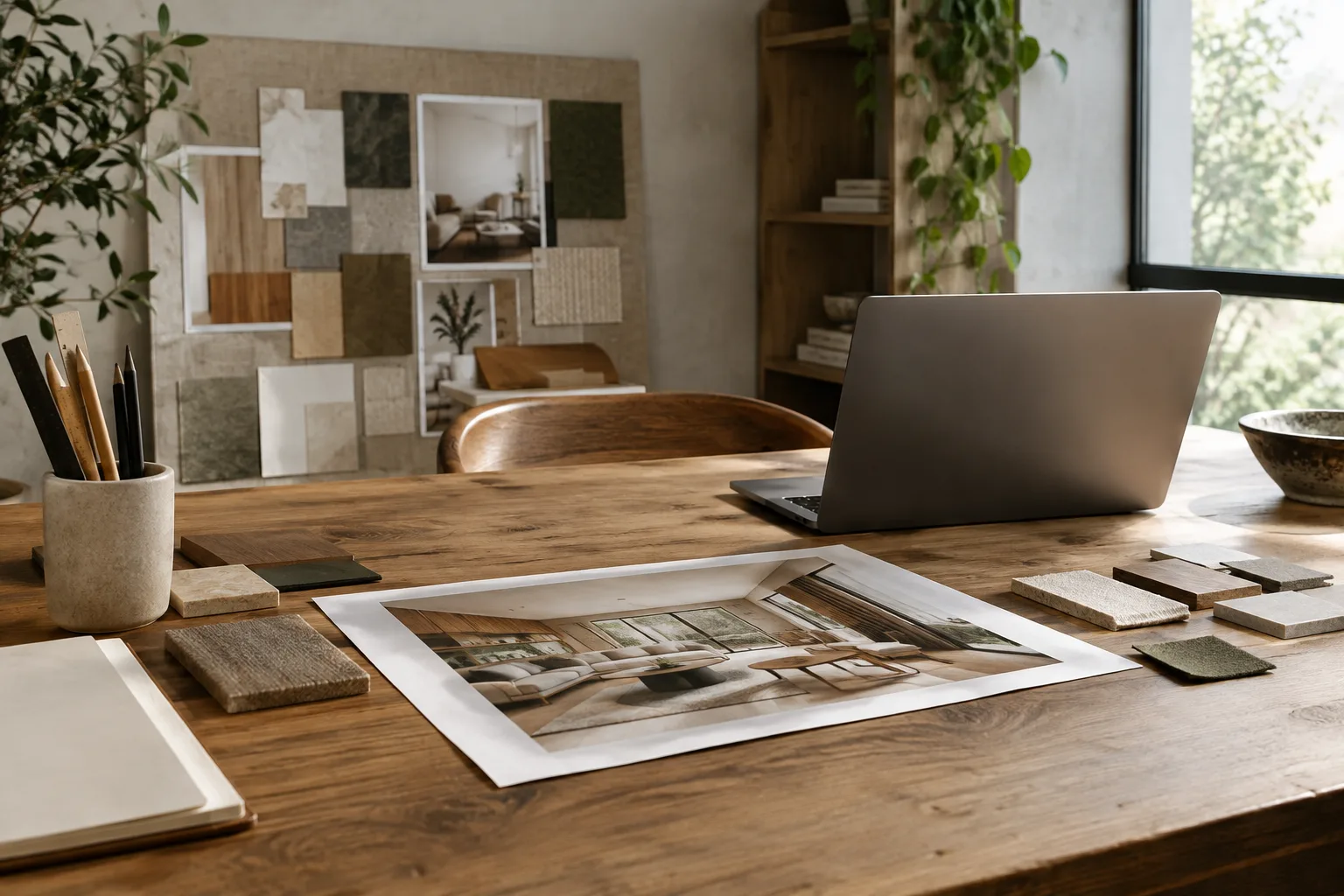
The Gemini API documentation explains that you can edit an image by providing it alongside text, and request that elements be added or removed, the style changed, or colors adjusted. The source also reminds users to check that they have the necessary rights to upload an image. When you provide a reference, centering the request on a single change makes it clear which element you want to modify.
Using the provided interior image as a reference, keep the room layout and camera view. Change the wall finish to a warm light plaster and make the daylight softer. Do not redesign the furniture arrangement.This example specifies the surface to be edited and the features that should be preserved. Don’t assume the model will retain every detail exactly; if the plan, furniture, or camera view changes, narrow the prompt and try again.
5. State output constraints clearly
The prompt strategies guide recommends specifying not only what to do, but also the boundaries of the response. For architectural image generation, this can help clarify which elements should not appear in frame or what kind of presentation you’re aiming for. Keep constraints concise and consistent with one another.
Create a concept image of a small courtyard for a residential building. Focus on the paving, planted edges, and shaded seating. Keep the view at pedestrian eye level. Do not add people, signage, or decorative objects that are not part of the courtyard design.This prompt describes the scene’s focus and the elements to exclude. Since there’s no guarantee that constraints will control the result precisely, review the output and, if needed, continue with a new editing request.
6. Iterate and review the result
Google describes prompt writing as a process of testing and refinement. Rather than treating the first image as the final deliverable, identify issues one at a time: Is the framing wrong? Is the light too harsh? Is the requested surface unclear? Focus on a single issue in the next prompt. This makes it easier to track what you changed.
According to the documentation, Nano Banana 2.1 includes improvements for conversational image editing and multi-turn consistency, which supports an iterative workflow. Still, don’t assume that all architectural details will remain unchanged over multiple turns. Even if a critical dimension, junction, or design decision looks correct in the image, it should be verified separately.
Common mistakes
Vague descriptions: Broad phrases such as “a stylish, modern interior” don’t provide enough direction on the room’s function, appearance, or materials. Describe the scene first, then its most important visual decisions.
Requesting too many changes at once: Changing the layout, color, lighting, and style all at once in a reference image makes the result difficult to evaluate. Break edits into smaller steps.
Assuming technical accuracy from the image: Don’t treat a generated image as a dimensioned project document or a buildable detail. The sources describe image generation features; they don’t promise technical project verification.
Ignoring rights: Check that you have the necessary usage rights for the reference image you upload. Google also advises avoiding content that infringes on others’ rights.
Assuming output and cost conditions: The source doesn’t explain pricing or account requirements. Check current access and pricing information before using the API.
Where it fits in an architecture and visualization workflow
This approach can help architecture and interior design teams exploring different atmospheres at an early stage, as well as visualization specialists who need quick image variations. You can describe a new scene with text or use an existing image as input for editing. However, the sources don’t specify direct compatibility with any particular 3D software or how faithfully generated images adhere to project geometry. For that reason, don’t use the output as a substitute for modeling, dimensioning, or technical drawings.
Teams should clarify usage rights for reference images, API access, and pricing conditions at the outset. Google’s listed 1K, 2K, and 4K options can inform the choice of delivery target, but the source doesn’t quantify generation costs or times. The fact that all outputs include SynthID should also be considered in plans for presenting and sharing images. Since the sources don’t specify hardware requirements, it’s not possible to infer that a particular graphics card or computer is required.
Next steps
Start by preparing several prompts for the same space: emphasize its function and features in one, framing in another, and materials and lighting in a third. Compare the results and note which descriptions are most useful. When editing an existing image, requesting a single change in each turn makes it easier to track design decisions.
Finally, before sharing an image with your team, consider reference permissions, API access and pricing conditions, and the fact that the image carries a SynthID watermark. Use the generated image as a tool for developing ideas; verify critical design and technical decisions against project documents.
Sources and license
This guide draws on Google’s Gemini API documentation for image generation and editing, as well as its prompt design strategies guide, and adapts them to architectural image generation. Both sources are published under the CC BY 4.0 license.
Sources
2 sourcesSource texts are not republished; short quotes are marked, everything else is our own summary and commentary.
Nano Banana 2.1’s practical value for architecture teams lies in quickly describing concept and atmosphere options with text and requesting edits to an existing image. It can be useful, especially in the early concept stage, for comparing different material and lighting approaches; however, the image shouldn’t be treated as a dimensioned model, technical detail, or construction decision.
For offices and students in Türkiye, it’s important to verify API access and current pricing conditions before getting started; the sources don’t specify pricing or hardware requirements. Usage rights for reference images and the SynthID watermark on outputs should also be factored into sharing plans. If design accuracy is critical, check the result separately against project documents.
Frequently asked questions
What resolutions does Nano Banana 2.1 support for architectural images?
The Gemini API documentation lists 1K, 2K, and 4K resolution options.
Can Nano Banana 2.1 edit an existing interior image?
According to the documentation, images can be provided alongside text as input; you can request additions or removals, style changes, and color adjustments.
Do images generated with Nano Banana 2.1 have a watermark?
Google says all generated images include a SynthID watermark.