In brief
- Nano Banana 2.1’s Gemini API model ID is documented as gemini-nano-banana-2.1.
- The API supports generating images from text prompts and editing images by combining text and image inputs.
- The documentation recommends using Nano Banana 2.1 for new projects.
- All generated images are said to include a SynthID watermark.
What will you learn in this guide?
We’ll look at how to structure prompts when using Nano Banana 2.1 for architectural concept images and interior design alternatives, how generating an image from scratch differs from editing an existing one, and how to improve results iteratively. The examples focus on exploring the mood of a living space, establishing a visual direction for a facade, and requesting material or lighting changes to an existing interior image.
This guide does not cover producing an exact model or render in professional visualization software. Its aim is to adapt the image generation and editing workflow through the Gemini API for architectural design exploration. Specifying requested features clearly in a prompt does not mean the model will produce the same result every time; Google’s prompt design guide also treats prompts as starting points and recommends refining them based on observed outputs.
Requirements: model, API, and image
Google’s image generation documentation lists gemini-nano-banana-2.1 as the model ID for Nano Banana 2.1. It describes the model as its high-efficiency flagship model for image generation and conversational editing, and recommends it for new projects. According to the description, the model works at 1K, 2K, and 4K resolutions and includes improvements in text rendering, multi-turn consistency, and Google Search grounding. These are the provider’s claims about the model; they should not be taken as guarantees of measurable accuracy or suitability for an architectural project.
The API-based workflow in this guide requires Gemini API access and an API key. The Python example in the source uses the google.genai client; it also shows importing base64 to decode image data and, in the example, Pillow. Since the source does not specify a Python version or installation command, none is provided here. The REST example uses the API key as GEMINI_API_KEY.
If you want to edit an existing image, you also provide the image to the API along with the text. The documentation gives an example using a PNG image and the image/png MIME type. Remember to ensure that you have the necessary rights to use any image you upload. Avoid generating content that infringes on others’ rights or that misleads, harasses, or harms people.
Step-by-step architectural prompt workflow
First, define the purpose of the scene. Clarify whether you want a concept image, material exploration, or a limited change to an existing image. The first example below is designed to request an interior concept from scratch:
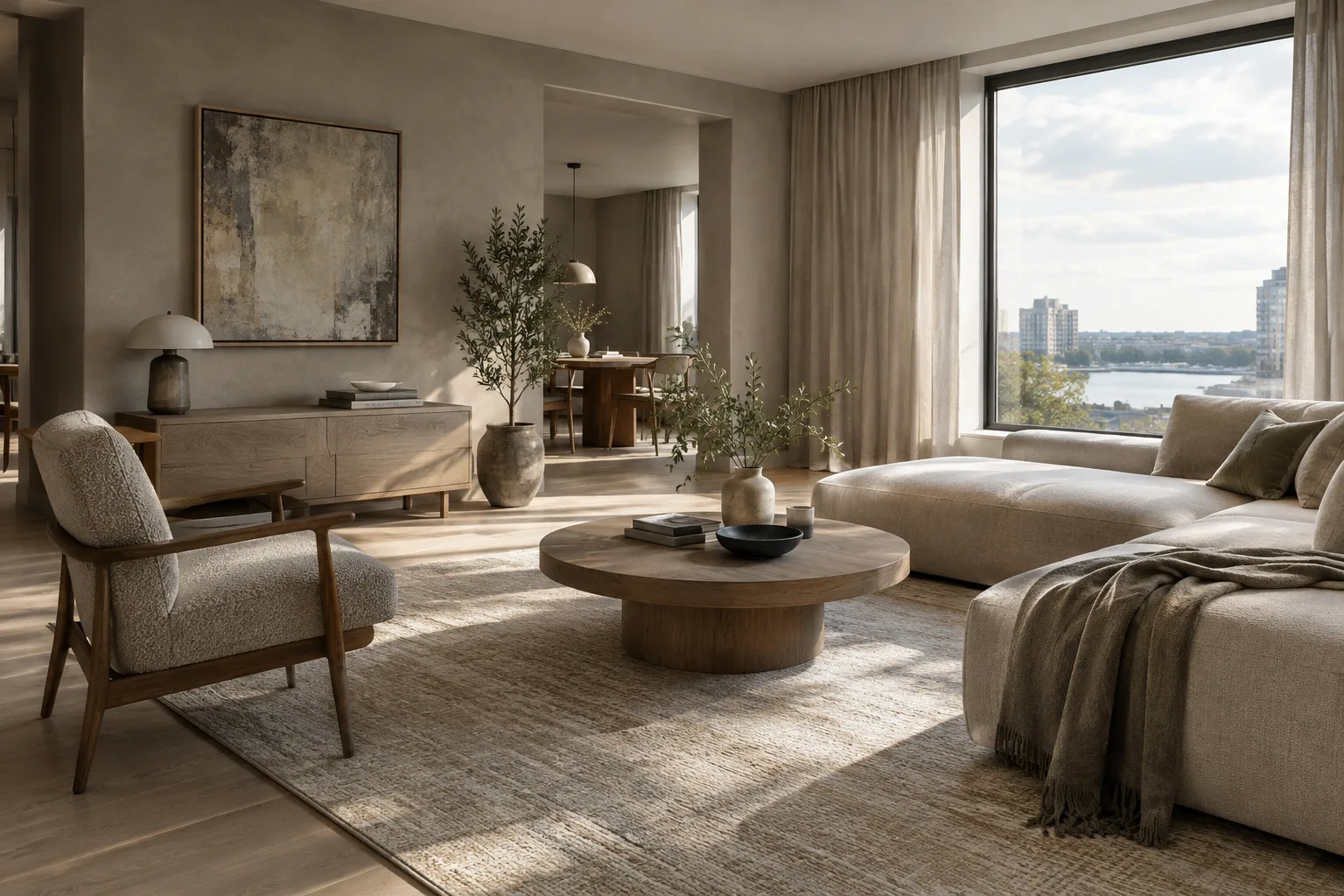
Create a photorealistic architectural interior concept of a compact urban apartment living room. Use a calm, warm-neutral palette, pale oak flooring, softly textured off-white walls, and a simple low-profile sofa. Show the room from eye level with a clear view toward the window. Use soft natural daylight and realistic material textures. Keep the furniture layout uncluttered and do not add people or signage.This prompt describes the type of space, material and color direction, camera viewpoint, lighting, and elements to avoid separately. After the first result, note what fell short instead of changing everything at once.
Be specific when describing an image you want to generate. A general request such as “a stylish interior” leaves plenty of room for interpretation. Instead, describe the space’s function, the surfaces you want to see, the character of the light, and the framing. This example is a visual exploration prompt for a residential facade:
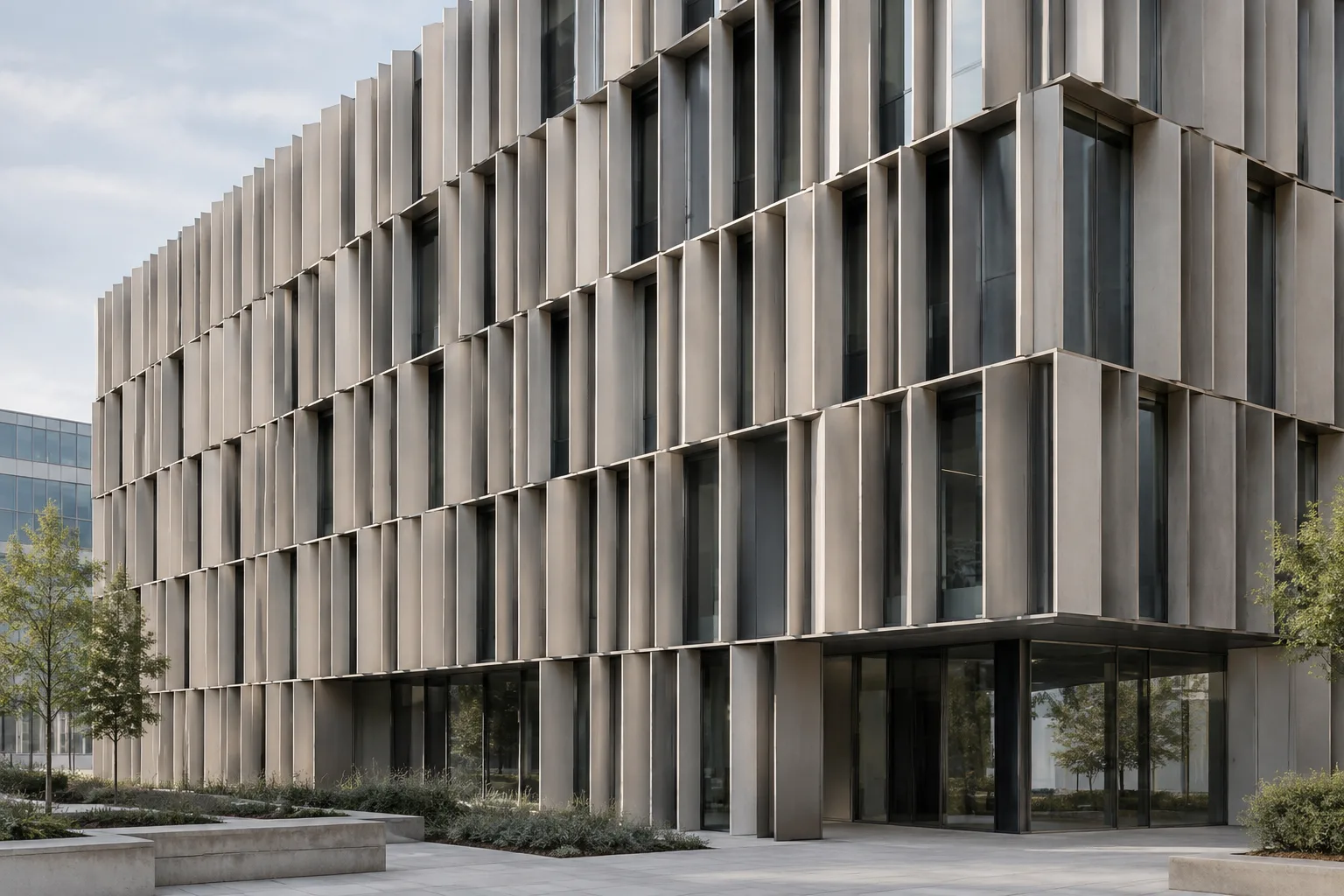
Create a photorealistic architectural concept image of a small contemporary townhouse facade on a quiet residential street. Show the full front elevation from a slightly angled street-level viewpoint. Combine light-toned masonry, dark window frames, and a recessed entrance. Use overcast daylight with soft shadows. Keep the composition restrained and do not include people, cars, text, or logos.The phrase “concept image” indicates that this is design exploration; the output is not a substitute for a drawing or an approved project document. If facade proportions or construction details are critical, do not assume they are accurate based on the image alone.
For edits, describe both the source image and the requested change. Add the existing interior image as an API input, and clearly state in the text which features you want changed and which should remain. Google’s documentation says that an image can be supplied alongside a text prompt to add, remove, or replace elements, or adjust style or color. The example below focuses on a single change:
Edit the provided interior image. Keep the room layout, camera viewpoint, window positions, and existing furniture unchanged. Change the wall finish to a muted warm-gray plaster and make the daylight feel softer. Preserve the overall realistic architectural photography style. Do not add new objects or text.The phrase “provided interior image” means that the image must also be submitted as an API input; using the phrase as text alone does not provide a source image. Keeping the requested change focused makes it easier to assess what affected the result.
Review the result and adjust one or two things in the next turn. If the first output captures the desired mood, try changing only the material, lighting, or framing that needs work in the next prompt. The prompt design guide recommends giving clear, specific instructions and, where needed, describing the format and constraints explicitly. For example, to keep the current scene and change only the lighting, you could write:
Using the same interior scene and viewpoint, make the daylight slightly cooler and reduce the contrast between bright and shaded areas. Keep all architectural elements, materials, furniture, and object positions unchanged. Do not introduce new details.Multi-turn editing and consistency are among the features highlighted in the Nano Banana 2.1 documentation. Still, do not assume that every element of the scene will remain exactly the same; review the result after each turn. The API provides the most recently generated image block through the interaction.output_image property. The documentation also notes that this convenience property may not cover every part of complex outputs in which text and images are interleaved.
Common mistakes and workflow considerations
Relying on vague adjectives: Terms such as “better,” “modern,” or “luxurious” may not describe your goal sufficiently on their own. Be more specific about the space, appearance, lighting, and framing.
Requesting too many changes in one prompt: If multiple elements change at once, it can be difficult to evaluate the result. Start with the main objective, then make small adjustments in subsequent turns.
Treating the generated image as technical validation: The sources describe image generation and editing; they do not claim to validate design regulations, dimensional accuracy, or suitability for construction. Treat the image as a concept and communication tool.
Overlooking image rights: The API documentation reminds users to ensure they have the necessary rights to images they upload. Check the terms of use for the source image before sharing or using it.
Missing the watermark information: Google says all generated images include a SynthID watermark. Consider how this affects your workflow before using the output in a deliverable or presentation.
Implications for architecture and interior design workflows
This workflow can be used for early-stage visual research, exploring alternative moods, and seeking a color or style direction for an existing interior image. Architecture firms can compare different lighting or surface descriptions for the same scene, while students can experiment with how prompts affect results in concept presentations. However, the sources provide no compatibility information for any specific CAD, modeling, or rendering software. Do not assume, therefore, that the API output can be transferred directly into an existing 3D scene.
The sources provide no information about hardware requirements or the cost of use in Turkey. API pricing is also not included in this documentation, so check current access and pricing terms separately before starting a project. Although the documentation specifies support for 1K, 2K, and 4K resolutions, choose the output resolution according to the intended deliverable. When starting a new project, test the model ID and API behavior; in particular, consider image rights, result consistency, and the SynthID watermark in editing workflows.
Next steps
Start with a small test using a single space and one objective. Break your prompt into scene, materials, lighting, framing, and constraints; change only one or two elements in each new turn. Treat the results as visual options that can accelerate discussion, rather than as design decisions in themselves. If you are working through the API, compare your steps for saving and editing generated image data with the examples in Google’s image generation documentation.
Sources and license
This guide has been adapted into Turkish based on information in Google’s Gemini API image generation and editing guide and its prompt design strategies page. Both sources are available under the CC BY 4.0 license. The architectural example prompts in this guide are original prompts created to apply these techniques, not copies of examples from the sources.
Sources
2 sourcesSource texts are not republished; short quotes are marked, everything else is our own summary and commentary.
For architecture and visualization teams, the most practical aspect of this approach is that it lets them start concept exploration and alternative mood studies with text. It can be particularly useful early on for discussing material, lighting, and framing directions; however, the results should not be treated as technical drawings or dimensioned models.
Firms and students in Turkey should also assess API costs, access terms, and compatibility with their own delivery workflows; the sources do not specify pricing or hardware requirements. Image usage rights and the SynthID watermark should also be considered throughout the workflow, from generation to presentation. A small test followed by controlled iterations is the most cautious way to get started.
Frequently asked questions
What is Nano Banana 2.1’s Gemini API model ID?
Google’s documentation lists the model ID as `gemini-nano-banana-2.1`. It recommends using this model for new projects.
Can Nano Banana 2.1 edit an existing image?
Yes. An image and a text prompt can be provided together as inputs to the Gemini API; the prompt can request that elements be added, removed, or changed, or that the style or colors be adjusted.
Are images generated with Nano Banana 2.1 watermarked?
According to Google’s documentation, all generated images include a SynthID watermark.