In brief
- Nano Banana models can be used to generate new images through the Gemini API; Imagen is no longer available.
- Nano Banana 2.1 is listed in the documentation as the recommended model for new projects.
- You can generate an image from a text prompt or provide an image and text together to edit it.
- In API examples, the output can be retrieved from the output_image field in the interaction response.
What will you learn in this guide?
This tutorial covers the workflow for generating architecture- and interior-focused images with Nano Banana through the Gemini API. You’ll learn how to break a text prompt into clear components such as scene, materials, lighting and framing; how to request edits to an existing image using text; and how to access the generated image output. The sample prompts below were written specifically for this guide as examples for developing ideas and creating presentation sketches in architectural design workflows. Generated images should not be assumed to verify project dimensions, technical drawings or the real-world performance of materials.
The workflow is based on describing a scene in text and asking the model to produce a visual output. For edits, you can include both the source image and the requested changes in the same prompt. In either case, clearly defining your goal makes it easier to assess what is and isn’t working in the results.
Requirements: model, access and images
Google’s Gemini API documentation uses Nano Banana as the name of the model family for image generation and conversational image editing. Nano Banana 2.1 is the recommended option for new projects; its model ID is gemini-nano-banana-2.1. The documentation also lists Nano Banana 2 Lite, Nano Banana 2, Nano Banana Pro and the previous-generation Nano Banana. When choosing among models, you can consider distinctions noted in the source, such as speed, cost efficiency and the complexity of the visual task; however, no numerical price or performance comparison is provided here.
Using the API requires Gemini API access. In the source’s REST example, the request is sent with an API key in the x-goog-api-key header. The documentation includes examples in Python, JavaScript, Java, Go and REST. Since details on SDK installation or account creation aren’t included in this tutorial’s source material, no specific setup procedure is described.
To edit an existing image, you need to include the image file in your request. Check image usage rights before uploading: Google reminds users that they must have the necessary rights to images they upload and must not create content that infringes on others’ rights.
Step-by-step prompt writing
Define the scene and visual goal. First, clarify what the image should show: for example, a home’s living area, a café interior or a building with a courtyard. Then describe surfaces, lighting, atmosphere and viewpoint. Focus on one main idea rather than packing many unrelated goals into a single prompt.
Generate an initial draft from text. The example below was written specifically for a contemporary living area. It describes visual decisions such as materials, daylight and camera height, as well as the room’s function.
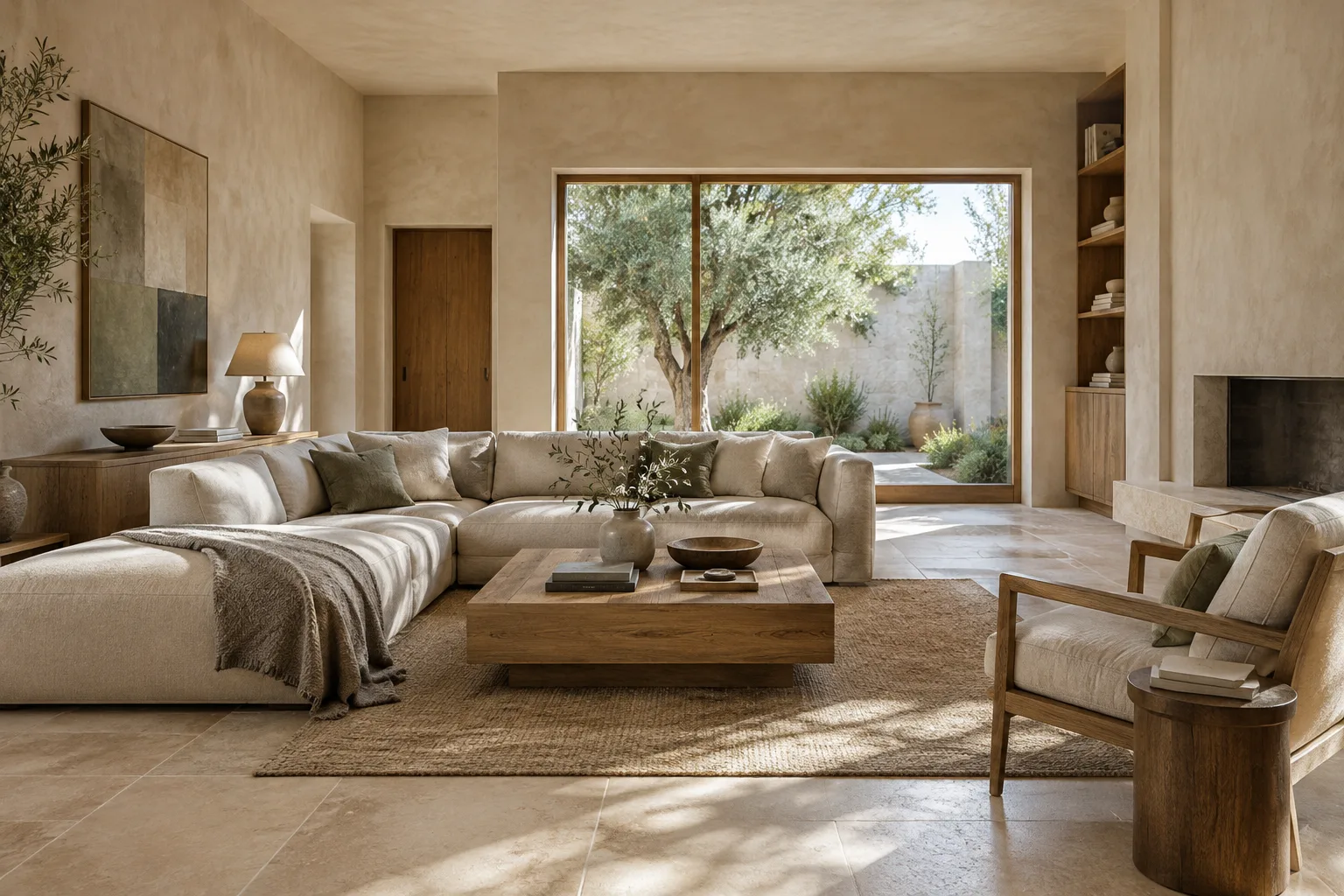
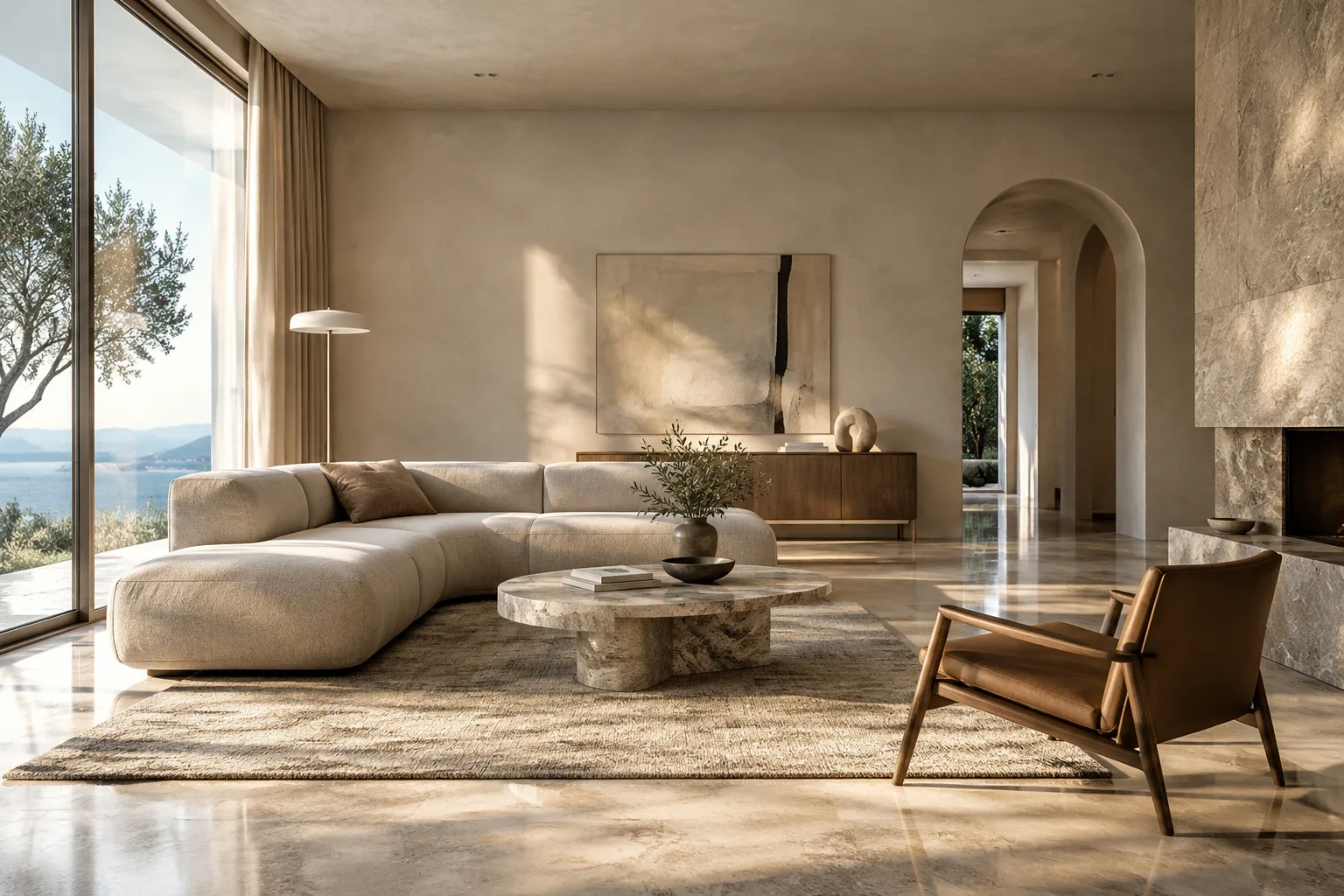
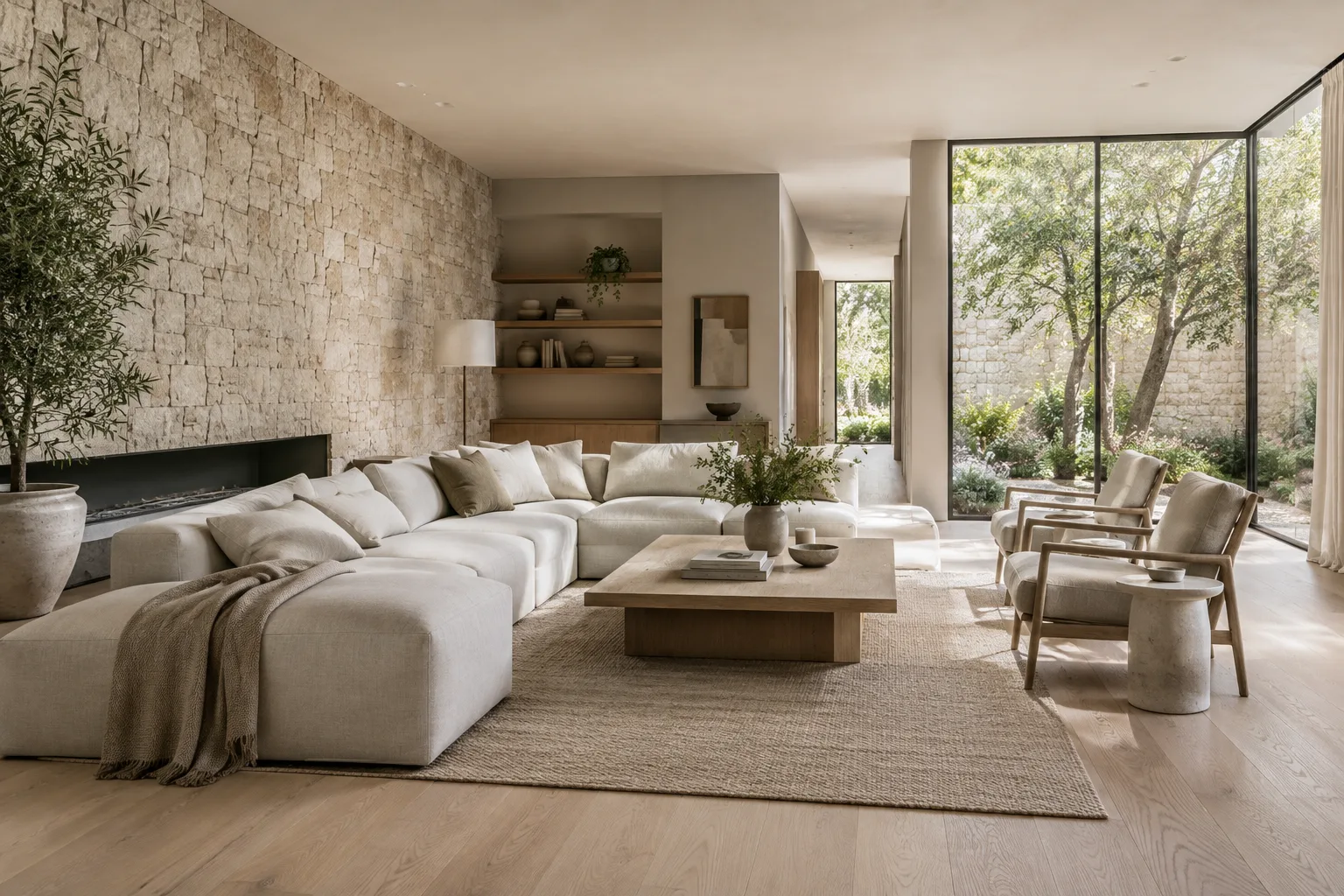
Create an architectural visualization of a calm contemporary living room with pale oak flooring, a limestone feature wall, linen seating and a large window facing a planted courtyard. Soft morning daylight, realistic material textures, eye-level wide interior view, restrained neutral palette, no people.When reviewing the first output, look at which parts of your description made it into the image. If the overall composition is right but the lighting or material effect isn’t what you wanted, describe that element more clearly in your next attempt. This makes it easier to track which changes to the prompt affect the result.
Try an exterior scene with a different prompt. Describing the façade alone may not be enough for an architectural image; the surroundings, viewpoint and lighting also shape how the scene reads. This example was written for a small-scale residential concept.
Create a photorealistic architectural visualization of a compact courtyard house with a simple plaster facade, timber shutters and a shaded outdoor dining area. Show the building from the garden at eye level, with soft late-afternoon light, mature planting and a quiet residential atmosphere.Here, the building’s appearance, the view from the garden and the time-of-day lighting are described together. A result like this can provide a visual starting point for discussing design alternatives; it does not demonstrate the accuracy of dimensions or details in a construction project.
Request changes to an existing image. The Gemini API documentation describes a workflow for making specific transformations to a scene by sending an image along with a text prompt. For instance, you might want to change the appearance of a surface, the feel of the lighting or the color scheme in an existing image. The prompt below describes both what should change and what should remain as is.
Edit the provided interior image by changing the wall finish to warm light limestone and adding soft indirect lighting along the ceiling edge. Keep the room layout, camera viewpoint, furniture positions and window openings unchanged.The API request includes both text and an image. The source points to the image understanding guide for more information about using multiple images, large uploads and supported image types; it does not specify file size or format limits here. When reviewing the output, also check whether elements you didn’t want changed, such as the room layout and camera viewpoint, have been preserved.
Retrieve and evaluate the image output. In the documentation’s examples, the generated image is retrieved through the
interaction.output_imagefield in the interaction response. Treat the image as a draft to evaluate, not as a verified record of design decisions. Check how the materials and scene features described in the prompt appear in the output, and verify critical project decisions separately against relevant drawings and product information.
Common mistakes
Giving conflicting goals in one prompt: Inconsistent descriptions of lighting, atmosphere or materials can make the visual target unclear. Establish the main scene first, then add details one at a time.
Failing to specify what should remain unchanged during editing: Rather than stating only what to change, also describe composition or layout elements that should stay the same.
Using the output as a substitute for technical verification: The source does not state that generated images verify project dimensions or real product specifications. Treat them as ideation and presentation material.
Ignoring image rights: Check the usage rights for any file you plan to use for editing, and avoid requests that could infringe on others’ rights.
Continuing to use the discontinued Imagen workflow: According to Google’s migration guide, Imagen models are no longer available in the Gemini API. Teams with older integrations should plan to switch to the current image generation method.
Implications for architecture and visualization workflows
Architects, interior designers and visualization teams can consider using this method in early design stages to explore atmosphere, material combinations or presentation concepts. Being able to request text-based edits to an existing image offers a useful way to discuss alternatives based on a draft. However, the source does not guarantee that results will match project geometry or real product specifications. Critical decisions should be verified separately against project documents and relevant product information.
Before getting started, teams should clarify their API access, the model they plan to use and image usage rights. The documentation lists different Nano Banana models, but it doesn’t provide specific pricing, hardware requirements or information about direct integration with architectural software here. Any decision to add the service to an existing workflow should therefore include a separate review of access and cost conditions. For image editing, teams should also consider the rights to the source image and which project elements must remain unchanged in the result.
Next steps
For your first attempt, choose a single scene and write a short, clear prompt. Then review the result and change just one visual feature so you can compare the effect of the new description. When adding a reference image for editing, describe the elements to change separately from the composition elements to preserve.
For teams using older Imagen-based API workflows, Google’s migration note says not to continue using the old model names and to update the request method as well: image generation should use Nano Banana model names, and client.models.generate_content should replace the old generate_images call. K1 examples include options such as gemini-2.5-flash-image or gemini-3.1-flash-image. Refer to the Gemini API image generation guide for current model options and request formats.
Sources and license
Google AI for Developers’ “Nano Banana image generation” and “Generate images using Imagen” guides were used. Both sources are licensed under CC BY 4.0; the content has been rewritten for architecture and interior workflows. The sample prompts were written specifically for this guide.
Sources
2 sourcesSource texts are not republished; short quotes are marked, everything else is our own summary and commentary.
For offices and students in Turkey, generating images from text and editing an existing draft can make it easier to discuss early-stage presentation options. This can be useful when exploring atmosphere and material ideas, but the output should not replace measured project data or technical verification.
Before putting the workflow into practice, check API access and model selection along with cost conditions; the source does not provide specific pricing or hardware requirements. Teams should also respect image rights and avoid assuming that visual results verify real products or project details.
Frequently asked questions
How do you generate architectural images with Nano Banana 2.1?
You can send a text prompt to the `gemini-nano-banana-2.1` model through the Gemini API. In API examples, the generated image is retrieved from the `interaction.output_image` field.
Can Nano Banana edit an existing interior image?
According to the documentation, you can provide an image and a text prompt together to make changes, such as adjusting surfaces, style or color scheme.
Are Imagen models still available in the Gemini API?
No. Google’s guide says Imagen models have been discontinued and are no longer available in the Gemini API; it recommends switching to Nano Banana models.